


 ビデオコンバーター究極
 スクリーンレコーダー
 ビデオ修復
ビデオ修復
 安全なダウンロード
Windows MediaPlayerでMKVファイルを再生する3つの方法
Can't open MKV file in Windows Media Player?
MKV is one kind of popular video format. You may get many high-quality movies, TV shows or other videos that saved in MKV. However, as a Windows user, the default video player, Windows Media Player doesn't natively support the splitting (opening) MKV containers. Now we back to the question, how to play MKV files in Windows Media Center?

Windows Media Playerを最新バージョンにアップグレードした後でも、MKVの再生の問題が発生しないという保証はありません。それを考慮して、この投稿では、WindowsPCでMKVファイルを再生するのに役立つ3つの効果的な方法を共有したいと思います。
パート1。WindowsMediaPlayerでMKVファイルを開く方法
Windows Media Player can't play MKV files mainly due to the mismatch of codec. You should know that, MKV is actually a media container for video streams, audio streams, subtitles, and more. You need to give WMP the correct splitter for MKV, and codecs and filters for the video and audio file. This part will guide you to play MKV file in Windows Media Player.
Step 1. Open Windows Media Player and open the MKV file with it. Here you can also right click on the MKV file and select open with WMP.
Step 2. Now you will see an error message saying that Windows Media Player cannot play the file. Click the Web Help option in the dialog box.
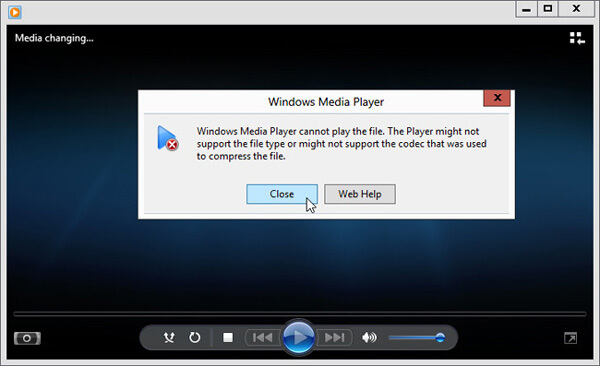
Step 3. Click the codec link under Codec is Missing. Copy and paste the link on your browser. This will guide you to get the right Windows Media Player MKV codec. After downloading, you should follow the instructions to complete the Windows Media Player MKV setup process.
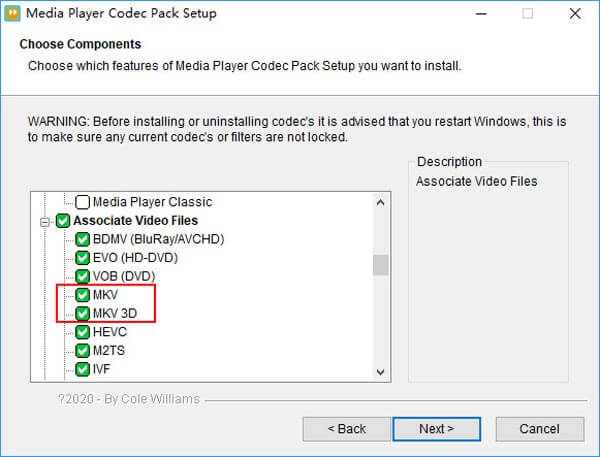
Step 4. Restart Windows Media Player and then try playing your MKV file again.

パート2。WindowsMediaPlayerの代替でMKVファイルを再生するためのより良い方法
適切なMKVコーデックを使用すると、Windows MediaPlayerでMKVファイルを簡単に開くことができます。ただし、多くのユーザーは、WMPでMKVを再生しているときに、他にもいくつかの再生の問題があると報告しました。その場合、MKVファイルの再生に役立つWindows MediaPlayerの代替を選択できます。
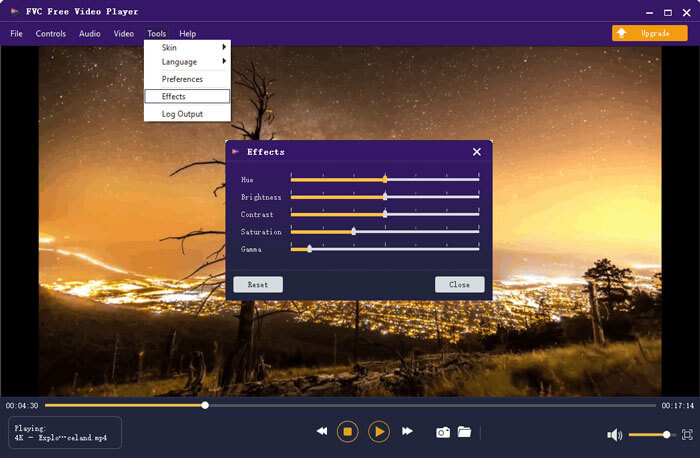
FVC Free MKV Player is a great alternative tool to Windows Media Player. It natively supports any frequently-used video and audio formats, such as MKV, MOV, MP4, FLV, AVI, RMVB, MPEG, AAC, MP3, M4A, WMA, and more. You can rely on it to watch MKV movies with high quality.

Step 1. Open your browser and navigate to this free MKV player site. Click on the Play Now button to install a small-size launcher file for the MKV playing. After that, the main MKV playing window will appear on the screen.

Step 2. Click on the Open File button to browse and import your MKV file to it. After that, the video will be automatically played. With the adoptions of the advanced video encoding technology, it can play MKV file smoothly with high quality. In addition, it supports DTS-HD and Dolby TrueHD.

MKV再生のすべてのコントロールが与えられます。再生、一時停止、戻る、進む、音量の調整などの基本的な操作に加えて、エフェクトの調整、オーディオトラックと字幕の変更、その他のカスタム設定も可能です。
パート3。WindowsMediaPlayerで再生するためにMKVを変換する
To play MKV file in Windows Media Player, you can also choose to convert MKV to a supported video format like MP4. Here we introduce you with the Free Online Video Converter to help you convert MKV to MP4 without quality loss.
Step 1. Go to this free online MKV to MP4 converter page on your browser. It is compatible with any popular web browser including Chrome, IE, Safari and Firefox.
Step 2. When you get there, click the Add File to Convert button. During this step, you need to install a small launcher for the MKV conversion. After that, a pop-up window will appear on the screen for you to select your MKV file.
Step 3. You can see many popular video formats like MP4, MOV, AVI, MKV, FLV, etc. are listed there. Make sure the output format is MP4 and then click on the Convert button.
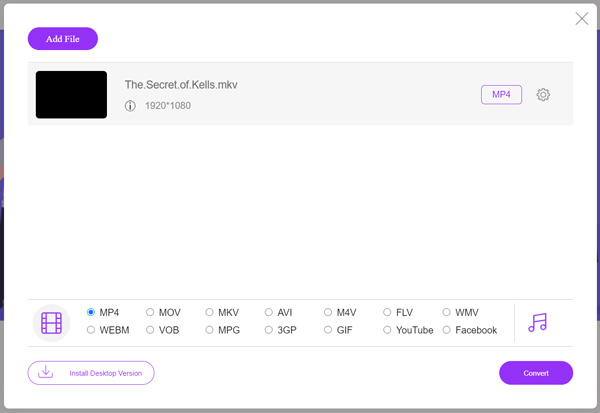
After the MKV to MP4 converting, you can play it with your Windows Media Player. There won't be any image or sound quality loss during the conversion.
パート4。WindowsMediaPlayerでMKVを再生する際のFAQ
質問1.Windows Media Playerでビデオの形式を変更するにはどうすればよいですか?
Windows Media Playerを開き、変換するビデオファイルをロードします。トップメニューの[リッピング]タブの下にある小さな矢印をクリックします。 [その他のオプション]を選択し、[フォーマット]というラベルの付いたドロップダウンメニューをクリックします。ここで、適切な出力形式を選択して、変換を開始できます。
質問2.Windows Media Playerとはどのようなビデオ形式ですか?
Windows Media Playerのデフォルトのファイル形式は、WMV、Windows Media VideoおよびWMA、Windows MediaAudioです。また、Advanced SystemsFormatと独自のXMLベースのプレイリスト形式であるWindowsプレイリストをサポートしています。
質問3.Windows 10はMKVファイルを再生できますか?
いいえ。Windows10に組み込まれているWindowsMedia Player12はMKVファイルを再生できません。再生するには、MKVコーデックをインストールする必要があります。
結論
When Windows Media Player could not understand the MKV codec, it simply shows an error. To play MKV file in Windows Media Player, you need to install right codec. Also, you can get a third-party player or convert MKV format for the playing. If you still have any questions about how to open MKV file in Windows Media Player, don't hesitate to leave us a message.
-
 希望の字幕付きのMKVファイルを再生するトップ8のMKVプレーヤー
 希望の字幕付きのMKVビデオを再生したい場合は、PC / Mac用の上位8つのMKVファイルプレーヤーについて詳しく学び、要件に応じて希望のプレーヤーを選択できます。
-
 MKVからMOVへ-MKVをMOVに変換する方法
 MacでMKVをMOVに変換するにはどうすればよいですか? iMovieはMKVを読み取ることができますか? MOV形式とはどういう意味ですか?この投稿では、無料のオンラインおよびプロのビデオコンバーターを使用してMKVをMOVに変換するのに役立つ2つの簡単な方法を説明しています。
-
 AC3プレーヤー-2021年の10の最高の無料AC3プレーヤーのレビュー
 最高のAC3プレーヤーは何ですか? MX PlayerはAC3を開くことができますか?この投稿では、Mac、Windows PC、iOS、およびAndroidデバイス用の10個の無料AC3プレーヤーのリストを作成します。
