


 ビデオコンバーター究極
 スクリーンレコーダー
 ビデオ修復
ビデオ修復
 安全なダウンロード
Chromebook で MP4 を再生する 3 つの方法
Chromebook は MP4 ビデオを再生しなくなりましたか?最近、多くのユーザーが Chromebook でビデオが再生されない問題について不満を述べています。同じ状況に直面していますか?
ChromebookはGoogleが製造しているノートパソコンです。Chrome OSを搭載しており、多くのファイル形式やクラウドストレージサービスに対応しています。Google Drive や Google のクラウドストレージに動画を保存して視聴することもできます。ChromebookでMP4を再生する方法をご存じですか?

Chromebookにはメディアファイルを再生するための標準動画プレーヤーが搭載されています。しかし、MP4ファイルによっては正しく再生できないことがあります。そこでこの記事では、ChromebookでMP4ファイルを再生するのに役立つ3つの効果的な方法をご紹介します。
パート 1. Google ドライブを使用して Chromebook で MP4 を再生する方法
ネイティブの Chrome OS ビデオ プレーヤーが MP4 コンテナ コーデックを読み取れない場合、Chromebook で MP4 を再生することはできません。その場合、Google ドライブで MP4 ファイルを再生することを選択できます。 Chromebook では、MP4 ビデオを Google ドライブ、Dropbox、その他のクラウド ストレージ サービスに保存できます。 Chromebook の Google ドライブで MP4 ビデオを開くことができます。
Chromebook で MP4 を再生する場合は、まず MP4 ファイルを Google ドライブにアップロードする必要があります。その後、Google ドライブで MP4 を見つけて再生できます。
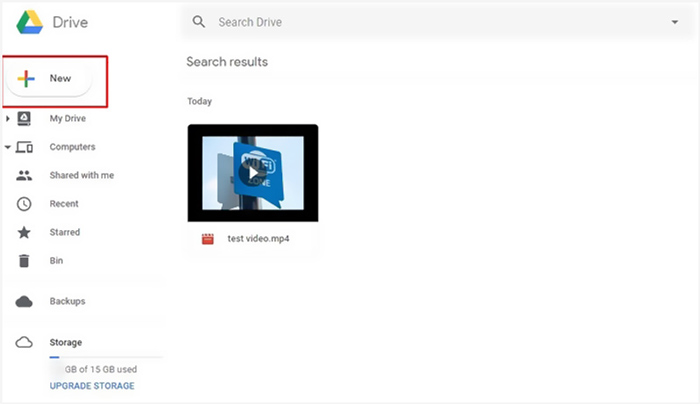
Google ドライブを介して Chromebook で MP4 ファイルを再生するには、良好なネットワーク接続が必要です。
パート 2. Chromebook で MP4 を再生するために Chrome OS 用の VLC をインストールする
上記の方法以外にも、ChromebookでMP4を再生するためにサードパーティ製のメディアプレーヤーを導入することもできます。ChromebookはChrome OSで動作しているため、選べるプレーヤーの種類はそれほど多くありません。幸いなことに、人気のVLCメディアプレーヤーにはChrome OS版があり、Chromebook上であらゆる種類の動画や音声ファイルを楽しめます。これを利用すれば、ChromebookでMP4を簡単に再生できます。
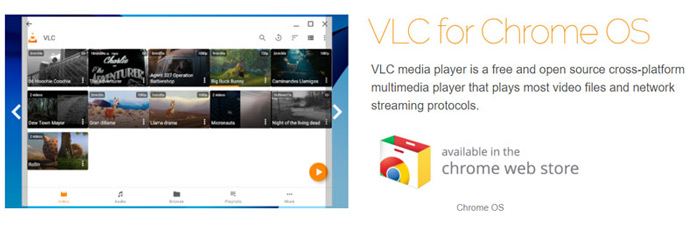
ChromebookでChrome ウェブストアを開き、「VLC」を検索します。VLC for Chrome OSが見つかったら、案内に従ってインストールしてください。その後、Chromebook上でVLCを使ってMP4ファイルを再生できます。ほとんどのメディアファイル、ネットワークストリーム、DVDに幅広く対応しています。MP4以外にも、Chrome OS版VLCはMOV、MKV、AVI、OGG、TS、M2TS、AAC、MP3、FLACなどさまざまな形式を再生できます。
パート 3. Chromebook で MP4 再生用にビデオ形式を変換する
MP4 は、ビデオおよびオーディオ コーデックのファイル コンテナーです。 Chromebook は、H.264 または MPEG-4 圧縮コーデックでエンコードされた MP4 ビデオのみをサポートします。したがって、Chromebook で MP4 を再生する場合は、MP4 を Chromebook でサポートされている形式にトランスコードする必要があります。 Chromebook は MP4 に加えて、特定のコーデックを使用した 3GP、WebM、MOV、AVI の動画もサポートしています。
MP4をChromebook対応形式に変換するには、プロ仕様の動画変換ソフトVideo Converter Ultimateを利用できます。Chromebook専用のカテゴリが用意されており、MP4を直接Chromebook対応形式に変換できます。さらに、画質を損なうことなく変換できるのが大きな特長です。
- •品質を損なうことなく、MP4ビデオをChromebookでサポートされているファイルに変換します。
- •8K / 5K / 4K、1080p / 720p HDおよびSDビデオを、MOV、MP4、AVI、FLV、MP3などの500を超える形式に変換します。
- •強力な編集機能、フィルターやさまざまな効果の追加、品質の向上。
- •前例のないハードウェアアクセラレーションとマルチコアプロセッサの最適化をサポートします。
ステップ1. まず、このMP4からChromebookへの変換ソフトをパソコンに無料インストールします。Windows 10/8/7のPCおよびMacのどちらにも対応しています。
無料ダウンロードWindows 7 以降に対応安全なダウンロード
無料ダウンロードMacOS 10.7 以降に対応安全なダウンロード
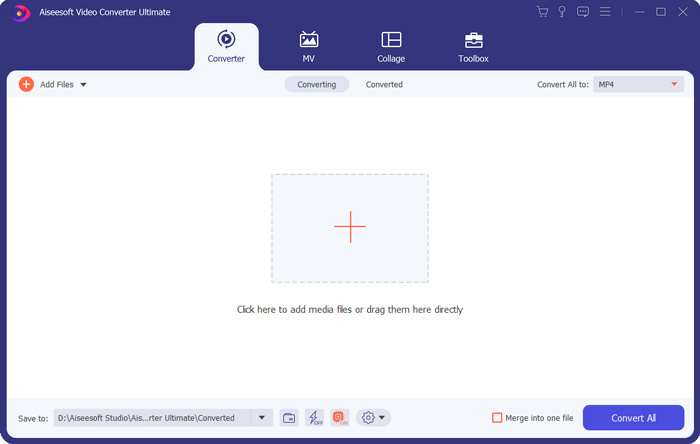
ステップ2. ソフトを起動し、変換機能を使用していることを確認します。その後、大きな+アイコンまたはファイルを追加ボタンをクリックしてMP4ファイルを読み込みます。1本だけでなく、複数の動画を同時に追加して変換することもできます。
ステップ3. 取り込んだ動画の右側にあるフォーマットアイコンをクリックします。ドロップダウンリストから適切な出力形式を選択してください。ここでデバイスタブをクリックすると、Chromebook対応形式をすぐに見つけることができます。
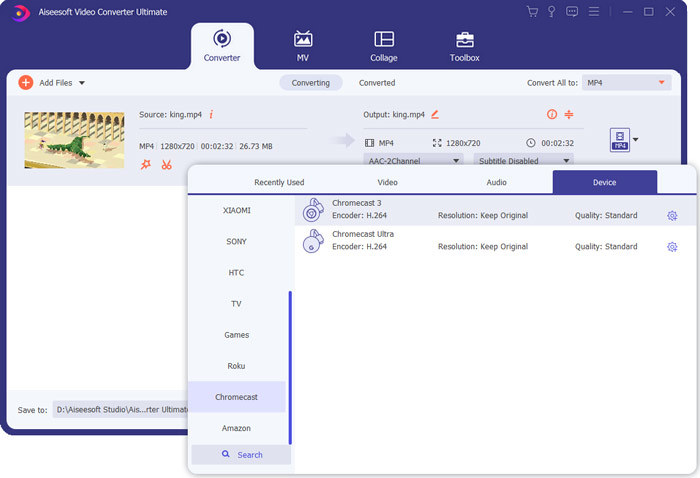
ステップ4. 変換を実行する前に、各種編集機能を使って動画を編集したり、画質を向上させたり、出力効果をカスタマイズしたりできます。すべての調整が終わったら、すべて変換ボタンをクリックして、MP4からChromebook対応形式への変換を開始します。
数回クリックするだけで、ビデオを Chromebook でサポートされているファイルに簡単に変換できます。その後、それを Chromebook に転送して再生できます。
パート 4. Chromebook での MP4 の再生に関するよくある質問
質問 1. Chromebook で再生できる動画形式は何ですか?
Chromebook は、多くのファイル タイプ、外部デバイス、クラウド ストレージ システムをサポートできます。ビデオ形式については、MP4、MOV、M4V、MKV、OGG、3GP、OGM、WebM、WAV、AVI などを再生できます。
質問 2. Chromebook で Google Play を使用できないのはなぜですか?
Chromebook で Google Play を使用できます。ただし、最初にこの機能を有効にする必要があります。 Chromebook の [設定] に移動し、[Google Play ストア] セクションを選択して、この機能をオンにすることができます。その後、Chromebook で Google Play を通常どおり使用できます。
質問 3. Chrome で Flash Player を有効にする方法を教えてください。
Google Chrome で Flash Player を使用する場合は、アドレス バーの左側にあるロック アイコンをクリックします。 [Flash] ボックスをクリックし、[許可] ボタンを選択します。 [再ロード] をクリックして変更を保存します。これにより、Chrome で Flash Player を使用できるようになります。
結論
ChromebookでMP4を再生できない場合は、この記事を読めば問題解決に役立つ3つの有効なヒントが得られます。ChromebookでMP4を再生する方法についてさらに質問があれば、コメント欄からメッセージをお寄せください。
-
 WebExARFプレーヤーでARFファイルを開いて変換するためのチュートリアル
 WebEx ARFPlayerを使用するための詳細な手順は次のとおりです。 WindowsおよびMacコンピューターでWebExARFファイルを簡単に再生および変換できます。さらに、3番目のARFプレーヤーでも再生エクスペリエンスを向上させることができます。
-
 最高のMP4プレーヤーを入手して高品質のMP4ファイルを再生する
 10の最新のMP4ビデオプレーヤーソフトウェアの推奨事項から最高のMP4プレーヤーを読んで入手してください。 WindowsとMacでMP4ビデオファイルをラグなしでスムーズに再生できます。
-
 AVI VS MP4 – AVI 形式と MP4 形式の相違点と類似点 - FVC
 AVIとMP4のどちらがより良いビデオフォーマットですか?詳細な比較が必要な場合は、このAVI VSMP4の記事を確認してください。 AVIとMP4の違いと類似点は多くの面で知ることができます。
