


 ビデオコンバーター究極
 スクリーンレコーダー
 ビデオ修復
ビデオ修復
 安全なダウンロード
VLCプレーヤーがMKVを再生しない問題を修正するための4つの便利なヒント
MKV (Matroska Video file) is a free and open multimedia file format. But it can’t be supported by many frequently-used players, including Windows Media Player and QuickTime Player. So, you may turn to the popular VLC Media Player for the MKV playing. However, many users have encountered the VLC player won’t play MKV problem.

The MKV playback issues can vary, such as the audio track of your MKV file playing is delay, playback stuttering, fuzzy image, and buggy interface quirks and so on. Here in this post, we like to share 4 useful tips for you to fix the MKV files won’t play on VLC issue.
パート1。VLCプレーヤーがMKVを再生しないように設定する
VLCは、MKV、MP4、AVI、FLV、MP3、AAC、M4A、FLACなど、VCD、オーディオCD、DVDなど、ほとんどのデジタルビデオおよびオーディオ形式をサポートできる非常に人気のあるメディアファイル再生ツールです。
VLC Media Playerは、お持ちのメディアファイルを再生できるため、何百万ものユーザーを魅了しています。しかし、VLCプレーヤーがMKVファイルを再生しない問題は時々発生します。 VLCプレーヤーがMKVまたはHDMKVファイルをスキップするだけの場合は、カスタム設定で修正できます。
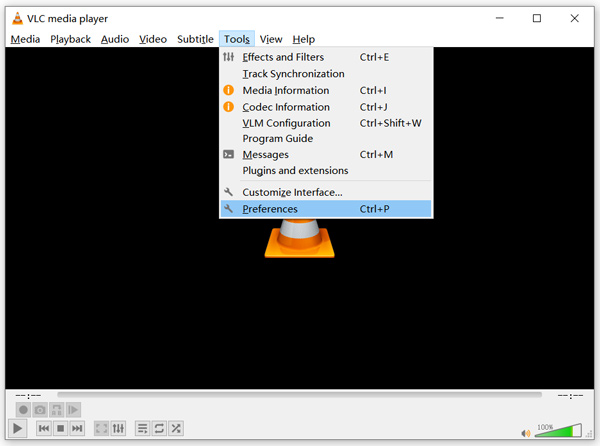
Step 1. Open VLC Media Player and choose the Tools menu. From the drop-down list, select the Preferences option.
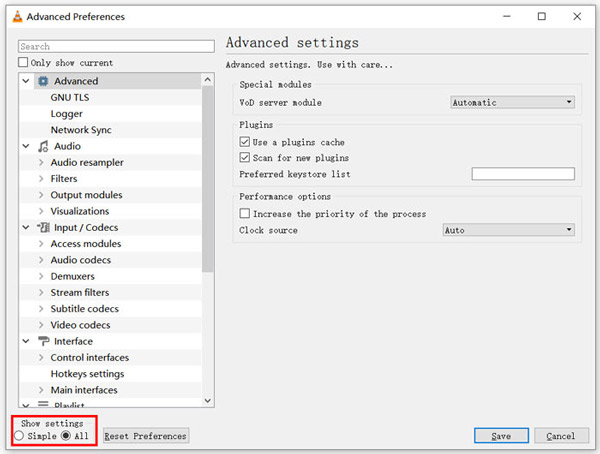
Step 2. Tick All under the Show settings on the bottom left of the dialog window. By doing so, you can display the Advanced Preferences window.
Step 3. Choose the Input/Codecs section on the left, and then locate the File Caching(ms) option on the right. You may need to scroll down to find it.
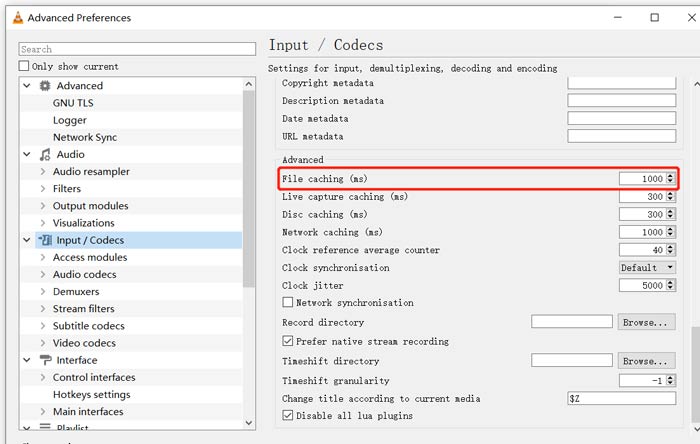
Step 4. Set File Caching to 1000 and then click Save button to confirm your operation. After that, you can restart VLC and replay your MKV file.
パート2。プレーヤーがMKVを再生しない問題を修正するためにVLCを更新または再インストールする
VLCプレーヤーが再生されないMKVの問題がまだ存在する場合は、最新バージョンにアップグレードすることを選択できます。新しいバージョンは常に古いバージョンの多くのバグを修正することを知っておく必要があります。以下の手順に従って、VLC MediaPlayerを更新できます。
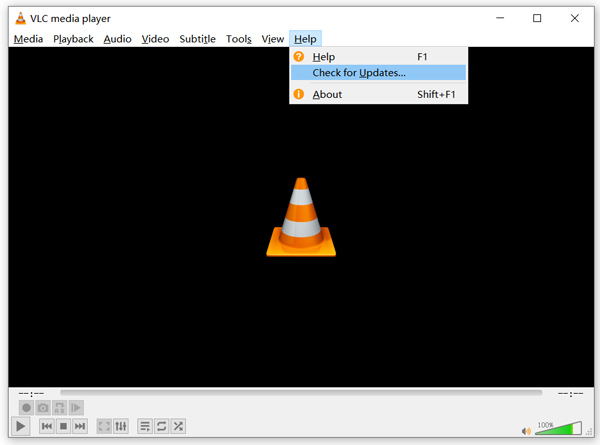
Open VLC and click the Help menu. Select the Check for Updates option from the drop-down list. VLC will start to check if there is an available updating version. Then you can follow the instructions to upgrade VLC to its latest version.
You can also directly remove VLC from your computer, and then go to its official site, VideoLAN to install a right version. When you get a new VLC Media Player installed, you can play your MKV file and check if it can be played normally.
パート3。オーディオを有効にして、MKVの再生中にVLCプレーヤーの音が出ない問題を修正する
VLC Media PlayerでMKVファイルを再生できるが音が出ない場合は、オーディオ設定が正しいかどうかを確認する必要があります。
Step 1. Choose Tools option on VLC menu bar. From the drop-down menus, select Preferences. Then you will be guided to the Simple Preferences window.
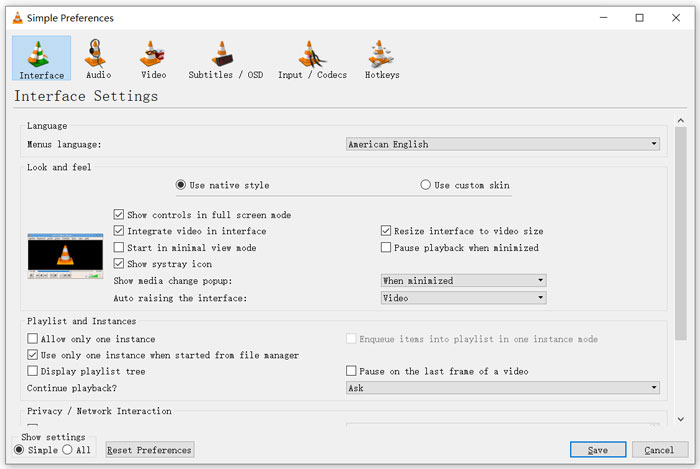
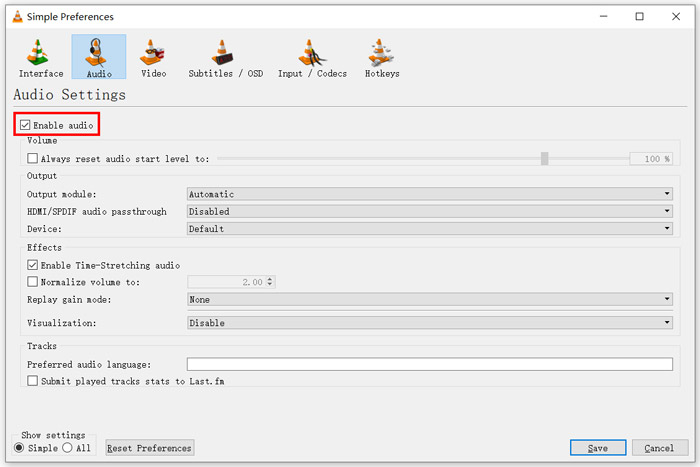
Step 2. Click on the Audio tab, and then check the Enable Audio option. During this step, you are also allowed to custom Output Module, HDMI/SPDIF audio passthrough and Device based on your need. Click Save button to save your changes.
Now you will be back to the main interface of VLC, you can click Media and then Open File to play your MKV file.
パート4。MKVファイルを再生するためのVLCプレーヤーの代替を選択します
When you want to watch MKV movies, you can also choose another player to replace VLC. You can give the popular Free Online Video Player a try. Whether you are using a Windows 10/8/7 PC or a Mac, you can rely on it to play any MKV files with high quality.
この無料のオンラインプレーヤーには、4K、1080p / 720p HD、SDビデオ、3Dビデオ、およびオーディオファイルをスムーズに再生する機能があります。 MKVに加えて、MP4、MOV、FLV、AVI、MPEG、WMV、WMA、AAC、MP3などの他の多くの形式もサポートしています。
Step 1. When you want to view MKV files, you can go to this Free Online Video Player site. It is compatible with any web browser like Chrome, IE, Firefox and Safari. Click on the Play Now button to quickly install a small launcher for the MKV playing.
Step 2. Once the installation is complete, this free online MKV file player will be initiated automatically. Click Open File button to import your MKV file. Here you can also click Open Disc to watch a DVD movie.
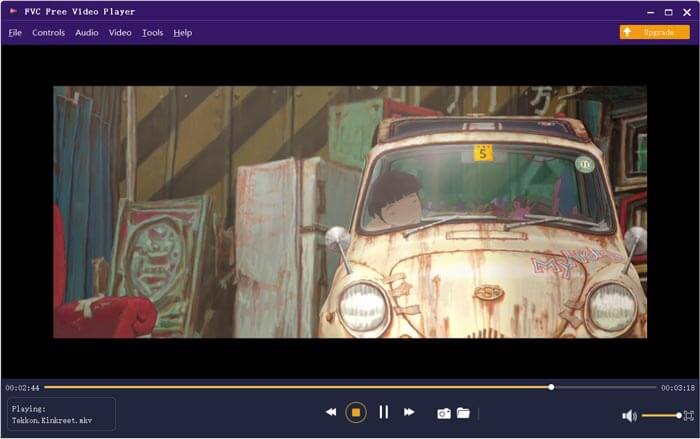
Your MKV video will be played automatically after that. You are given full control of the MKV playing. Compared with VLC Media Player, it gives an easier way to enjoy MKV files. This free online MKV player supports both DTS-HD and Dolby TrueHD to ensure you have a great sound experience.
パート5。VLCプレーヤーのFAQはMKVを再生しません
スマートテレビはMKVファイルを再生しますか?
はい。 MKVファイルをサポートできるSonyやSamsungなどの多くのスマートテレビ。外付けハードドライブまたはUBSデバイスを介してMKVを再生できます
VLC Media PlayerでDVDを再生する方法は?
VLCでDVDムービーを再生する場合は、最初にDVDディスクをコンピュータのディスクドライブに挿入する必要があります。 VLCを開き、メニューバーの[メディア]をクリックして、[ディスクを開く]を選択します。このDVDムービーを参照してVLCにロードし、再生します。
VLCでハードウェアアクセラレーションデコードを無効にする方法は?
VLC Media Playerでハードウェアアクセラレーションのデコードを無効にするには、[ツール]メニューから[設定]に移動する必要があります。 [入力/コーデック]カテゴリを選択してから、[コーデック]を選択します。ハードウェアアクセラレーションによるデコードオプションを見つけて、そこで無効にします。
結論
When you face the VLC player won’t play MKV problem, you can directly use another player like the recommended Free Online Video Player to view your MKV files. Also, you can choose to upgrade VLC Media Player or custom various settings to fix it.
-
 MKVをMOVに変換する無料でプロフェッショナルな方法
 MacでMKVをMOVに変換するにはどうすればよいですか? iMovieはMKVを読み取ることができますか? MOV形式とはどういう意味ですか?この投稿では、無料のオンラインおよびプロのビデオコンバーターを使用してMKVをMOVに変換するのに役立つ2つの簡単な方法を説明しています。
-
 品質を損なうことなくM2TSをMKVに変換する方法
 元の品質を維持しながらM2TSをMKVに変換したいですか?この投稿では、M2TSをMKVにロスレスで変更するための無料のオンライン方法を紹介します。
-
 VLCメディアプレーヤー–WindowsとMacでの簡単なレビュービデオプレーヤーと最良の代替品
 オーディオがVLCMedia Playerで機能しないのはなぜですか?人気のあるメディアプレーヤーについて詳しく知りたい場合は、記事からレビューと最良の代替案について詳しく知ることができます。
