


 ビデオコンバーター究極
 スクリーンレコーダー
 ビデオ修復
ビデオ修復
 安全なダウンロード
iPhone のサウンドが機能しない問題を解決する方法 [3 つの簡単な方法]
iPhoneの動画の音量を戻そうとして何度も方法を試したのに、いまだに音が出ない状態でしょうか? 実は、iPhoneの動画の音声トラブルにはきちんとした解決策があります。ただ、これまでの対処法が「正しいやり方」ではなかっただけかもしれません。そこでこの記事では、「iPhoneで動画に音が出ない」問題を解決する、最も簡単な3つの方法を紹介します。この問題はとてもイライラしてストレスがたまるものだと理解しています。この不具合を一刻も早く解消したい方は、この記事を読み進めて、なぜ動画の音声が再生されないのかを理解し、その原因に合った方法でしっかり直していきましょう。

パート1. iPhoneで動画の音が出ないのはなぜか
iPhone で動画を再生すると音が出ないのはなぜか、これは多くの人が直面している疑問であり問題です。この現象が発生する理由はさまざまですが、なぜこのようなことが起こるのか本当に理解していますか? iPhone で動画を再生すると音が出ない理由は次のとおりです。
iPhoneのビデオの写真に音が出ない
写真は、Apple が開発した、広く知られている写真管理および編集アプリケーションです。ユーザーは、このアプリケーションで写真やビデオを保存し、表示および編集することができます。写真はビデオの表示および再生のための信頼できるプラットフォームですが、このアプリケーションでビデオを再生すると、音が出ない場合があります。iPhone のビデオが写真で音を出さない原因のいくつかを次に示します。
・音量がミュートになっている、または小さすぎる可能性があります。iPhone本体の音量が上がっているか、サイレントスイッチが消音になっていないか確認してください。
・動画ファイルそのものが破損しており、その影響で音声トラックがおかしくなったり、まったく再生されなかったりする場合があります。
・写真アプリ(フォト)にソフトウェア上の不具合やバグがあり、音声の再生を妨げている可能性があります。
・動画の音声コーデックを写真アプリが正しく読み取れず、特にフォーマットが完全に対応していない場合に、音が出ないことがあります。
・iPhoneが未使用のBluetooth機器(ヘッドセットやスピーカーなど)に接続されたままになっていて、音声出力がそちらに切り替わっている可能性があります。
iPhoneのカメラロールのビデオに音が出ない
iPhone で直接撮影する場合、カメラロールから再生してビデオをプレビューできます。ただし、iPhone ユーザーの中には、カメラロールからビデオを再生しても音が出ないという経験を持つ人もいます。ビデオに音が出ない理由に困惑したりイライラしたりします。iPhone でカメラロールで再生しても音が鳴らない理由には、次のようなものがあります。
・録画中にマイクが塞がれていた、またはマイクが故障していて、音声がまったく収録されていない場合があります。
・iPhoneが「おやすみモード(Do Not Disturb)」になっていると、カメラロールで動画をプレビューする際に、音が再生されないことがあります。
・iPhoneがサイレントモードになっていると、動画が音なしで再生される原因になります。
iPhoneでIGの動画を再生しても音が出ない
Instagram で動画を再生すると、問題が発生することがあります。動画を再生できないという人もいます。IG で動画を再生しても音だけが再生されない場合もあります。なぜこのようなことが起こるのかをよりよく理解するために、iPhone で IG で動画を再生しても音が出ない理由を次に示します。
・Instagram側で動画が初期設定でミュートになっており、視聴者がスピーカーアイコンをタップして音声を有効にする必要がある場合があります。
・Instagramアプリ内の音量が、iPhone本体とは別に絞られている、またはミュートになっている可能性があります。
・Instagramアプリに一時的な不具合やバグが発生しており、アプリの再起動やアップデートが必要なケースもあります。
・ネットワーク環境が不安定または通信状態が悪いと、動画の読み込みがうまくいかず、音声が再生されないことがあります。
・iPhoneがサイレントまたはバイブレーションモードになっており、その影響でInstagramアプリ内の音声出力が制限されている可能性があります。
パート2. iPhoneで音が出ない問題を解決する方法
iPhone でビデオの音が出ない理由のいくつかがわかったので、次はこの問題を解決する方法を学びましょう。
方法 1: FVC ビデオ修復を使用する
破損した動画を再生しているせいで、iPhoneの動画に音が出ない場合、その最適な解決策がFVC Video Repairツールの利用です。動画ファイルが破損していると、映像の再生に支障が出るだけでなく、音声にも影響が及び、無音になるなどのトラブルを引き起こします。動画ファイル内の破損は、音声トラックと映像トラックの同期を乱したり、音声トラック自体を消失・破壊してしまい、その結果として音の出ない再生状態を招きます。こうした問題に対応するために設計されているのがFVC Video Repairツールであり、動画の映像品質を修復するとともに付随する音声も復元し、スムーズで音声付きの快適な再生体験を取り戻すことができます。
手順1.まず公式サイトにアクセスします。次にツールをダウンロードし、デバイスにインストールします。
無料ダウンロードWindows 7 以降向け安全なダウンロード
無料ダウンロードMacOS 10.7 以降向け安全なダウンロード
手順2.続いて、破損した動画を追加します。Red Plusボタンをクリックして追加しますが、これはサンプル動画を追加する際にBlue Plusボタンをクリックしたのと同じ要領です。その後、[Repair]ボタンをクリックして、音声の問題の修復を開始します。
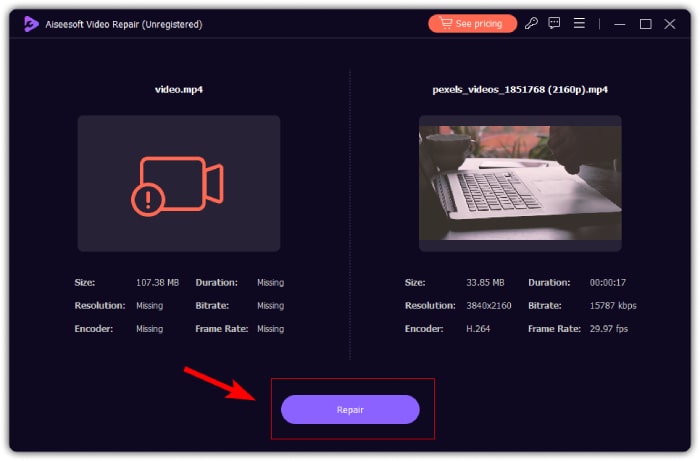
手順3.最後に、Previewボタンをクリックして修復された動画を再生し、音声が復元されているか確認します。修復が成功していれば、Saveボタンをクリックして動画を保存できます。
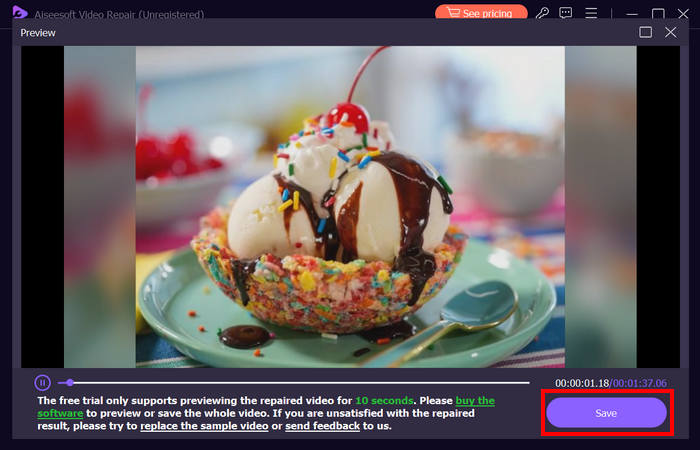
FVC ビデオ修復は、iPhone のビデオに音が出ない問題を簡単に修復できます。最新の AI アルゴリズムと重要な情報の自動検出と直接修正機能により、iPhone のビデオの音を効果的に復元できます。
方法2: FVC Picked Video Converter Ultimateを使用する
一方で、問題が「音声トラックの欠落」によるもので、つまり動画の音声部分が失われている、破損している、あるいは正しくエンコードされていない場合には、FVCが厳選したVideo Converter Ultimateを利用することができます。このツールは、動画を対応可能な形式に変換することで、欠落した音声トラックの修復をサポートします。音声トラックの欠落が原因でiPhoneで音が再生されない問題を解決するには、以下の手順に従ってください。
手順1.まだツールをインストールしていない場合は、まずコンピュータにダウンロードしてインストールします。
無料ダウンロードWindows 7 以降対応安全なダウンロード
無料ダウンロードMacOS 10.7 以降に対応安全なダウンロード
手順2.次に、iPhoneで音が再生されない動画を、Add Filesボタンをクリックして追加します。
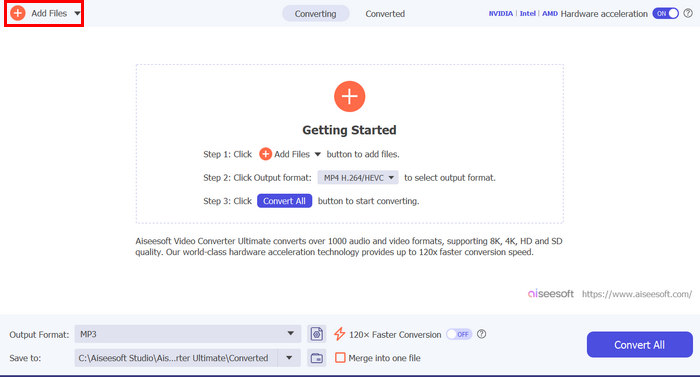
手順3.続いてOutput Formatをクリックし、MP3を選択して、メニューから動画に適用したい音声フォーマットを選びます。最後にConvert Allボタンをクリックして、ファイルを保存します。
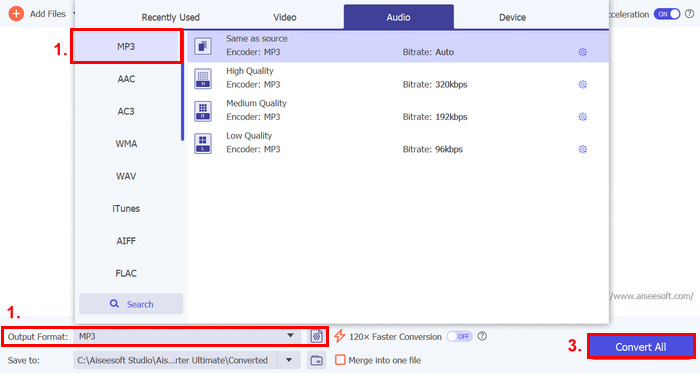
FVC が選んだこのフル機能の Video Converter Ultimate ツールは、ビデオやオーディオ関連のあらゆる問題に本当に役立つツールです。問題が破損したファイル、不適切なコーデック、サポートされていない形式など、どのようなものであっても、このツールは本当に役立ちます。
方法3: iPhoneを再起動する
iPhone にビデオ再生時のオーディオに影響するシステム上の問題がある場合は、iPhone を再起動するだけで済みます。この方法では、デバイスのオペレーティング システムをリフレッシュして、サウンドの問題の原因となっている一時的な不具合やバグを解消できます。iPhone を再起動するだけで、ビデオ再生時にサウンドが出ない問題を解決する方法は次のとおりです。
iPhone X以降の場合
手順1.iPhoneを再起動するには、電源オフスライダが画面に表示されるまで、サイドボタンといずれか一方の音量ボタンを同時に長押しします。
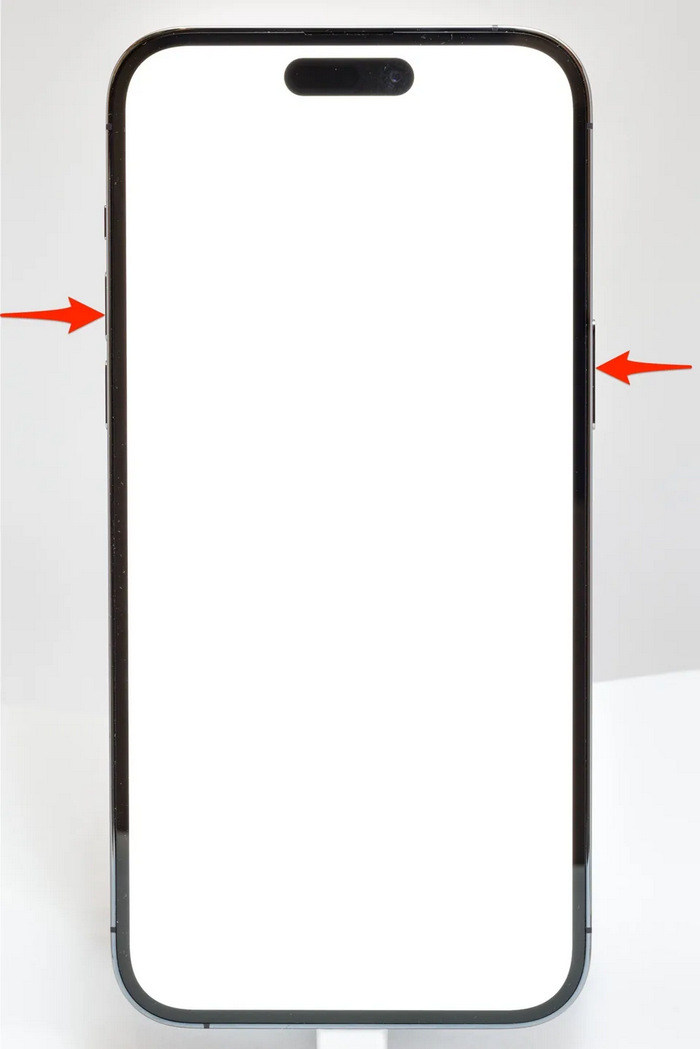
手順2.スライダをスワイプして、iPhoneの電源を切ります。
手順3.再び電源を入れるには、サイドボタンを押します。
iPhone 6、7、8、SEの場合
手順1.まず、サイドボタンを長押しします。
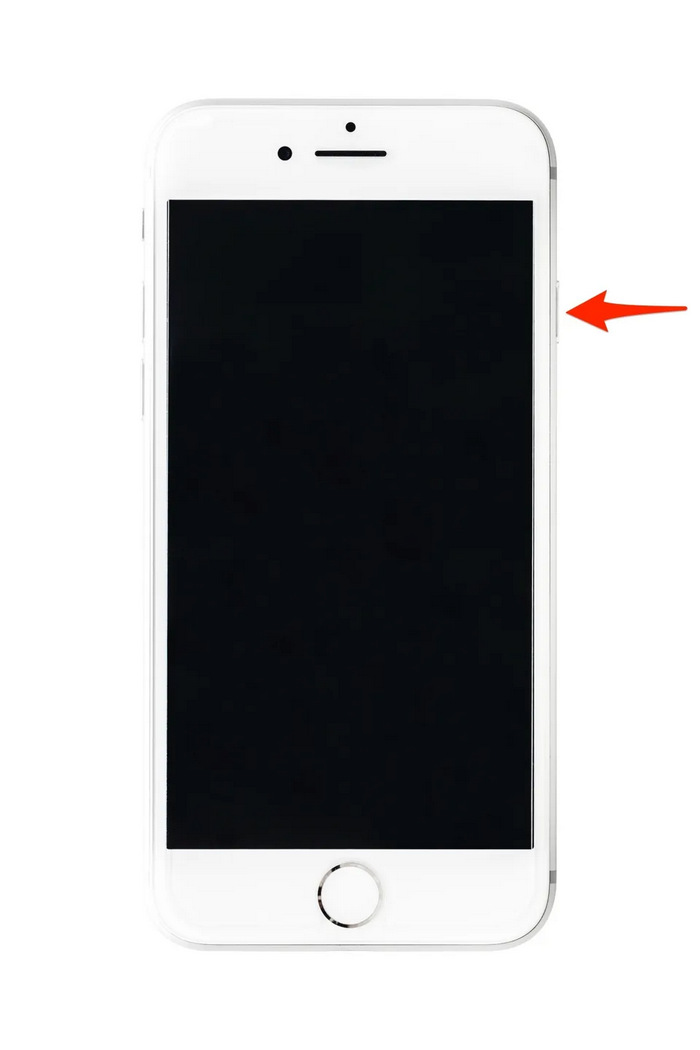
手順2.電源オフスライダが表示されるまで待ち、スライダをスワイプしてデバイスの電源を切ります。
手順3.再び電源を入れるには、サイドボタンを押します。
これらの方法は簡単に実行でき、サードパーティのツールを使用する必要はありません。ただし、これは非常に基本的で一般的な解決策であり、iPhone のビデオで音が出ない問題が完全に修復されることを保証するものではありません。
パート 3. Stellar Repair for Video に関する FAQ
どの iPhone が Dolby Vision または DTS サウンドをサポートしていますか?
iPhone 12 シリーズ以降の iPhone は、色とコントラストを向上させてビデオ品質を向上させる Dolby Vision をサポートしています。ただし、iPhone は Dolby Atmos などの他のオーディオ技術を使用しているため、DTS サウンドを直接サポートしていません。
iPhoneでFLAC auan dioを再生できますか?
はい、iPhone で FLAC オーディオを再生できますが、iPhone に組み込まれているミュージック アプリは FLAC をネイティブにサポートしていないため、VLC などのサードパーティ アプリまたは専用のオーディオ プレーヤーが必要になります。
iPhone のサイレントモードではビデオの音声は再生されますか?
いいえ、iPhone がサイレント モードになっていると、ビデオのサウンドは再生されません。サウンドを聞くには、iPhone の側面にあるスイッチを切り替えてサイレント モードをオフにする必要があります。
結論
iPhoneで動画に音が出ない問題の原因はさまざまであり、それに応じて解決方法も異なります。しかし、ここまででその対処法を把握できたはずですので、今後同じようなトラブルに直面しても、落ち込む必要はありません。現時点で同じ問題が起きている場合は、この記事で紹介したいずれかの方法を試してみてください。
-
 FLVを無料でiPhoneビデオに変換するトップ2の方法
 この具体的なガイドでは、FLVファイルをiPhoneビデオまたは他の多くの形式に1セントも払わずに変換する方法を学ぶのに役立つ上位2つの簡単な方法を共有しています。
-
 [解決済み]詳細な手順でiPhoneで再生されないビデオを修正する方法
 ギャラリーのローカルビデオは、デフォルトのビデオプレーヤーを介してiPhoneで再生できませんか? iPhoneで再生されないオンラインYouTubeビデオは常に発生しますか?この記事で役立つ5つのソリューションを次に示します。
-
 FLVビデオをYouTubeにアップロードするための具体的なガイド
 FLVをYouTubeにアップロードしましたが、失敗しましたか?ステップバイステップガイドに従って、この問題を自分で解決し、FLVをYouTubeでサポートされているコーデックに変換できます。
