


 ビデオコンバーター究極
 スクリーンレコーダー
 ビデオ修復
ビデオ修復
 安全なダウンロード
Windows / Mac / OnlineでAVCHDをMP4ビデオに無料で変換する方法
AVCHDは、SonyおよびPanasonicカムコーダーのデフォルトのビデオ形式です。ただし、AVCHDビデオは、iPhone、Android、iMovie、QuickTimeなどのほとんどのデジタルプレーヤーやデバイスでは再生できません。 AVCHDビデオを再生および編集するには、AVCHDをMP4に変換することをお勧めします。 MP4は、世界中で最も人気のあるビデオ形式の1つだからです。さらに、MP4形式に変換することで、AVCHDビデオコンテンツをかなり高品質に保つことができます。 WindowsとMacでAVCHDをMP4に変換する5つの実行可能な方法を次に示します。読んでフォローするだけです。

パート1:AVCHDをMP4オンラインに無料で変換
Most online AVCHD to MP4 converters have the maximum file size limit. If you want to convert large AVCHD files to MP4 online, using FVC Free Online Video Converter is your best choice. Here’re the main features of the AVCHD to MP4 online converter.
- 1.AVCHDをMP4およびその他の高品質の形式に変換します。
- 2.AVCHDからMP4へのバッチ変換をサポートします。
- 3.透かしは追加されません。
- 4.ビデオ設定を調整して、SonyAVCHDビデオをカスタマイズします。
Step 1: Click Add Files to Convert in the official site. Download FVC launcher within half a minute.
Step 2: Browse and add your AVCHD file into the online AVCHD video converter.
Step 3: In the output section, set MP4 as the output video format. You can find it near the bottom.
Step 4: Click Convert to convert AVCHD to MP4 with no watermark online.
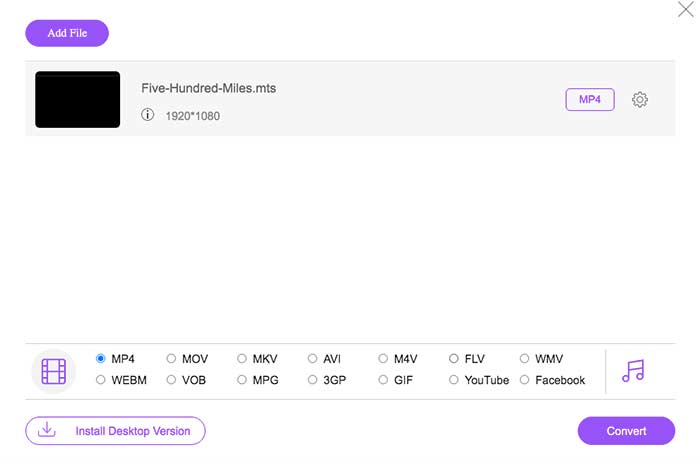
この無料のオンラインMP4コンバーターは、M2TS、MTS、MOV、MKV、WMV、TSなどの他の形式をMP4に変更することもできます。
パート2:HandBrakeでAVCHDをMP4に変換する
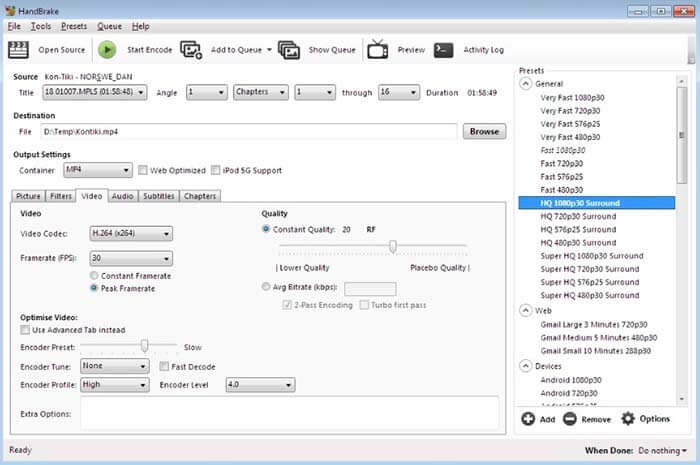
HandBrakeを使用すると、MacおよびWindowsでAVCHDをMP4に無料で変換できます。これは、コンピューター上でAVCHDビデオをMP4形式に変換できる無料のオープンソースビデオコンバーターです。
Step 1: Install and run Handbrake. Click Source to add an AVCHD video into HandBrake.
Step 2: In the Output Settings section, unfold the Profile list. Select MP4 file as the output format.
Step 3: Click Start on the top toolbar. Now you can start the AVCHD to MP4 conversion with HandBrake.
パート3:VLC MediaPlayerを使用してAVCHDをMP4に変換する
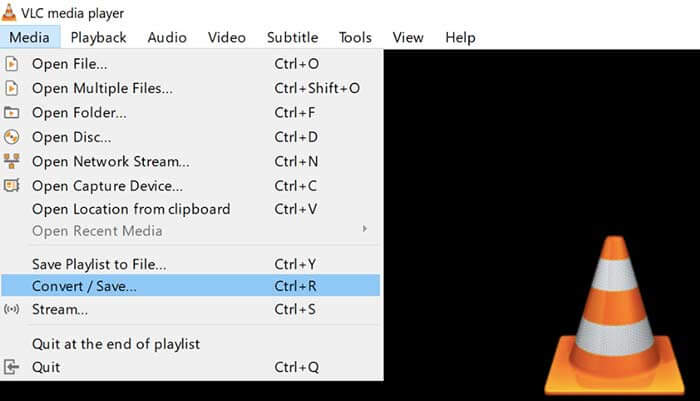
VLC Media Playerを使用すると、ユーザーはiPhone、iPad、Android、Windows、およびMacでAVCHDをMP4に変換できます。ダウンロードは無料です。ビデオ変換ツールは直感的に使用できませんが。
Step 1: Open VLC. Choose Convert/Save from the Media list.
Step 2: Click Add to import your AVCHD video. Then click Convert/Save near the bottom.
Step 3: In the Profile list, set MP4 as the output format for AVCHD conversion.
Step 4: Click Start to start converting AVCHD to MP4 on Windows and more platforms.
パート4:FFmpegでAVCHDをMP4に変換する
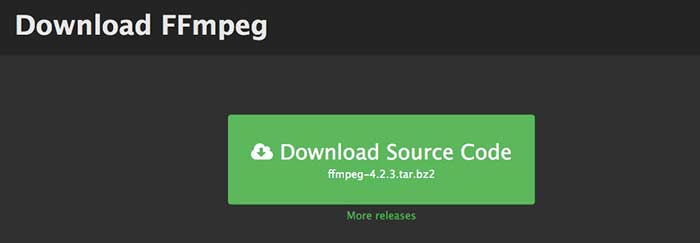
コマンドラインに精通している場合は、FFmpegを使用してAVCHDをMP4に無料で変換することもできます。 FFmpegコマンドラインで出力ビデオフォーマット、ファイルサイズ、ビデオビットレートを設定できます。
Step 1: Download and install FFmpeg on your Windows, Mac or Linux computer.
Step 2: Copy and paste IFS=$(echo -en “\n\b”); for i in *.MTS; do ffmpeg -i “$i” -vcodec mpeg4 -b:v 15M -acodec libmp3lame -b:a 192k “$i.mp4”; done.
Step 3: Press Enter on your keyboard to convert AVCHD MTS to MP4 with FFmpeg.
パート5:Freemake VideoConverterを使用してAVCHDをMP4に変換する
真実は、Freemake VideoConverterが完全に無料で使用できるわけではないということです。 Freemake Video Converterを使用してAVCHDをMP4に無料で変換すると、出力ファイルに透かしが添付されます。または、代わりにFreemake GoldPackの料金を支払う必要があります。
Step 1: Run Freemake Video Converter. Click +Video to import your AVCHD video.
Step 2: Click to MP4 near the bottom. Set the output preset and destination folder in the popup.
Step 3: Click Convert to convert AVCHD to MP4 on Sony camera with Freemake Video Converter.

パート6:AVCHDからMP4へのFAQ
AVCHD VS MP4
AVCHDは、MPEG-4 /H.264ビデオコーデックとドルビーデジタルAC-3オーディオコーデックを使用します。 MP4は同じビデオコーデックを使用します。ただし、MP4オーディオコーデックはMPEG-4AAC-LCコーデックです。その結果、AVCHDのファイルサイズは大きくなり、MP4よりも品質が向上します。しかし、MP4は依然としてビデオの再生とカスタマイズで人気があります。多くの場合、先に進むにはAVCHDをMP4に変更する必要があります。
AVCHDをiMovieにインポートする方法は?
iMovieは、960〜540の解像度に制限されているAVCHDをサポートしています。すべてのAVCHDファイルをiMovieで開くことができるわけではありません。したがって、問題を解決するには、AVCHDをiMovie形式に変換する必要があります。
AVCHDビデオを組み合わせることができますか?
はい。複数のAVCHDファイルをMP4ビデオに変換することもできます。 AnyMP4 Video Converter Ultimateなど、多くのビデオコンバーターはビデオクリップを新しいものに結合できます。
全体として、上記のツールを使用して、Windows、Mac、およびオンラインでAVCHD MTS / M2TSをMP4に変換できます。お使いの携帯電話またはコンピューターでAVCHDをMP4に変換するための最良の方法はどれですか?以下のコメントであなたの経験と提案を自由に共有することができます。
-
 品質を損なうことなくMOVをMP4に変換する方法
 MOV(Apple QuickTime Movie)ファイルをMP4に変換したいですか?この投稿では、Windows 10/8/7 / XPおよびMacOSXでMOVビデオファイルをMP4形式に変換する4つの無料の方法を共有しています。
-
 トップ10の無料および有料のHDビデオコンバータソフトウェア(長所と短所)
 読んで比較し、10の推奨事項から最高のHDビデオコンバータソフトウェアを入手してください。マルチプラットフォーム用の各HDビデオコンバーターの詳細なレビューは次のとおりです。
-
 無料のコンバーターを介してMXFをMP4に変換する方法
 この投稿は、コンピューターでMXFをMP4に変換するための詳細なガイドです。簡単な手順でカムコーダーMXFからMP4にトランスコードする4つの無料のMXFからMP4へのコンバーターを入手できます。
