


 ビデオコンバーター究極
 スクリーンレコーダー
 ビデオ修復
ビデオ修復
 安全なダウンロード
検討すべきDVDリッピングソフトウェアトップ6 - 1つ選択
過去、私たちが最もよく目にしていた映画の形式はDVDでした。当時は、誰もが自宅にDVDプレーヤーを持ち、パソコンにもDVDドライブが搭載されていました。映画やドラマを見たいときは、映像ソフト店でDVDを購入していました。しかし、携帯電話やパソコンの機能が新しく高性能になるにつれて、この形式を目にする機会は徐々に減ってきました。今ではオンラインで映画を選び、リンクを使って友人と動画を共有できます。だからといってDVDが消えてしまうわけではありません。DVDは依然として最も安全なデータ保存媒体の一つです。ただし、私たちはしばしばDVDをうっかり傷つけたり、割ってしまったりすることがあります。中に保存されている動画を失わないようにするには、DVDをデジタル化して動画を抽出し、バックアップを保存しておくのが最善です。そのようなときに必要になるのが、操作を完了させるためのプロ仕様のDVDリッピングソフトです。期待にかなうツールを選びたい方は、このガイドをお読みください。市場でトップクラスのDVDリッパー6本を、その使い方とあわせてご紹介します。ここを読めば、必要な情報はすべて手に入ります。

パート1. はじめに
DVDリッピングが必要な理由
冒頭でも述べたように、今では人気映画やテレビシリーズをオンラインで視聴する人が増えています。しかし、だからといってDVDが段階的に廃止されるわけではありません。当時の機器の制約により、長年公開されてきた往年の名作映画のほとんどはDVDに保存されています。また、物理的な媒体であるDVDは破損しやすいという欠点があります。こうした貴重な映像資源を失わないようにするには、DVDをデジタル化し、専用のDVDリッピングソフトウェアを使って動画をエクスポートし、他のデバイスにバックアップを保存する必要があります。
DVDをリッピングする2つ目の理由は、自宅にDVDプレーヤーや光学ドライブがあっても、他の場所や状況でDVDコンテンツを再生したい場合、デバイスを持ち歩くのは現実的ではないからです。事前にビデオを抽出し、ファイルをスマートフォンやパソコンに保存しておくことで、通常のビデオプレーヤーでもDVDに保存されたコンテンツを視聴できます。
現在、市場にはこの種のサービスを提供するソフトウェアが数多く存在し、より包括的な機能を備えたビデオエディターにもこの種の機能が搭載されているものがあります。理想的なリッピングソフトをより正確に見つけていただけるよう、以下のコンテンツでは、厳選した6つのDVDリッピングソフトをご紹介します。それぞれの長所と短所、そして使用手順を踏まえて、最適なツールをお選びください。
パート2. 2025年のトップDVDリッピングソフトウェア
冒頭でも述べたように、今では人気映画やテレビシリーズをオンラインで視聴する人が増えています。しかし、だからといってDVDが段階的に廃止されるわけではありません。当時の機器の制約により、長年公開されてきた往年の名作映画のほとんどはDVDに保存されています。また、物理的な媒体であるDVDは破損しやすいという欠点があります。こうした貴重な映像資源を失わないようにするには、DVDをデジタル化し、専用のDVDリッピングソフトウェアを使って動画をエクスポートし、他のデバイスにバックアップを保存する必要があります。
AnyMP4 DVDリッパー
AnyMP4 DVDリッパーは、DVDビデオをあらゆる一般的なフォーマットに変換し、WindowsまたはMacコンピューターでエクスポートしたビデオを直接編集できます。最先端のハードウェアアクセラレーション技術を搭載しており、DVDを目的のフォーマットに50倍の速度でリッピングできます。さらに、DVDの画質を損なうことなく1:1でコピーできるため、高画質を求めるユーザーにおすすめです。
• 多言語の字幕をサポートし、DVD の字幕とオーディオ トラックを調整できます。
• ハード加速テクノロジーでリッピング速度を加速します。
• 分析用の 2 つの DVD モード。より高速な分析速度やより包括的な分析結果を求める声に応えます。
• DVD ムービーの最高のシーンを PNG/JPG 形式でキャプチャします。
• DVD の品質、解像度、ビットレートなどのカスタマイズをサポートします。
• ビデオ、オーディオ、その他の一般的な形式でのエクスポートをサポートします。
無料ダウンロードWindows 7 以降対応安全なダウンロード
無料ダウンロードMacOS 10.7 以降対応安全なダウンロード
ダウンロード後、以下の手順に従って、最高評価の DVD リッピング ツールを使用できます。
ステップ1: パソコンでソフトを起動し、DVDを光学ドライブに挿入します。インターフェース上の「Load DVD」をクリックして、ディスクをプラットフォームに読み込みます。
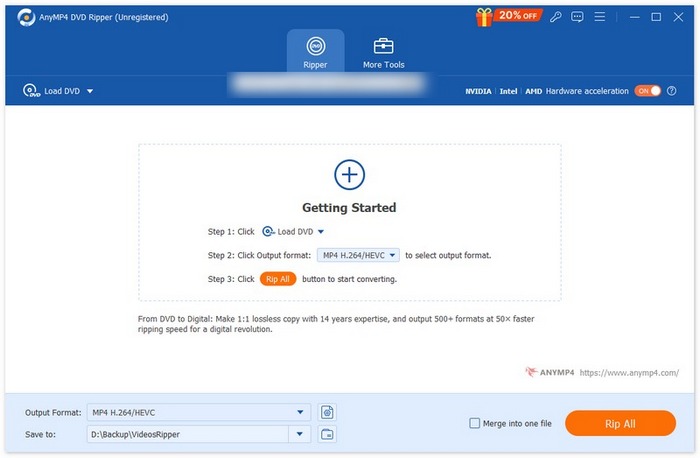
ステップ2: DVDがプログラムに読み込まれると、ツールが自動的に解析を行い、ディスクの詳細が表示されます。必要に応じて、画質、エンコーダー、フレームレートをカスタマイズすることもできます。
ステップ3: リッピングしたいタイトルを選び、下部の「Output Format」ボタンから出力形式を選択します。
ステップ4: 「Rip All」をクリックして、選択した任意の形式への変換を開始します。
長所
- 500 を超える出力ファイル形式をサポートします。
- より速いリッピングプロセスのための簡単な手順。
- 品質を損なうことなく安全にリッピングできます。
- ファイルの修正に役立つビデオ編集機能のフルセットを備えています。
短所
- 無料版では、非常に限られた機能しか利用できません。
WinX DVDリッパー
WinX DVD Ripperは、プロフェッショナルで効率的なDVD処理ツールです。ディスクからビデオをMP4形式に5分以内で変換でき、変換プロセス中にビデオ品質が損なわれることはありません。出力ビデオは、iPhone、iPad、Android、スマートテレビ、PC、タブレットなどと互換性があります。もちろん、多彩なビデオ編集セクションも搭載されており、DVDからビデオをトリミングおよび結合したり、オーディオトラックを調整したり、字幕トラックを追加したりできます。ビットレート、フレームレート、解像度など、さまざまなビデオ要素も簡単に調整できます。私たちは実際に使用し、多くのWinX DVD Ripperのレビューを参考にしましたが、ほとんどのユーザーにとって非常に完璧なDVDリッピングツールであると判断しました。
DVD をリッピングするには、以下の手順に従ってください。
ステップ1: WindowsパソコンにWinX DVD Ripperをダウンロードしてインストールします。
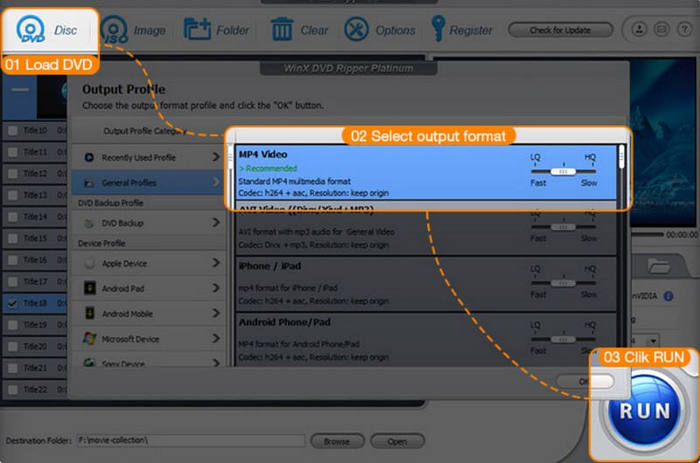
ステップ2: DVDを挿入し、プログラム内でDiscをクリックしてディスクを読み込みます。
ステップ3: 動画の出力形式を選択します。iPhoneやiPadなど、デバイス用のファイルとして出力することもできます。
ステップ4: 保存先フォルダを指定します。最後に「RUN」をクリックしてリッピングを開始します。
長所
- 高度なハードウェア構成では 5 分間の DVD リッピングを実現できます。
- 210 を超えるビデオまたはオーディオ コーデックをサポートします。
- ビットレート、サンプルレート、fps、解像度に関するカスタマイズされた設定を提供します。
短所
- Windows OS のみと互換性があります。
ハンドブレーキ
Handbrakeは、動画編集ツールといえば欠かせない定番ツールです。最もよく知られているフォーマット変換機能に加え、無料のDVDリッピングコンバーターとしても使用できます。Handbrakeでは、前述の2つのツールと同様に、動画パラメータを自由に調整できます。DVDの動画にタイトル、字幕、フィルターなどを追加できます。Handbrakeでサポートされているその他の操作には、ノイズ除去、色補正、グレースケール調整などがあります。
こちらはHandbrakeでDVDをリッピングするガイドです。
ステップ1: 公式サイトからHandBrakeを入手します。その後、パソコンのDVDドライブにディスクを挿入します。
ステップ2: HandBrakeを起動すると、自動的にDVDを検出します。そのとき、Source Selection(ソース選択)が表示されます。
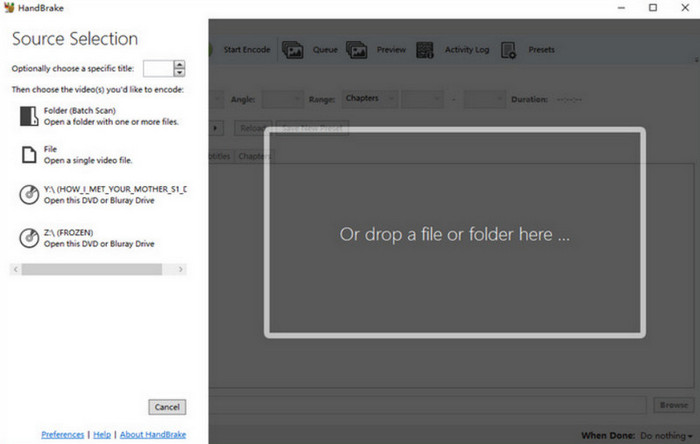
ステップ3: 対象のDVDをクリックします。プログラムがディスク内のコンテンツをスキャンし始めます。
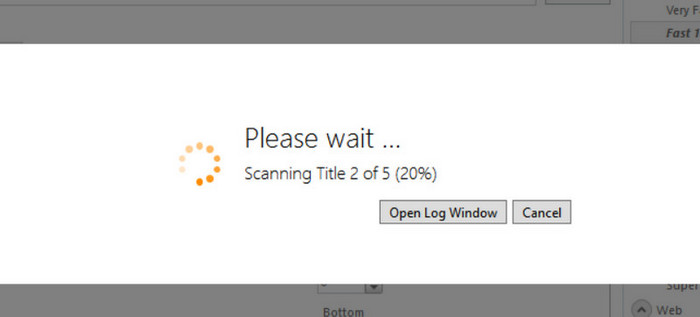
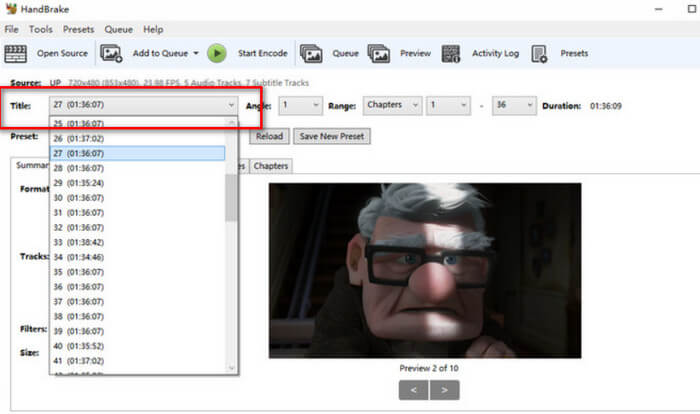
ステップ4: Titleのリストを展開して、DVDのどの部分をリッピングするか選択できます。
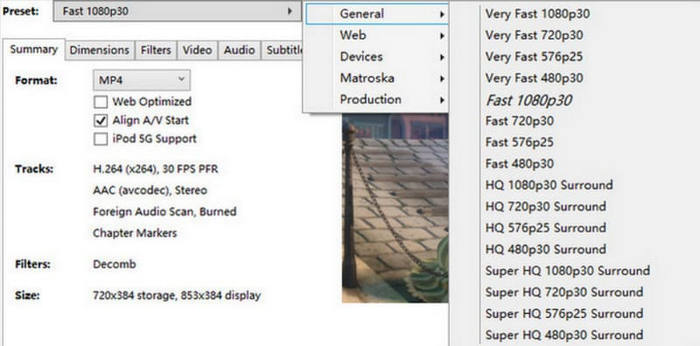
ステップ5: その後、動画の出力形式を選びます。また、Preset > Generalをクリックして、ターゲットの解像度を選択することもできます。
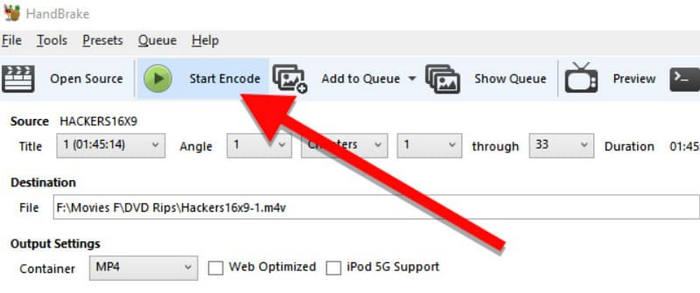
ステップ6: リッピング処理を開始するには、Start Encodeボタンをクリックします。
長所
- 100% は無料でオープンソースです。
- Mac、Linux、Windows システムと互換性があります。
短所
- ページのデザインスタイルは比較的古いです。
Wonderfox DVDリッパー
Wonderfox DVD Ripperは、DVDおよびそのファイルを扱うために特化して設計されたソフトウェアです。画質を一切劣化させずにDVDをリッピングできると謳っています。ユーザーは3ステップですべての必要な操作を完了できます。600種類以上の出力プロファイルを備え、ほとんどあらゆるファイル形式やDVDに対応しているため、ディスクの内容を完全にデコードしてデジタル化できます。もちろん、その機能は動画処理だけにとどまりません。ユーザーはこれを使って動画に字幕を追加することもできます。
Wonderfox DVD Ripper を使用するには、次の手順を実行する必要があります。
ステップ1: デバイスにWonderfox DVD Ripperをダウンロードしてインストールし、起動します。
ステップ2: リッピングしたいDVDを挿入し、DVD Discをクリックしてディスク内のコンテンツを読み込みます。
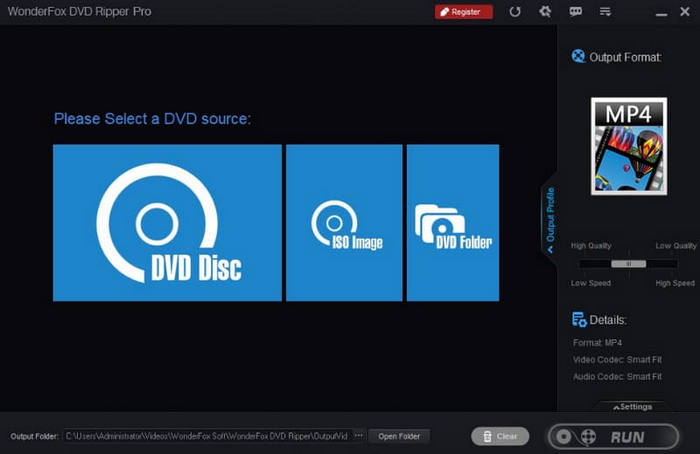
ステップ3: Wonderfox DVD RipperはDVD内のメインムービーを自動選択します。必要であれば他の動画も手動で追加できます。動画を編集するには、Editをクリックしてください。
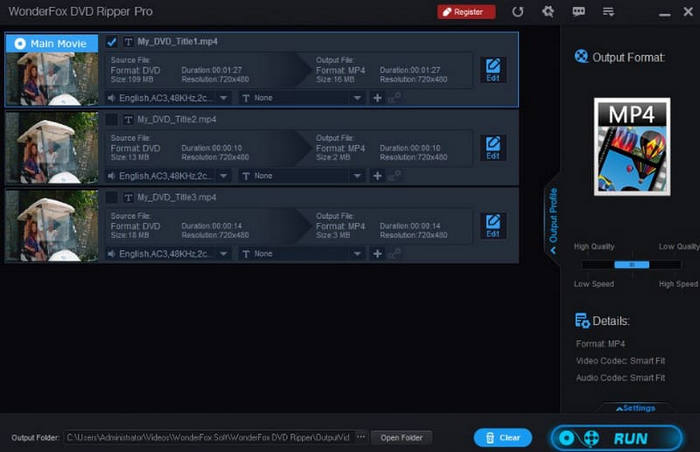
ステップ4: Output Formatをクリックして、リッピング後の動画のファイル形式を選択します。最後にRUNをクリックします。
長所
- 品質を損なうことなく、DVD 上のファイルを簡単に圧縮できます。
- DVD の取り扱いに非常に効率的です。
- 非常に使いやすいです。3ステップでDVDをリッピングできます。
短所
- Windows コンピューターにのみダウンロードできます。
- エクスポートに指定された残り時間が不正確です。
DVDFab HD 復号化ツール
DVDFabはDVDとBlu-rayディスクの取り扱いに精通したソフトです。従来のリッピングソフトにはない特別な機能を備えています。操作を開始する前に、再生モードの設定が可能です。変換したDVDビデオの再生場所をまず決め、その後、必要に応じてビデオパラメータを設定できます。画質と音質に関しては、ロスレス品質のビデオと5.1 AC3オーディオをエクスポートできます。ご自宅で映画館のようなオーディオビジュアル体験を楽しみたい方は、DVDFab HD Decrypterをお試しください。
DVDFab HD Decrypter を使用してビデオをリッピングするときに行うべきことは次のとおりです。
ステップ1: DVDFabソフトを開き、Ripperオプションを選択します。それから対象のDVDを読み込みます。
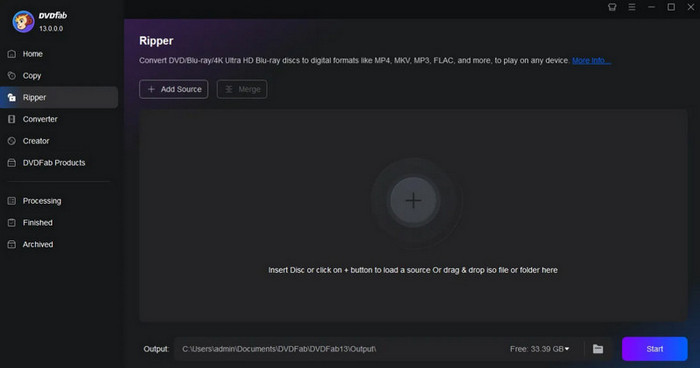
ステップ2: Choose Other Profile > Format > Videoの順にクリックして、ファイルのデジタル形式を選びます。ファイルを編集する必要がある場合は、Advanced SettingsおよびVideo Editをクリックします。
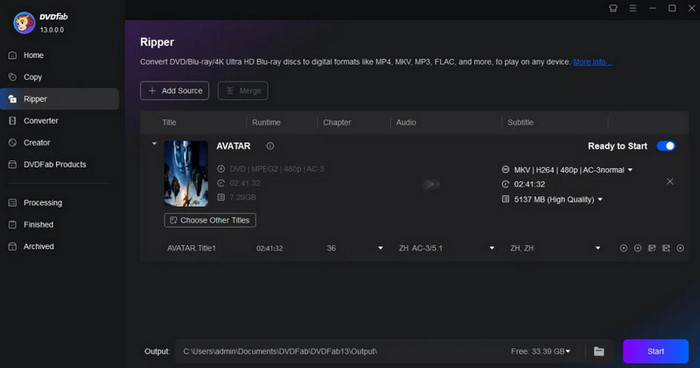
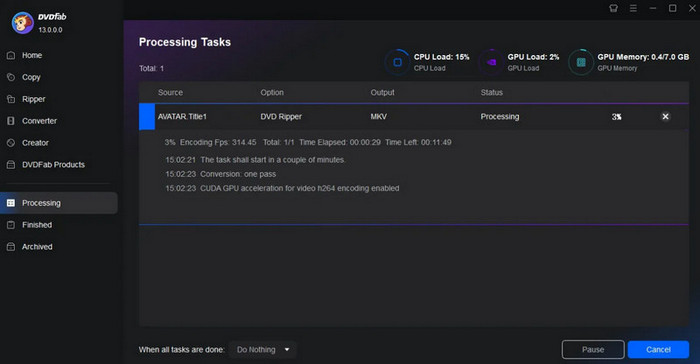
ステップ3: Startをクリックして、プログラムにDVDのリッピングを開始させます。
長所
- 最大 1000 以上のファイル形式をサポートします。
- GPU アクセラレーションにより DVD を 50 倍の速度で変換できます。
短所
- 無料版では制限が多すぎて、お金を払わないと普通に使い始めることができません。
Movavi ビデオ コンバーター
先ほど紹介したFVC Video Converter Ultimateと同様に、Movavi Video Converterもオールインワンの音声・動画処理ソフトです。ただし、対応する形式の範囲が拡張され、DVDも含まれるようになっています。インターフェースには、基本的な動画・音声編集ツールが一通りそろっており、トリミング、クロップ、回転、リサイズ、逆再生などを行うことができます。特殊効果に関しては、このMP4編集ソフトは6,000種類以上のオプションまで提供しています。ワンクリックで動画をあらゆる人気形式に出力でき、DVDリッピングも簡単に行えます。
ここでは、この最高の DVD リッピング プログラムを使用する方法についてのガイドを紹介します。
ステップ1: パソコンにMovavi Video Converterをインストールし、DVDを読み込みます。
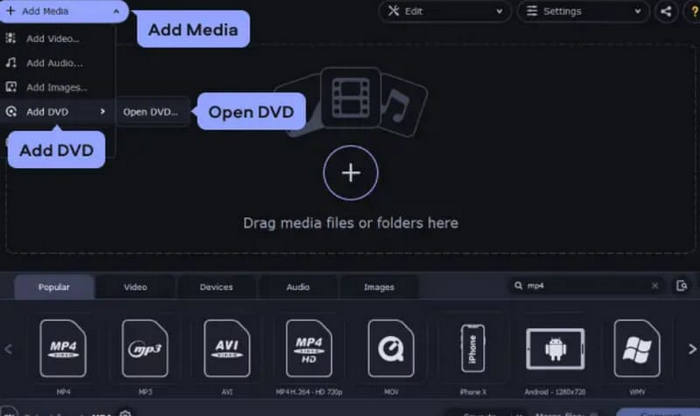
ステップ2: Add Mediaをクリックし、Add DVD > Open DVDを選択します。VIDEO_TSフォルダを探してください。
ステップ3: Videoタブの下から出力形式を選択します。
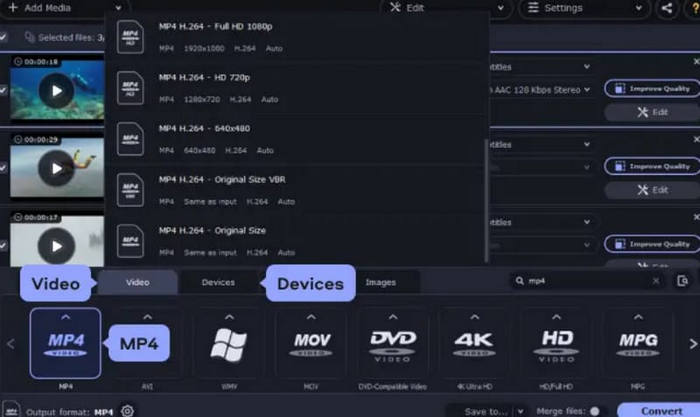
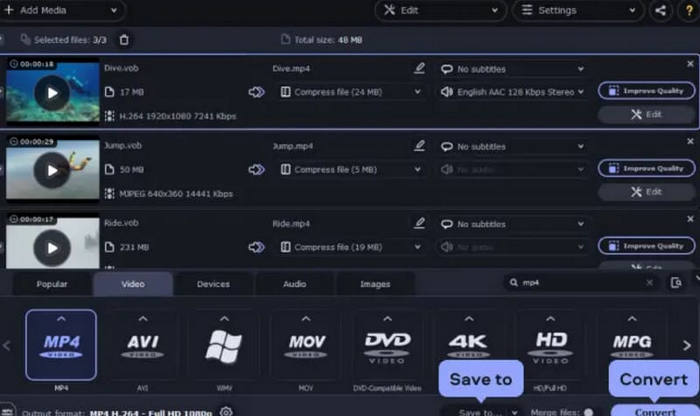
ステップ4: Save toをクリックして動画の保存先パスを指定します。最後にConvertをクリックします。
長所
- AI テクノロジーによるビデオのアップスケールをサポートします。
- 強力なテクノロジーサポートに基づいて頻繁に更新します。
- タイムリーなカスタムサービスを提供します。
短所
- DVD の書き込みはサポートされていません。
パート3. 最高のDVDリッピングソフトウェアに関するFAQ
DVD をリッピングすると壊れてしまいますか?
この操作はDVD内の動画やDVD自体には影響しません。ただし、DVDの挿入および取り出しの際は、DVDを傷つけないようにご注意ください。
リッピングした DVD は何 GB ですか?
DVDには通常、最大4.7GBのデータが保存できます。映画は通常1~2GBです。コンテンツに基づいて概算できます。
DVD をリッピングすると品質が低下しますか?
DVDをリッピングしてもビデオの画質には影響しません。ただし、エクスポート前にビデオを圧縮すると、画質が低下する可能性があります。
結論
この記事では、市場で最も優れた6つの製品を評価し、最適なDVDリッピングソフトウェアを見つけるお手伝いをします。詳細な操作手順とそれぞれの長所と短所については、こちらをご覧ください。無料のソリューションをお探しならHandbrakeを、プロフェッショナルなDVDリッピングツールをお探しならAnyMP4 DVD Ripperをお勧めします。
無料ダウンロードWindows 7 以降対応安全なダウンロード
無料ダウンロードMacOS 10.7 以降対応安全なダウンロード
-
 WindowsとMacでVideo_TSをDVDに書き込む3つの方法
 TSファイルをお持ちで、DVDに保存したい場合は、このガイドをお読みください。WindowsまたはMacコンピューターでVideo_TSをDVDに書き込む方法を詳しく説明します。
-
 2025 Windows 10 向け無料 DVD プレーヤー 5 選のレビュー
 Windows 10に最適な無料のDVDプレーヤーは何ですか? Windows Media PlayerでDVDを再生するにはどうすればよいですか?この投稿には、Windows10用の5つの最高の無料DVDプレーヤーがリストされています。
-
 Mac用DVDプレーヤーソフトウェアの無料ダウンロード2025
 DVDドライブなしでMacでDVDを再生するにはどうすればよいですか? Macで外付けDVDプレーヤーを使用するにはどうすればよいですか?この投稿では、Mac用の5つの無料DVDプレーヤーを共有しています。
