


 ビデオコンバーター究極
 スクリーンレコーダー
 ビデオ修復
ビデオ修復
 安全なダウンロード
Vuduディスクからデジタルへ:DVDを簡単に変換する方法を学ぶ
DVDコレクションをお持ちで、デジタル化をお考えなら、VuduのDisc to Digitalサービスが簡単です。かさばるDVDケースを保管する代わりに、DVDプレーヤーを使わずに、お気に入りのデバイスで簡単に映画にアクセスできます。ほんの数ステップでDVDをデジタルファイルに変換し、Vuduライブラリに保存すれば、いつでもストリーミング再生できます。
したがって本ガイドでは、Vudu Disc to Digitalとは何か、その変換方法について解説します。さらに、Vudu Disc to Digital の代替ツールを使って変換する手順もご紹介します。もっと知りたいですか? それでは読み進めてください。

パート1. Vudu Disc to Digitalとは
Vuduは、ウォルマートが所有する、アメリカの有名なデジタルビデオストア兼ストリーミングサービスプラットフォームです。このツールでは、映画を購入またはレンタルしたり、場合によっては無料で視聴したりできますが、視聴できる作品数は限られています。しかし、それ以外にも、Vuduの優れた機能の一つは、Vuduディスクからデジタルコンテンツへの変換サービスです。この機能を使えば、macOSとWindowsに対応したBlu-ray/DVDリッピングソフトを使って、物理ディスクをデジタルコピーに変換できます。
価格:
• DVDからSDまたは標準解像度への変換: 変換ごとに$2
• DVDからHDXまたはハイビジョンへの変換: 変換ごとに$5
• ブルーレイからHDXへ: 変換ごとに$2
パート2. Vuduディスクからデジタルへの変換はまだ機能するか
残念ながら、VuduのDisc to Digitalサービスは、ライセンス契約の変更と技術革新により、デスクトップベースのサービス維持が困難になったため、2019年12月31日以降ご利用いただけなくなりました。つまり、Vudu To Goソフトウェアを使用してデスクトップコンピューターでディスクを直接変換するオプションは利用できなくなりました。しかし、DVDやBlu-rayコレクションのデジタル化を継続したい方には朗報です。VuduのMobile Disc to Digital機能は引き続き完全に機能します。Mobile Disc to Digitalサービスでは、対応するスマートフォンやタブレットでVuduアプリを使用して、物理ディスクを変換できます。
パート3:デジタルDVDのVudu代替品
Vudu Disc to Digitalはサポートされなくなったため、DVDをデジタル化する方法はいくつかあります。これらの代替手段は同じサービスを提供していますが、機能やリッピングプロセスが異なります。それでも、以下のツールはDVDをデジタル化する優れた代替手段となります。
AnyMP4 DVDリッパー
Vudu Disc to Digitalの代替として最適な選択肢の一つとして、まず挙げられるのはAnyMP4 DVD Ripperです。MP4、MOV、AVI、MKVなど、広く使用されているビデオ出力形式に対応した信頼性の高いDVDリッピングソフトです。これにより、ユーザーはDVDをニーズに最適な形式にリッピングできます。リッピング前に、タイトル、オーディオトラック、字幕など、DVDコンテンツをさらにカスタマイズできる編集機能が内蔵されています。さらに、Blu-Hyperテクノロジーなどの高度な技術を搭載しており、より高速で効率的なDVDデジタル化を実現します。
AnyMP4 DVD Ripper を使用して DVD をデジタル化する方法:
ステップ1.まず AnyMP4 DVD Ripper をインストールし、DVD をドライブに挿入します。
無料ダウンロードWindows 7以降に対応安全なダウンロード
無料ダウンロードMacOS 10.7以降に対応安全なダウンロード
注意: 次のステップに進む前に、お使いのコンピューターの DVD ドライブに DVD を挿入し、認識されるまで数分待ってください。
ステップ2.ソフトが自動的に DVD を検出して解析します。読み込みが完了したら、タイトルや字幕などを必要に応じて編集できます。
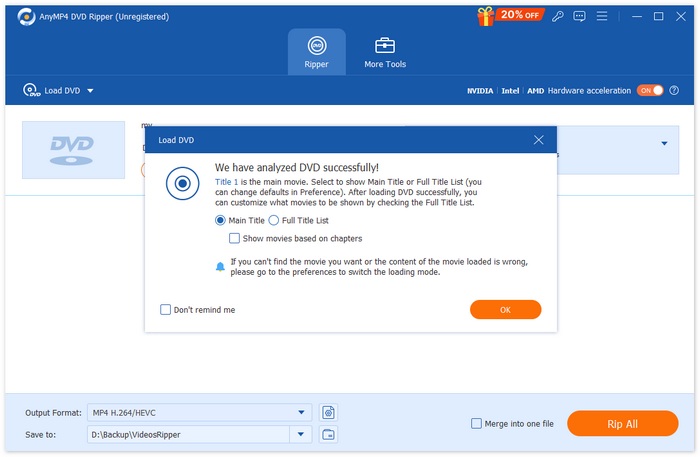
ステップ3.その後、下部の「出力形式」ボタンをクリックし、「ビデオ」タブから希望するデジタル形式を選択します。選択したら、「すべてリップ」ボタンをクリックして DVD のリッピングを開始します。
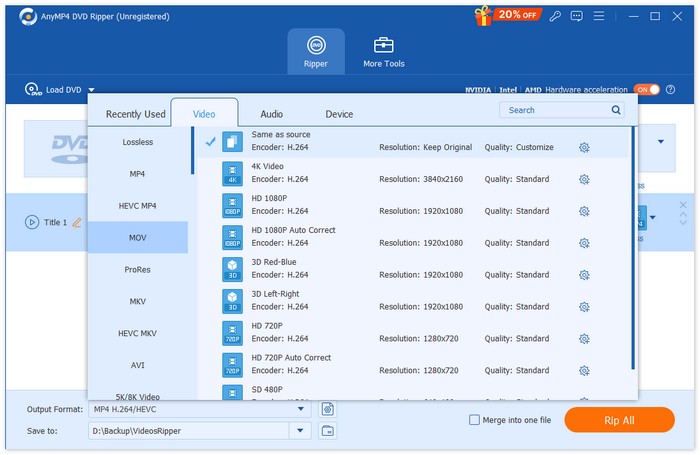
AnyMP4 DVD Ripperは、特にVuduディスクをデジタル化する代替手段として、まさに画期的なツールです。幅広いフォーマットのDVDを簡単にデジタル化できるだけでなく、高度な技術とアルゴリズムを採用しているため、最高レベルの品質が維持されるのが最大の利点です。
無料ダウンロードWindows 7以降に対応安全なダウンロード
無料ダウンロードMacOS 10.7以降に対応安全なダウンロード
DVDファブ
DVDFab も、Vudu Disc to Digital の代替となる優れたDVD リッピングソフトです。物理的な DVD をさまざまなデジタル形式にリッピングできる柔軟性をユーザーに提供します。さらに、MP4、MKV、AVI など幅広い出力形式に対応しており、多くのメディアプレーヤーで再生できる互換性を確保できます。
DVDFab を使って DVD をデジタル化する手順:
ステップ1.コンピューターに DVDFab をダウンロードしてインストールします。
ステップ2. その後、ツールを起動し、Plus ボタンをクリックして、パソコンから DVD を読み込みます。
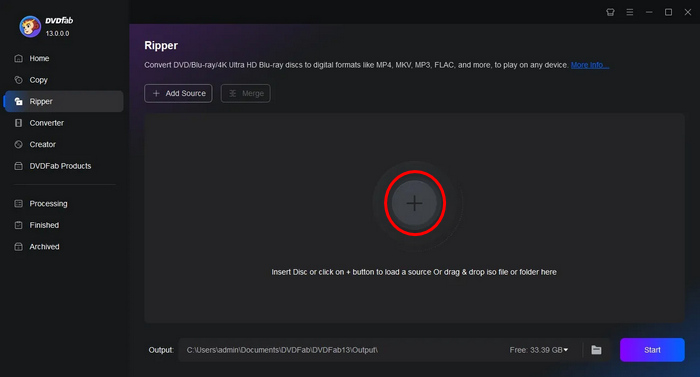
ステップ3.その後、他のタイトルを選択をクリックして、出力形式を選択します。
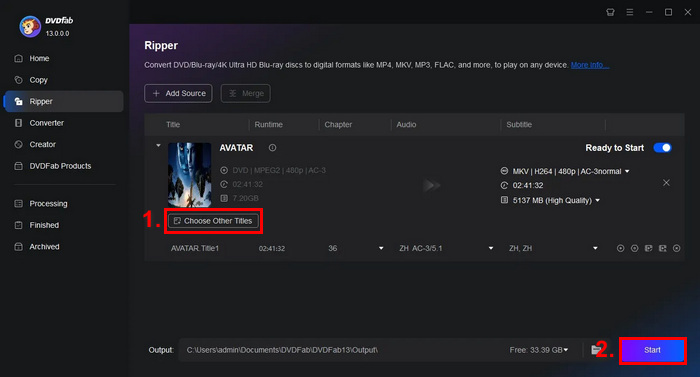
ステップ4. 最後に、Start ボタンをクリックして DVD のデジタル化を開始します。
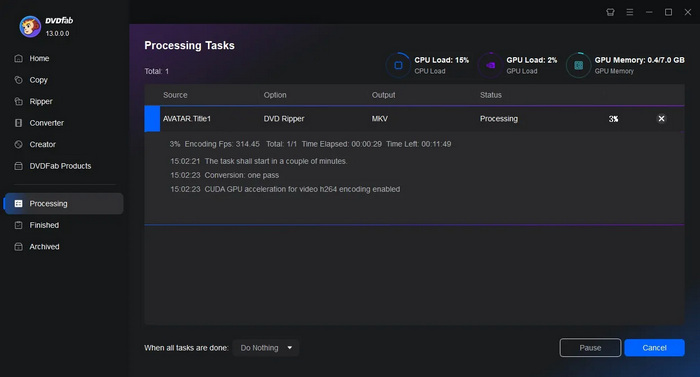
DVDfabは、DVDを簡単にデジタル化したいユーザーに最適です。主な機能は圧倒されるほどですが、リッピングのプロセスは使い方さえ覚えてしまえば実に簡単です。
ハンドブレーキ
HandBrake は人気の高いオープンソースの動画変換ツールで、Vudu Disc to Digital の優れた代替手段になり得ます。このツールは一般的に使用されている多くの動画形式に対応しており、DVD や Blu-ray を効率的にデジタルファイルへリッピングできます。そのため、HandBrake DVD Ripper を使用すれば、物理ディスクを簡単にデジタルファイルへ変換し、複数のデバイスで便利に保存・再生できます。
HandBrake を使って DVD をデジタル化する手順:
ステップ1.まず、パソコンに HandBrake をダウンロードしてインストールします。
ステップ2 次に、ツールを起動し、DVD-ROMにDVDを挿入して、ソースの選択でDVDを選びます。すると、ツールがDVDのタイトルをスキャンし始めます。
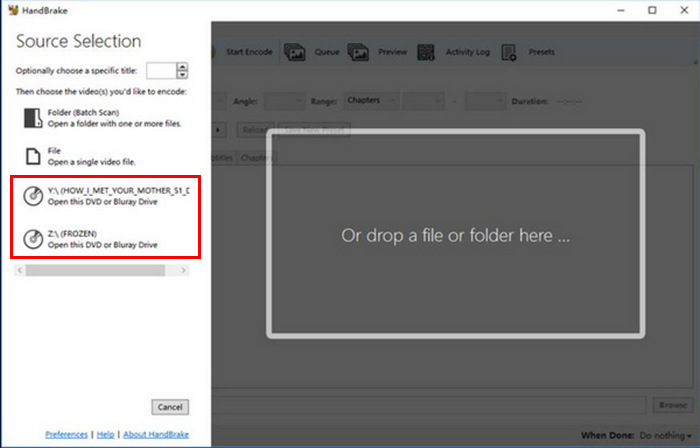
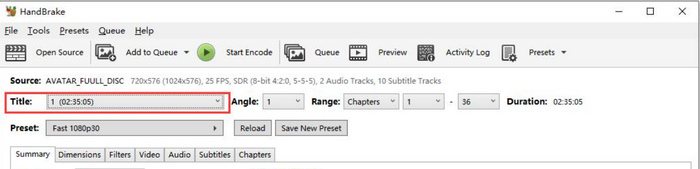
ステップ3 DVDが読み込まれたら、タイトルのドロップダウンメニューからリッピングしたいタイトルを選択します。
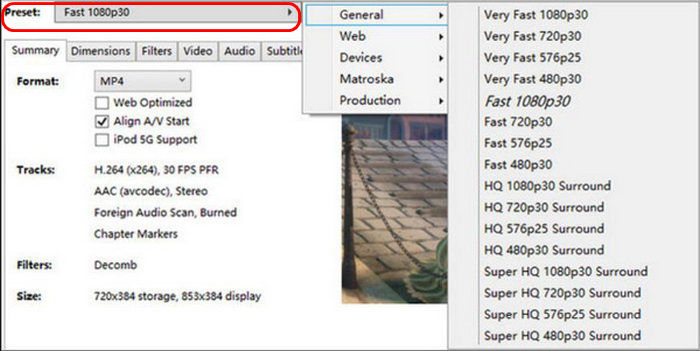
ステップ4.次に、出力ファイルの画質を決めます。プリセットボタンをクリックして設定をカスタマイズしてください。Apple TV、Android スマートフォン、PlayStation など、さまざまな用途向けのプリセットが用意されています。
ステップ5.名前とプリセットを選択したら、ウィンドウ上部のエンコード開始ボタンをクリックして DVD のリッピングを開始します。ウィンドウ下部には進行状況バーが表示され、リッピング完了までの残り時間が確認できます。
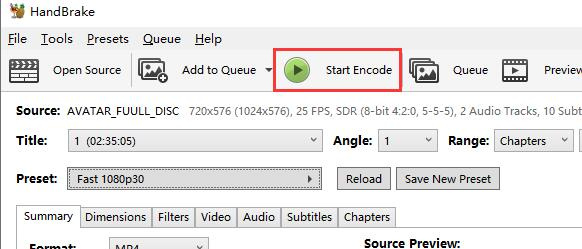
注意: 高画質でリッピングするほど時間がかかるため、しばらくパソコンをそのまま動作させておく必要があります。
HandBrake の優れた点はオープンソースであることです。ただし、デジタル化された DVD の代替として使用するのは初心者にとっては難しいかもしれません。
パート4. Vudu Discに関するよくある質問
DVD に傷や損傷があってもデジタルに変換できますか?
損傷の程度によって異なります。軽微な傷であれば変換処理に影響しない場合もありますが、ひどい傷や損傷のあるDVDはエラーの原因となる可能性があります。
Vudu の Mobile Disc to Digital 機能を使用するにはインターネット接続が必要ですか?
変換プロセス。デジタルコピーはVuduライブラリに追加され、オンラインでアクセスできるようになります。
Vudu の Mobile Disc to Digital を使用して変換できる DVD の数に制限はありますか?
変換できるディスクの数に厳密な制限はありませんが、変換ごとにコストがかかり、場所に基づく制限やサポートされているタイトルなど、Vudu が設定したルールに従う必要があります。
結論
現在はVudu Disc to Digitalは利用できなくなっていますが、ここで紹介した代替ツールを使えば DVD をデジタル化できます。また、モバイル版はまだ利用可能ですが、デスクトップ版ほど効率的でも便利でもない場合があります。それでも AnyMP4 DVD Ripper、DVDFab、HandBrake を使えば、DVD のデジタル化をしっかりサポートしてくれます。さあ、今すぐ DVD のデジタル化を始めましょう!
-
 Windows/MacOS/Linux向け無料DVDリッピングソフト5選【レビュー】
 ディスク用の無料DVDリッピングソフトをお探しですか?この記事では、DVD変換にかかるコストを節約できる5つのDVDリッピングツールをご紹介します。
-
 外付けCD/DVDドライブのおすすめ4選:徹底レビュー
 最高の外付けCD/DVDドライブをお探しなら、ここがまさにぴったりの場所です。この記事では、厳選した3つの外付けCD/DVDドライブを徹底的にレビューします。
-
 VideoByte BD-DVD リッピングとは何か、そして使い方は?【レビュー】
 VideoByte BD-DVD Ripper を使用して DVD をリッピングする予定の場合は、この記事を読んで、その機能、価格、使用方法のガイドの詳細を確認してください。
