


 ビデオコンバーター究極
 スクリーンレコーダー
 ビデオ修復
ビデオ修復
 安全なダウンロード
すべての既知のプラットフォームでアクセス可能な最高のMPEGデジタルビデオレコーダー
MPEG は、さまざまなメディアプラットフォームで使用されるファイル形式の一種です。MPEG-2 形式は、より大きなファイルサイズの DVD で使用されています。一方で、MPEG-4 は主にオンライン用途に利用されます。最新の環境に対応しているため、多くのコーデックがこの種の形式をサポートしています。ただし、どちらも高品質な映像と、すべてのデバイスに転送できるピッチの正確な音声を維持することが可能です。この形式は、録画・圧縮・転送を簡単に行う目的で利用するユーザーもいます。もし、MPEG 形式に対応した画面録画ソフトの選択に迷っているユーザーの一人であれば、この記事を読み進めて、利用可能なMPEG レコーダーツールにはどのようなものがあるのかを確認してみてください。

パート1。WindowsとMacに最適なMPEGレコーダー
以下は、MPEGビデオをキャプチャし、MPEG出力ファイル形式を提供するために使用できるツールです。
FVC無料スクリーンレコーダー
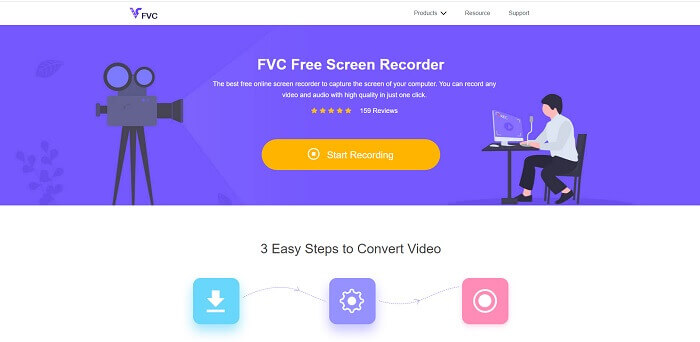
このツールは MPEG-4 デジタルビデオレコーダーを作成することができます。FVC Free Screen Recorder は無料かつオープンソースのツールで、ビデオ通話、通常の通話、ストリーミング配信、ビジネス会議、ディスカッションなどを録画できるように設計されています。世界中の多くのユーザーが、オンライン録画ツールとして個人的に愛用しています。MPEG-4 や WMV などの動画形式で、映像・音声ともにクリアな出力を生成できます。他の無料オンラインツールとは異なり、インターネット接続がある限り、録画を止めずに継続することが可能です。録画のためにストレージを無駄に消費するより、このツールを活用してみてはいかがでしょうか。使い方を学ぶには、以下の手順をよく理解しながら、注意深く進めてください。
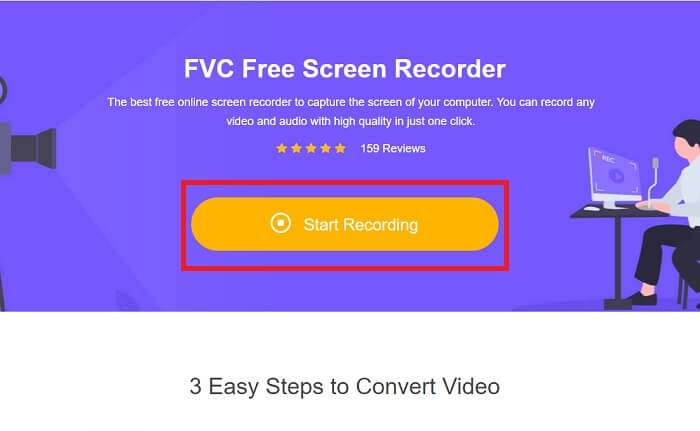
手順 1. 公式サイトへ移動するためにリンクをクリックし、ツールを起動するためにStart Recordingを押します。
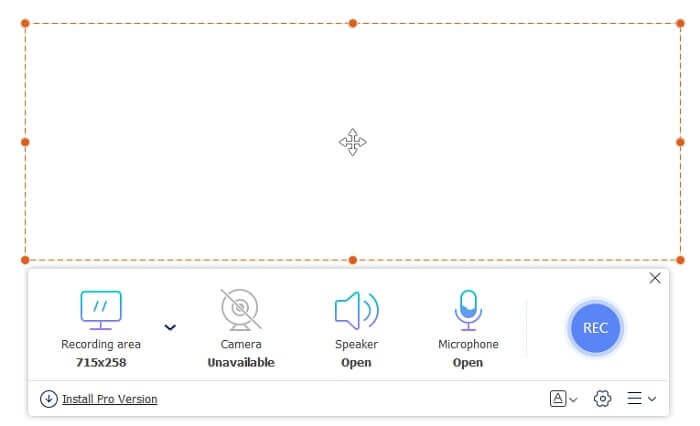
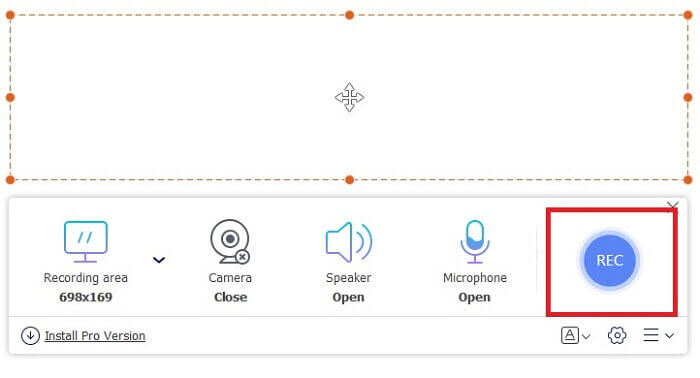
手順 2. ツールを起動すると、このような小さなツールバーが画面に表示されます。
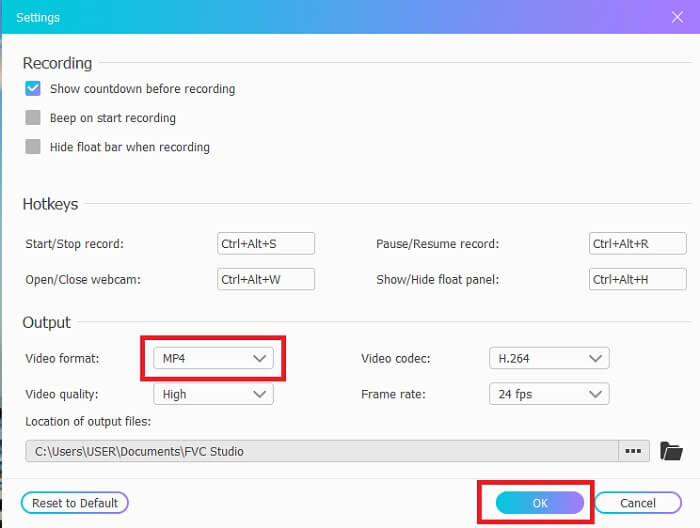
手順 3. 設定を行うためにWidgetアイコンを押します。設定画面が開いたら、出力パネルを探してVideo Formatをクリックし、形式を変更してからOKを押して保存します。
手順 4. 必要に応じてフレーム比を調整するか、Full screenを使用します。その他、録画中に自分の顔を表示するWebcam、システム音を録音するSpeaker、自分の声を加えるMicrophoneといったオプションがあります。すべての設定が完了したら、RECボタンを押して録画を開始します。
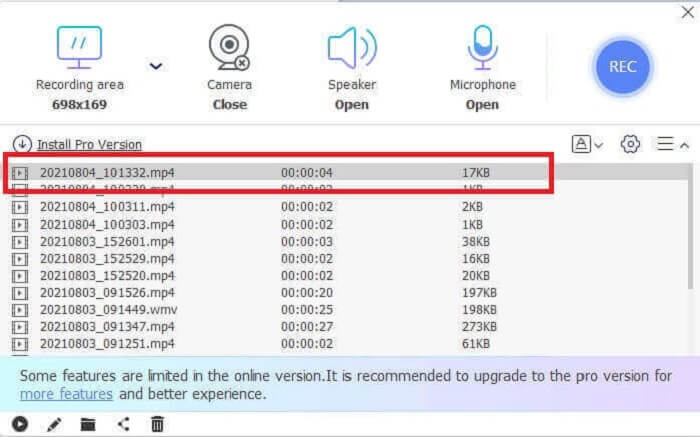
手順 5. 録画を停止するにはSquareボタンをクリックします。その後、Parallel ボタンをクリックして動画出力を確認します。
長所
- 無料で使いやすく、アクセスしやすい最高のオンラインツール。
- ダウンロードする必要はありません。
- あなたが探している最高の機能は、ここにあるオンライン録音ツールです。
短所
- 機能するにはインターネット接続が必要です。
- プレミアムバージョンで探しているすべての機能がここにあるわけではありません。基本的なことだけ。
パート2。WindowsおよびMac用のその他の役立つMPEGレコーダー
FVCスクリーンレコーダー
オンラインツールのプレミアムバージョンが役に立ちます。上記の無料のオンラインツールの使用を楽しんでいる場合、このツールを使用する場合、これはあなたの喜びのピークです。無料版よりも多くの機能を提供します。このツールを使用するだけで、出力にニューロンのMPEG4レコーダーを使用する必要はありません。 FVC Screen Recorderを使用する代わりに、他のツールの中でも非常に柔軟性があり、独自の有料ツールです。
このツールと他のプレミアムとの違いは、言及することがたくさんあります。このオールインワンツールを使用すると、他のスクリーンレコーダーユーザーよりも有利になります。言うまでもなく、他のスクリーンレコーダーにはない独自の機能は、ユーザーの邪魔にならないロックインスクリーン機能であり、スクリーンショットを撮ってもフローティングツールバーはキャプチャされません。さらに苦労する前に、この優れたツールを見てみましょう。以下にいくつかの手順を示します。
手順 1. 使用しているオペレーティングシステムを選択し、下のダウンロードボタンをクリックしてダウンロードします。その後インストールを行い、自分の用途に合わせて環境設定(Preferences)を変更します。
無料ダウンロードWindows 7以降に対応安全なダウンロード
無料ダウンロードMacOS 10.7以降に対応安全なダウンロード
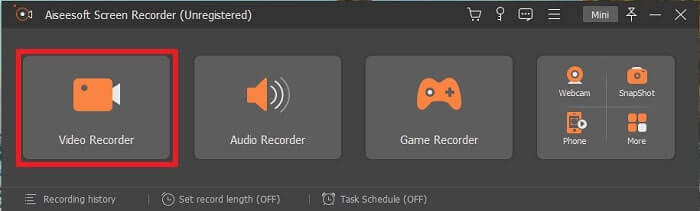
手順 2. Video Recorderアイコンをクリックして録画モードに入り、新しいツールバー設定が表示されます。
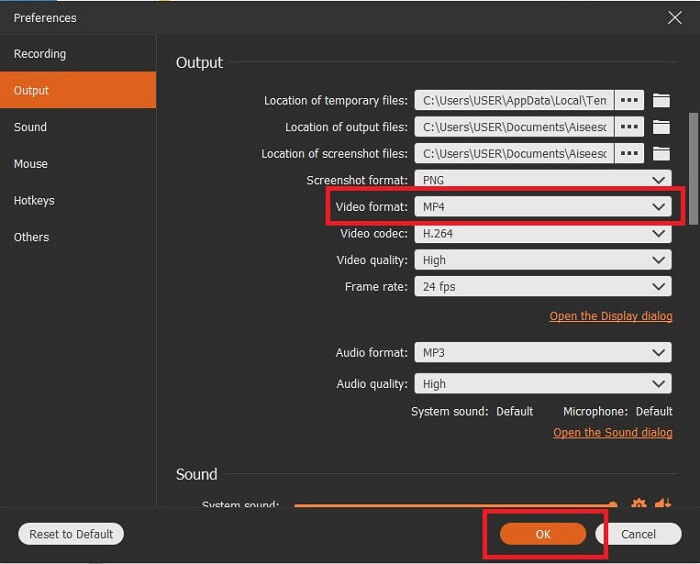
手順 3. 設定画面に進み、動画出力を MPEG 形式に変更してからOKをクリックし、保存します。
手順 4. 画面比率をFixed regionまたはFull screenに変更します。また、録画中に自分の顔を表示するためにWebcamを追加したり、Speakerボタンをクリックしてシステム音を追加・音量調整したりすることもできます。さらに、Micをオンにして自分の声を録音し、ノイズキャンセル機能を使ってよりクリアな音声出力を得ることも可能です。準備ができたら、Roundボタンをクリックして開始します。
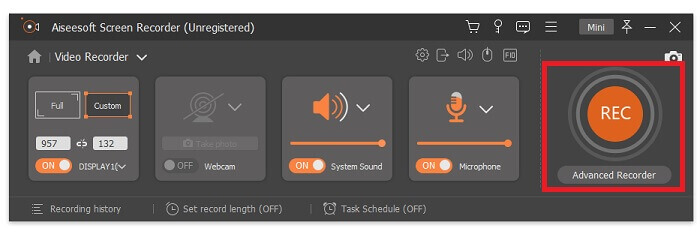
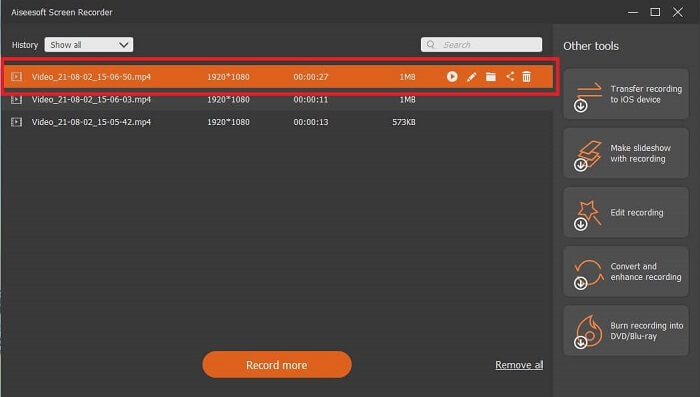
手順 5. 録画が終了したら、小さなSquare buttonをクリックします。すべての録画が終わったらSaveをクリックし、Next をクリックしてから、Parallelボタンを押して履歴を確認し、録画を楽しみましょう。
長所
- オンラインでもオフラインでもアクセスできます。また、透かしのない高品質のビデオおよびオーディオ出力を生成します。
- 包括的なツールであるため、探す必要はありません。独自のロックイン画面機能を備えています。
- 既知のほぼすべての異なるフォーマットとプラットフォームをサポートします。
短所
- ツールをアクティブにするには、支払う必要がありますが、それはあなたのお金のすべてのビットの価値があります。
- ツールをダウンロードする必要があります。したがって、2.4MBのストレージを消費します。
Bandicam
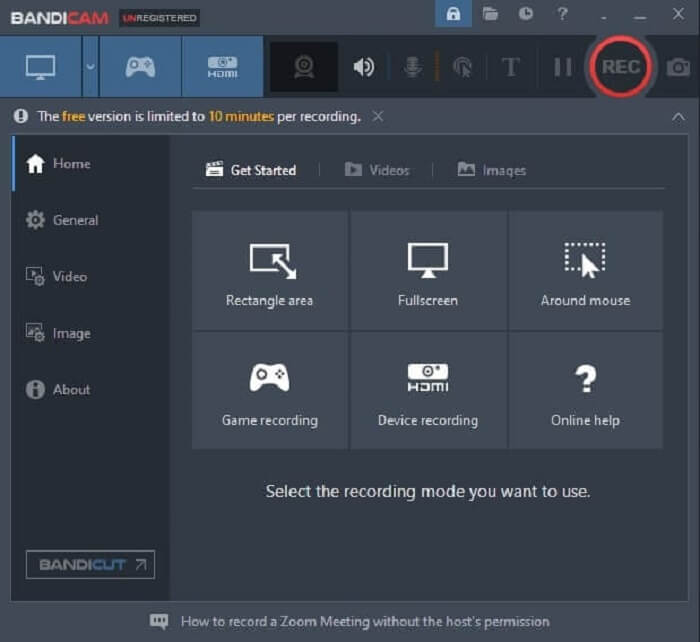
百万人のユーザーが使用している既知のスクリーンレコーダーはBandicamです。それはあなたがダウンロードできるウェブ上で最高のスクリーンレコーダーの1つとしての評判を築き上げます。このツールのfpsは素晴らしいです。 480まで上がる可能性があります。それでも、コンピューターには、通常のレコーダーよりもはるかに高いスペックが含まれている必要があります。通常のスクリーンレコーダーでも、毎秒480フレームを生成しなくても、高品質のビデオとオーディオを生成できます。
長所
- 既知のスクリーンレコーダーとして独自の帝国を築き上げています。
- ハードウェアアクセラレーション用に、Intel、NVIDIA、AMDのH.264ビデオエンコーダーを搭載しています。
- オンポイントインターフェースを備えています。
短所
- 低スペックのコンピューターを使用している場合、480fpsを使用することはできません。
- WindowsOS以外のプラットフォームには対応していません。
OBS Studio
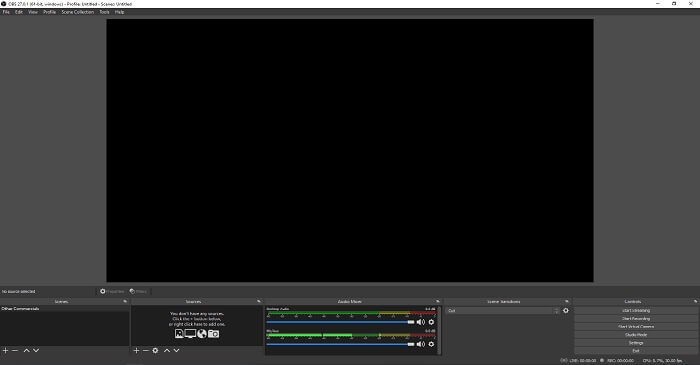
ユーザーが出力に機能を追加し、インターフェイスで他のタスクを一度に実行できるようにするツール。 OBS Studioは、Web全体で知られているさまざまなプラットフォームでサポートされています。これは無料でダウンロード可能なオフラインツールであり、ユーザーが望む可能性のあるリクエストを記録できます。また、その複雑さとスクリーンレコーダーの最大のファイルサイズの1つで知られています。他と同じように、MPEG4ファイル形式までのMPEG2レコードを生成できます。
長所
- 最高のスクリーンレコーダーについて話すとき、それはついに来ません。
- 他のスクリーンレコーダーでは提供できない、学習できるさまざまな機能。
- 複数のモニターを表示できます。
短所
- その複雑さのために、レコーディングの初心者にとって最初の選択肢ではありません。
- WindowsXPなどのすべてのプラットフォームで利用できるわけではありません。
パート3。比較チャート
| FFeatures | FVC無料スクリーンレコーダー | FVCスクリーンレコーダー | Bandicam | OBCスタジオ |
| ビデオ/オーディオ画面の記録 |  | | | |
| 注釈を付ける | | | |  |
| ロックイン画面 | | | | |
| 利用可能な録画ビデオの長さ | 制限なし | 制限なし | 無料/プレミアムで10分制限なし | 制限なし |
| 利用可能なオペレーティングシステム | すべてのオペレーティングシステム | すべてのオペレーティングシステム | Windowsのみ | Windows、Mac、Linuxのみ |
| 価格帯 | フリーオンライン | 1か月間:$25.00 1年間:$31.20 生涯ライセンスの場合:$55.20 | 無料版とプレミアムがあります。 1台のPCの場合:$39.95 2台のPCの場合:$59.96 バンディカット付きバンディカム:$60.95 | 無料ダウンロード可能 |
パート4。MPEGレコーダーに関するFAQ
利用可能なMPEGはいくつありますか?そして、彼らの目的は何ですか?
これが他の6種類のMPEGです。デジタルストレージオーディオ/ビデオメディア用に設計されたMPEG-1、MPEG-2デジタルテレビおよびDVDビデオ、Web用のMPEG-4マルチメディア標準、マルチメディアコンテンツ用のMPEG-7検索および説明、拡張および混合現実のMPEG-MAR参照モデル、そして最後に、ストリーミングソリューションマルチメディアデータ用のMPEG-DASH。
MPEGをMP4に変換できますか?
はい、FVC Free Online Video Converterのようなコンバーターを使って変換できます。詳しい手順についてはこちらをクリックしてご確認ください。
スクリーンレコーダーの最も一般的なビデオ出力は何ですか?
標準的な動画形式は MP4 であり、多くのプラットフォームとの互換性が高いため、ユーザーに広く使用されています。MP4 動画の再生方法を知りたい場合は、Best MP4 Playerを読んで確認してみてください。
結論
結論として、MPEG 4レコーダーは、すべてのメディアプラットフォームで再生できる最高のフォーマットの1つです。すべてのツールには、提供できる独自の独自性があります。すべてのツールで記録できますが、すべてのプラットフォームですべてが利用できるわけではありません。したがって、ツールのユーザーであるため、自分に最適なものを選択してください。
他のツールとは異なり、FVC ScreenRecorderは非常に柔軟性があります。さまざまなプラットフォームで使用でき、生成できるハイエンド出力としても安価です。何を選択するかを決めるのに役立つように、それがユーザーフレンドリーで、すべてのOSで利用可能であるかどうかを最初に確認する必要があります。支払いが必要な場合は、利用する価値がありますか?あなたが顧客であることを忘れないでください。使用するツールを調整する必要はありません。ツールは、管理およびポイント制御に柔軟に対応できる必要があります。たとえば、レコーダーとしてFVC ScreenRecorderを選択するなどの正しい決定を行います。
-
 デビュースクリーンレコーダー–究極のレビューと最良の選択肢
 NCH Debut Video Capture and Screen Recorderは、マウスの動きを含め、コンピューター画面に送信するものすべてのビデオをキャプチャするための優れたツールです。
-
 スクリーンビデオをキャプチャするための4つの最高の無料Web起動レコーダー
 1セントも払わずにデスクトップで画面上のアクティビティを記録するための最良の方法をお探しですか?これが最も頻繁に使用される4つの無料のWeb起動レコーダーです。
-
 偏りのないシンチレビューオーディオレコーダーと最良の代替品
 Cinch Audio Recorderは、ストリーミングサイトから音楽をダウンロードするための最良の方法です。公平なレビューと記事からの最良の代替案についてもっと学びましょう。
