


 ビデオコンバーター究極
 スクリーンレコーダー
 ビデオ修復
ビデオ修復
 安全なダウンロード
包括的なガイド最高のツールを使用してビデオをGIFに変換する方法
ソーシャル メディア フィードを際限なくスクロールし、同じ古い静止画像を見ることにうんざりしていませんか? GIF を使ってオンラインでの存在感を高めてみませんか?近年、これらの短いループ アニメーションの人気が高まっていますが、その理由は簡単にわかります。注目を集めるだけでなく、静止画では表現できない複雑な感情や概念を伝えることもできます。
The great news is you don't need to be a professional animator to create your own GIFs. In this post, we'll show you how to turn video to GIF, so you can start sharing your own custom animations with the world and increase your online visibility and grab your audience's attention with eye-catching animations today!

パート 1. コンピュータでビデオを GIF に変換する
ビデオを GIF に変換することは、既存のコンテンツを再利用する楽しく創造的な方法です。お気に入りのビデオがあるが、必ずしも全体を共有したくない場合は、簡単に GIF に変換して、特定の瞬間やシーンを強調することができます。これにより、古いコンテンツに新しい命を吹き込み、オンライン プレゼンスを新鮮で刺激的なものに保つことができます。したがって、次のプログラムは、ビデオから GIF を作成する方法のプロセスを示します。
1. Video Converter Ultimate (オフライン方式)
FVC Video Converter Ultimate is a versatile desktop app that allows you to convert videos to various formats, including GIFs. With its built-in GIF maker, you can easily transform your favorite videos into shareable GIFs that are perfect for social media, messaging apps, and more.
FVC Video Converter Ultimate の GIF 作成機能には、ビデオの開始時間と終了時間の選択、GIF のフレーム レートとサイズの調整、ループ回数の選択など、さまざまなカスタマイズ オプションが用意されています。さらに、パーソナライズまたはブランディングの目的で、GIF にテキストまたは画像の透かしを追加できます。ビデオからこの GIF メーカーを使用するには、以下の手順に従ってください。
Step1. Grab the program and install
First, you must have the program installed on your computer. To do so, tick any of the Free Download buttons below. Then, proceed with installing the program by following the setup wizard. Afterward, launch the program.
Free DownloadFor Windows 7 or laterSecure Download
Free DownloadFor MacOS 10.7 or laterSecure Download
Step 2. Access the GIF maker
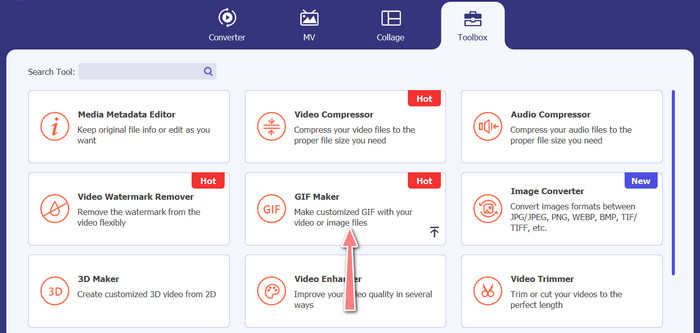
Now that the program is launched and accessed, you may now begin with the process by accessing the GIF Maker of the program. Go to the Toolbox tab and look for the GIF Maker. Then, on the next interface, you will see the upload area.
Step 3. Load a video
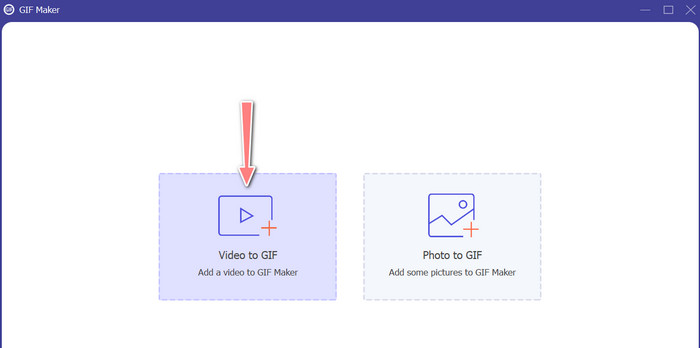
This time, tick the Video to GIF button and select the video you wish to convert into GIF. It will allow you to select from your computer’s local drive. After selecting your target video, you can now edit the video and initialize how to make a GIF from a video.
Step 4. Create a GIF from a video
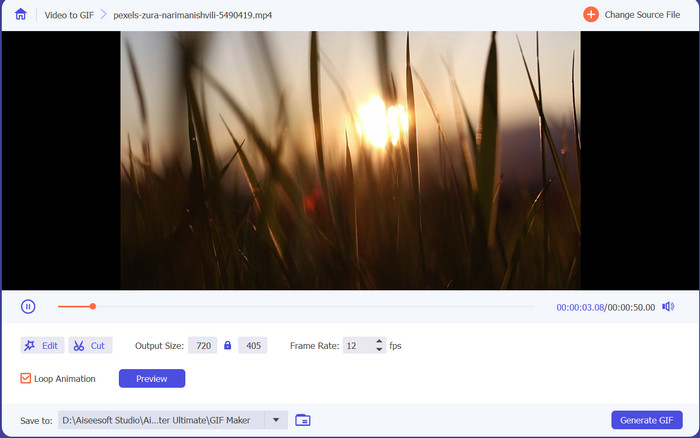
Once you have access to the GIF Maker, you may cut the uploaded video, edit the output size, adjust the frame rate, or edit it. Also, it allows you to enable the loop animation or not. Finally, tick the Generate GIF button if you are satisfied with the output.
長所
- 高品質の GIF を作成するための高度なビデオ処理アルゴリズム。
- GIF のフレーム レート、サイズ、品質を調整します。
- ユーザーフレンドリーなインターフェース。
短所
- コンピューターのハードウェアによっては、変換が遅くなる場合があります。
2.GIMP
GIMP (GNU Image Manipulation Program) は、画像を作成および操作するための幅広いツールと機能をユーザーに提供する、堅牢で用途の広いオープンソースの画像編集ソフトウェアです。 GIMP の重要な機能の 1 つは、アニメーション GIF を作成できることです。この動画を GIF に変換するメーカーを使用すると、複数の画像やフレームを 1 つのアニメーションに結合して、アニメーション GIF を簡単に作成できます。画像をGIMPにインポートし、レイヤーを追加し、アニメーション機能を使用して滑らかでシームレスなアニメーションを作成できます. GIF にテキスト、図形、その他の要素を追加して、より興味深く魅力的なものにすることもできます。ビデオから GIF を作成するには、以下の手順を参照してください。
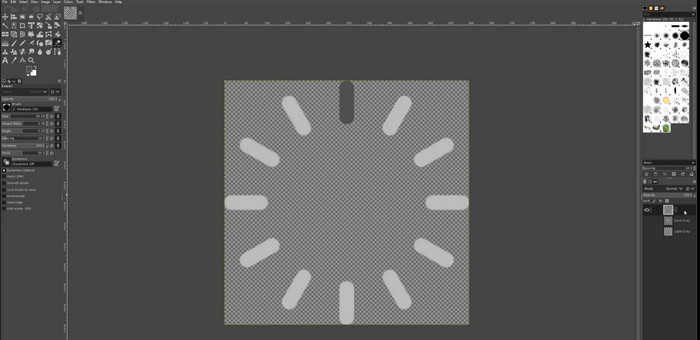
Step 1. Open GIMP and import your video file by going to File > Open and choosing the video file you want to use.
Step 2. Once you have imported the video, GIMP will ask you to choose the frame rate. Select the frame rate you want for your GIF, then click Import. You should see the frames of the video as separate layers in the Layers panel. You can get rid of any frames you don't want in your GIF by right-clicking on them and choosing Delete Layer.
Step 3. Right-click on the first layer and choose Duplicate Layer from the menu.Choose the copy and go to Filters > Animation > Blend. Set the opacity of the layer to 50% and set the blend mode to Addition.
Step 4. Go to File > Export As and choose the GIF file format to export the GIF. Name your file and pick the folder where you want to save it. Make sure to choose As Animation, and the frame delay you want in the export dialog. You can also choose how many times you want your animation to loop or if you want it to loop forever.
長所
- GIMP での GIF へのビデオは無料で、オープンソースです。
- 複数のプラットフォームで利用できます。
- 強力な画像編集ツール。
短所
- 急な学習曲線。
- 他のソフトウェアとの統合の欠如。
3. 無料のオンライン動画変換ソフト
If you wish to instantly convert your favorite videos to GIFs, you can opt to use Free Video Converter Online by FVC. It lets you upload many video file formats and convert them to make formats, including GIF. Therefore if you are looking for a video to GIF converter online, you should consider using this tool. Additionally, the process is simple and does not take so much of your time. All you have to do is upload files; conversion is just a click away. Now, here are the steps on how to turn a video into a GIF for free online.
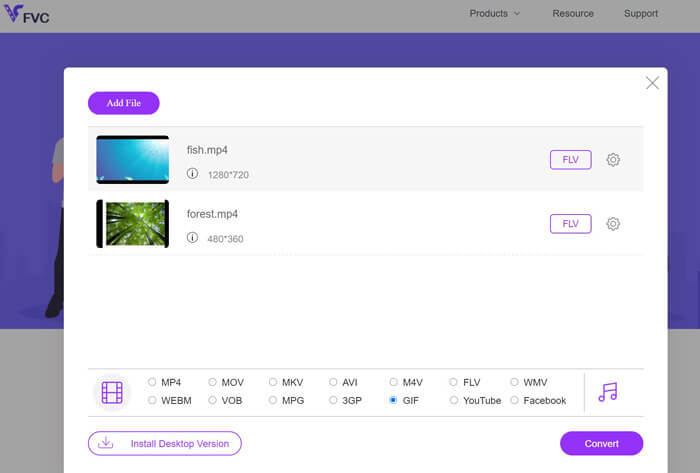
Step 1. Launch a browser on your computer and navigate to the program’s official website. From the main page, you will already see the upload button.
Step 2. Now, hit the Add Files to Upload button, and it will prompt you to download the launcher to enable the uploading. Install it, and you are good to go.
Step 3. After that, add your selected video from your computer. Then, select a format by setting GIF as the output video format.
Step 4. You may tick the gear icon beside your video thumbnail to adjust some output settings. Finally, hit the Convert button to turn the video into GIF.
長所
- 品質を損なうことなくファイルを変換します。
- 多くのファイル形式をサポートしています。
短所
- インターネット接続への依存。
Ezgif は、切り抜き、サイズ変更、テキストや効果の追加、さまざまな画像およびビデオ形式間の変換を可能にする無料のオンライン ツールです。また、ユーザーがビデオ ファイルまたは一連の画像からアニメーション GIF を作成できる GIF 作成ツールもあります。全体として、Ezgif は基本的な画像や GIF の編集に便利なツールであり、その GIF メーカー ツールを使用すると、アニメーション GIF を簡単に作成できます。しかし、より複雑な編集タスクには適していない可能性があり、ファイル サイズと制御に制限があるという事実は、一部のユーザーを悩ませる可能性があります。以下の手順に従って、このプログラムを使用してビデオで GIF を作成する方法を学びます。
4.EZGIF
Ezgif は、切り抜き、サイズ変更、テキストや効果の追加、さまざまな画像およびビデオ形式間の変換を可能にする無料のオンライン ツールです。また、ユーザーがビデオ ファイルまたは一連の画像からアニメーション GIF を作成できる GIF 作成ツールもあります。全体として、Ezgif は基本的な画像や GIF の編集に便利なツールであり、その GIF メーカー ツールを使用すると、アニメーション GIF を簡単に作成できます。しかし、より複雑な編集タスクには適していない可能性があり、ファイル サイズと制御に制限があるという事実は、一部のユーザーを悩ませる可能性があります。以下の手順に従って、このプログラムを使用してビデオで GIF を作成する方法を学びます。
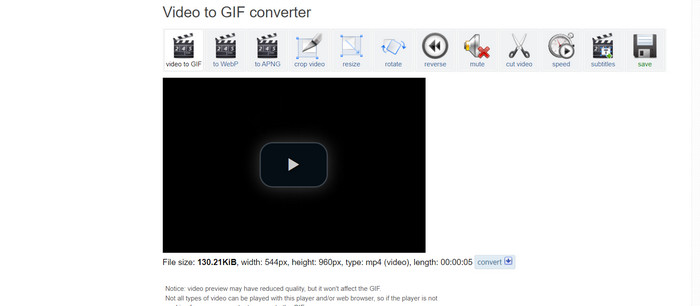
Step 1. Go to EZGIF site. Then, choose from the options of EZGIF the Video to GIF.
Step 2. Click Choose File to upload the video file you want to turn into a gif. You can also enter the video's URL.
Step 3. After you upload the video, you can use the sliders to choose where the GIF starts and ends. You can also use the options to add text, add filters, or change the size of the gif.
Step 4. Click the Convert to GIF button when you are happy with your settings. After the conversion is done, you can click the Download button to save your gif.
長所
- さまざまな機能を提供し、 GIFエディター.
- 画像シーケンスから GIF を作成します。
- 完全に無料で使用できます。
短所
- Web サイトに広告が表示されます。
- 限られた編集機能。
パート 2. Android と iPhone でビデオを GIF に変換する
The GIPHY mobile app is a powerful tool for creating and sharing animated GIFs on the go. With the app, you can easily turn your videos and photos into GIFs that can be used on social media, messaging apps, and more. The app also provides access to a vast library of pre-made GIFs that can be searched and shared instantly. Whether you're looking for a reaction GIF, a funny meme, or a cute animal clip, you're sure to find it on GIPHY. Follow the instructions to convert video to GIF on Android and iOS devices.
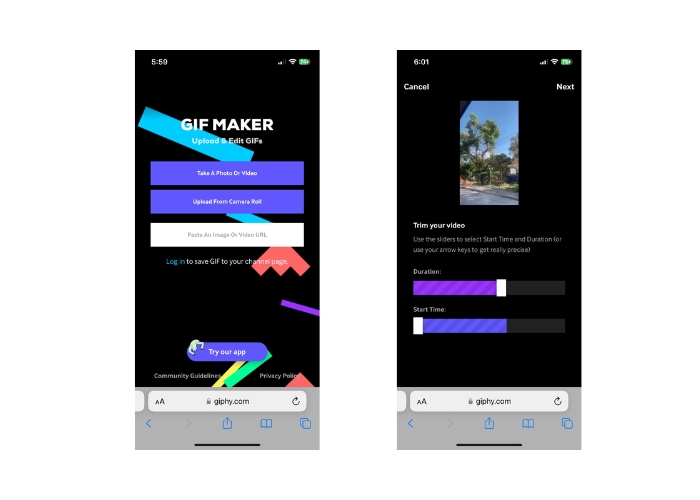
Step 1. Get the GIPHY app from the App Store (iOS) or Google Play Store and install it on your phone (Android). To make a new GIF, open the app and tap on the camera icon.
Step 2. Choose the video or photos you want to use to make a GIF.
Step 3. Use the editor to cut out parts of your video, add filters, change the speed, or change the options for looping.
Step 4. Tap the button that says Create GIF to make your GIF. Once your GIF is made, you can save it to your camera roll or send it directly to social media or messaging apps.
長所
- 自由に使用できます。
- クロスプラットフォームの互換性。
- 事前に作成された GIF の大規模なライブラリ。
短所
- 著作権の問題。
- 限られたビデオの長さ。
パート 3. 動画の GIF への変換に関する FAQ
作成した GIF を共有するにはどうすればよいですか?
GIF を作成したら、直接アップロードするか、ファイルへのリンクを使用して、ソーシャル メディア、メッセージ アプリ、またはその他のプラットフォームで共有できます。多くの GIF 作成ツールには、共有オプションが組み込まれているため、GIF を他のユーザーと簡単に共有できます。
ビデオから GIF を作成する際の制限は何ですか?
ビデオから GIF を作成すると、通常、GIF は解像度が低く、カラー パレットが限られているため、品質が低下する可能性があります。さらに、使用しているツールによっては、生成される GIF の長さとサイズに制限がある場合があります。
ビデオから作成された GIF の理想的な長さはどれくらいですか?
ビデオから作成された GIF の理想的な長さは、使用目的と共有されるプラットフォームによって異なります。ソーシャル メディア プラットフォームの場合、推奨される長さは通常 3 ~ 6 秒です。
結論
With the variety of online converters, software applications, and mobile apps available for creating GIFs from videos, it's never been easier to share fun, animated content with friends and followers. For some suggestions to create GIFs from a video with quality, it is important to choose a video with good lighting, minimal camera shake, and a length that is appropriate for the intended platform.
-
 デスクトップまたはオンラインでMP4をGIFに変換するためのステップバイステップガイド
 MP4ビデオをアニメーションGIFに変換する最良の方法をお探しですか?これは、Photoshop、Windowsムービーメーカー、オンラインビデオコンバーターなどでそれを行うための詳細なガイドです。
-
 WindowsとMacで最高のアニメーションGIFルーパーを使用してGIFをループする
 最高のループGIFの秘密を知りたいですか?作りたいですか?もしそうなら、あなたは正しい場所にいます。だから、利用可能な最高のルーパーでループを作成する方法を学びましょう。
-
 GIFを分割してお気に入りのアニメーションGIFファイルをカスタマイズする方法
 わかりやすいガイドで、GIF をフレームに分割し、ニーズに合わせてカスタマイズする方法を学びましょう。時間を節約し、GIF の必要な部分だけを使用します。
