


 ビデオコンバーター究極
 スクリーンレコーダー
 ビデオ修復
ビデオ修復
 安全なダウンロード
Xvid を DivX に変換する際に使用する 4 つの最適なアプリケーション
現代では、動画はあらゆる場所で常に目に触れる存在となっています。人々は映画やクリップなどの視聴を好みます。しかし、特定のプラットフォームで動画が再生できないという思いがけない場面に遭遇することがあります。その大きな理由の一つは、使用している動画のファイル形式がそのプラットフォームでサポートされていないことです。このような場合、最適な解決策は動画を別のファイル形式に変換することです。ファイル形式を変更する際には、ある形式から別の形式へ変換できる優れたソフトウェアを探す必要があります。もしXvid を DivX に変換する方法を知りたいなら、ぜひ読み進めてください。

パート 1: コンピューターで変換するのに最適なアプリケーション
Video Converter Ultimate は、パソコンで Xvid を DivX に変換するのに使える、非常に優れたソフトウェアアプリケーションです。このアプリケーションは Windows と Mac の両方で利用可能です。さらに、GIF、FLV、AVI、MOC、MKV など、さまざまなファイル形式をサポートしています。このコンバーターアプリは、他のプログラムやデバイスでは再生できない非互換ファイルを変換することができます。また、画質を損なうことなくファイルを変換することも可能です。加えて、Video Converter Ultimate はシンプルで使いやすく、ファイルを簡単に変換したい初心者にも最適です。さらにこのアプリケーションは、単に多様なファイルを変換できるだけではありません。コラージュメーカー、動画スピードコントローラー、動画圧縮、音声圧縮、ウォーターマークの追加・削除、動画トリミング、コラージュメーカー、ウォーターマーク追加、色補正など、さまざまな編集ツールも備えています。Xvid を DivX に変換したい場合は、以下の簡単な手順に従ってください。
ステップ 1: パソコンに Video Converter Ultimate をダウンロードします。インストールが完了したら、アプリケーションを起動します。
無料ダウンロードWindows 7 以降に対応安全なダウンロード
無料ダウンロードMacOS 10.7 以降に対応安全なダウンロード
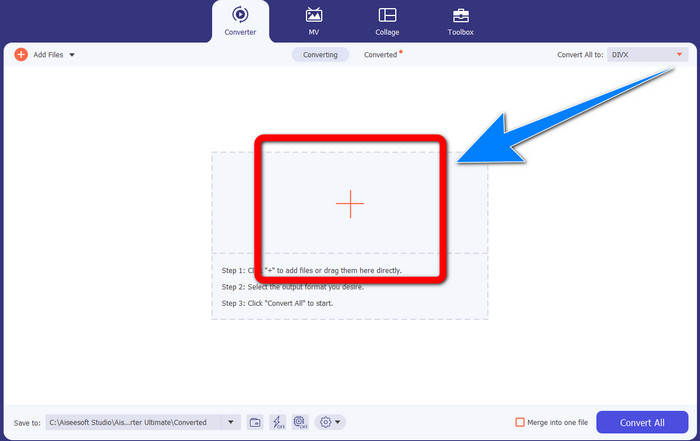
ステップ 2: Video Converter Ultimate を起動したら、変換タブに進みます。その後、プラス アイコンのボタンをクリックして、DivX に変換したい Xvid ファイルの動画を追加します。
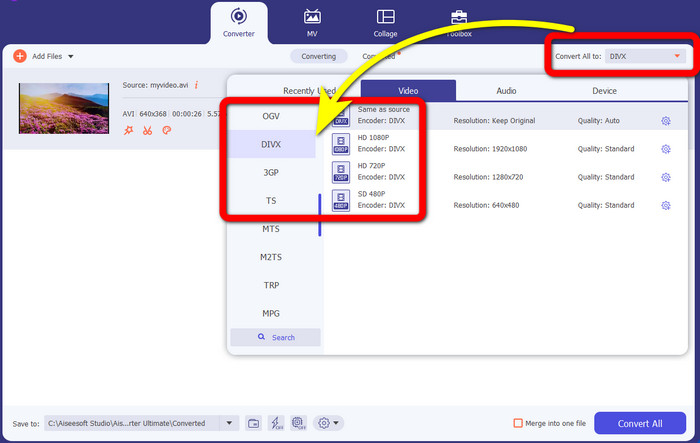
ステップ 3: Xvid ファイルの動画を追加したら、すべて変換 のボタンをクリックします。次に、DivX ファイルを選択し、480p、720p、1080p など、希望の画質を選びます。
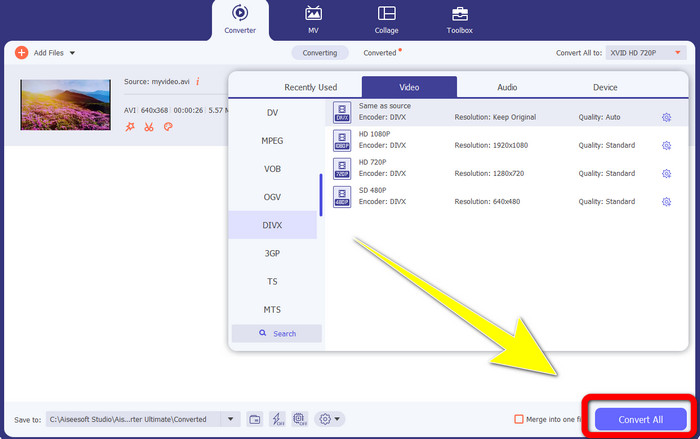
ステップ 4: 動画を Xvid ファイルから DivX ファイルに変更したら、すべて変換 ボタンをクリックして、変換と最終出力の保存を行います。その後、変換したファイルをデバイスで再生し、すでに互換性があるかどうかを確認できます。
パート 2: Xvid を DivX に変換するフリー ソフトウェア
もう一つ、無料で利用できる動画コンバーターとして HitPaw Video Converter があります。このアプリケーションは Windows と Mac にダウンロードできます。このアプリを使えば Xvid を DivX に変換できます。さらに、MP4、M4V、MOV、MKV、WMV、MPEG、AVI、FLV など、1000 種類以上のファイル形式にも変換可能です。また、HitPaw Video Converter はシンプルなアプリケーションで、どんなユーザーにも使いやすい設計です。このアプリを利用すれば、多くのファイルをより簡単に変換できます。ただし、インストールには時間がかかり、高度な機能は有料版でのみ利用可能です。Xvid を DivX に変換したい場合は、次の手順に従ってください。
ステップ 1: Windows または Mac に HitPaw Video Converter をダウンロードします。インストールが完了したら、アプリケーションを起動します。
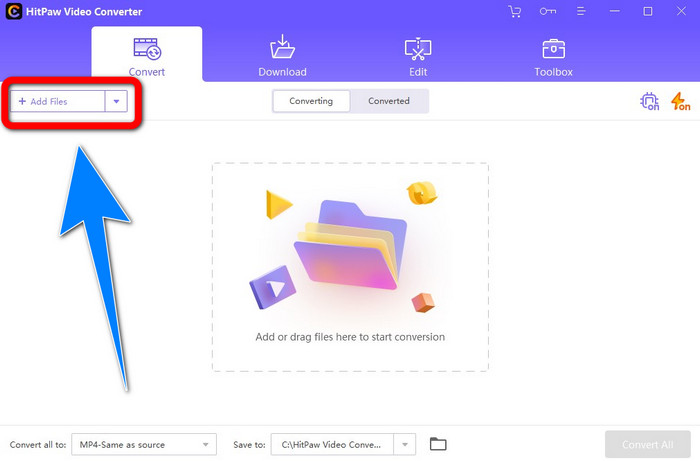
ステップ 2: ファイルを追加 ボタンをクリックして、Xvid ファイルを追加します。
ステップ 3: フォーマットオプションに移動し、DivX ファイル をクリックします。
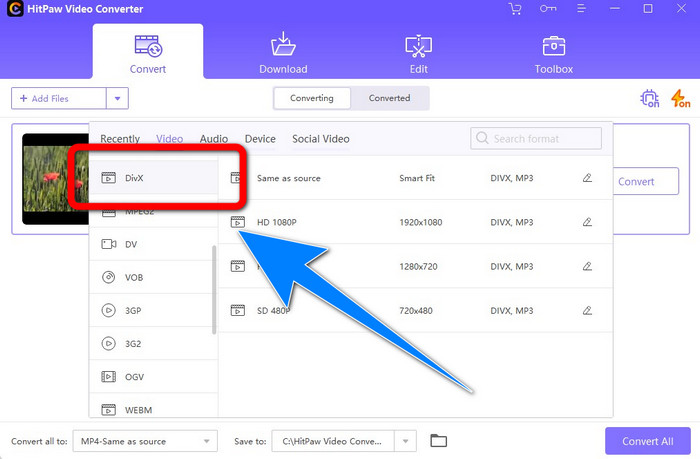
ステップ 4: DivX ファイル形式を選択したら、すべて変換 ボタンをクリックして変換を開始し、最終出力を保存します。
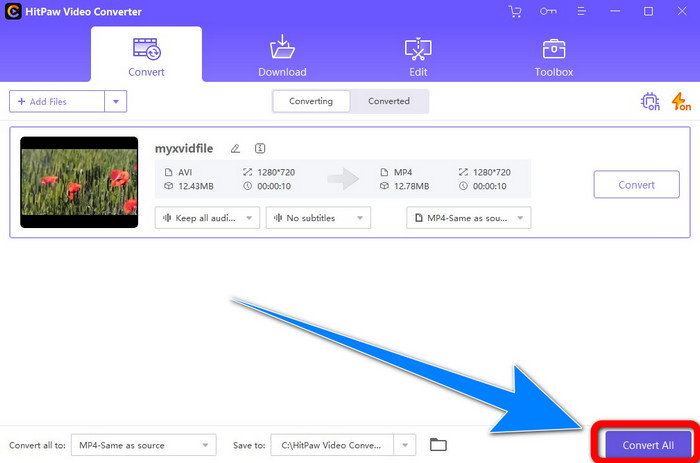
パート 3: オンライン ツールを使用して Xvid を DivX に変換する
1.エバノの使い方
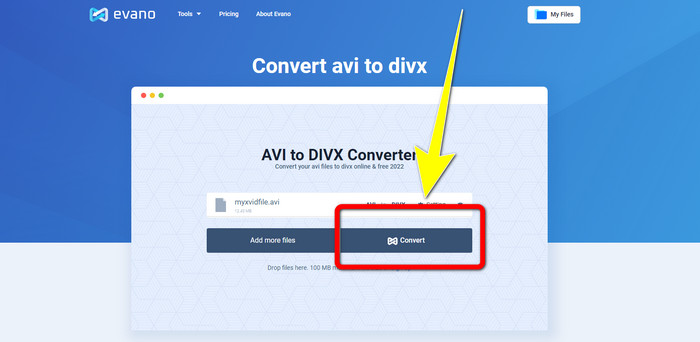
Evano は、Xvid ファイルを DivX ファイルに変換するのに使える、もっとも信頼できる優れたソフトウェアの一つです。さらに、このソフトウェアは無料で利用でき、変換方法もシンプルなので、初心者にも適しています。また、さまざまな音声・動画形式をサポートしています。音声では MP3、WAV、FLAC、M4R、DTS、AAC、MP2 などに対応しています。動画形式では、DivX、Xvid、AVI、MPEG、MKV、MOV、MJPEG、WEBM などをサポートしています。しかし、このソフトウェアには制限があります。1 日に変換できるのは最大 10 ファイルまでで、多くのファイルを変換したい人には向きません。また、変換プロセスが遅く、数分かかることがあります。Evano を使って Xvid を DivX に変換したい場合は、以下の手順に従ってください。
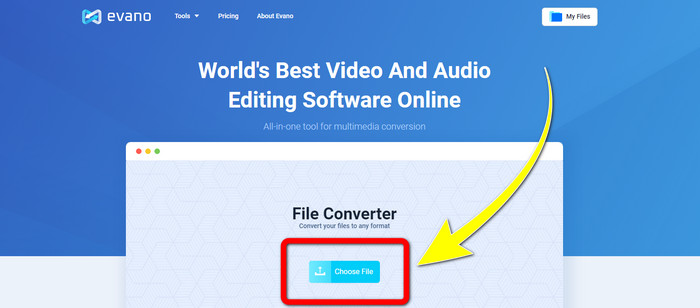
ステップ 1: Evano のウェブサイトにアクセスします。そして、ファイルを選択 をクリックし、Xvid ファイルの動画を追加します。
ステップ 2: 動画ファイルを追加したら、フォーマットオプション に移動し、DivX ファイル 形式を選択します。
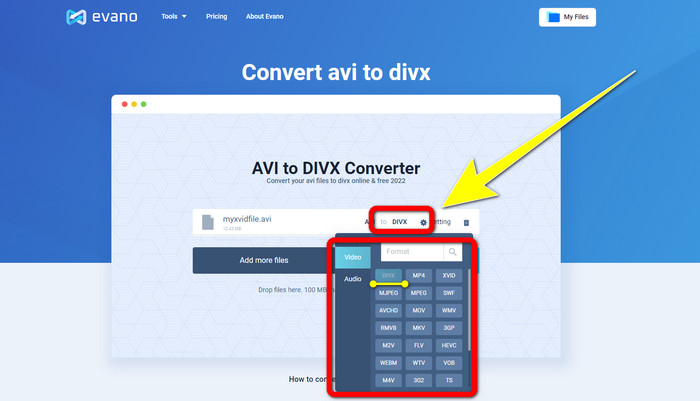
ステップ 3: DivX ファイルをクリックしたら、変換 ボタンを選択します。変換プロセスが完了するまで待ち、ダウンロード をクリックして変換後のファイルを保存します。
2. AnyConv の使用
Xvid を DivX に変換するための、ほかの便利で有用なオンラインアプリケーションを探しているなら、AnyConv というソフトウェアを利用できます。さらに、このアプリケーションは無料のため、サブスクリプションを購入する必要がありません。また、3GP、DIVX、MOV、FLAC、FLV、H264、JPEG、JPG、MP3、MP3、MP4、MPEG など、多くの音声・動画・画像形式をサポートしています。このソフトウェアは、Xvid ファイルを DivX に変換するのに必要な手順が 3 ステップだけと、とても簡単に使えます。ただし、AnyConv の変換プロセスは遅く、ソフトウェアがうまく動作しないこともあります。それでも、このオンラインアプリを使ってさまざまなファイルを変換したい場合は、以下の手順に従ってください。
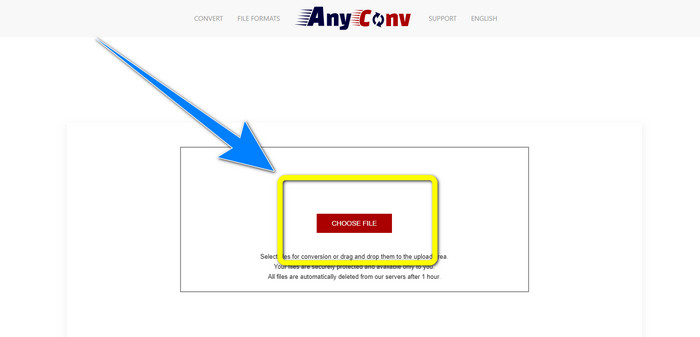
ステップ 1: AnyConv のウェブサイトにアクセスします。ファイルを選択 ボタンをクリックし、変換したい動画を挿入します。
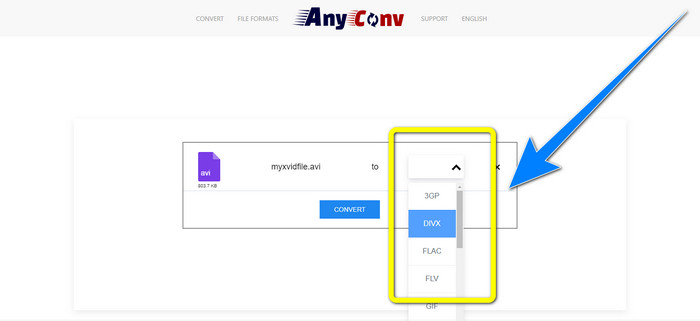
ステップ 2: ファイルを追加したら、フォーマットオプション に進み、DivX 形式を選択します。
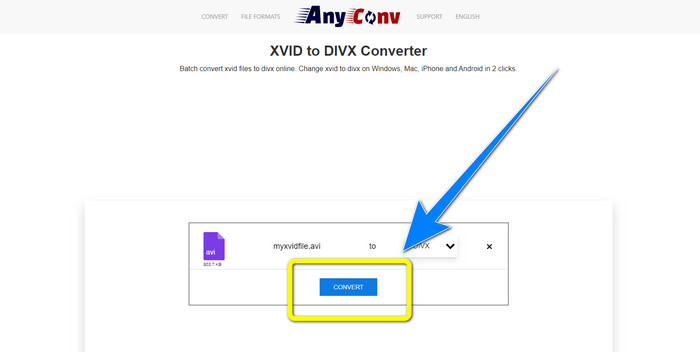
ステップ 3: その後、変換 ボタンをクリックします。変換プロセスが完了したら、変換したファイルをダウンロードしてデバイスに保存します。
関連記事:
画質を落とさずに XviD を FLV に変換する方法【解決済み】
XviD を WMV 形式に無劣化変換する 2 つの有用な方法
第4部:XvidとDivXの紹介
Xvid は、MPEG-4 形式に基づき、GNU 一般公衆利用許諾書(GNU GPL)のもとで公開されているソフトウェアです。フルレングスの DVD 映画を 1 枚の CD に収まる程度まで十分に圧縮できることでも知られています。さらに、Xvid は DivX から派生して誕生しました。また、Xvid は DivX の直接のライバルでもあります。加えて、ほかのファイル形式と比較してより新しく、より優れた技術を提供しています。一方で、DivX は市場で最も古いビデオコーデックの一つです。こちらも MPEG-4 ファミリーに属しています。ただし、DivX ファイルのサイズは、他の多くのファイル形式よりも小さくなります。なにより優れている点は、DivX ファイルがさまざまな OS やデバイスと互換性を持っていることです。
パート 5: Xvid から DivX への変換に関する FAQ
Xvid を DivX ファイルに変換するのにどのくらいかかりますか?
速度ビデオ変換プロセスは、使用しているアプリケーションによって異なります。変換に数秒しかかからないアプリケーションもあれば、しばらく時間がかかるアプリケーションもあります。また、ビデオのファイルサイズにも依存します。
Mac を使用して Xvid を DivX ファイルに変換できますか?
もちろん可能です。Mac を使って Xvid を DivX ファイルに変換できます。お使いのデバイスに適したアプリケーションは Video Converter Ultimate です。これは Windows と Mac の両方で利用できます。また、他のアプリケーションよりも高速に変換することができます。
Video Converter Ultimate を使用して MP4 ファイルを別のファイルに変換することはできますか?
はい、できます! Video Converter Ultimate は、MP4、WEBM、MXF、FLV、GIF、XVID、DIVX、AVI、5K/8K ビデオなど、多くのビデオ ファイル形式をサポートしています。このようにして、このアプリケーションを使用してさまざまなファイル形式を変換できます。
ファイルを別の形式に変換する必要があるのはなぜですか?
デバイスとの互換性を高めるために、ファイルを他の形式に変換する必要がある場合があります。
結論
ご覧のとおり、Xvid から DivX への変換は非常に重要です。これは単にファイル形式を変更するだけの話ではなく、特定のデバイスで問題なく動画を再生できるようにするための手段です。動画がデバイスに適合していない、あるいは互換性がない場合、変換は最適な解決策となります。さらに、多くのファイルを別のファイル形式に変換したい場合、もっとも信頼できるおすすめのコンバーターは Video Converter Ultimate です。
-
 XviDをMOVに変換するためのトップ2の推奨コンバーター[オンラインおよびオフライン]
 XviDファイルをMOV形式に変換するために使用できる2つの推奨コンバーターを確認してください。この記事を注意深く読んで、Xvidファイルを変換する方法を理解してください。
-
 ビデオの品質を損なうことなくXviDをAVIに変換する方法[2021]
 XviDファイルをAVIに変換しますか?その場合は、XviDとXviDファイルをAVI形式に変換する方法について詳しく説明しているので、この記事を読んでください。
-
 MKVをオンラインおよびオフラインで無料でDivXに変換する方法
 MKVをDivXフォーマットに無料で変換する最良の方法をお探しですか。最高のMKVからDivXへのオンラインおよびオフラインコンバーターを知るために読み続けてください。
