


 ビデオコンバーター究極
 スクリーンレコーダー
 ビデオ修復
ビデオ修復
 安全なダウンロード
オフラインとオンラインの方法を使用してビデオをパーツに分割する方法
最初の動画を撮影するときは、実際に必要とする量よりも多く素材を録画しておいてかまいません。YouTube、Instagram、TikTok などのソーシャルネットワークに短い動画を投稿することが目的であれば、なおさらです。不要な映像を取り除くためには、動画を複数のパートに分割する必要があります。さまざまなエフェクトやトランジションを適用したり、クリップ内の一部分だけ再生速度を上げたりすることも必要です。分割機能は、タイムライン上に自分が望む内容だけを正確に配置するために欠かせません。そのような場合には、本ガイドが、動画を簡単かつ素早く分割する実用的な方法を紹介します。

パート 1. パソコンで動画を分割する方法
Video Converter Ultimate を使用してビデオを分割する方法
動画を複数のパートに分割したい場合は、パソコンを使うことができます。オフラインで使えるプログラムのひとつがVideo Converter Ultimateです。本ソフトの分割機能を利用すれば、分割したいクリップを簡単に分けることができます。また、本プログラムには「高速分割(Fast Split)」機能も搭載されています。この優れた機能により、動画を平均長さで、または時間単位で分割することができます。動画を分割する際に多くのセグメントを作成できるため、あとでそれらを結合して、完成度の高い動画を作成することも可能です。さらに、本プログラムでは動画を自在に調整・編集できます。設定画面では、画質のほか、解像度、フレームレート、その他のパラメーターを変更できます。音声のビットレートやサンプルレートを変更することも可能です。加えて、Video Converter Ultimate はさまざまな動画形式に対応しています。MP4、MOV、AVI、MKV などに対応しており、ほかにも多くの形式をサポートしています。このオフラインプログラムは Mac と Windows の両方で利用できるため、すべてのユーザーにとって便利です。
ステップ 1. 下のダウンロードボタンをクリックして、Windows または Mac にVideo Converter Ultimateをダウンロードします。インストールが完了したら、パソコン上でソフトを起動します。
無料ダウンロードWindows 7 以降に対応安全なダウンロード
無料ダウンロードMacOS 10.7 以降に対応安全なダウンロード
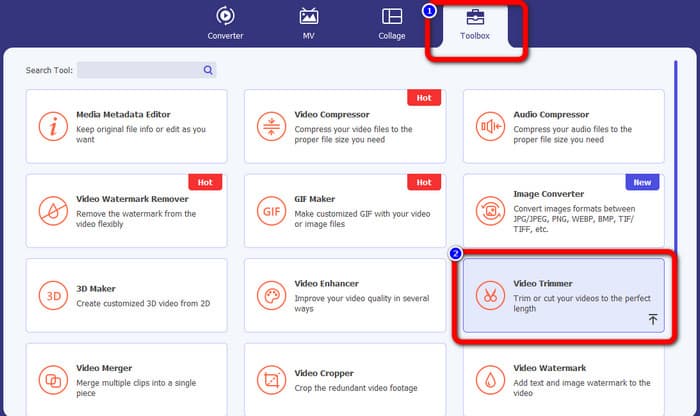
ステップ 2. プログラムを起動すると、インターフェースが表示されます。画面上部のツールボックス(Toolbox)メニューに移動し、ビデオトリマー(Video Trimmer)ツールをクリックします。
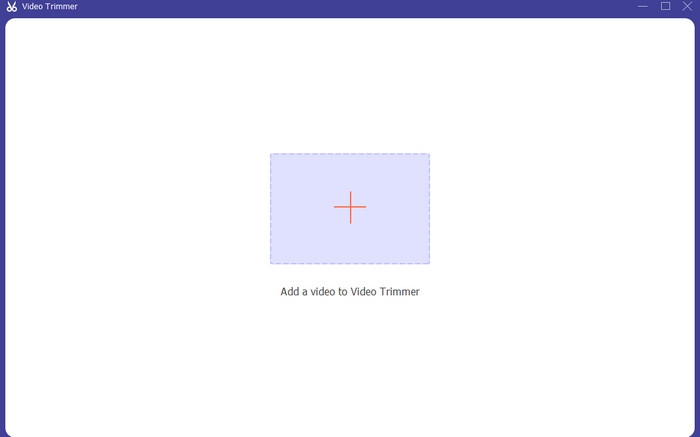
ステップ 3. その後、別の画面が表示されます。プラスボタンをクリックします。ファイルフォルダーが表示されたら、分割したい動画を選択し、開く(Open)をクリックします。
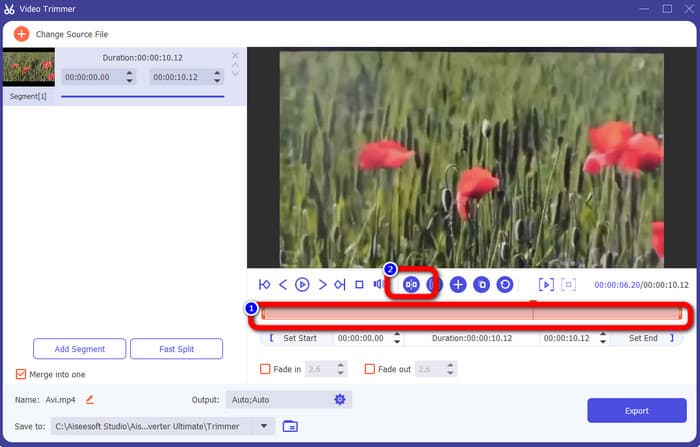
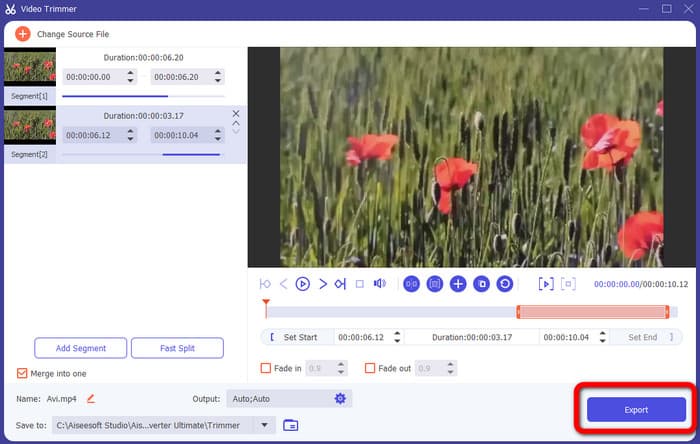
ステップ 4. 動画を追加したら、すぐに分割を始められます。再生ヘッドを移動し、分割したい位置でクリックします。その後、分割アイコンをクリックして動画を分割します。
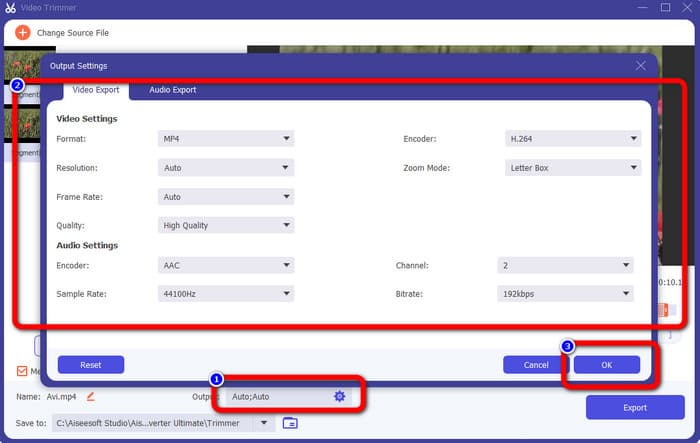
ステップ 5. ほかのパラメーターも編集したい場合は、出力設定(Output settings)に進みます。出力形式、動画の解像度、画質、フレームレートなどを変更できます。完了したらOKをクリックします。
ステップ 6. 動画の変更内容に満足したら、画面右下にあるエクスポート(Export)をクリックします。エクスポート処理が終われば、出来上がった動画をパソコンに保存できます。
Adobe Premiere Pro を使用してビデオを分割する方法
動画を分割するもうひとつの方法は、Adobe Premiere Proを使うことです。このプログラムはプロ向けの人気動画編集ソフトで、動画を効果的に複数のパートに分割できます。さらに、分割後も動画の画質は変化しません。Premiere Pro は Mac と Windows の両方で利用可能なため、ユーザーにとって便利です。また、動画の分割以外にも、Premiere Pro には多くの機能があります。VR 編集、モーショングラフィックステンプレート、各種エフェクト、オーディオ編集などが含まれます。ただし、高度な動画編集ソフトであるため、基本的には上級者向けです。つまり、非プロフェッショナルユーザーには向かない場合があります。インターフェースには多くのオプションが並んでおり、初心者には分かりづらいことがあります。さらに、体験版を利用する場合、使用できるのは最大 7 日間のみです。継続して使うには、サブスクリプションプランを購入する必要があります。Premiere Pro で動画を分割する方法は、以下の手順を参照してください。
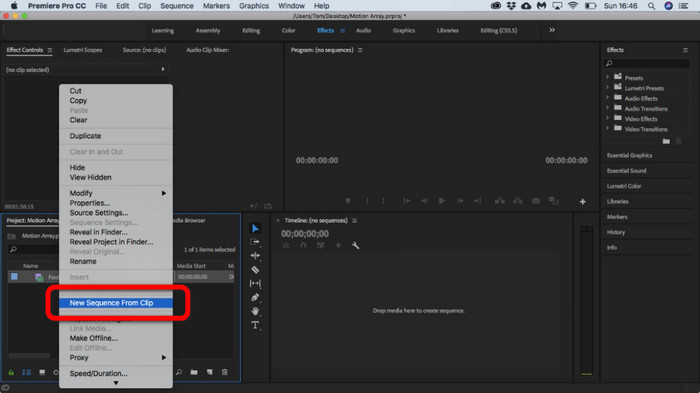
ステップ 1. Mac または Windows にAdobe Premiere Proをダウンロードし、インストール後に起動します。ファイル(File)> インポート(Import)と進んでクリップを追加します。すでにシーケンスがある場合は、タイムラインに配置します。シーケンスがない場合は、右クリックしてNew Sequence From Clip(クリップから新規シーケンス)を選択します。
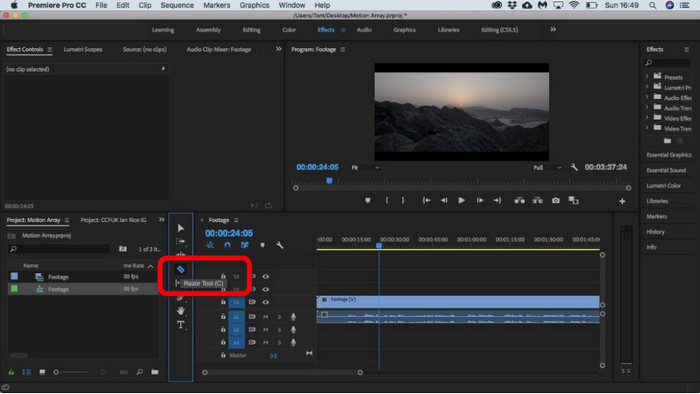
ステップ 2. 次に、レーザーツール(Razor)を選択してクリップを分割します。
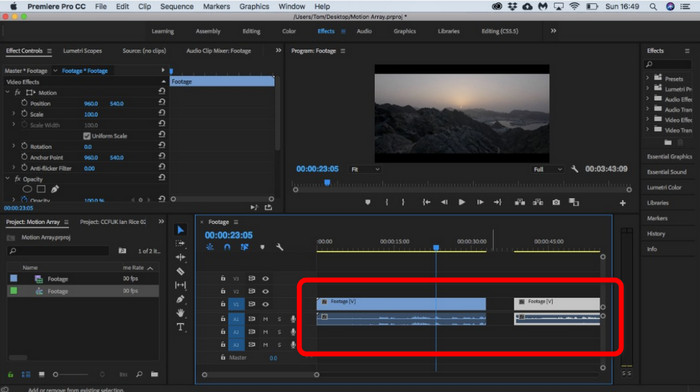
ステップ 3. その後、タイムライン上で分割したい位置の動画をクリックします。クリックすると、同じ動画から 2 つのクリップに分かれます。
After Effects を使用してビデオを分割する方法
Adobe After Effectsを使用して動画を分割することもできます。これは、理想的な動画に仕上げるための別のオフラインプログラムです。動画編集に必要なさまざまなツールが用意されており、ショートカットキーを使えば素早く動画を分割することも可能です。After Effects は Windows と Mac の両方で利用できます。ただし、Adobe After Effects にはいくつかの欠点があります。無料体験版は 7 日間のみ利用可能で、その後は月額料金が発生します。また、インストールプロセスに時間がかかります。さらに、パソコン上で多くのストレージ容量を必要とするため、インストール前に十分な空き容量があるか確認してください。After Effects で動画を分割する方法は、以下の手順を参照してください。
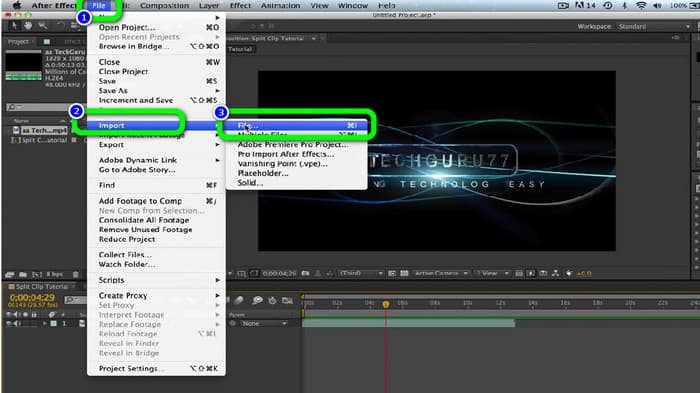
ステップ 1. パソコンでAdobe After Effectsを起動します。画面上部のファイル(File)メニューに移動し、インポート > ファイル(Import > File)を選択して、分割したい動画を追加します。
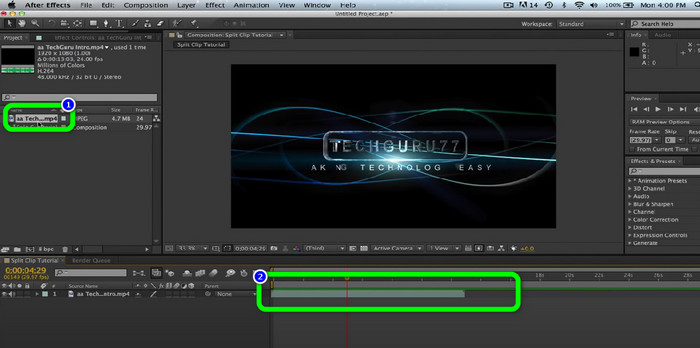
ステップ 2. その後、動画をタイムライン(Timeline)にドラッグして、分割作業を開始します。
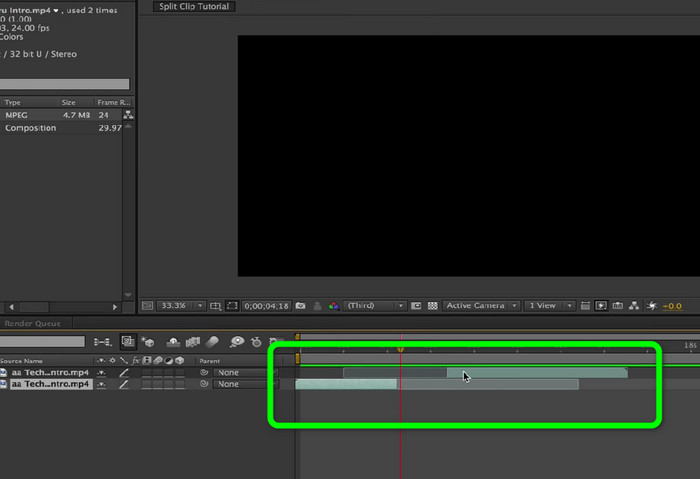
ステップ 3. 動画を分割する最も簡単な方法はショートカットキーを使うことです。Mac を使用している場合は、Command(CMND)+ Shift + Dを押します。Windows の場合は、Ctrl + Shift + Dを押します。これで、動画を 2 つに分割できます。
ビデオをオンラインで分割する方法
ビデオをオンラインで分割したい場合は、Veed.io を使用してください。この Web ベースのツールを使用すると、ビデオを簡単に分割できます。数回クリックするだけで、目的の結果を得ることができます。さらに、すべての Web プラットフォームでこのツールにアクセスできます。 Google Chrome、Mozilla Firefox、Internet Explorer などが含まれます。ただし、編集したビデオをコンピューターに保存するには、最初にアカウントを作成する必要があります。また、インターネット接続を強くお勧めします。
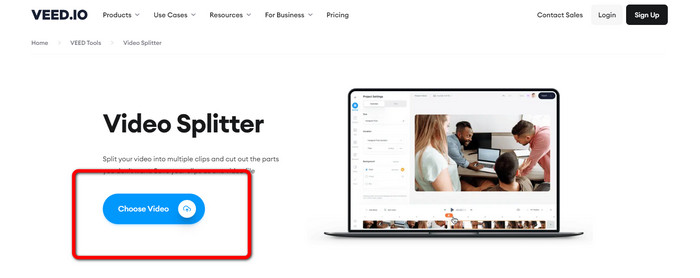
ステップ 1. ブラウザーでVeed.ioのウェブサイトにアクセスします。その後、Choose Videoオプションをクリックして、パソコンから動画を追加します。
ステップ 2. 次に、分割したい動画の部分をクリックし、Splitオプションをクリックします。これだけで動画が瞬時に分割されます。
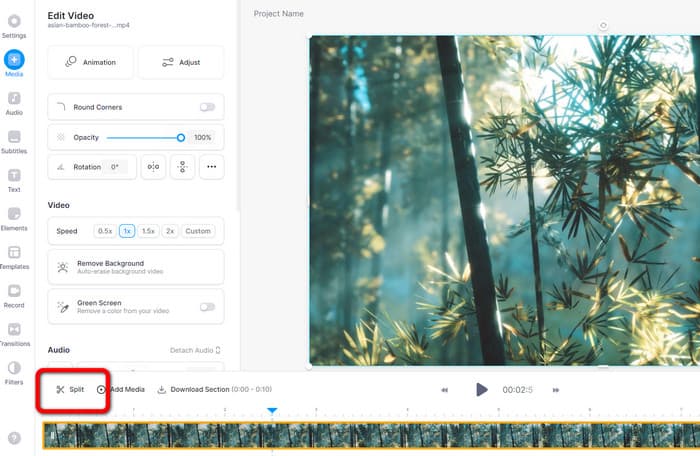
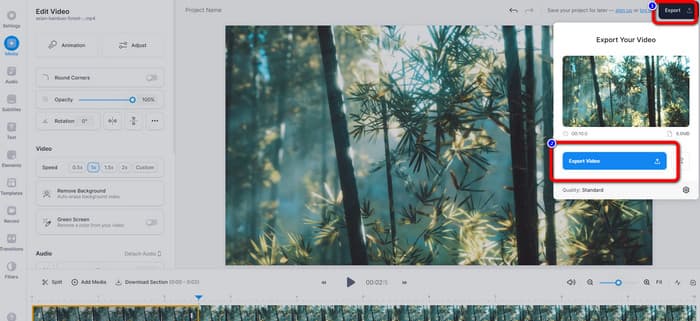
ステップ 3. 動画の分割が終わったら、画面左上のExportオプションをクリックします。続いてExport videoオプションをクリックして動画を保存します。オンラインで動画をカットする方法については、こちらのオンラインで動画をカットする方法を参照してください。
パート 2. iPhone で動画を分割する方法
iPhone で動画を分割する方法を知りたいですか。iPhone ユーザーは、iMovieアプリを使って動画を分割できます。このアプリには分割機能があり、動画を複数のパートに分けることができます。操作も簡単で、すべての iPhone ユーザーにとって扱いやすいのが特長です。ただし、iMovie アプリは iPhone、iPad、MacBook などの Apple 製デバイスでのみ利用可能です。そのため、Android など他のデバイスを使用している場合には適していません。iMovie で動画を分割する手順は、以下を参照してください。
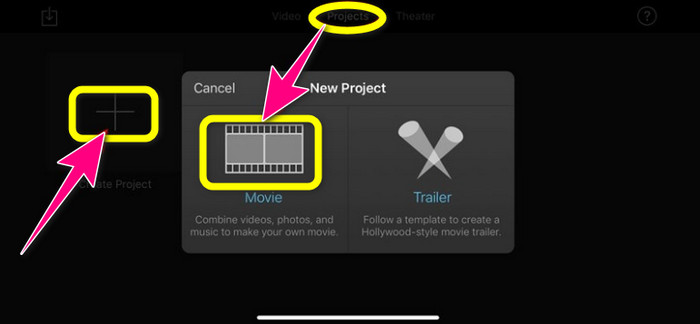
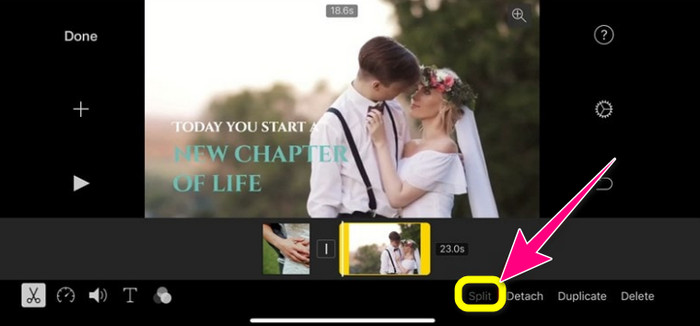
ステップ 1. iPhone にiMovieをダウンロードします。その後、起動して、プロジェクト(Project)オプションの下にあるムービー(Movie)をタップします。
ステップ 2. タイムライン上の再生ヘッドを操作し、分割したい位置に移動させます。
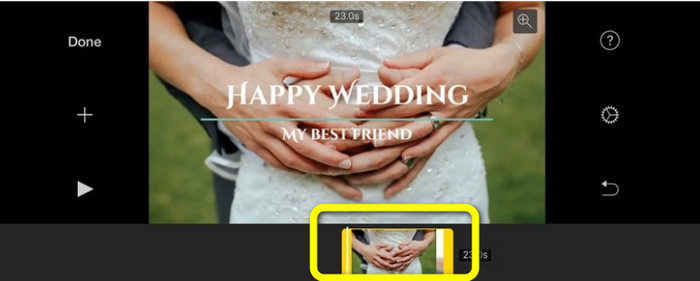
ステップ 3. Splitオプションをタップして動画を分割します。その後、完成した動画を保存します。iPhone で動画を短くする方法については、iPhone で動画を短くする方法もあわせてご覧ください。
パート 3. 動画の分割方法に関するよくある質問
1. FFmpeg を使用してビデオをフレームに分割する方法
Windows または Mac コンピューターでターミナル(Mac)かコマンドプロンプト/CMD(Windows)を開きます。次に「cd ~/Videos」と入力して Enter キーを押します。そのあと、次のコマンドで動画をフレームに分割できます。「ffmpeg -i video.mp4 thumbd.jpg -hide_banner」と入力してください。以上です。出力フォルダーから分割された画像(フレーム)を開くことができます。
2. TikTok を使用して動画を分割する方法は?
スマートフォンで TikTok を起動します。その後、下書きに移動してビデオを開きます。次のステップは、[クリップの調整] オプションをクリックすることです。次に、再生ヘッドのエッジを制御します。最後に、[保存] ボタンをクリックします。
3. Windows 11/10 でビデオを分割する方法は?
Windows 11/10 で動画を分割したい場合は、Video Converter Ultimateを使用してください。本プログラムをダウンロードしたら、すぐに動画の分割を開始できます。ツールボックス > Video Trimmer ツールに進みます。次に、編集したい動画を追加し、分割したい部分を選択して Split ツールをクリックして分割を開始します。最後に、エクスポートして完成した動画を保存できます。
結論
上記の方法は、オフラインとオンラインの両方で動画を分割するうえで最も効果的な手段です。ただし、一部の動画編集ソフトはプロフェッショナルユーザー向けに特化しています。そのため、簡単に動画を分割したい場合は、Video Converter Ultimateを使用してください。このプログラムは、数ある動画編集ソフトの中でも操作手順が最も分かりやすい部類に入ります。また、直感的に扱えるインターフェースを備えており、特に初心者を含むすべてのユーザーに最適です。
-
 使用する11の優れたビデオトリマー[無料および有料]
 動画のトリミングに使用できる動画編集ソフトウェアのリストを次に示します。私たちはこれらのプログラムを真に検討し、あなたが求めるすべての詳細を提供します.
-
 最高のツールを使用してビデオを簡単に短縮する方法
 最もよく使われている最適なツールを使用して動画を短縮する方法を学びましょう。ツールの詳細と使用方法については、この記事をお読みください。
-
 ビデオスピードコントローラーを使用してビデオスピードを簡単に変更
 ビデオのビデオ速度を変更する方法を知りたいですか?使用できるさまざまなツールを紹介するので、この記事に追加するすべての情報をお読みください。
