


 ビデオコンバーター究極
 スクリーンレコーダー
 ビデオ修復
ビデオ修復
 安全なダウンロード
Windows / Macで複数のASFファイルを結合するための2つの最良の方法
完全な動画ファイルとして保存されているはずの長編動画が、途中で途切れた短い動画クリップにバラバラになってしまう、という状況はよくあります。たとえば、映画サイトからUHD動画をダウンロードしたのに、その動画がZIPパックの中で複数のASFファイルに分割されていた、というような場合です。こうしたASFファイルを結合して、もう一度完全な動画に戻し、途切れなく再生するにはどうすればよいのでしょうか。本記事では、その解決方法を解説します。ここでは、複数のASF動画クリップを1つの完全なファイルに結合するための、特におすすめの2つの方法をまとめました。

パート1:複数のASFファイルをオンラインで無料で組み合わせる
最も手早い解決策は、FVC Free Online Video Mergerを使うことです。ASFファイルを無料で結合できる軽量なオンラインツールです。ソフトをダウンロードしたりインストールする必要はありません。動画ファイルをアップロードして、ワンクリックで結合を開始するだけです。
主な機能
- •ビデオ品質を損なうことなくASFビデオファイルに参加します
- •結合されたビデオに透かしを残さない
- •マージされたビデオを9つの形式で保存します
- •1秒でビデオを追加し、サーバーにファイルをアップロードする必要はありません
ステップ1. ブラウザでFVC Free Online Video Mergerを開きます。ページ中央に大きなUpload Videos to Mergeボタンが表示されますので、クリックします。
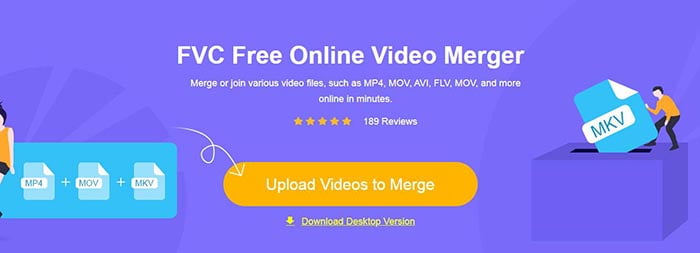
注意: このツールを初めて使用する場合は、ランチャーをダウンロードしてインストールする必要があります。
ステップ2. ファイルエクスプローラーのウィンドウが表示されます。ここでASFファイルを選択してアップロードできます。複数のファイルを選択するには、キーボードのCtrlキーを押しながら、ファイルを1つずつクリックしてください。
ステップ3. Openボタンをクリックして選択したファイルを追加すると、ASF merging画面が表示されます。ここでは、既存ファイルを削除したり、新しいファイルを挿入したりして、動画の順番を並べ替えることができます。
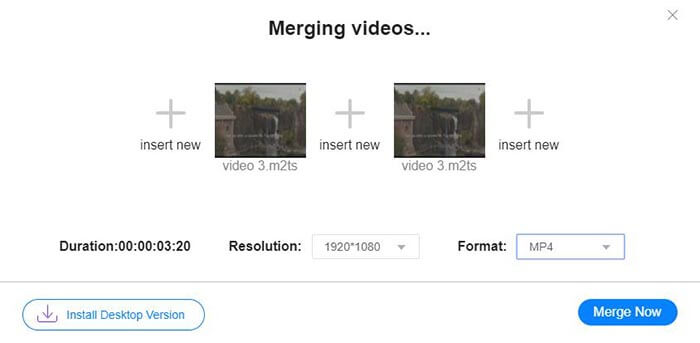
ステップ4. 次に出力形式と解像度を選択します。解像度は元のままにしておいても問題ありません。ただし、このオンラインASF結合ツールでは、結合後のファイルをASF形式で出力することはできません。そのため、一覧から別の形式を選んで動画を変換する必要があります。
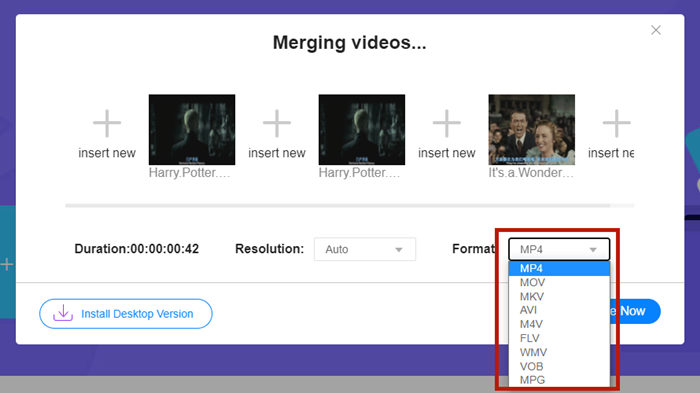
ステップ5. 画面右下のMerge NowボタンをクリックしてASFファイルの結合を開始します。エクスポートするファイルの保存先フォルダを指定するよう求められます。
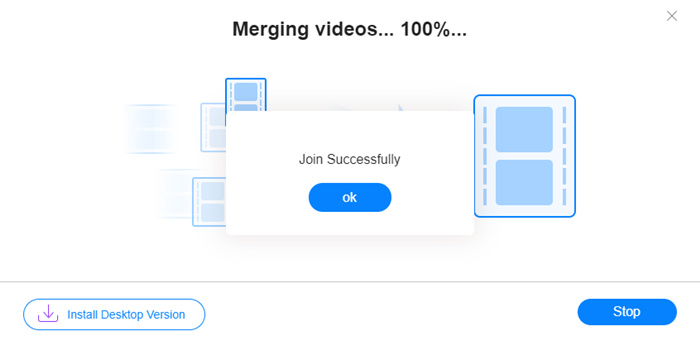
Join Successfullyのメッセージが表示されたら、指定した保存先フォルダを開き、結合済みファイルを確認できます。
この方法は、ASFファイルを結合する最も簡単な方法です。全体のプロセスはあなたが見たのと同じくらい簡単です。ただし、使いやすく軽量であるため、機能が制限されていました。ビデオのシーケンスを便利に配置することはできません。目的の解像度または出力形式を適用できない場合があります。最悪なのは、異なる解像度と向きのASFビデオを組み合わせたい場合、このツールが全体を台無しにする可能性があることです。次に、それを行うために別のツールが必要になる場合があります。
パート2:ASFファイルをシームレスかつ高速にマージ
Video Converter Ultimateを使えば、ASFファイルの回転、トリミング、切り取り、そして何よりも結合が可能です。結合後のASFファイルは、あらゆる形式・解像度で保存できます。さらに、Video Converter Ultimateでの結合処理は、他に類を見ないほど高速です。
主な機能
- •ASFファイルに参加する前に、不要な開始と終了をトリミングします。
- •ビデオをさまざまな方向に回転させます。
- •トリミングして、すべてのビデオクリップを同じ解像度にします。
- • ASFファイルを圧縮します YouTube、Facebookなどのサイズを小さくします。
- •ハードウェアアクセラレーションにより、ビデオのマージ速度が70倍速くなります。
無料ダウンロードWindows 7 以降に対応安全なダウンロード
無料ダウンロードMacOS 10.7 以降に対応安全なダウンロード
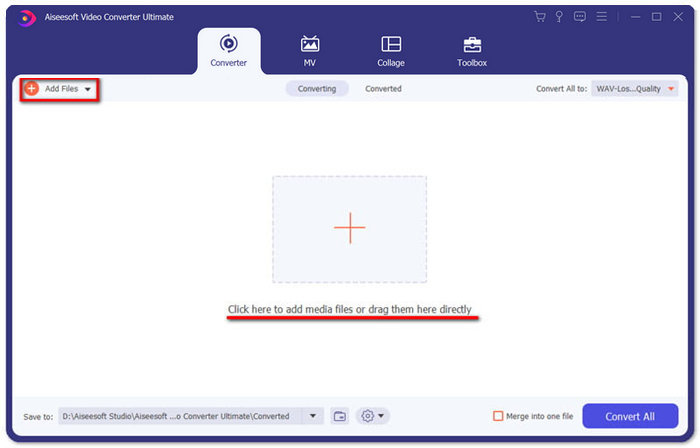
ステップ1. Video Converter Ultimateをダウンロードしてインストールし、起動します。メイン画面中央の大きな「+」ボタンをクリックして、結合したいASFファイルを追加します。追加後は、インポートされたクリップをドラッグして再生順序を並べ替えることができます。
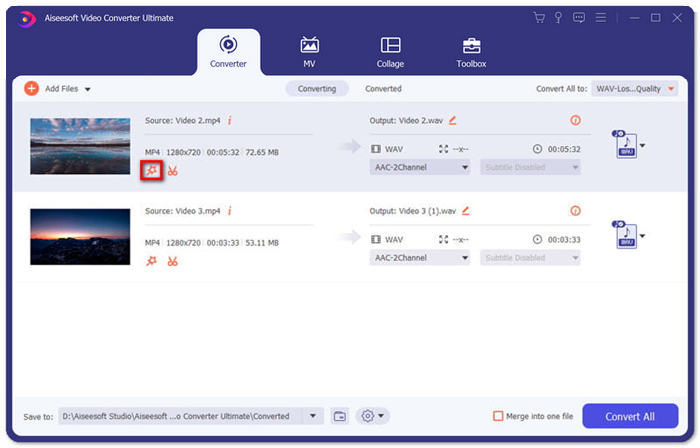
ステップ2. 特定のクリップをトリミングしたり回転したり、アスペクト比を変更したい場合は、そのクリップのEditボタンをクリックします。するとRotate & Crop画面が表示されます。
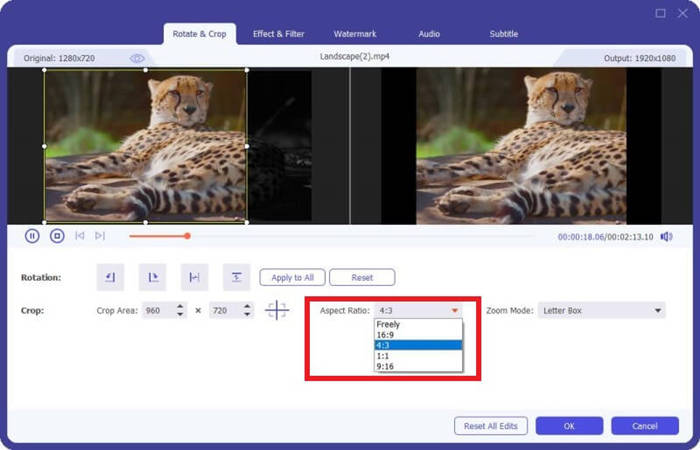
ここでは、Aspect Ratioセクションでアスペクト比を変更できます。解像度を変えたい場合は、左側のプレビュー画面の枠をドラッグして自由に調整します。回転もここで行えます。設定後は、忘れずにOKボタンをクリックして内容を保存してください。
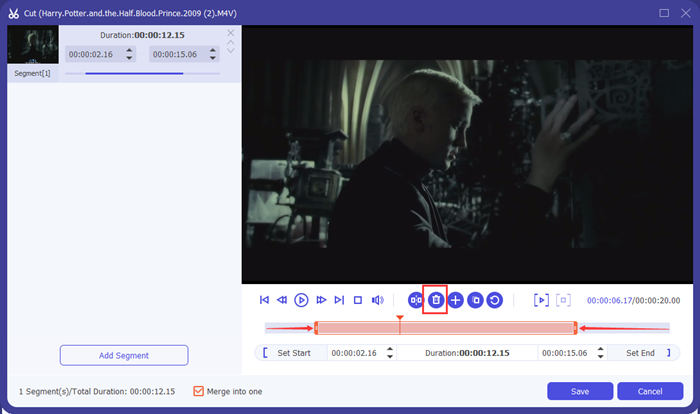
ステップ3. 不要な部分をカットするには、Cut機能を使用します。CutボタンをクリックしてCut画面に移動します。
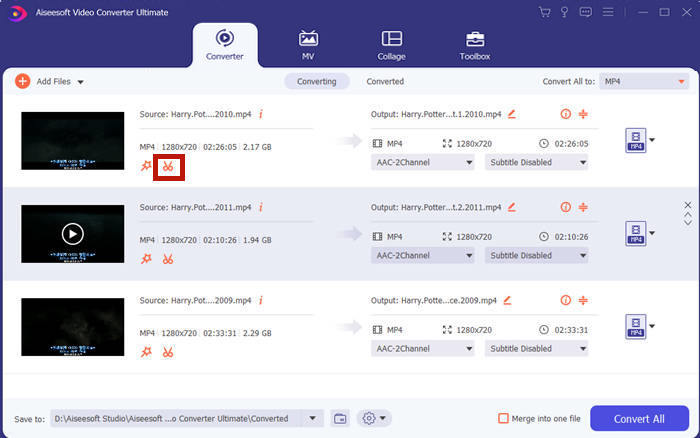
ここで残したい区間を指定し、削除したい部分を選択してDeleteボタン(ゴミ箱アイコン)をクリックすると、その区間を削除できます。最後に保存ボタンをクリックしてメイン画面に戻ります。
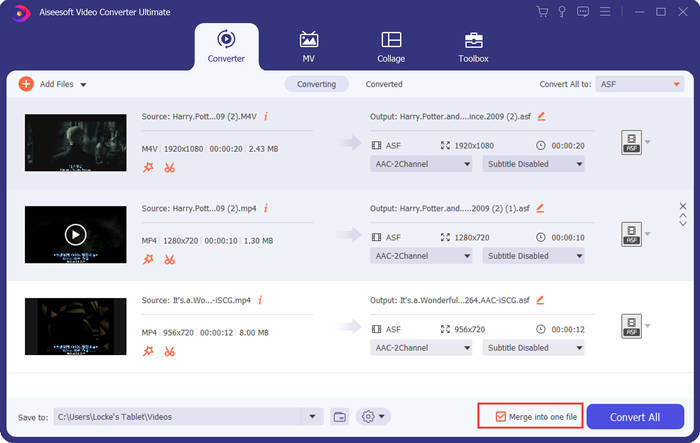
ステップ4. メイン画面右下にあるMerge into one fileのチェックボックスをオンにします。
ステップ5. 画面右上のConvert All toから出力形式を選択します。ASFを探してクリックしてください。
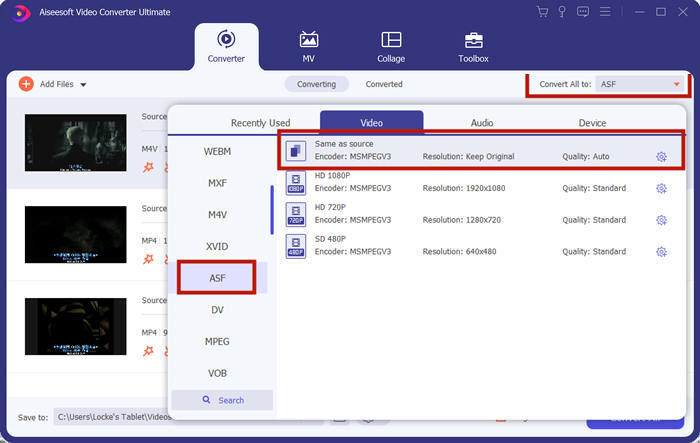
最後に、Convert AllボタンをクリックしてASFファイルの結合を開始します。処理が完了すると、結果のファイルはメイン画面左下で指定したフォルダに保存されます。最後に、ASFファイル結合に関するよくある質問を3つまとめました。
パート3:ASFファイルの結合に関するFAQ
どのプレーヤーアプリでもASFファイルを再生できないのはなぜですか?
ASF拡張子を使用したファイルは3種類あります。それらは、Advanced Systems Format、Acclaim Skeleton File、およびElectronic Arts SoundFileです。たぶん、あなたのASFはAdvanced SystemsFormatビデオファイルではありません。
ASFファイルを再生すると画像が表示されないのはなぜですか?
ASFファイルを再生すると画像が表示されないのはなぜですか?すべてのASFファイルに少なくとも1つのビデオが含まれているわけではありません。 ASFには、WMAオーディオの一部しか含まれない場合があります。スピーカーまたはイヤホンの音量を上げて、ファイルの再生から音が聞こえるかどうかを確認します。
スマートテレビでASFファイルを再生できますか?
場合によります。ASFファイルに対応しているスマートテレビもあれば、対応していない機種もあります。お使いのスマートテレビでASFファイルが再生できない場合は、事前にMP4に変換しておくとよいでしょう。
結論
ASFファイルには、一般的にWMVまたはWMAが含まれています。そのため、多くのデバイスやプログラムで広くサポートされています。本記事では、画質を落としたりウォーターマークを入れたりすることなく、複数のASFファイルを1つに結合する最も効率的な2つの方法を紹介しました。FVC Free Online Video Mergerは、間違いなく最速の解決策です。ただし、動画をシームレスにつなげるためにカットや回転などの編集も行いたい場合は、Video Converter Ultimateを使用したほうがよいでしょう。ASFファイルの結合でお困りの点はありますか?コメント欄でぜひ教えてください。
-
 iMovieの有無にかかわらずiPhoneでビデオをマージする方法(無料で使用)
 チュートリアル–iPhone上のビデオを新しいものにマージする4つの無料の方法
-
 MKVファイルに参加して映画を絶え間なく視聴する2つの最良の方法
 MKVムービーファイルの統合:複数のMKVファイルを1つに結合する方法
-
 WMVクリップをオンラインで参加する方法は?ここに3つの実証済みの方法があります
 WMVファイルをオンラインで無料で参加するための3つの最良の方法(2021アップデート)
