


 ビデオコンバーター究極
 スクリーンレコーダー
 ビデオ修復
ビデオ修復退屈な画面の壁紙を素晴らしい活気のあるGIFに変える方法
私たちの多くは高品質な画像を壁紙として使い、中には動画壁紙を使っている人もいます。しかし、壁紙としてGIFを使って、これまで以上に背景を生き生きさせられることをご存じでしたか?そこで、もし「GIFを壁紙にする方法」を知りたいなら、この先を読み進めてください。セットアップ方法を覚えるのにかかる時間はたった5分ほどで、動画や画像から理想的なGIFを作成する方法までお教えします。

パート1。iPhoneで壁紙としてGIFを作成する方法
今や、ほとんどの人がiPhoneのようなスマートフォンを持っています。しかし、その味気ない背景を、もっとずっと素敵なものに変えられることをご存じでしょうか。そうです、iPhoneの壁紙を、まるで魔法のように動くGIFに変えられるのです。ただし、iPhoneではGIFをそのまま壁紙として適用することはできません。そのための現実的な解決策は、まずGIFをLive Photoに変換してから、新しい背景として設定することです。そうしないと、動く画像ではなく静止画になってしまいます。この場合、「Convert - GIF & Live Wallpaper」というアプリをダウンロードしてGIFをLive Photoに変換する必要があります。その後、次の手順に従って「iPhoneでGIFを壁紙にする方法」を進めていきましょう。
GIFをライブ写真に変換する方法の手順:
<ステップ1> App Storeで「Convert - GIF & Live Wallpaper」をダウンロードし、完了したらすぐに起動します。
<ステップ2> アプリに写真へのアクセスを許可するために「Allow(許可)」をタップし、ギャラリーの中から目的のGIFを選択します。
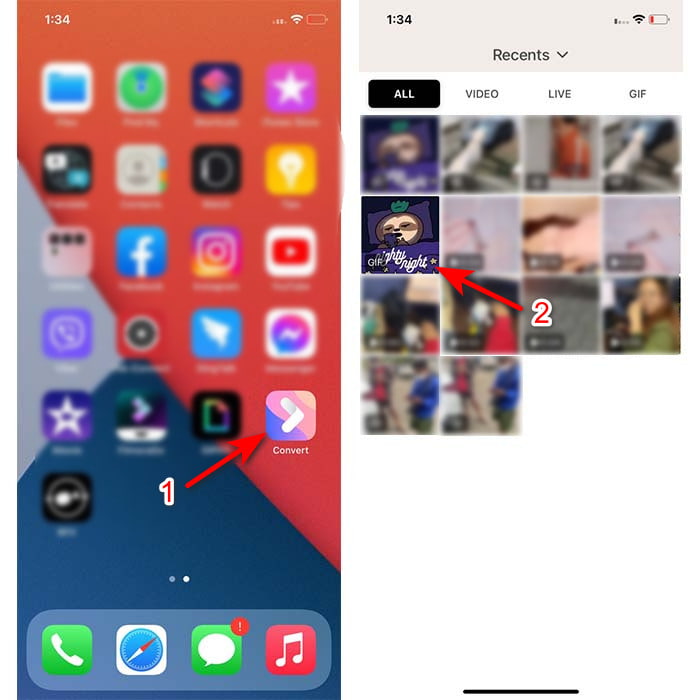
<ステップ3> ダウンロードボタンをタップし、「保存形式」を「Live Photo」に設定してから「Save(保存)」をタップして進みます。
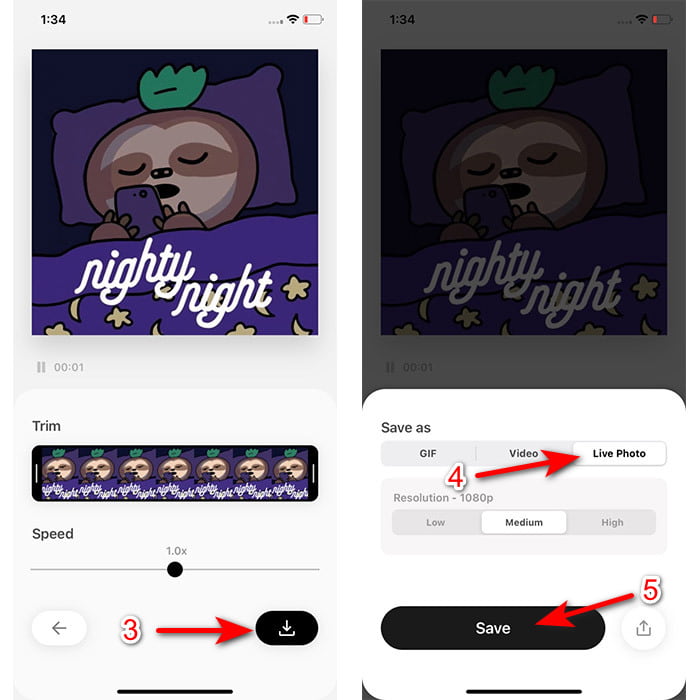
iPhoneで壁紙としてライブ写真を作成する方法の手順:
<ステップ1> 「写真」アプリを開き、「ライブラリ」から先ほど変換したGIF(Live Photo)を探します。
<ステップ2> 「共有」ボタンを押し、「壁紙として使用」を探してタップします。
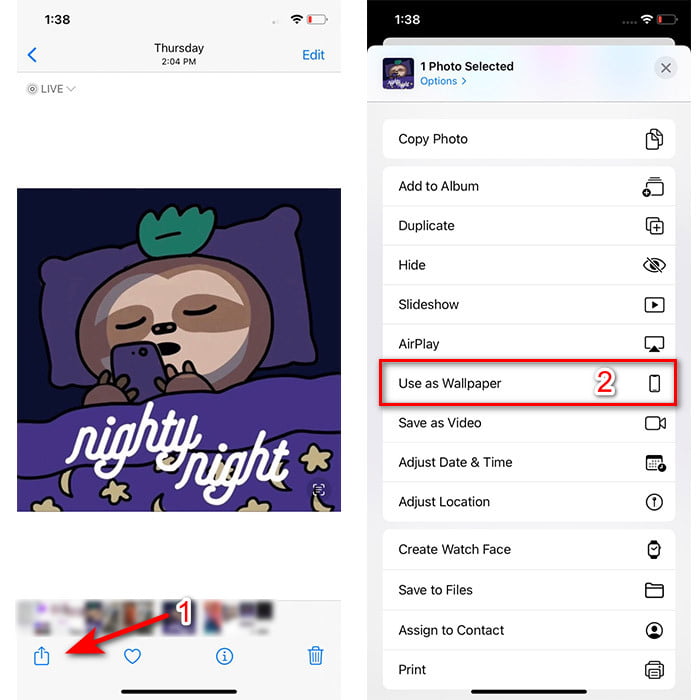
<ステップ3> Live Photoがオンになっているか確認してから「設定」をタップします。ロック画面、ホーム画面、または両方のどれに設定するかを選択してください。なお、ホーム画面ではLive Photosは動作しません。3〜5秒間画面を押し続ける必要があるため、Live Photoはロック画面に設定するのが理想的です。
パート2。Windowsで壁紙としてGIFを作成する方法
Windowsの背景をもっとかっこよくしたいなら、以下の手順を試してみてください。ただし、この場合もGIFをそのまま背景に設定してしまうと静止画としてしか表示されません。それを避けるためには、「Lively Wallpaper」のようなサードパーティ製ツールを利用する必要があります。それでは早速、「Windows 10でGIFを壁紙にする方法」を見ていきましょう。
<ステップ1> Microsoft Storeから「Lively Wallpaper」をダウンロードします。ダウンロードが完了したら起動します。
<ステップ2> 左上にある+ボタンをクリックし、「Browse(参照)」を押します。画面に表示されるフォルダーからGIFファイルを探して「開く」をクリックします。ミニライブラリが表示されるので、「OK」をクリックし、続けて「Save(保存)」をクリックします。
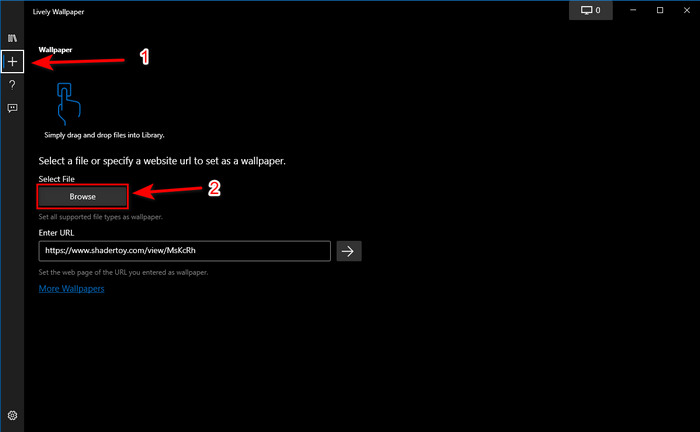
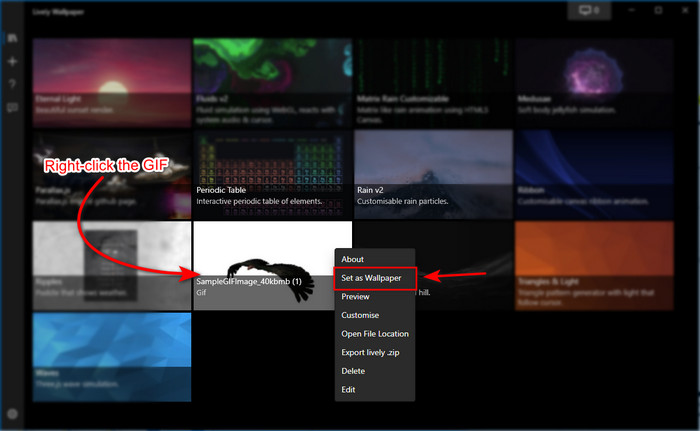
<ステップ3> 内蔵ギャラリーから目的のGIFを探し、マウスで右クリックして「壁紙として設定」を選択します。
パート3。VideoConverterUltimateを使用してビデオ/写真からGIFを作成する方法
Video Converter Ultimateで作成されたアニメーションGIFを使用して、画面の背景を生き生きとさせます。このソフトウェアは、画像であろうとビデオであろうと、GIFの作成が簡単にできることをすでに証明しています。さらに、オンラインおよびオフラインの他のツールとは異なり、このツールはそれらと比較して非常にユニークです。究極のコンバーターには、おそらく使用する可能性のあるすべての高度な機能がすでに備わっているためです。
このソフトウェアは高度な機能を備えている一方で、プロかどうかに関わらず誰でも簡単に使えるユーザーフレンドリーな設計になっています。ここからは、PC・Mac・Android・iPhoneそれぞれで「壁紙用のGIFを作成する方法」をご紹介します。また、Video Converter Ultimateを使えば、動画や画像からでも、見事なGIFを作成できることもお見せします。手順に進む前に、まずこのツールをドライブにダウンロードし、インストールして簡単な初期設定を済ませ、「完了」をクリックしておいてください。
無料ダウンロードWindows 7 以降に対応安全なダウンロード
無料ダウンロードMacOS 10.7 以降に対応安全なダウンロード
ビデオからアニメーションGIFを作成するための4つの簡単なステップ:
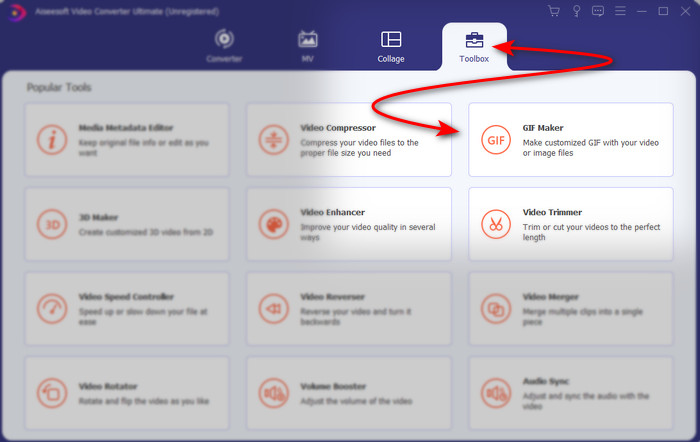
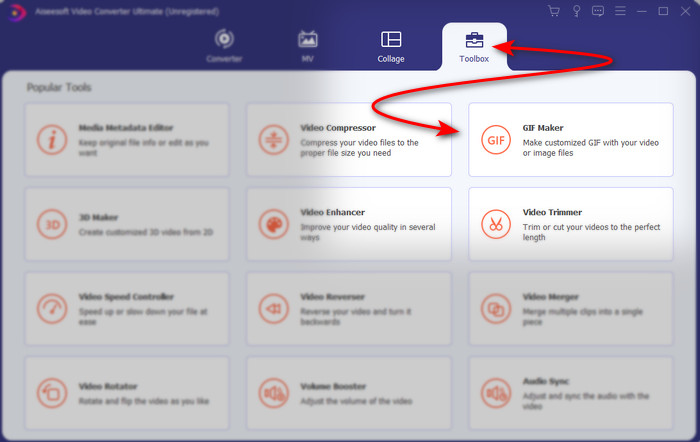
<ステップ1> ツールを起動し、「ツールボックス」を開きます。その中にある「GIFメイカー」を見つけてクリックします。
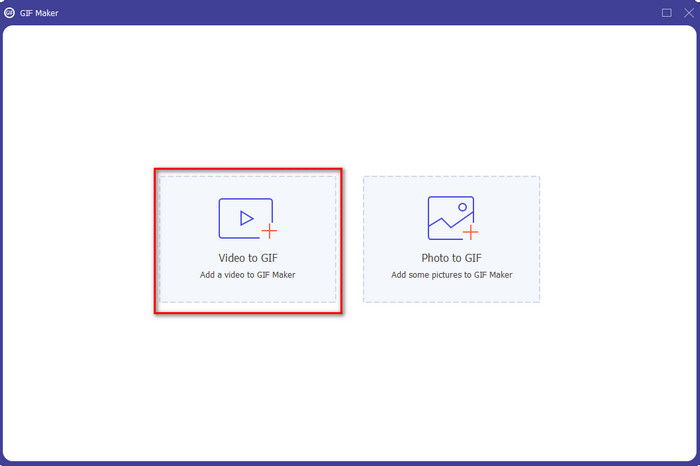
<ステップ2> 「動画からGIF」をクリックします。クリックするとすぐにファイルフォルダーが表示されるので、GIFに変換したい動画ファイルを選択し、「開く」を押します。
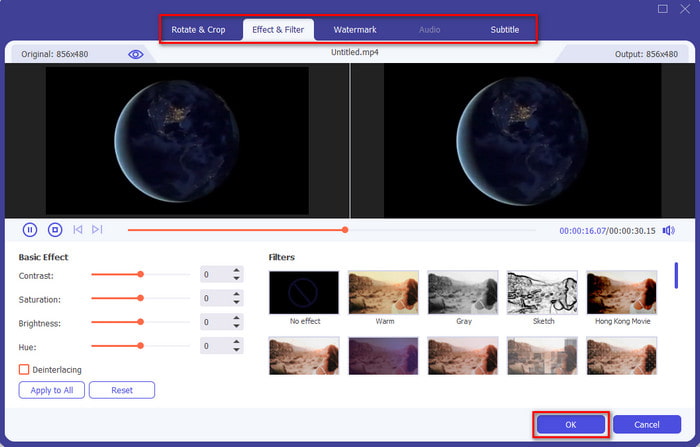
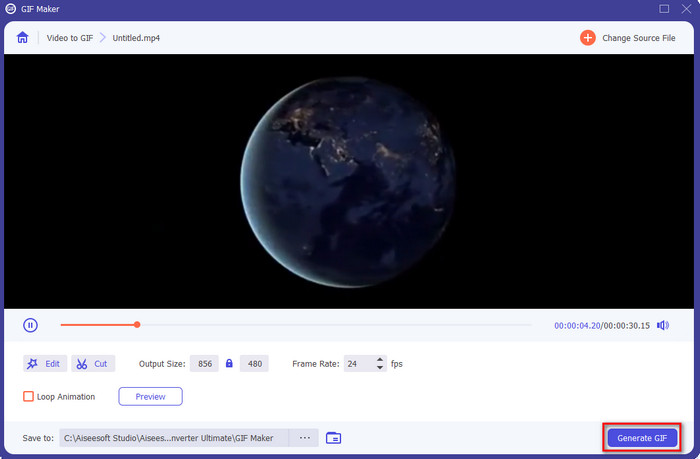
<ステップ3> 画面上の「魔法の杖」アイコンをクリックして、動画を編集します。編集が完了したら、「OK」をクリックして変更内容を保存します。
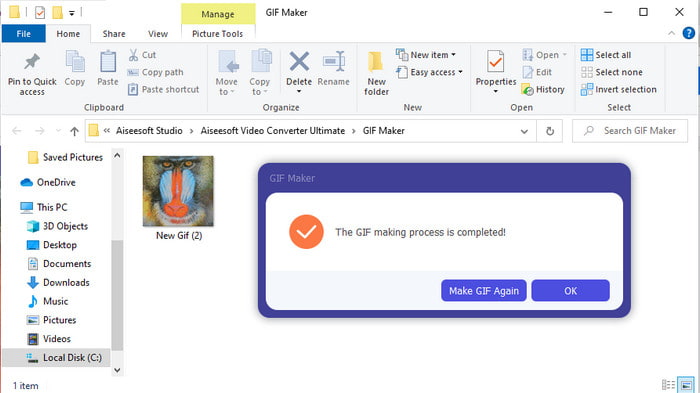
<ステップ4> 「GIFを生成」をクリックして、GIFをすぐにストレージに保存します。動画からGIFへの変換が終わると、GIFファイルが入ったエクスプローラー画面が表示されるので、そのファイルをクリックして再生してみてください。
画像からアニメーションGIFを作成する4つの簡単な手順:
<ステップ1> ソフトウェアのインストールが完全に終わっていることを確認したら、起動します。「ツールボックス」セクションに移動し、「GIFメイカー」を見つけます。
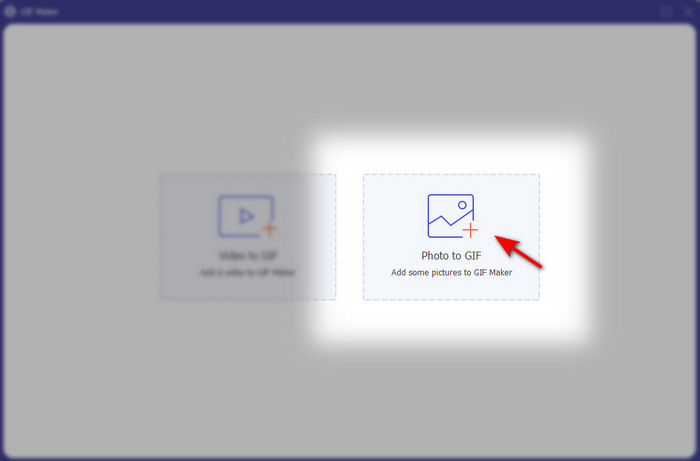
<ステップ2> 画像をアニメーションGIFにしたい場合は、「画像からGIF」をクリックします。画面にフォルダーが表示されるので、最初の画像を選択して「開く」をクリックします。
<ステップ3> 自動的に「出力設定」が表示されるので、「OK」をクリックして進みます。2枚以上の画像を追加するには、+ボタンをクリックします。なお、このモードでは、動画からGIFに変換する場合ほど高度な編集はできませんが、画像の順序や表示時間(再生時間)を調整することができます。
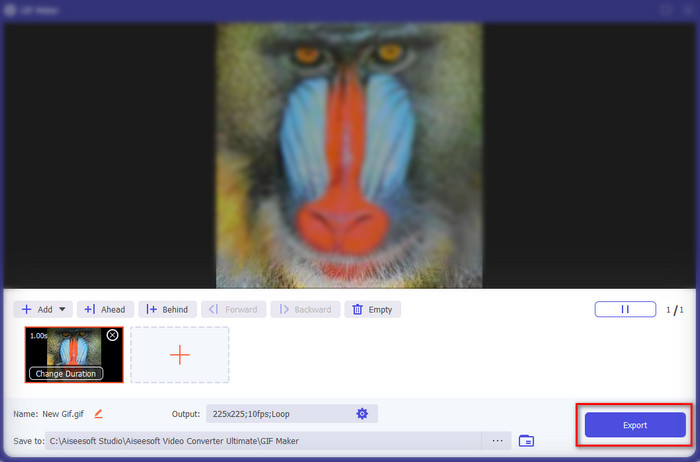
<ステップ4> すべての設定が整ったら、「エクスポート」ボタンをクリックして処理を進めます。書き出しが完了すると、先ほど作成したGIFファイルが入ったファイルマネージャーが表示されます。
関連記事:
InstagramでGIFを投稿する方法
オンラインで使える最高のGIFから動画への変換ツール
パート4。壁紙としてGIFを作成することに関するFAQ
背景として使用するとGIFがフリーズするのはなぜですか?
すべてのデバイスは、当然のことながら背景としてGIFをサポートしていません。ただし、サードパーティのツールを使用してGIFを背景に適用することはできます。
アニメーションGIFをオンラインで保存して、iPhoneの壁紙として使用できますか?
もちろん!あなたはそれらを保存することができます。現在GIPHYを使用している場合は、省略記号をクリックしてライブ写真として保存します。これで、GIFをライブビデオに変換する手順をスキップして、GIFを使用して上記の背景として使用する方法に進むことができます。
アニメーションの壁紙はバッテリーを消費しますか?
実際、アニメーションの壁紙や動く壁紙は、CPUとGPUがまだバックグラウンドで実行されているため、バッテリー寿命のほぼ2-4%を消費するため、これは「はい」です。
結論
ここまで見てきたように、GIFを壁紙として使えば、味気ない静止画像の背景に命を吹き込むことができます。もちろん、ここで紹介したアプリはそれぞれの分野で優秀です。なかでもVideo Converter Ultimateを使えば、どのプラットフォームであっても「GIFを壁紙として使う方法」を簡単に習得できます。オリジナルのGIFを作成したいなら、このツールをデスクトップにダウンロードして、ぜひ自分で試してみてください。
-
 GIFを圧縮し、高品質でファイルサイズを縮小するためのチュートリアル
 コンピューターまたは携帯電話でGIFを圧縮する2つの簡単な方法を次に示します。 FVC Free Online Video CompressorとPhotoshopを使用すると、さまざまな面でGIFファイルのサイズを縮小できます。
-
 オンラインGIFメーカーを介して最高のアニメーションGIFを作成する[2021]
 Web上ですでに遭遇したかどうかにかかわらず、これらの単純なオンラインGIFメーカーを使用してGIFを作成する方法についての有益なレビュー。
-
 GIFをトリミングするためにオンラインおよびオフラインで最高のGIFCropperを選択してください[2021]
 最適なトリミングツールを選択する必要があり、一部のGIFメーカーはこの機能を提供していませんでした。しかし、使用するのに最適なGIFトリミングツールとその使用方法は何ですか?
