


 ビデオコンバーター究極
 スクリーンレコーダー
 ビデオ修復
ビデオ修復
 安全なダウンロード
最高の透かし削除ツールを使用して Animaker の透かしを削除する方法
Animaker を使って動画を編集したことはありますか?そうでない場合は、チャンスを逃してはなりません。このプラットフォームを使用すると、複数のデザイナー、アニメーター、初心者、専門家、コンテンツ クリエーターなどが短時間でアニメーション映画を作成できます。はい、それは完全なツールです。必要なすべてのテンプレートはここから入手できます。すべてのアニメーションと実写機能を備えているため、透かしや制限に問題なく定期的に使用するには、ソフトウェアを購入する必要があります.
ソフトを購入できないからといって落ち込んでいませんか?幸いなことに、ここで紹介するツールを使えば、Animakerで作成したアニメーションに付くウォーターマークを消すことができます。ここでは、5分もかからずにAnimakerのウォーターマークを削除する方法を解説します。この記事を読み進めれば、その理由や、なぜこれらのツールを選んだのかも分かるようになります。

パート1.Windows、macOS、およびオンラインでAnimaker透かしを削除する方法[無料および有料]
Animaker に透かしはありますか?はい、特に商用版を使用していない場合は、ここで編集したアニメーション ビデオに透かしが追加されます。商用版を購入した場合、追加される透かしは回避できますが、使いたくない場合は、以下に追加する透かしリムーバーを使用する必要があります.
FVC Video Converter Ultimate [Windows & macOS]
ウォーターマークにしっかり対処できる強力なツールが必要な場合は、FVC Video Converter Ultimateを選びましょう。このツールはWindows・Macのどちらでもデスクトップ上で利用できます。このツールを使えば、Animakerで作成したアニメ動画のウォーターマークを、痕跡を残さずきれいに除去できます。こういった作業に不慣れでも心配はいりません。操作が簡単で、直感的に使えるインターフェースを備えているため、必ず役立ちます。
このツールは効果的な透かし除去ツールであるだけでなく、別の目的のための効果的な全体的なツールでもあります。デスクトップにツールをダウンロードして、その他の機能を確認できます。ビデオが必要な場合は、透かしなしで Animaker にエクスポートします。以下の手順に従ってください。
ステップ1. 多機能なこのツールを入手するには、ダウンロードボタンをクリックして、WindowsまたはMac用のバージョンを取得します。ソフトをインストールしたら「Start Now」をクリックして起動します。
無料ダウンロードWindows 7 以降に対応安全なダウンロード
無料ダウンロードMacOS 10.7 以降に対応安全なダウンロード
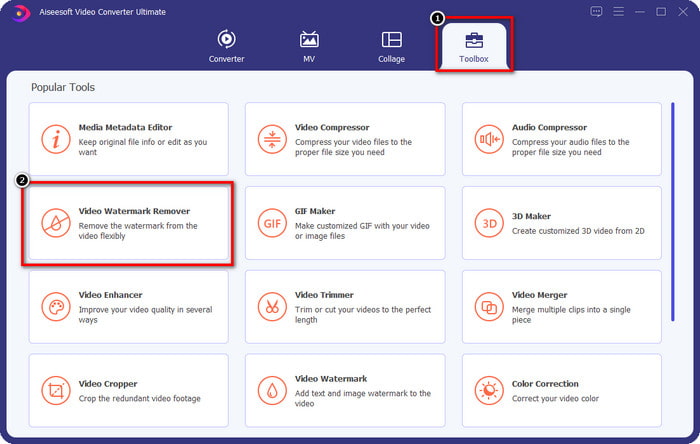
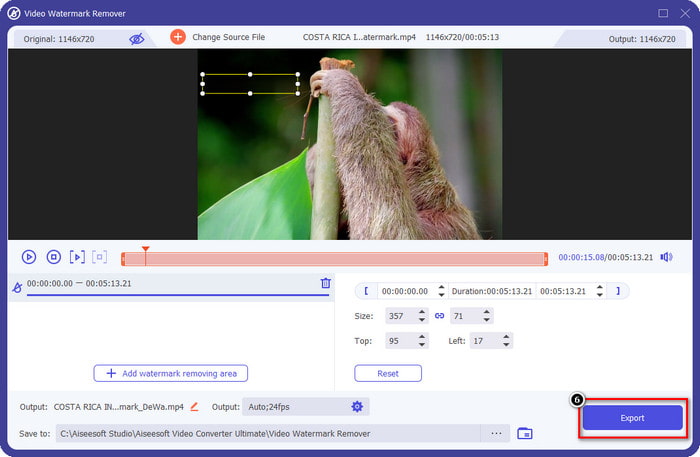
ステップ2. 画面左上のToolboxをクリックし、Video Watermark Removerを開きます。Toolboxの配下には、このツールが備えているその他の機能も一覧表示されます。
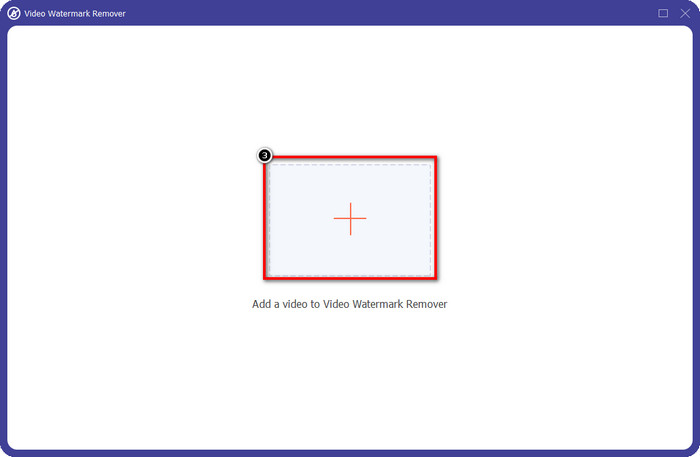
ステップ3. Animakerで作成したアニメ動画をアップロードするには、+アイコンをクリックします。ローカルドライブから該当ファイルを選択し、クリックしてからOpenを押します。
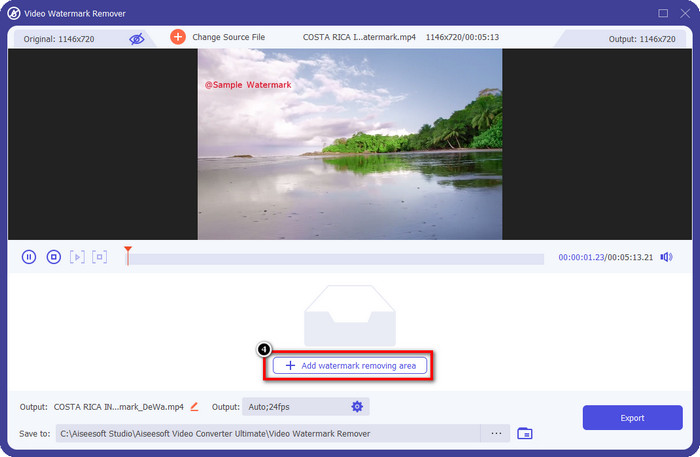
ステップ4. ウォーターマーク除去機能を使うには、Add Watermark Removing Areaをクリックします。
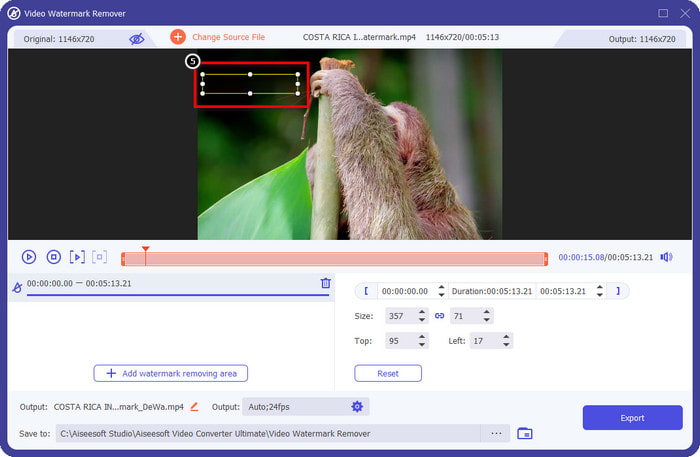
ステップ5. 選択ボックスをウォーターマークがある位置に配置し、その範囲にウォーターマーク除去を適用します。
ステップ6. Exportを押して、Animakerのウォーターマークが入っていない動画をダウンロードします。簡単ですよね?直感的なインターフェースのおかげで、ウォーターマーク削除のツールとして最適な選択肢と言えます。
123 APPS [オンライン] で動画からロゴを削除
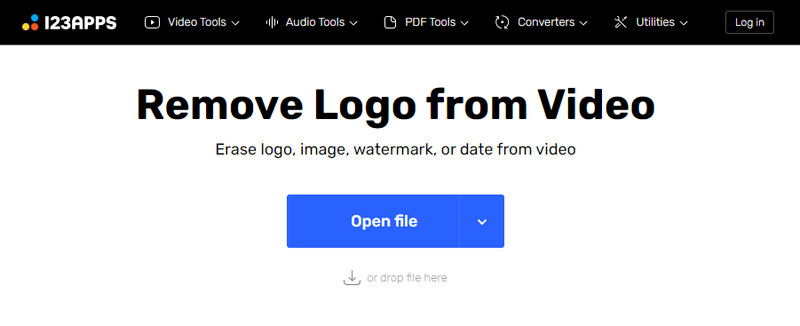
Remove Logo from Videos via 123 APPSを使えば、搭載された削除機能によって、動画上のウォーターマークを効果的に処理できます。ダウンロード型のウォーターマーク除去ツールと異なり、このツールはインストーラー不要で、ウェブ上から直接利用できます。また、安全性も高く、動画のウォーターマークに対処できる信頼性の高いオンラインツールとして知られています。Animakerのウォーターマークなしの動画をオンラインで作成したいですか?以下の手順で、このオンライン版ウォーターマークリムーバーの使い方を学びましょう。
ステップ1. お使いのウェブブラウザを開き、オンラインのウォーターマークリムーバーにアクセスします。
ステップ2. 公式サイトでOpen Fileをクリックし、ウォーターマークを削除したい動画ファイルをアップロードします。
ステップ3. 動画上でウォーターマークが表示されている領域を選択します。
ステップ4. Saveボタンをクリックして、ウォーターマークのないアニメ動画をダウンロードします。
Gilisoft ビデオ透かし除去ツール [Windows]
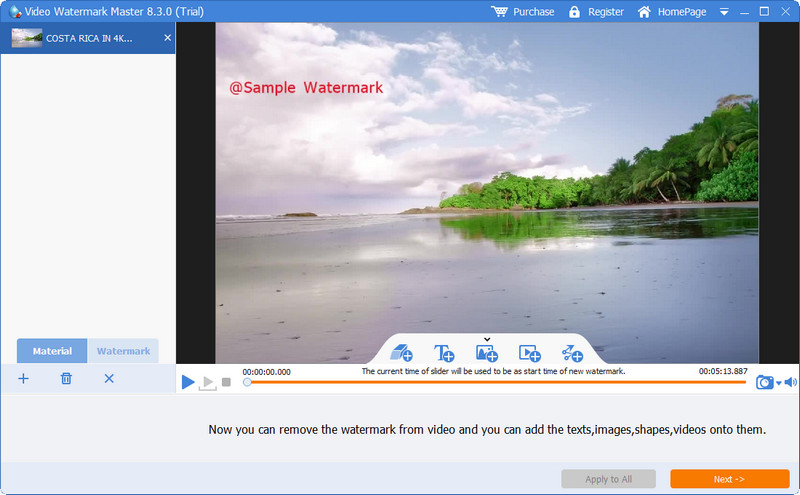
Gilisoft Video Watermark Removal Toolは、Animakerで作成したアニメ動画からウォーターマークを取り除くために使える、Windows専用のウォーターマーク除去ツールです。ローカルドライブに保存されているウォーターマーク付き動画を処理するには、このツールをWindowsにダウンロードして使用する必要があります。Macユーザーの場合、このソフトはお使いのOSでは利用できません。また本ツールでは、必要に応じて画像・テキスト・図形などの形式で新たなウォーターマークを追加することも可能です。引き続き読み進めて、WindowsでAnimakerのウォーターマークを削除する方法を確認しましょう。
ステップ1. Windowsにウォーターマーク除去ツールをダウンロードし、セットアップ手順に従ってインストールしたら、「Launch Video Watermark Master」をクリックして起動します。
ステップ2. Add File/sを押して、ウォーターマーク付きのAnimaker無料版で編集したアニメ動画をインポートします。
ステップ3. 消しゴム(eraser)アイコンをクリックして、ウォーターマーク除去エリアを追加し、ウォーターマークがある部分に適用します。
ステップ4. 動画への除去エリアの指定が完了したら、Nextをクリックします。すると小さなウィンドウが表示されます。ここで出力形式の調整や出力フォルダの変更を行い、問題なければStartをクリックして処理を開始します。
さらに詳しく読む:
パート 2. Animaker の透かしを削除する方法に関する FAQ
Animaker で他のテンプレートを使用できないのはなぜですか?
これは、無料版では Animaker で利用できるテンプレートへのアクセスが制限されているためです。プレミアム テンプレートは、未登録の Animaker では利用できません。プロ版にアクセスしたい場合は、このツールが提供する料金プランを確認する必要があります。
無料版の Animaker では、テンプレートを何回ダウンロードできますか?
Animaker の無料版では、ユーザーはアニメーション ビデオを 5 回作成して、それぞれに透かしを付けてダウンロードできます。このプラットフォームでより多くのアニメーション ビデオを作成したいとします。その場合、基本、スターター、プロ、またはエンタープライズ バージョンを購入する必要があります。
Animaker で 6 分間のアニメーション ビデオを作成できないのはなぜですか?
無料版の Animaker を使用しているとします。その場合、6 分間の動画のアップロードや作成に問題が生じます。この問題は、このツールのプランを利用するか、FVC Video Converter Ultimate を使用して長さ制限なしでビデオを作成することで解決できます。
結論
では、どのツールを使用するのが好きですか?それぞれの詳細を読んだので、ここでツールを選択できます。また、それぞれの Animaker 透かしを削除する方法を説明しました。選ぶのに困っていませんか?その場合、FVC Video Converter Ultimate を選択することが、使用できる最も安全なソフトウェアです。さまざまな問題で効果的に機能するため、このツールを利用すると、次のようになります。ビデオにある透かしについて心配する必要はもうありません。 Windows と Mac で究極のソフトウェアを選択すれば、解決策はあなたの手の中にあります。
-
 ビデオのビバビデオ透かしを削除するための3つのアプローチ[最速の方法]
 ビデオのVivaVideo透かしを削除するには、専用の透かし除去機能が必要です。この記事を読んで、それについてもっと知りましょう!
-
 Renderforestのエクスポートされたビデオから透かしを削除するための究極のツール
 Renderforestから透かしを削除するには、デバイスに透かしリムーバーが必要です。使用できるすべてのツールがここにあります。
-
 効果的なPlaceItウォーターマークリムーバーの完全なレビュー[2022]
 ここで確認するPlaceIt透かし除去ツールは、PlaceItにエクスポートするビデオの透かしを削除するために使用できる効果的なツールです。
