


 ビデオコンバーター究極
 スクリーンレコーダー
 ビデオ修復
ビデオ修復
 安全なダウンロード
After Effects でビデオから透かしを削除する最良の方法
Adobe Photoshopを使えば写真からウォーターマークを削除するのは簡単です。しかし、あなたはAdobe After Effectsで動画からウォーターマークを削除する方法を知っていますか?動画からウォーターマークを消すことができるアプリケーションは多くないため、難しいと言う人もいます。ですが心配はいりません。Adobe After Effectsを使えば、本記事で紹介する優れた方法により、ウォーターマークやロゴ、テキスト、ステッカーなど、動画や映画の不要なオブジェクトを削除できます。また、試すべき最良の代替ツールも紹介するので、自分の好みに合ったアプリを複数の中から選べます。詳細は記事を読み進めてください。

パート 1: After Effects でビデオから透かしを削除する方法
Adobe After Effects は、透かしやその他のイライラする要素をビデオから簡単に削除できます。また、多数のツールを使用して、より多くのことを行うことができます。 Adobe で最も人気のある最先端のビデオ編集プログラムの 1 つである After Effects は、作業を新しいレベルに引き上げます。このツールは、映画制作、テレビ制作、およびビデオ ゲームのポスト プロダクション プロセスに使用されます。さらに、アニメーション化、コンポスト化、トラッキング、およびキーイングにこのアプリケーションを利用できます。
さらに、ビジュアル デザイナー、アニメーター、広告代理店、ビデオ エディター、モーション グラフィックス デザイナー、ソーシャル メディア スペシャリスト、ビデオ プロデューサー、ビデオ エディター、UX スペシャリスト、アニメーターはすべて After Effects を使用しています。ただし、Adobe After Effects は、プロ以外のユーザーには最適ではありません。多くのツール、複雑なプロセス、高度な機能があり、混乱を招きます。また、無料トライアルは最大 7 日間しか使用できません。このソフトウェアを継続して利用するには、ソフトウェアを購入する必要があります。以下の簡単な手順に従って、ビデオから透かしを削除します。
ステップ1: Adobe After Effectsをダウンロードしてデバイスにインストールします。アプリを起動し、ファイル > 開くに進んでウォーターマーク付きの動画を読み込みます。
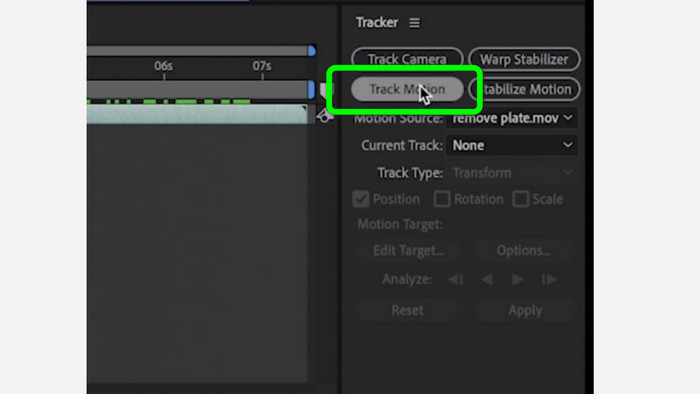
ステップ2: トラッカータブに移動し、モーショントラッキングをクリックします。トラッキングボックスをウォーターマークのある領域に配置し、前方向へのトラック矢印を押します。
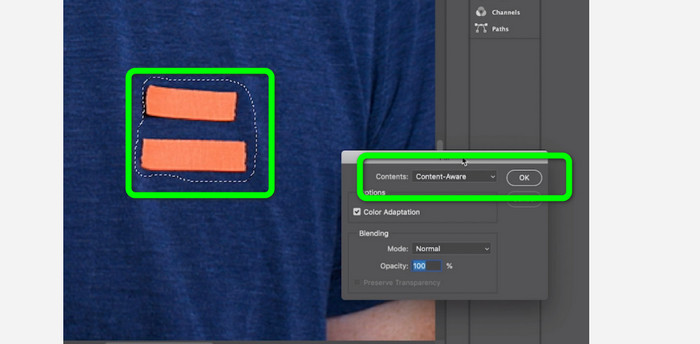
ステップ3: マーキーツールを使ってウォーターマークを選択し、編集 > 塗りつぶしを選びます。ダイアログボックスが表示されたら、コンテンツに応じるを選択してOKを押します。
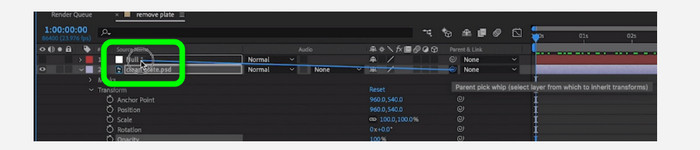
ステップ4: ピックウィップを使って、トラッキングしたヌルオブジェクトをマスクされた静止フレームにリンクします。これで、静止フレームは動くヌルオブジェクトと関連付けられます。再生すると、動画のウォーターマークはほとんど分からなくなっているはずです。
パート 2: ビデオから透かしを削除する最も簡単な方法
Video Converter Ultimate の使用
ご存じのように、Adobe After Effects は特に初心者にとって扱いが難しいソフトです。そのため、動画からウォーターマークを削除するのに最も効果的で簡単なアプリケーションがVideo Converter Ultimateです。インターフェースがシンプルで操作方法も分かりやすく、誰にでも適しています。ウォーターマークだけでなく、ロゴ、ステッカー、絵文字、テキストなど、邪魔な要素も削除できます。このツールの削除処理は高速なので、長時間待つ必要はありません。
さらに、想像以上の機能を備えています。他のデバイスがビデオをサポートしていない場合は、別のファイル形式に変換できます。このツールは、ビデオとオーディオのファイル形式を変換できます。また、ビデオが速すぎて速度を落としたい場合でも、このアプリケーションに頼ることができます。これは、ビデオ速度を 0.125 倍から最大 8 倍に調整できるビデオ スピード コントローラー機能を提供するためです。
動画から透かしを削除するには、以下の詳細なガイドを使用してください。
ビデオ透かしリムーバーの使用
ステップ1: WindowsおよびMacでVideo Converter Ultimateをダウンロードするには、下のダウンロードボタンをクリックします。インストールが完了したら、すぐに起動できます。
無料ダウンロードWindows 7 以降に対応安全なダウンロード
無料ダウンロードMacOS 10.7 以降に対応安全なダウンロード
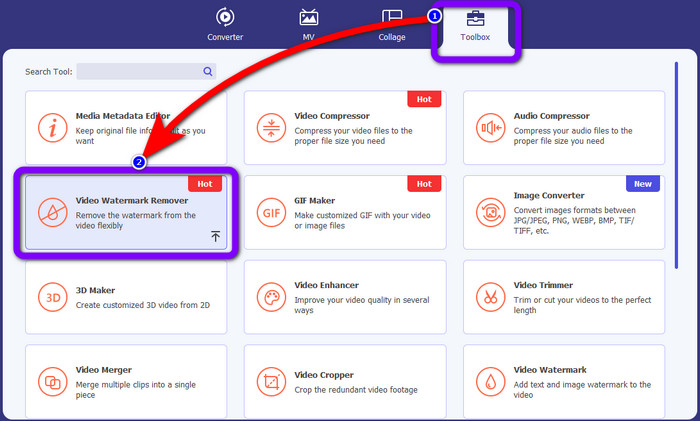
ステップ2: 上部にある4つのオプションからツールボックスパネルを選択し、動画ウォーターマーク除去をクリックします。別のインターフェースが表示されます。インストールが完了したら、すぐに起動できます。
ステップ3: プラスアイコンをクリックします。フォルダが表示されるので、ウォーターマークを消したい動画を選択します。
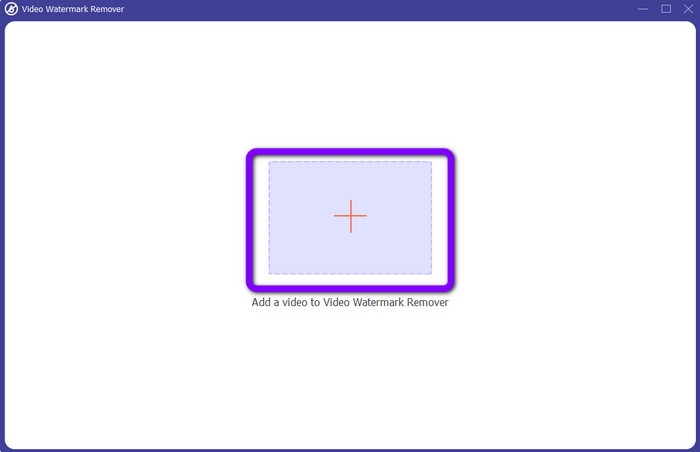
ステップ4: ウォーターマーク付き動画を読み込んだら、ウォーターマーク除去エリアを追加ボタンを押します。動画上に小さな四角形が表示されるので、これを使ってウォーターマークを覆います。
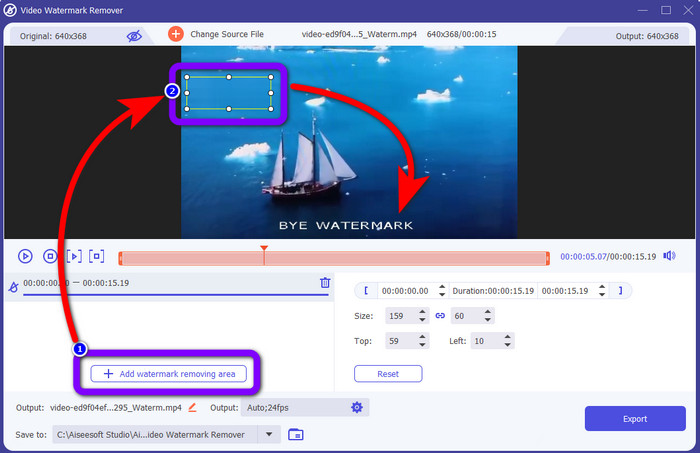
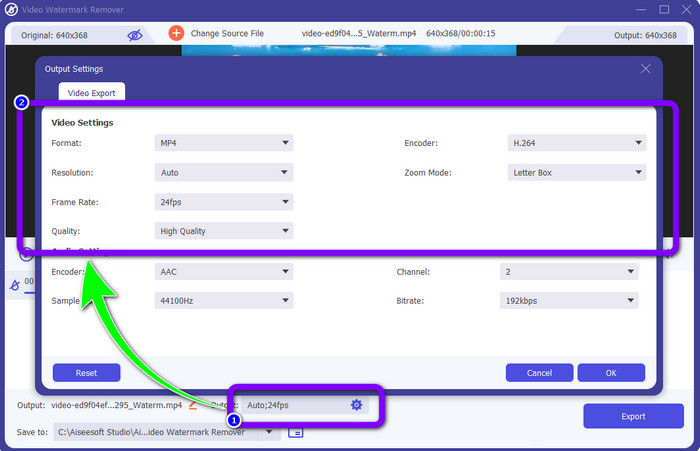
ステップ5: ウォーターマークを覆った後、インターフェース下部の出力オプションをクリックすれば、動画の形式、画質、フレームレート、解像度も変更できます。
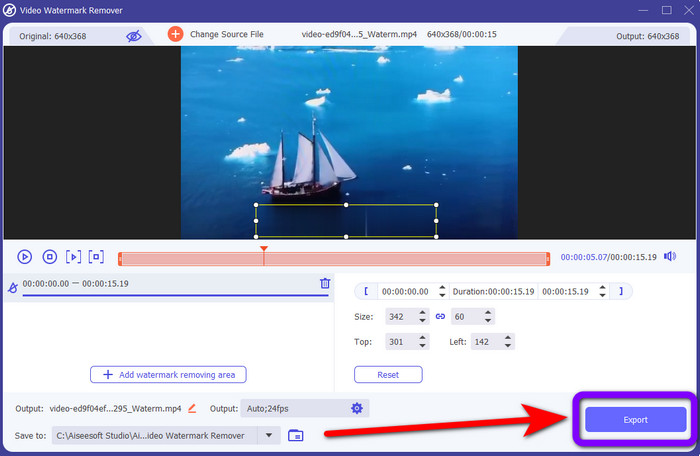
ステップ6: 最後に、書き出しボタンをクリックして、編集済みの動画を保存します。
ビデオ クロッパーの使用
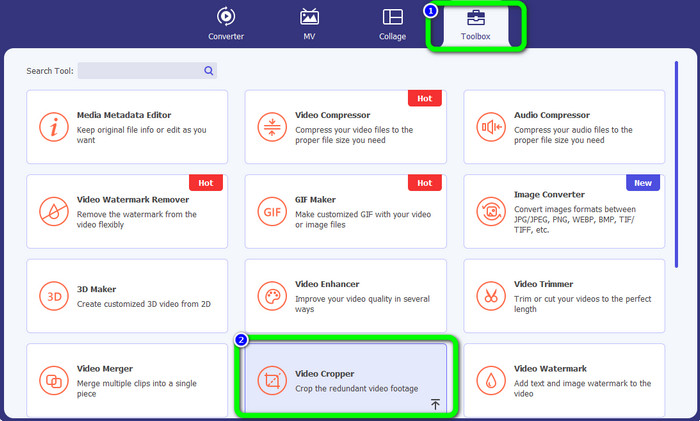
ステップ1: ツールボックスパネルに移動し、動画クロッパーツールを選択します。
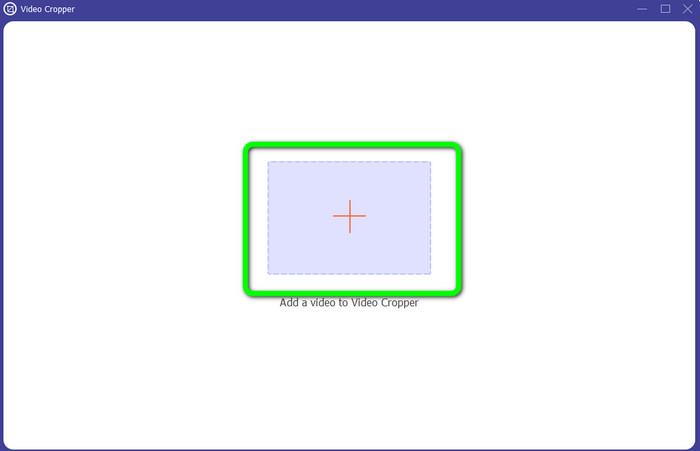
ステップ2: +アイコンを押して、ウォーターマーク付きの動画を追加します。
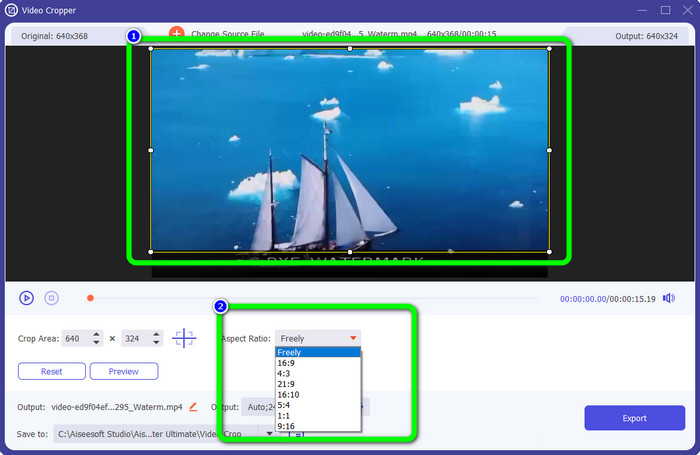
ステップ3: ここで動画をトリミングしてウォーターマークを取り除くことができます。2つ目のボックスに移動して、好みのトリミングパターンを選択することもできます。
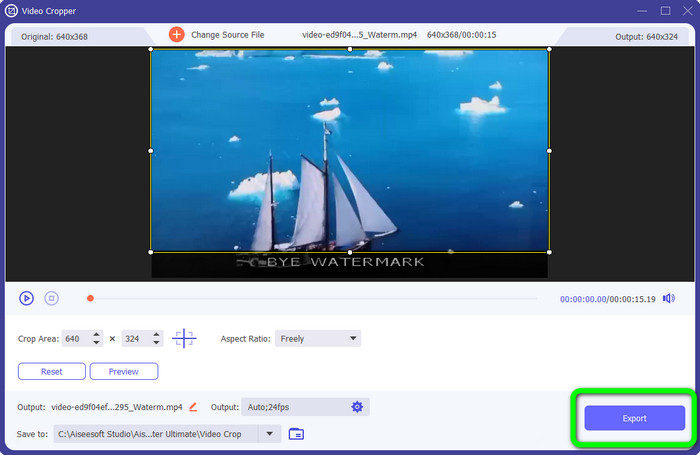
ステップ4: 動画のトリミングが完了したら、書き出しボタンをクリックして、ウォーターマークのない動画を保存します。
ビデオ透かしリムーバーをオンラインで使用する
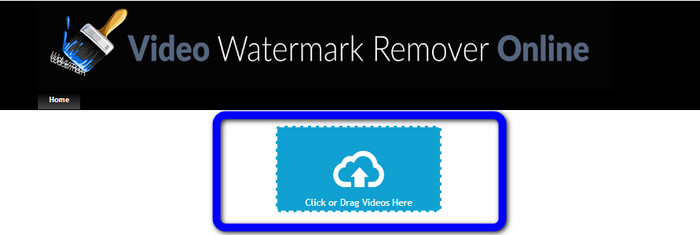
オフラインツールを使った最も簡単な方法を理解したところで、オンラインで試せる別のウォーターマーク除去ツールを紹介します。このアプリケーションがVideo Watermark Remover Onlineです。これは新しい全自動型の動画ウォーターマーク除去ツールで、面倒を大幅に軽減してくれます。ロゴ、署名、日付スタンプ、ウォーターマーク、テキストなど、さまざまな要素を動画から削除できます。他のリムーバーと似ていますが、最大の特徴はウォーターマークを自動的に削除できる点です。このアプリケーションはオブジェクトを検出し、それに合った色で置き換えてレンダリングし、元ファイルのように見えるようすべてを塗りつぶすように設計されています。
ただし、無料版を使用する場合、アップロードできる動画は 5 つまでです。また、エンコード処理が遅く、他のファイル形式にエクスポートできません。このツールの優れた機能を体験するには、サブスクリプションを購入する必要があります。 Video Watermark Remover Online を使用して動画から透かしを削除するには、次の手順に従います。
ステップ1: Video Watermark Remover Onlineにアクセスします。青いボックスをクリックして動画を追加します。ドラッグ&ドロップで動画を追加することもできます。
ステップ2: ファイルの処理が終わったら、ウォーターマークを削除ボタンをクリックします。削除処理が完了するまで待ち、ウォーターマークのない動画を保存します。
![[透かしを削除] をクリックします](/images/2022/11/click-remove-watermark.jpg)
パート 3: 動画からの透かしの削除に関するよくある質問
1. Windows と Mac に最適なビデオ透かし除去ツールは何ですか?
Video Converter Ultimate は最高の透かし除去ツールです。透かし、ロゴ、ステッカー、テキストなどの不要なオブジェクトをビデオから簡単に削除できます。
2. ビデオ透かしリムーバーはオンラインで安全ですか?
すべてが安全というわけではありません。オンライン ツールを使用して透かしを削除すると、すぐにファイルが削除されるため、誰もあなたのビデオ ファイルを表示したり使用したりできなくなります。ただし、一部のアプリは安全ではないため、まず使用しているアプリを確認する必要があります。
3. 透かしを削除すると、ビデオの品質は変わりますか?
使用しているアプリケーションによって異なります。動画の品質に影響を与えたくない場合は、Video Converter Ultimate を使用できます
結論
これで、Adobe After Effectsで動画からウォーターマークを削除する方法の概要が分かったはずです。また、本記事では、最も簡単な手順でウォーターマークを削除できる優れた代替ツールも紹介しました。もし画質を落とさずに動画から不要な要素を効率よく取り除きたいなら、Video Converter Ultimateをぜひお試しください。
-
 AfterEffectsを使用してスローモーションビデオを実行するための確かな証拠
 何かの考えや感情は、何かをスローモーションで見ることによって、生成または強化されたアフター エフェクトを使用してスロー モーション ビデオを作成するための確かな証拠となる可能性があります。 After Effects でスローモーションを作成する方法については、この記事をお読みください。
-
 After Effects でビデオを高速化する方法 [最高の高速化ツール]
 最高のスピードアップビデオツールを使用して、ビデオをスピードアップまたはスローダウンします。この記事を読んで、AfterEffectsでビデオを高速化する方法を学びましょう。
-
 ビデオから絵文字を削除する方法のステップバイステップガイド
 動画の絵文字にうんざりしていませんか?この投稿では、優れたツールを使用して動画から絵文字を瞬時に削除するための最良の手順を紹介します。
