


 ビデオコンバーター究極
 スクリーンレコーダー
 ビデオ修復
ビデオ修復
 安全なダウンロード
ビデオのVivaビデオ透かしを簡単かつ効果的に削除する方法
Viva Videoは、モバイルデバイスにダウンロードして、他のビデオエディタでは実現できない優れたビデオを作成できるビデオ編集およびビデオ作成アプリです。これにより、無料版またはプレミアムビデオ編集を有利に使用できます。したがって、ユーザーは透かしを残すために無料バージョンを使用すると問題が発生し、他の編集機能はプロバージョンと同じではありません。ビデオに埋め込まれた透かしは視覚を妨げる可能性があり、それを削除することをお勧めします。
しかし、PlayストアやApp Storeで見つけられるウォーターマーク削除ツールをいくつか使用することはできますが、いったいどれが一番良いのでしょうか?この記事を読み進めていただければ、動画からウォーターマークを消すために使えるツールと、動画内のViva Videoウォーターマークの消し方をご紹介します。

パート1。最高の透かし除去アプリを使用してVivaビデオ透かしを削除する方法
ビデオイレイザー-ビデオからウォーターマーク/ロゴを削除[Android]
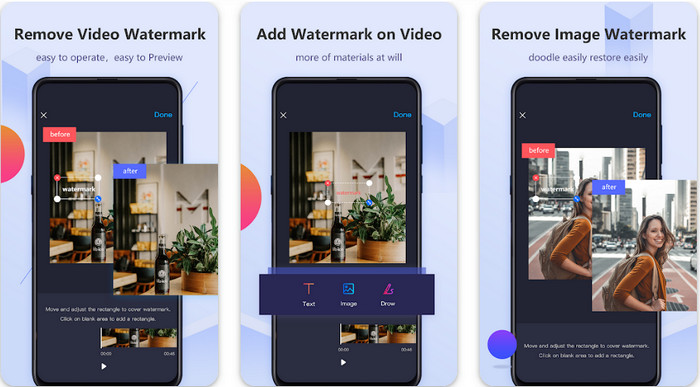
Video Eraser - Remove Watermark/Logo from Videoは、動画に埋め込まれたウォーターマークを削除するためにAndroid端末へダウンロードできる強力なウォーターマーク除去アプリです。このアプリを使えば、ロゴ、テキスト、スタンプなど、あらゆる種類のウォーターマークを動画から消すことができます。さらに、自分専用のウォーターマークを追加したり、クロップ、トリミング、逆再生、圧縮、再生速度の変更なども行えます。多機能でありながら、このツールは無料でダウンロード可能です。そこで、AndroidでViva Videoのウォーターマークを削除するには、以下の手順に従ってください。
ステップ1. まず、Playストアにアクセスしてアプリを検索し、[ダウンロード]をタップしてAndroidにインストールします。
ステップ2. ウォーターマーク除去アプリを開き、Remove Watermark from Video(動画からウォーターマークを削除)をタップします。アプリに動画へのアクセスを許可し、ウォーターマークが入った動画を読み込みます。
ステップ3. 表示された長方形をウォーターマーク部分に合わせてかぶせます。
ステップ4. [Done]を押して、ウォーターマークのない動画として保存します。
関連記事:
ビデオイレイザー-レタッチ除去[iOS]
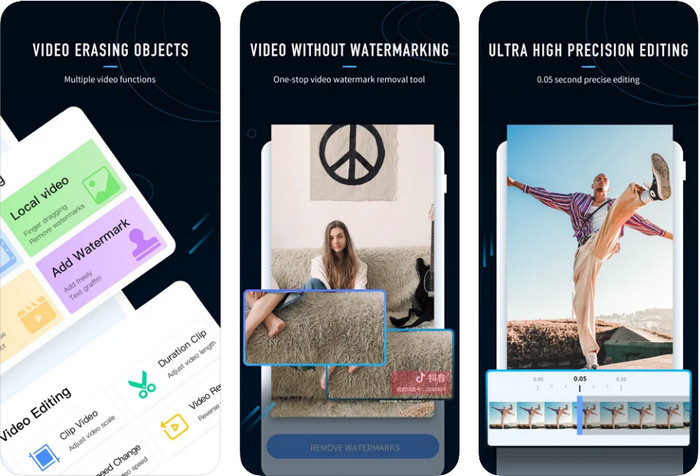
iOSの場合は、App StoreからVideo Eraser- Retouch Removalをダウンロードできます。これは、Viva Videoのウォーターマークを効果的に消すことができる無料ダウンロード可能なツールの1つです。ここで紹介したAndroid向けウォーターマーク除去アプリと同様に、このiOS版も、動画の高画質化、ウォーターマークの追加、カット、トリミング、圧縮、反転など、さまざまな編集機能に対応しています。こうした機能がすべて1つにまとまっています。ただし、Androidアプリと似た機能を備えていますが、細かな動作は異なり、このツールでウォーターマークを完全に削除するにはアプリ内購入が必要です。以下の手順に従って、Viva Videoから書き出した動画のウォーターマークを削除する方法を確認しましょう。
ステップ1. App Storeでアプリをダウンロードし、インストール後に起動します。
ステップ2. ソフトを開いたら、Local Video/GIF(ローカル動画/GIF)をタップして、ウォーターマーク入りの動画を読み込みます。その際、写真フォルダへのアクセスを許可してください。
ステップ3. 動画内のウォーターマーク部分をタップすると、画面上に長方形の枠が表示されます。
ステップ4. [Eliminate Watermark](ウォーターマークを除去)をタップして動画を書き出し、ウォーターマークのない状態で保存します。
パート2。WindowsとMacでVivaビデオ透かしを削除する方法[究極のソフトウェア]
WindowsおよびMacユーザーの場合、動画からウォーターマークを跡形なくきれいに消すには、高性能なソフトウェアが必要です。FVC Video Converter Ultimateなら、プロレベルの仕上がりで、Viva Videoのウォーターマークを無料で削除する方法を学ぶことができます。AndroidやiOSで使えるウォーターマーク除去アプリと同様に、このツールも多彩な機能を備えており、さまざまな編集作業に活用できます。ここで紹介した2つのウォーターマーク削除アプリ以上に、多くの機能を提供しているのが特徴です。
このツールの印象的な点は何ですか?このツールがサポートする削除機能は、ビデオで使用できる他の透かし除去機能よりも優れています。したがって、これを使用すると、ここで透かしを削除した後、透かしなしでビデオを楽しむことができます。これを使用する方法についてのチュートリアルが必要ですか?次の詳細では、1-2-3と同じくらい簡単にこのツールを使用する方法を知ることができます。
ステップ1. 下のダウンロードボタンをクリックしてこの究極ソフトをダウンロードし、デバイスへインストールします。WinRAR形式のセットアップを進め、[Start Now]をクリックして起動します。
無料ダウンロードWindows 7 以降に対応安全なダウンロード
無料ダウンロードMacOS 10.7 以降に対応安全なダウンロード
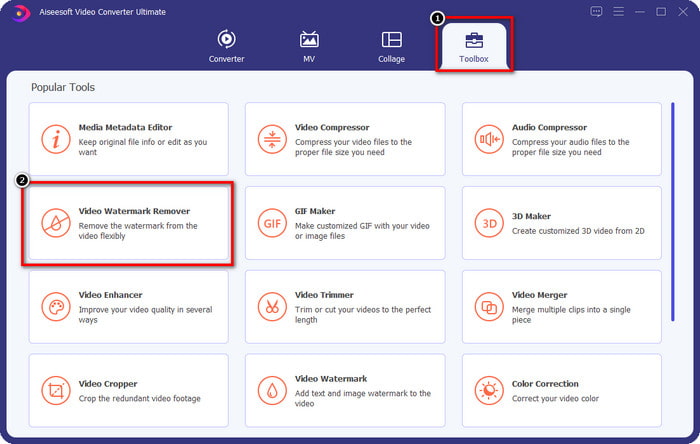
ステップ2. メニューからToolbox(ツールボックス)に進み、Video Watermark Remover(動画ウォーターマークリムーバー)をクリックして、ウォーターマーク削除機能を開始します。
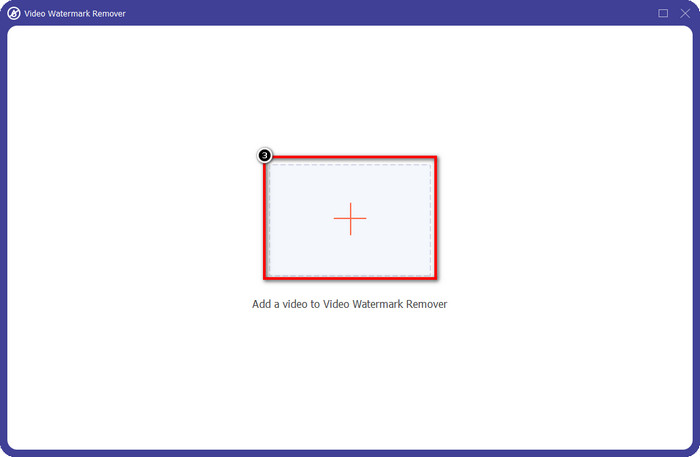
ステップ3. 画面の+アイコンをクリックして、デスクトップに保存してあるViva Videoのウォーターマーク入り動画を読み込みます。表示されたフォルダから動画ファイルを選択し、Openをクリックしてアップロードを完了します。
ステップ4. Add Watermark Removing Area(ウォーターマーク削除エリアを追加)をクリックして、ウォーターマーク除去機能の設定を開始します。
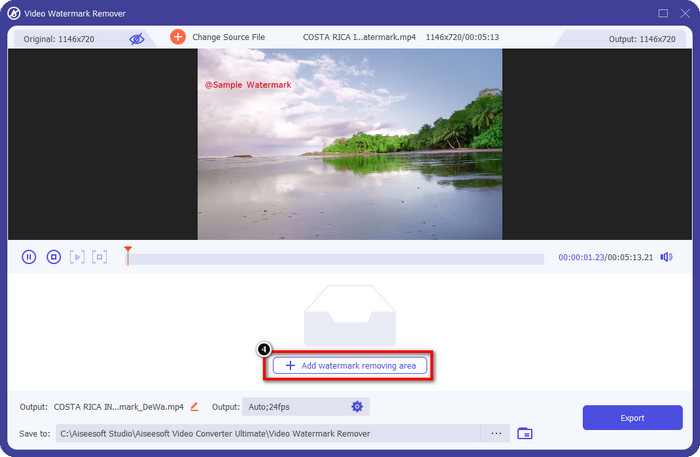
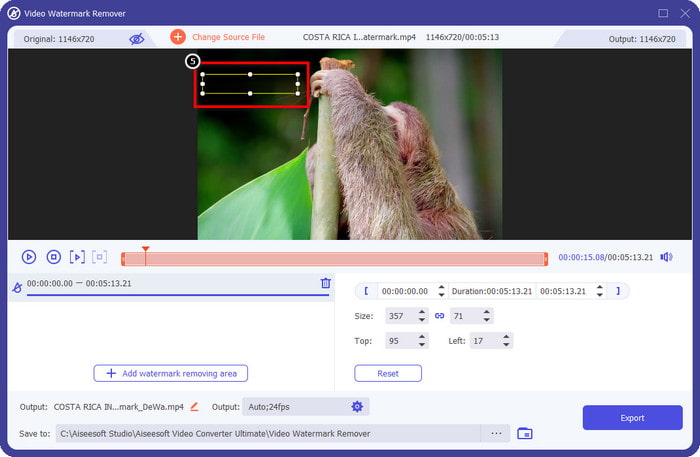
ステップ5. 動画上のウォーターマーク部分に合わせて、ドラッグして配置した長方形の枠を動かし、全体を覆うように調整します。ウォーターマーク全体を完全に覆うことが重要で、そうしないと一部が残ってしまいます。必要に応じて枠の大きさも変更してください。
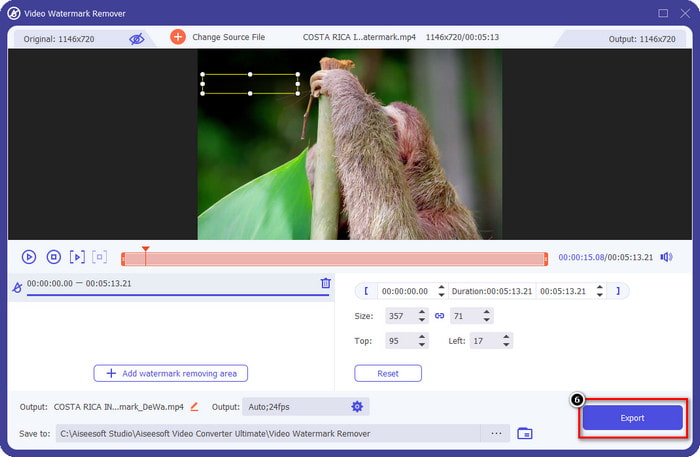
ステップ6. 設定が終わったら、Export(書き出し)をクリックして、ウォーターマークのない動画として保存します。簡単でしょう?まさに、この究極ツールは「簡単なのに高性能」であることを目的に作られています。
パート3。Vivaビデオ透かしを削除する方法に関するFAQ
透かしなしでVivaVideoをダウンロードできますか?
はい、このツールのプロバージョンを購入して、ここで編集したビデオをエクスポートするときに、ビデオに透かしが残らないようにすることができます。また、このツールのプロバージョンを購入すると、無料では利用できないこのツールのその他のプレミアム機能を使用できるようになります。
Viva Videoにはデスクトップバージョンがありますか?
VivaVideoバージョンはAndroidとiOSでのみダウンロードできます。したがって、デスクトップバージョンをダウンロードしたい場合は、何も見つかりませんが、VivaVideoが提供するもののようなビデオ編集の最良の代替手段を検索することができます。
Viva Videoにはスパイウェアがありますか?
2017年に、このアプリに関するレポートにより、マルウェアが含まれていることが後で確認されました。そのため、このソフトウェアをダウンロードした人は、それ以上の影響を避けるために、デバイス上のこのアプリを強制的に削除しました。
結論
この記事のVivaVideo透かし除去機能を使用すると、エクスポートされたビデオにVivaVideoが埋め込んだ透かしを削除できます。上記のアプリを使用してみて、透かしを削除する方法についての説明に従ってください。ただし、Viva Video透かしを使用しているWindowsおよびMacユーザーの場合は、究極のソフトウェアを使用して透かしをすばやく効果的に削除し、プロフェッショナルな結果を得る方がよいでしょう。何を待っていますか?ダウンロードボタンをクリックして、デバイスから究極の透かしを今すぐ削除し、上記の手順に従って使用します。
-
 これらの素晴らしいツールを使用してLomotif透かしを削除する方法
 ビデオからLomotif透かしを削除する方法を学びたいですか?この記事を読んで、オンラインとオフラインで削除するための最も優れた方法を知ってください。
-
 透かしリムーバーを使用して写真から観光客を削除する方法
 写真から観光客を削除する方法は?写真から不要なものを削除する方法を学びたい場合は、これらのツールが役立ちます。詳細については、この記事をお読みください。
-
 123rfウォーターマークリムーバー–究極のツールの徹底的なレビュー
 最も優れた123rf透かし除去剤を知りたい場合は、この記事をよく読んでください。この記事では、ツールの詳細なレビューを提供します。
