


 ビデオコンバーター究極
 スクリーンレコーダー
 ビデオ修復
ビデオ修復
 安全なダウンロード
2つの可能な方法でSmartDrawの透かしを削除する方法
もし、チャート作成・図面作成・マッピングを簡単かつ高機能に行い、その結果をエンタープライズ品質で提示したいのであれば、SmartDraw を使用するとよいでしょう。SmartDraw を使えば、あなたのアイデアを現実の形にすることができます。このツールは無料でしょうか?7 日間の無料トライアルが用意されており、その間は透かし入りで無料利用が可能です。ただし、書き出したファイルに透かし(ウォーターマーク)が入るのは煩わしいと感じるかもしれません。そこで本記事では、市場で入手できる中でも特に優秀で、ウォーターマーク削除に高い効果を発揮するツールだけをご紹介します。以下の情報を読み進めて、SmartDraw のウォーターマークを削除する方法を 2 つの有効な手段で学びましょう。

パート 1. ライセンス キーを購入して Smart Draw の透かしを削除する方法 [正式版]
SmartDraw から透かしを削除するには?最初に紹介するのは、このツールのライセンス キーを購入する方法です。このプラットフォームは、目的に役立つさまざまな種類のプランを提供します。さらに、このツールへの 1 か月のアクセスを購入することはできないため、そのライセンス キーを購入する予定がある場合は月単位で請求されますが、支払う総額は年間バージョンになります。このツールのパフォーマンスを高く評価し、購入したい場合は、以下に追加する手順に従ってください。
ライセンス キーを使用して SmartDraw の透かしを削除する手順:
ステップ 1. SmartDraw の公式サイトを開き、正しい公式サイトにアクセスしていることを確認し、安全な決済が行える状態にします。
ステップ 2. 公式サイトで 購入 をクリックし、利用可能なプランを表示させます。
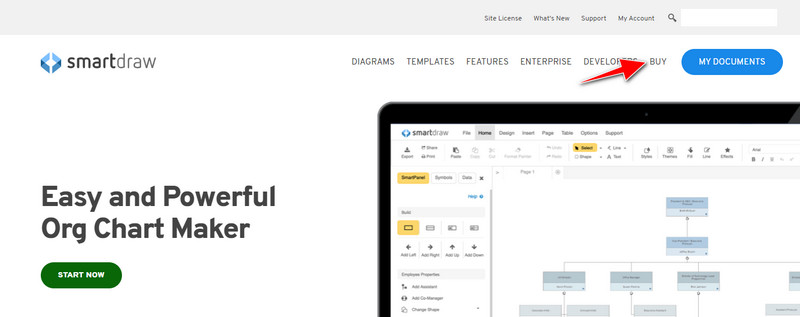
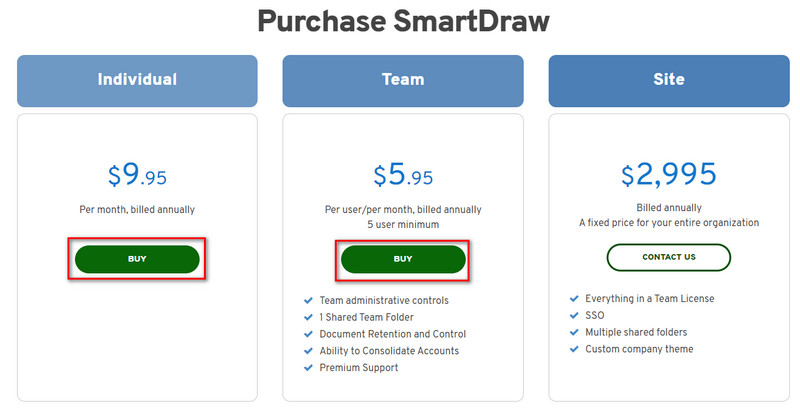
ステップ 3. SmartDraw は、個人、チーム、サイト向けとして購入できます。個人版またはチーム版を購入する場合は、「今すぐ購入」をクリックします。
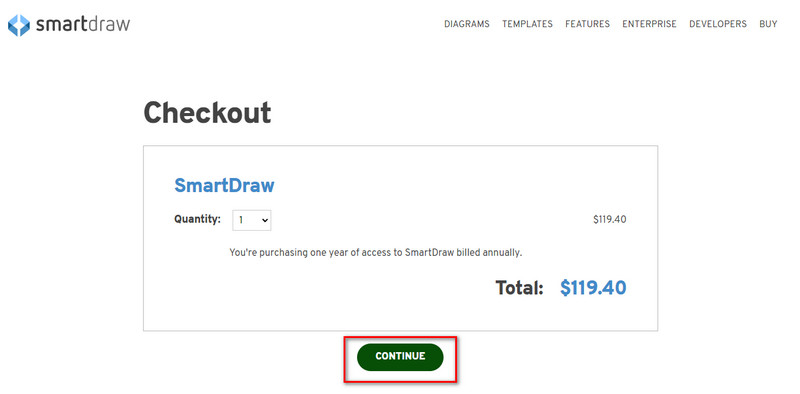
ステップ 4. 画面右側に、年間契約後の合計金額が表示されますので、続行 をクリックして手続きを進めます。
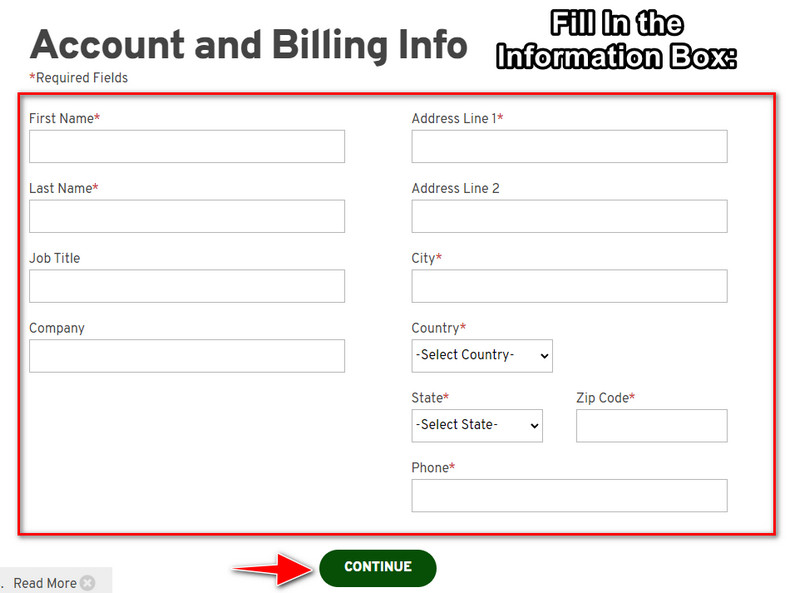
ステップ 5. 必要事項としてアカウント情報と請求情報を入力し、続行 を押してライセンスキーを取得します。
パート 2. Web サービスを使用して Smart Draw の透かしを無料で削除する方法 [無料]
購入せずに SmartDraw の体験版からウォーターマークを消すにはどうすればよいでしょうか。その場合は、FVC Free Watermark Remover Online を利用する必要があります。このウォーターマーク除去ツールは、今すぐ使用できるオンラインサービスです。画像のウォーターマークを削除するのに特別なスキルは不要で、操作も簡単です。画像編集の専門家であっても、不要なウォーターマークやオブジェクトを取り除くためのツールとして利用できます。このウォーターマークリムーバーを使えば、画像上の「シミ」のような不要な痕跡もきれいに除去できます。ライセンスキーを購入する代わりに、このソフトを試してみたいですか?そうであれば、下記のチュートリアルに沿って進め、画像からウォーターマークを効果的に削除しましょう。
グラフまたはダイアグラムの SmartDraw の透かしを無料で削除する方法の手順:
ステップ 1. ブラウザでウェブツールを検索する代わりに、このリンクをクリックして開きます。検索エンジン上で新しいタブが開きます。
ステップ 2. マウスを使って、SmartDraw で作成した画像のグラフやダイアグラムをドラッグ&ドロップし、アップロードします。
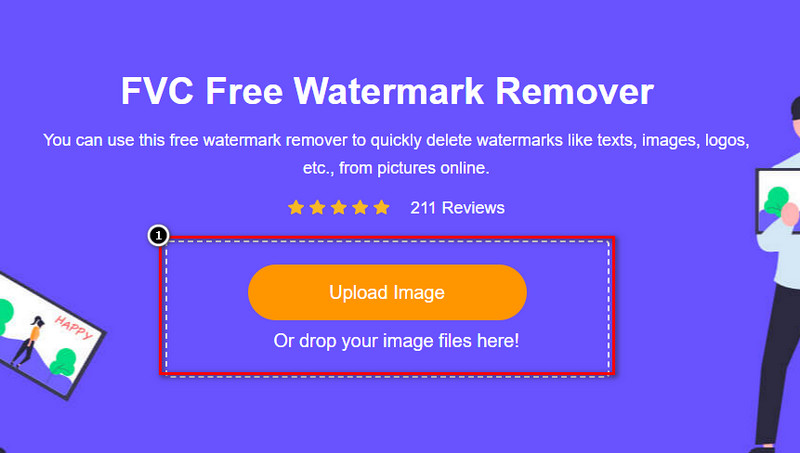
ステップ 3. オンライン版ウォーターマークリムーバーが起動したら、画像上のウォーターマークを選択して囲むためのツールを選びます。
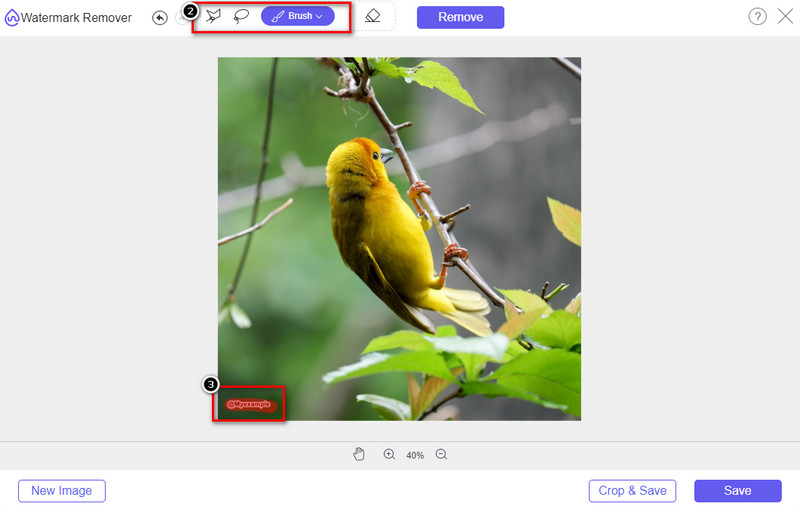
ステップ 4. アップロードした画像上で、ウォーターマークやロゴをしっかり囲んだら、削除 を押します。
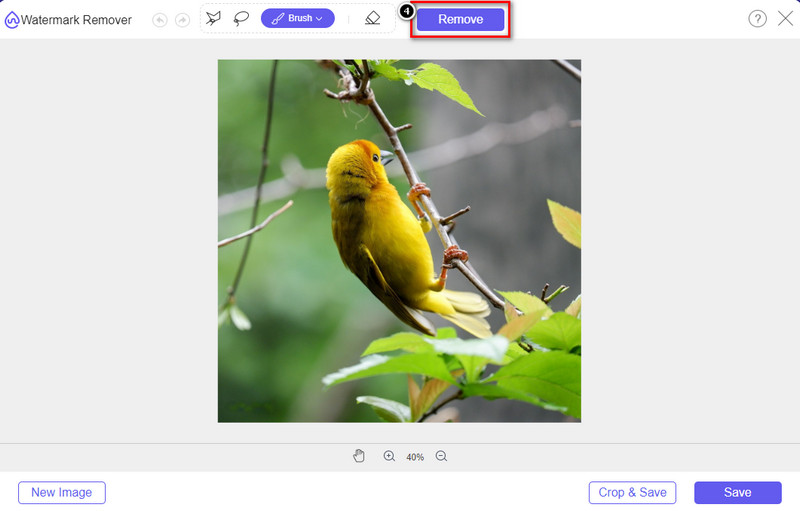
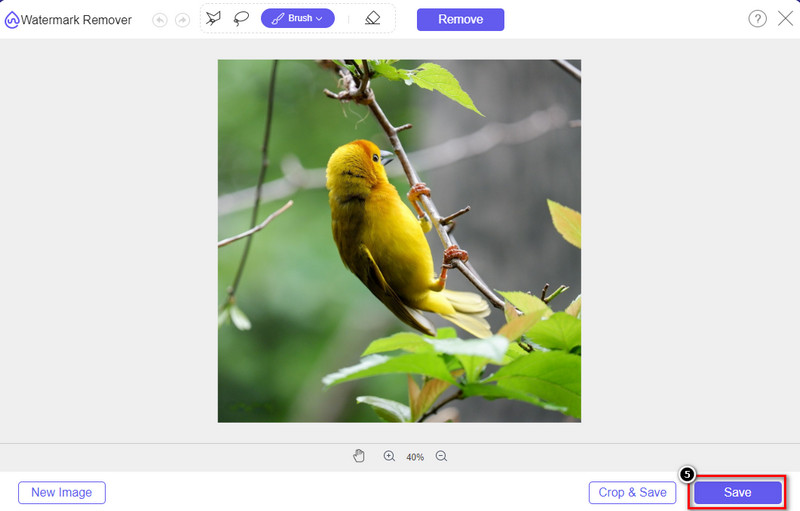
ステップ 5. ウォーターマークの削除処理が完了するまで待ち、保存 をクリックしてアップロードしたグラフやダイアグラムをダウンロードします。画面に保存先フォルダが表示されるので、ウォーターマークが消えたグラフ/ダイアグラムを確認しましょう。
FVC Free Watermark Remover Online を利用する利点:
◆Web上で利用できるため、アプリのダウンロードは必要ありません。
◆ 幅広い画像に対応し、透かしを効果的に除去できます。
◆ 高品位な出力を実現する透かし専用ソフトです。
◆ エクスポート後の最終出力にウォーターマークは追加されません。
◆ 利用回数、ファイルサイズに制限はありません。
パート 3. 追加パート – 詳細な手順を使用して SmartDraw でチャート、グラフ、またはダイアグラムを作成する方法
前の部分では、SmartDraw 透かしを取り除く方法を説明しています。このパートでは、SmartDraw を使用してチャート、グラフ、ダイアグラムを作成する方法を説明します。以下に追加する手順に従って、その方法を知ることができます。
ステップ 1. 公式サイトへアクセスし、グラフ、チャート、またはダイアグラムの作成を開始します。
ステップ 2. 公式サイトを開いたら、今すぐ開始 をクリックしてアカウントにログインまたはサインアップします。
ステップ 3. 画面左側から、作成したいテンプレートの種類を選択します。
ステップ 4. 各フローチャート要素に情報を追加します。画面左側には、利用できる追加オプションも表示されます。
ステップ 5. エクスポート ボタンをクリックし、出力したいファイル形式を選択して処理を開始します。無料版を使用している場合はウォーターマークが入るため、第 2 部分で紹介した手順を使ってウォーターマークを削除できます。
さらに詳しく読む:
パート 4. SmartDraw 透かしを削除する方法に関する FAQ
SmartDraw は PNG 画像をエクスポートできますか?
はい、PNG 形式の透明なグラフを作成できます。ただし、無料版を使用すると透かしが追加されます。正式版を購入できるので、エクスポートした画像に透かしが入ります。
SmartDraw の価格はいくらですか?
SmartDraw でプランを購入しようとしている場合は、$ 5.95 からそのプランを購入できます。公式ウェブサイトで提供される他の価格を確認できます。
SmartDraw のプレミアム バージョンを購入する利点は何ですか?
チーム管理者の制御、チーム フォルダー、プレミアム サポートを取得し、個々のプランの透かしなしで画像をエクスポートできます。その他のプレミアム特典については、公式ウェブサイトにアクセスして、入手できる機能を確認してください。
結論
これで、追加する 2 つの方法を使用して、透かしなしで SmartDraw を保存する方法がわかりました。購入するか、ツールを使用して、エクスポートされたファイルの透かしを削除します。このツールを購入したくない場合は、透かしを削除するための最も効率的な Web ツールであるため、使用する必要があります。この記事が問題の解決に役立ったと思われる場合は、5 つ星を評価してください。
-
 GIFから透かしを削除する4つの最も優れた方法[オンラインおよびオフライン]
 GIFから透かしを削除する必要がありますか?この記事のツールを使用すると、プラットフォームで使用可能なさまざまな透かし除去機能を使用してさまざまなスタイルを学習できます。
-
 メディアファイルのメタデータを削除する5つの最も簡単な方法
 メタデータを削除する方法は?難しいですか?タグを削除するには、無料のツールを購入または使用する必要がありますか?これらの質問はすべて、この記事に回答があります。
-
 オンラインおよびオフラインで優れたPhotobucketウォーターマークリムーバー
 これらの素晴らしいPhotobucket透かしリムーバーを使用して写真からPhotobucket透かしを削除する方法を学びます。方法を学ぶためにこの記事を読んでください。
