


 비디오 컨버터 궁극
 스크린 레코더
 비디오 수리
액세스하기 쉬운 XviD 변환기: XviD 파일을 MOV 형식으로 변환하는 방법
XviD file is the most known codec used to compete against DivX. Also, this codec uses the MPEG-4 ASP that contains features like b-frames, lumi masking, global and quarter pixel motion compensation, trellis quantization, custom quantization matrices, and H.263. And just by that, XviD became a more popular encoder than the DivX. Supposedly, you transfer a file that uses an XviD codec on your iOS. If the file does not play, don't be shocked because the codec doesn't support mobile devices like iOS and other devices. Although it looks unsolvable, there is always a solution to every problem; we provide a solution by converting the file under XviD to AVI format. If you want to know how to convert XviD files to MOV, then follow this article.

1부. XviD 및 MOV 소개
As we said earlier, your file can become smaller if you use the XviD to compress it without damaging its quality and decompress it quickly. Although Xvid is a non-proprietary compressor, this codec compatibility is limited to portable devices and especially editing. So, if you want to watch or edit the video with the XviD codec, it is a must to convert the file into MOV. Why MOV? Because this format can contain metadata, media files like audio, video, and text or subtitles. Not only that, this format can play videos on iOS devices and other devices as well. So now, to solve your problem on your XviD file, let's find out how to convert XviD to MOV with the help of this tool available below.
2부. Windows 및 Mac에서 XviD를 MOV로 변환하는 최고의 변환기
FVC 비디오 컨버터 궁극
Are you looking for the best XviD to MOV converter that can convert the file within a blink of an eye? Then FVC Video Converter Ultimate is the only tool you are looking for. Besides its 30x faster conversion provided to the customers, you can edit, merge, cut, and do more to your video to look more phenomenal than the other. Although the tool provides advanced features still, you won't need to build a supercomputer to download and use this tool.
그 외에도 이 소프트웨어에는 하드웨어 가속 및 빠른 변환이 포함되어 있어 변환 경험을 더 빠르고 더 좋게 만듭니다. 이제 이 도구를 사용하여 Xvid 파일을 MOV로 변환하는 방법을 배우고 싶다면 아래 튜토리얼을 진행해 보겠습니다.
Steps on How to Convert Xvid to MOV with the FVC Video Converter Ultimate;
Step 1. This software is downloadable on any PC or Mac OS, so you will need to press the download button below. After downloading the software, click the file to install, do the setup real quick, and click Start Now to open the tool immediately.
Free DownloadFor Windows 7 or laterSecure Download
Free DownloadFor MacOS 10.7 or laterSecure Download
Step 2. To insert the .xvid file, you must click the + button, locate it on the folder, and click Open. However, if the .xvid file is more than two, we suggest that you drag and drop the files to the interface.
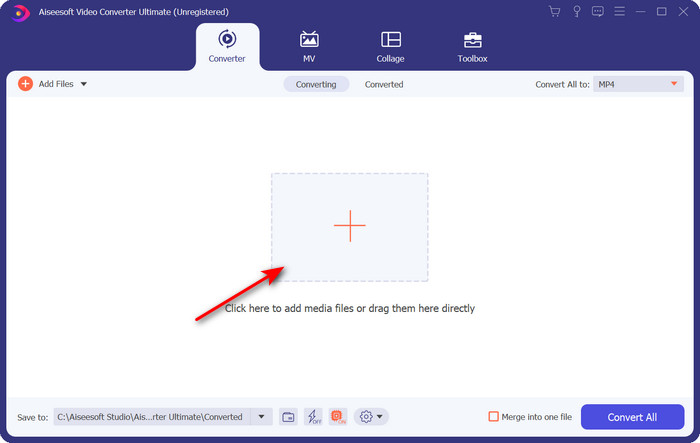
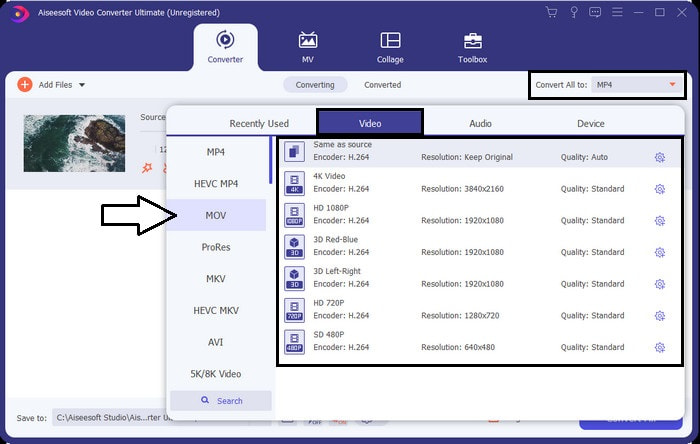
Step 3. Click the drop-down button at the upper right of the interface and locate the MOV format on the list.
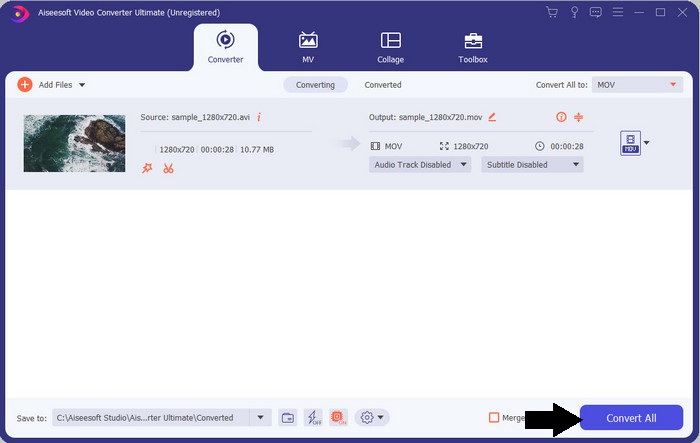
Step 4. Let's start transforming your XviD files to MOV by clicking Convert All.
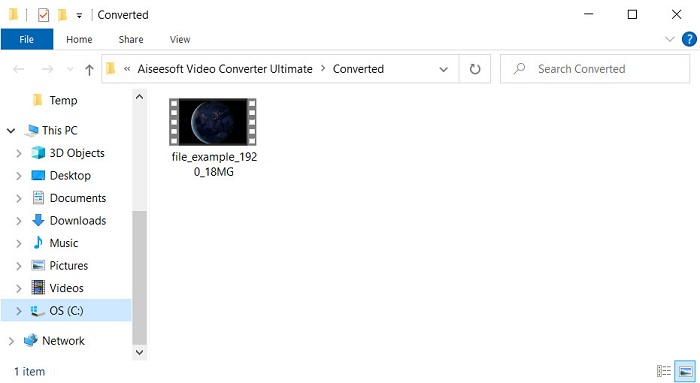
Step 5. Wait for a matter of seconds for the process to finish. A file folder will appear on your screen with the .mov file; click the file to play it on your local media player and enjoy.
3 부분. Xvid를 MOV로 변환하는 최고의 온라인 변환기
FVC 무료 비디오 변환기 온라인
Don't want to get in trouble downloading the software on your drive because your storage is full and you want to convert a single file online? FVC Free Video Converter Online is available in all web browsers. Converting the XviD file with the help of this tool will be done within a minute. Also, this tool doesn't need you to put your account to access it or even ads on the interface. This tool is the neatest online converter you can access on the web. However, you can't access this if you don't have an internet connection because this tool is network-dependent. Also, this tool supports a medium range of formats you can choose and use. Moreover, if you don't want to download a converter, you must use this XviD to MOV converter online.
Steps on How to Convert XviD Files to MOV Format Online with the Help of FVC Free Video Converter Online;
Step 1. To go to the main webpage of the online converter, you must click this link.
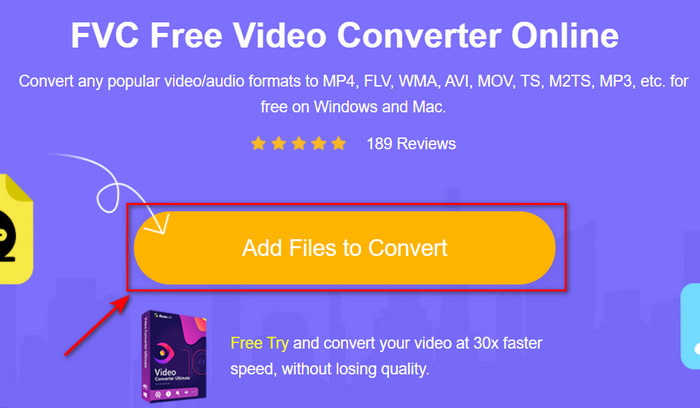
Step 2. Press Add Files to Convert to launch the tool, then a folder will show where you can find the XviD file you want to convert, and click Open to proceed.
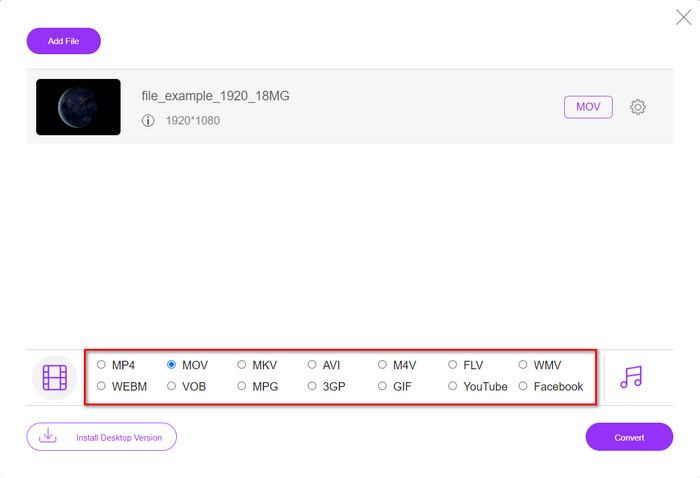
Step 3. A new interface will show after you insert the XviD file, choose the MOV format or the other format you want below.
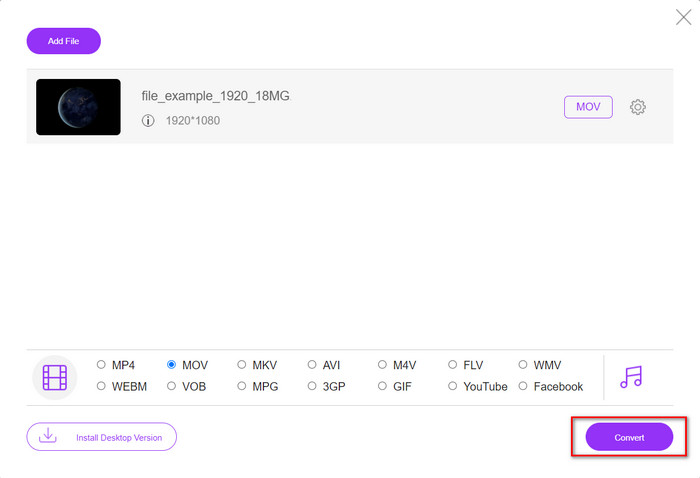
Step 4. To start the changing of format, click Convert.
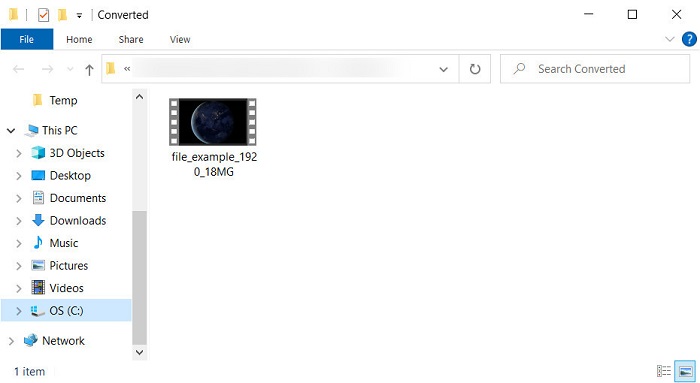
Step 5. Converting the file will take less of your time than the other online converter; after that, a folder will show with the converted file you've made.
4부. XviD에서 MOV로의 변환에 대한 FAQ
XviD 비디오는 어디에서 볼 수 있습니까?
You can use the VLC Media player to play the XviD files for you. If you don't want to download, use the Windows Media Player available in all Windows. For Mac users, use Quicktime. But if you want to watch a high-definition XviD video, read this article as we compile all the possible XviD players you can use to watch XviD files.
XviD는 무료인가요?
XviD는 무료이며 웹을 통해 빠르게 전송하거나 공간을 절약하기 위해 파일을 사용 및 압축하려는 모든 사람이 사용할 수 있습니다. 이 모든 것이 GPL 자유 소프트웨어 라이선스 덕분에 무료로 만들어졌습니다.
XviD 비디오를 편집할 수 없는 이유는 무엇입니까?
이 유형의 코덱에서 비디오를 편집할 수 없는 주된 이유 중 하나는 지원되지 않기 때문입니다. 이 경우 최소한의 비디오 편집기는 복잡성 때문에 이러한 유형의 코덱만 지원합니다. 따라서 이 형식으로 비디오를 편집하려면 먼저 변환을 고려해야 합니다. 이 경우 XviD 파일을 MP4, AVI, MOV 등으로 변환할 수 있는 다목적 변환기가 있어야 합니다. 그런 다음 파일을 변환한 후 다음 편집기에서 업로드하여 원하는 편집을 수행합니다.
결론
After reading this article, our knowledge about XviD expands, and now we can see the different perspectives of XviD. So now, if you want to save or play a video on your iOS device, you must convert the file first into MOV. As discussed earlier, these two mentioned converters perform well in converting the file into a MOV format. Although both tools look perfectly great, the speed and performance of the FVC Video Converter Ultimate are unrivaled and better than any desktop or web tool available. But if you want a free and safe conversion online, go with the FVC Free Video Converter Online.
-
 쉬운 단계와 도구를 사용하여 AVI를 MOV로 변환하는 방법
 AVI를 재생 가능한 MOV로 변환하는 방법을 알고 싶습니까? 성공적인 변환을 위한 팁과 수행 방법을 알기 위해 이 문서를 따라야 합니다.
-
 AVI를 iMovie 지원 형식으로 가져오기 및 변환 [2021]
 iMovie에서 AVI 파일을 가져올 수 없기 때문에 문제가 있습니까? 이 기사를 읽었다면 이미 이 문제에 대한 올바른 해결책을 선택한 것입니다.
-
 TS를 AVI / MKV / MOV / WMV 온라인 및 Win / Mac에서 무료로 변환하는 방법
 TS 파일을 AVI / MKV / MOV / WMV로 빠르게 변환하고 싶으십니까? 이 기사는 완전한 가이드와 함께 온라인 및 오프라인 비디오 변환기를 보여줍니다. 여기에서 최고의 무료 TS 변환기를 얻을 수 있습니다.
