


 비디오 컨버터 궁극
 스크린 레코더
 비디오 수리
손쉬운 단계를 통해 Mac에서 MOV 파일 메타데이터를 변경하는 방법
We all know that MOV is one of the top-notch formats you can ideally use on video playback on your Apple devices and for editing. But what makes MOV unique? It supports a video compression that is preferably used by pro. Although it can store multiple elements on a single file, it is still possible that the MOV can have mixed-up tags that could lead to a problem. It would help to edit them accordingly to have proper metadata to fix it immediately. With the helpful tool, this task is a piece of cake. So today, we will present the best ways to edit MOV file metadata instantly.

1부. Mac에서 Ultimate Tag Editor로 MOV 메타데이터를 편집하는 방법
FVC Video Converter Ultimate is your one-stop solution regarding this metadata problem that supports more than 1000+ formats on Mac and Windows. With this tool, you can instantly remove, edit or add the metadata on your MOV file. What's more? You can do multiple edits on your MOV, such as cutting, trimming, merging, cropping, and a thousand more, even if you are not a pro on editing. Indeed, it is impressive to have this tool by your side, and there are many more things you can do with this tool within a few clicks away. But today, we present to you the detailed instruction we've added that you can follow to edit your MOV files metadata successfully.
Step 1. You can attain the ultimate converter on your Mac or Windows by tapping the download button below. Proceed to the installation process by clicking the file you've downloaded, and click Start Now to launch the tool immediately.
Free DownloadFor Windows 7 or laterSecure Download
Free DownloadFor MacOS 10.7 or laterSecure Download
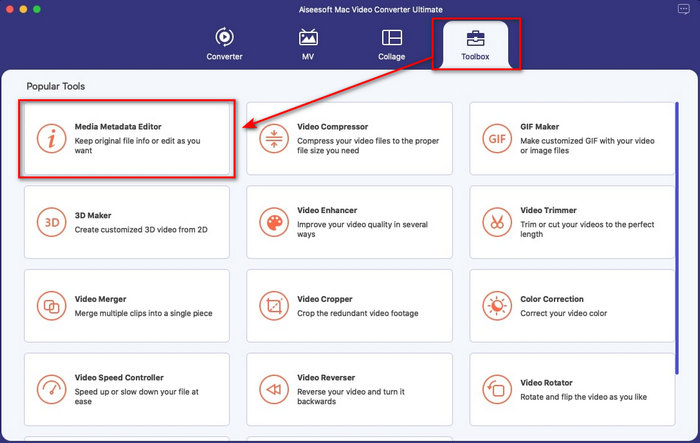
Step 2. The tool's interface will show on your display; go to the Toolbox part and open the Media Metadata Editor.
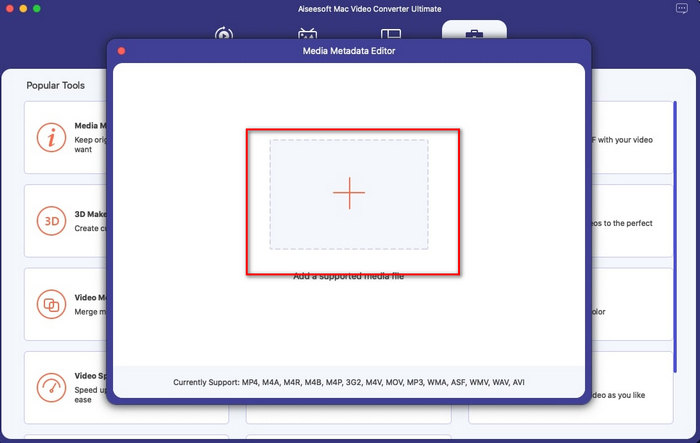
Step 3. Once you've already opened the editor, a mini window will show; tap the + button to open a folder on where you can locate the file, and to insert it click Open.
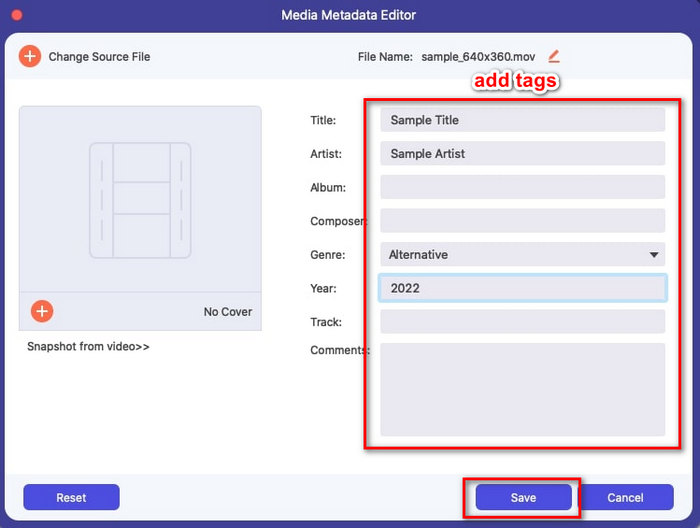
Step 4. This time you can now add, edit or remove the tags on your MOV file here in the text box. If you've finished it all, click the Save button. You have now edited the metadata on your MOV files as quickly as that.
관련 항목:
MOV 메타데이터를 변경하는 최고의 MOV 태그 편집기 2부. 3
VLC 미디어 플레이어
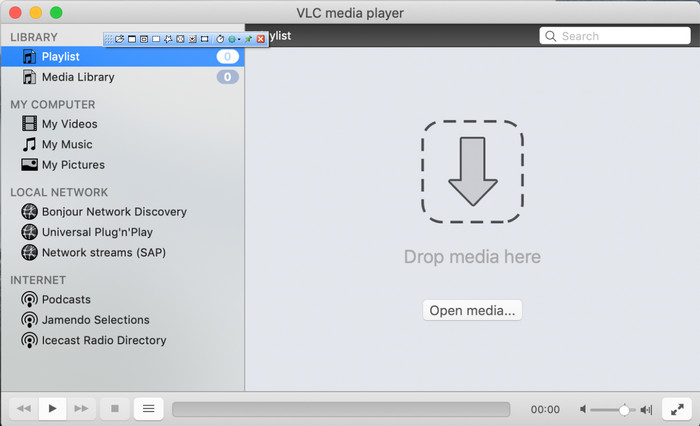
VLC Media Player is a famous media player available on Mac and Windows. Although it can play different video formats, it can change the metadata of your media file, like on MOV. Moreover, if you want to view your file's metadata, you can easily use this to view it. However, it is not as effective as the other dedicated metadata editor you can use on Mac or Windows. Yet, it is still doable with the media player to edit the MOV file metadata.
Step 1. Download the media player on the official website of the VLC, then open it.
Step 2. Press Command + I on your keyboard, and the media information will show where you can add or delete the metadata of your MOV file.
Step 3. Click Save Metadata if you've done applying the tags on your MOV.
iTunes
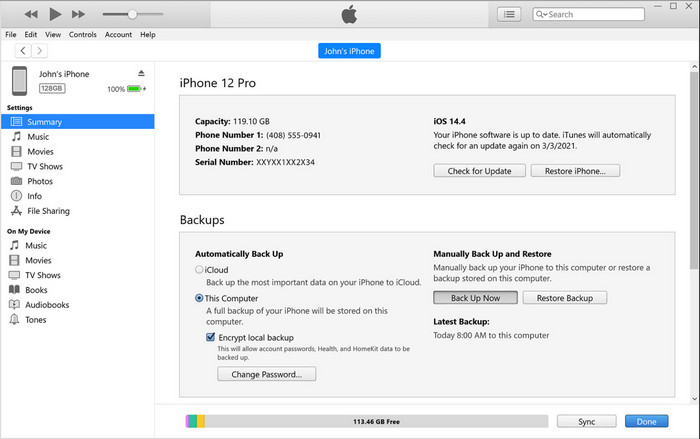
iTunes is the best built-in streaming app you can access on any Apple device. This tool is jam-packed with different features such as the music player and store for music, movies, podcast, and many more protected with DRM to avoid copy-right issues. Despite being a great built-in app, the competition for metadata editors is too stiff for iTunes to join. But we still reconsider this app because it can change the MOV metadata on Mac.
Step 1. Open then import the MOV file on iTunes library.
Step 2. Then right-click the .mov file you've added and select Get Info. After you've clicked it, there are different options you have to change the metadata, such as details, artwork, lyrics, options, sorting, and file, adjust them according to your needs.
Step 3. Press OK to save the changes.
메타지
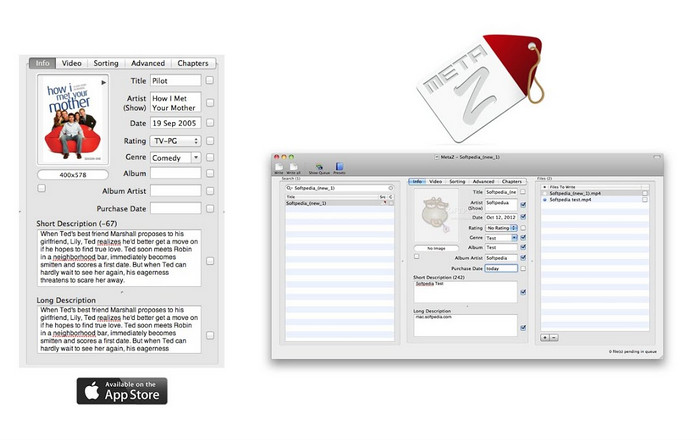
macOS X의 경우 Metaz를 자유롭게 다운로드하여 파일의 메타데이터를 쉽게 변경할 수 있습니다. 이 메타데이터 편집기를 사용하면 MOV와 같은 대부분의 형식에서 비디오 태그를 변경할 수 있습니다. 이 앱을 사용하면 쉽게 트릭을 수행하고 라이브러리에서 MOV를 구성할 수 있습니다. 그러나 최근에 앱에 대한 많은 보고가 있었습니다. 사용자는 앱을 사용하는 동안 많은 번거로운 문제에 직면합니다. 문제가 발생할 수 있지만 여전히 Mac에서 다운로드할 수 있는 가장 많이 선택되는 MOV 메타데이터 편집기 중 하나입니다.
Step 1. Download the app on your Mac, launch it, then three sections of the tools' interface will show on your display, where you can add the file, edit the tags, and search the tags.
Step 2. Drag and drop the MOV file to the left side; on the left side of it, you will see that it will automatically go to search tags for your MOV file based on its title, but you can modify them in the middle section if you want to.
Step 3. Press Write, and the tags will add to the MOV file.
3부. MOV 메타데이터 편집기에 대한 FAQ
QuickTime 메타데이터 편집기를 사용하여 태그를 변경할 수 있습니까?
불행히도 이 도구는 미디어 형식 재생, 비디오 편집 및 녹화만 할 수 있기 때문에 할 수 없습니다. 그러나 다음의 간단한 단계를 따르면 Quicktime에서 파일의 메타데이터를 자유롭게 볼 수 있습니다. 먼저 퀵타임에서 MOV 파일을 열고 재생합니다. 상단 부분에 다른 옵션이 표시됩니다. 창을 클릭하고 그 아래에서 보기 속성을 누르면 MOV 파일에 대한 작은 정보를 볼 수 있는 새 창이 화면에 표시됩니다.
MOV 태그를 변경하면 품질에 영향을 줍니까?
운 좋게도 MOV 파일의 해상도나 품질이 아니라 태그를 조정했기 때문에 그렇지 않습니다. 따라서 태그를 변경한 후 비디오 해상도가 줄어들지 않을까 걱정되신다면 다시 해보겠습니다. 그렇지 않습니다.
MOV에 메타데이터를 추가하면 파일 크기가 증가합니까?
모든 파일에서 해당 파일에 메타데이터를 추가하면 태그가 없는 파일과 태그가 있는 파일의 차이를 확인할 수 있습니다. 그러나 이러한 태그는 파일 내용만큼 크지 않습니다. 따라서 MOV에 메타데이터를 추가하는 경우 비디오 파일에 대한 정보를 추가했기 때문에 크기가 약간 증가할 것으로 예상합니다.
결론
Now that we've finished teaching you how to change MOV file metadata, this is now the time for you to choose which tutorial you'll go to follow. If you want to download a free tool on your Mac, you can download the VLC and Metaz to fix or edit the metadata of your MOV. But if you don't want to, you can use iTunes to edit the metadata easily. Although these tools are great to use, there is still no tool with powerful editing features on metadata that you can download on Mac, like what the FVC Video Converter Ultimate can bring to you. So, if you are still wondering what to use, we would highly recommend that you use the ultimate tool regarding this task because it is easy to use but has the ultimate package you will need on any given day.
-
 메타데이터란 무엇인가: 메타데이터에 대한 기본 정보 알아보기
 메타데이터란 무엇입니까? 이것이 중요합니까? 메타데이터의 일부는 무엇입니까? 같은 질문이 있습니까? 이 기사에서는 메타데이터에 대한 기본 정보를 배웁니다.
-
 4 최고의 메타데이터 뷰어 온라인 및 오프라인 [업데이트 2022]
 내 파일의 메타데이터를 확인할 수 있습니까? 예, 가능합니다. 이 게시물의 도움으로 사용할 수 있는 다양한 메타데이터 뷰어를 소개합니다.
-
 데스크탑에서 가장 많이 선택된 4개의 WMV 태그 편집기 [업데이트 2022]
 WMV 태그를 편집하기 위해 안정적인 WMV 태그 편집기가 필요하십니까? 이 기사는 WMV를 지원하는 도구에 대한 충분한 지식을 제공합니다.
