


 비디오 컨버터 궁극
 스크린 레코더
 비디오 수리
iFunny 링크를 MP4 형식으로 다운로드하는 방법 이해 [온라인 및 오프라인]
As we all know, iFunny is the new supplier of memes over the web. It also featured daily updated memes in different categories as well. But if you export videos from here there is always a watermark on the bottom left side of the video. Moreover, in this article we will talk about how to download and save iFunny to MP4 format without any watermark. Without any more delay let's proceed to the tools you may use to save videos.

1 부분. PC 및 Mac에서 iFunny 비디오를 MP4로 저장하는 가장 좋은 방법
1. FVC 무료 스크린 레코더
If downloading iFunny videos to MP4 is not your forte then recording the video must be it. FVC Free Screen Recorder gives you the full control over recording video through your screen. Also, you can change the format if you want to but there's only a limited option with this feature. Nevertheless, it is safe and secure not only because it has a built-in library to access the recording easily. So, make way for the best web tool you can find on the internet. Stick to the instructions below as we talk on how to use this tool.
Step 1. Go to the link provided for you and a website will be open.
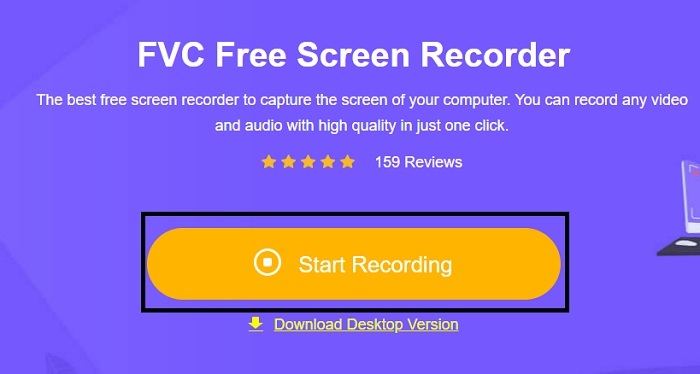
Step 2. To start the tool, click the Start Recording and allow the tool to be launched.
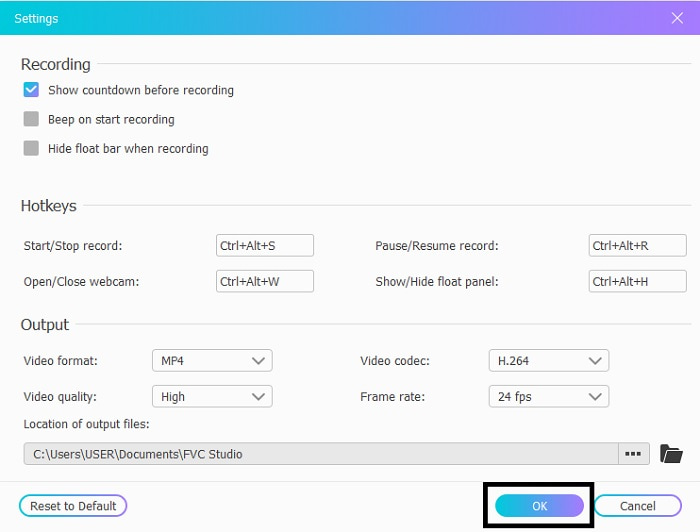
Step 3. In the mini toolbar, click the gear icon to change recording, hotkeys, and output if you want. To save the changes click OK.
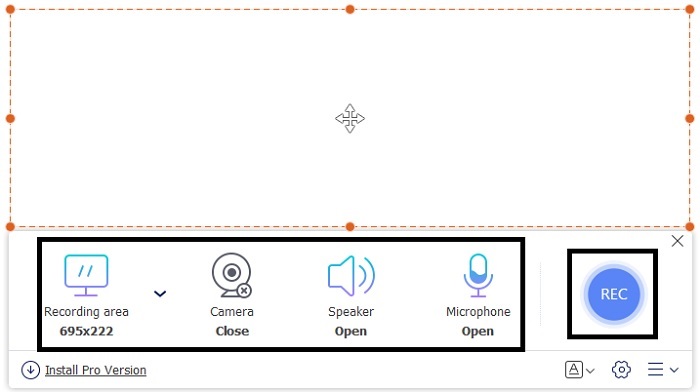
Step 4. Now adjust the length and width of the recording in the Recording Area, if you want to add the reaction of your face click the Webcam, Add the sounds of the video by opening the System Sound, and to add your own sound open the Microphone. Click the round REC button to start the recording.
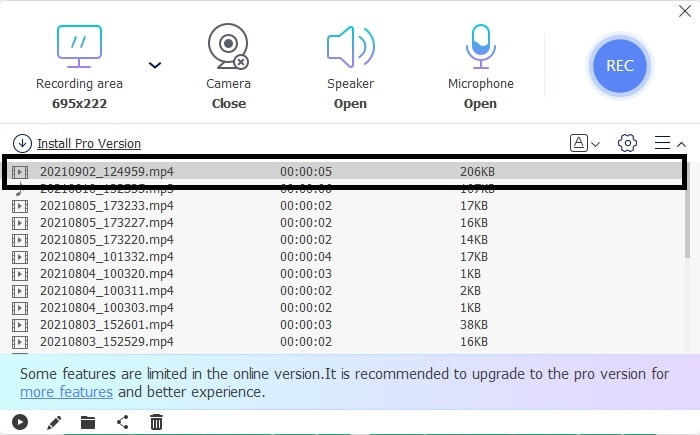
Step 5. If your recording is done, click the cube button to stop. It will automatically be saved into your drive but you can check the recorded file on the History List and watch.
2. FVC 스크린 레코더
We know that web tools only give you limited features which means you can't add and explore. But what if we tell you that you can record at the highest level even without breaking a sweat? Introducing FVC Screen Recorder, a multi-purpose screen recorder that focuses only on innovation and a more futuristic interface. The best method to save iFunny videos without losing the quality of it is to record iFunny to MP4. Because if you share a video to other platforms using iFunny there is a chance that the quality of the will be lost especially when you download the link.
이 도구가 사용자 친화적이지 않은지 또는 사용하기 쉬운지 전문가 도구처럼 녹음할 수 없는지 궁금할 수 있습니다. 솔직히 말해서 FVC 스크린 레코더 외에는 그런 종류의 기능을 개발하는 도구가 없습니다. 뛰어난 녹음을 경험하면서 쉽고 효율적이며 저렴한 비용으로 이 도구가 자랑스러워하는 세 가지가 있습니다. 자, 이제 이것에 대해 자랑하지 않고 아래 단계에 따라 사용 방법을 진행해 보겠습니다.
Step 1. Choose which program that supports your desktop or laptop to download it. This will take a minute or two to be downloaded to your drive. Install it and set-up the tool according to your wants and click finish to save.
무료 다운로드Windows 7 이상용안전한 다운로드
무료 다운로드macOS 10.7 이상용안전한 다운로드
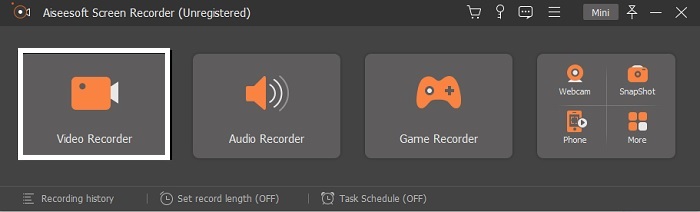
Step 2. The tool will automatically launch into your screen. Click the Video Recorder to record the iFunny videos.
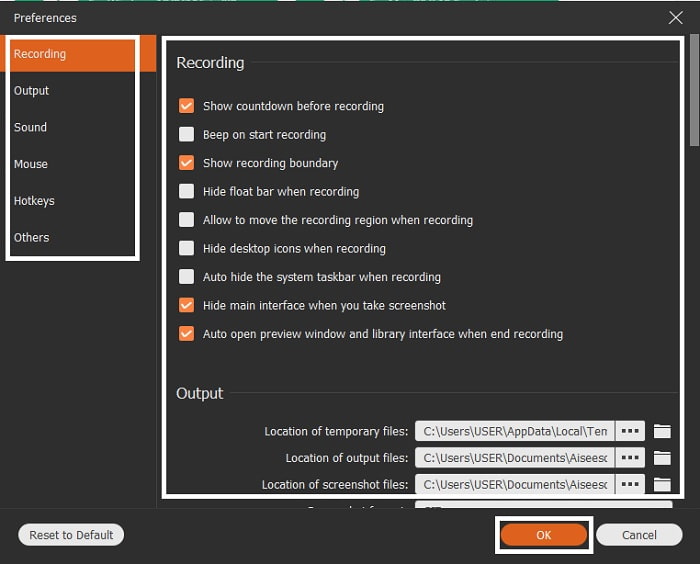
Step 3. In the toolbar go to the cog icon and change the preferences. To save the modification you've made click OK.
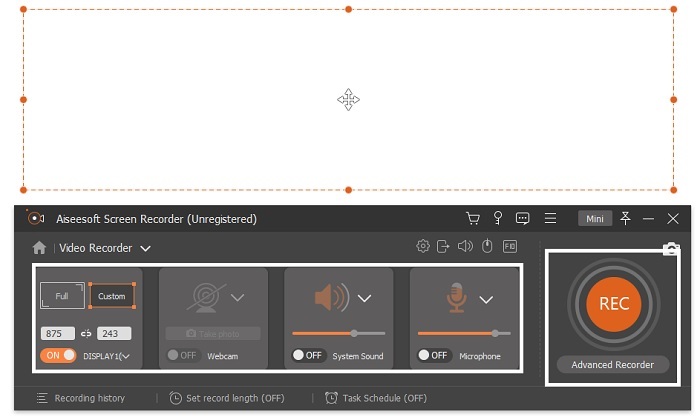
Step 4. Change the screen ratio of the recording based on what you want. Other features, to add your reactions open the Webcam, to add the audio of the video you've recording click the System Sound, and lastly to add your voice click the Microphone. If everything is settled, click the REC button to start the recording.
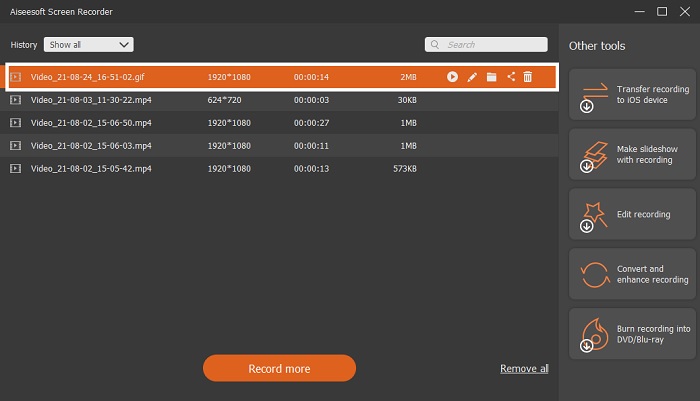
Step 5. To stop the recording click the square button. To save the iFunny video and directly save it as MP4 format, click Save and Next. So, if you want to watch the iFunny recording you did, go to the Recording List and click the first one.
2부. MP4 다운로더 웹 도구에 대한 iFunny 링크
All of the ones that are on the list are one of the best tools you can use to download via link. Copy the iFunny link to save MP4 format with the help of these tools.
1. 튜브오프라인

Convert the iFunny link with the help of TubeOffline. This tool helps you to convert at ease but the downside of this tool is that the ads are everywhere. Also, there is no age limit for the ads it shows on the tool. As we try to test this tool, the interface of it is not suitable for the ages of 18 and below because of the sexual ads content. As long as you stay on the website the ads will keep on popping up nowhere. But if you are not annoyed by the ads then you must try to use this.
2. 전문가PHP
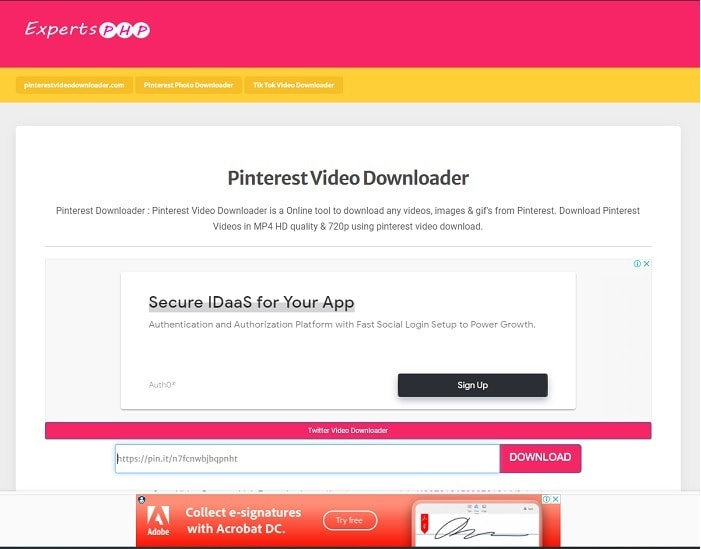
This tool has an ad on it but it is much less than the TubeOffline. ExpertsPHP might be your iFunny link to MP4 downloader if you may like to use it. This web tool is on point, which means even a beginner can use it. But it offers only two options: choose between the two and download it. Although this tool might be your choice and saving iFunny there are still mishaps if the file is not downloaded correctly. Still, this is much better than the first one especially if you are annoyed by the ads.
3. 도레미존
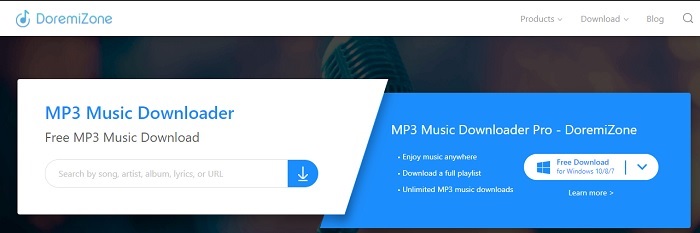
If the first two tools to download iFunny have ads DoremiZone has no ads. This tool is very informative as it shows how to use the tool. The blue and white is perfectly fit on its website. Also, unlike inserting a URL and downloading it, this tool has a unique search engine for music only. If you search their song, the artist's name, and the lyrics. But even though the tool provides this advanced feature, still if your connection has been interrupted there is a big chance that some of the code of the file will go missing.
추가 읽을거리
3부. iFunny to MP4에 대한 FAQ
iFunny는 미성년자가 액세스하기에 적합합니까?
iFunny에 액세스하는 데 필요한 연령 제한은 13세 이상이지만 웹사이트에 로그인하지 않은 경우입니다. iFunny 개발자가 이 연령 제한과 미성년자의 활동을 모니터링할 수 있는 기회는 없습니다.
Funny에서 내 밈이나 동영상을 공유할 수 있나요?
예, 이 플랫폼을 통해 만든 밈이나 동영상을 공유할 수 있습니다. 여기에서 만든 밈을 공유하고 전 세계가 이를 사용하여 감정을 더 잘 표현하도록 하세요.
iFunny에서 GIF를 만들 수 있습니까?
You can create GIFs on iFunny but there is a much better tool that supports making a meme. FVC Ultimate Video Converter one of its features is a GIF maker you can create the most hilarious GIFs you've ever seen. You must download this tool and go to the toolbar to access it.
결론
To sum it up, recording is the ideal and the best way to save iFunny videos to MP4. But choosing between the two might be hard for you. As we are looking for the best tool that can give you the most amazing output you've been looking for. FVC Screen Recorder is the best in the area of recording video, audio and even gameplay as well. If you buy this tool it is like you've already prepared for the future. As FVC Screen Recorder promises you to have more futuristic features as we continue to step our game.
-
 Mac 및 PC에서 ARF를 MP4로 변환하는 2 가지 무료 방법 (100% 작동)
 ARF 파일을 얻었지만 파일을 여는 방법을 모르십니까? 이 게시물은 정확하게 도움이 될 수 있습니다. 다음은 Mac 및 PC에서 ARF를 MP4로 변환하는 2 가지 무료 방법입니다.
-
 Windows / Mac에서 RMVB를 MP4로 변환하는 방법에 대한 가이드 (3 가지 무료 방법)
 컴퓨터나 휴대폰에서 쉽게 재생할 수 있도록 RMVB를 MP4로 변환하고 싶으십니까? 이 가이드에서 RMVB 파일을 MP4로 변환하는 간단한 방법을 찾을 수 있습니다.
-
 MP4 비디오를 M4V로 쉽게 변환하는 4 최고의 MP4 to M4V 변환기
 MP4를 M4V 파일로 변경해야하는 경우 두 형식 간의 차이점과이 기사에서 최고의 MP4에서 M4V 로의 변환기에 대해 자세히 알아보십시오.
