


 비디오 컨버터 궁극
 스크린 레코더
 비디오 수리
 안전한 다운로드
여러분을 위한 전체 리뷰: Google Drive는 사진을 압축할까요?
일부 웹사이트는 삽입된 이미지의 너비와 높이에 제한이 있습니다. 따라서 이미지 크기를 확대하거나 축소해야 하는 상황에 직면하게 될 수밖에 없습니다. 이미지 작업을 할 때 가장 먼저 떠오르는 것은 업계 전문가인 포토샵입니다. 다양한 기능으로 잘 알려져 있죠. 전문가에게는 포토샵이 이미지 크기 조정에 이상적인 선택입니다. 하지만 초보자라면 원하는 기능을 찾지 못해 어려움을 겪을 수 있습니다.
괜찮습니다. 이 글에서는 이미지를 Photoshop에서 축소하는 방법을 가장 자세하게 정리해 두었습니다. 더 급하게 처리해야 할 작업이 있다면, 이 글에서 함께 소개한 다른 이미지 편집 도구를 사용하는 것도 좋습니다.

1부. 포토샵에서 이미지 크기를 조정하는 방법
먼저 Photoshop을 사용하여 이미지 크기를 변경하는 방법을 살펴보겠습니다.
이미지 크기를 변경하는 단계와 이미지 크기를 줄이는 단계는 약간 다를 수 있습니다. 따라서 단계별 가이드를 두 부분으로 나누겠습니다. 다음 섹션에서는 이미지 크기를 줄이는 방법에 대한 구체적인 지침을 제공합니다.
1단계. Photoshop을 실행한 후, File > Open으로 이동해 크기를 조절할 이미지를 선택합니다.
2단계. 상단 메뉴에서 Image > Image Size로 이동합니다.
3단계. Image Size 대화 상자에서 원하는 픽셀 차원, 문서 크기 또는 해상도를 입력합니다.
4단계. 확인하기 전에 Resampling Method를 선택합니다.
Bicubic: 부드러운 그라데이션에 적합하며, 정밀한 결과를 위해 픽셀 값을 평균하여 계산합니다.
Bicubic Smoother: 특히 노이즈가 있는 이미지를 확대할 때 가장 적합하며, 더 부드러운 느낌을 줍니다.
5단계. OK를 클릭해 변경 내용을 적용합니다.
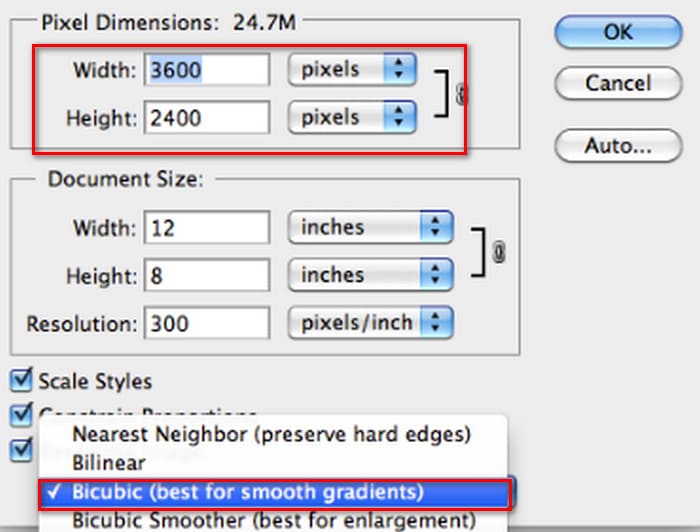
이제 이미지의 너비와 높이를 성공적으로 변경했습니다. 하지만 이로 인해 이미지 파일 크기가 커질 수 있습니다. 따라서 가로 세로 비율을 고려하는 동시에 이미지 파일 크기가 플랫폼 요구 사항에 맞는지 꼭 확인하세요.
2부. 포토샵에서 이미지 축소하는 방법
이 섹션에서는 Photoshop에서 이미지 크기를 줄이는 방법에 대해 중점적으로 살펴보겠습니다.
1단계. Photoshop을 실행한 뒤, File > Open으로 이동해 편집할 이미지를 선택합니다.
2단계. Image > Image Size로 이동합니다. 그러면 Image Size 대화 상자가 열립니다.
3단계. 필요에 따라 픽셀 차원, 문서 크기 또는 해상도의 새 값을 입력합니다.
4단계. Resampling Method를 선택합니다.
Bicubic: 부드러운 그라데이션에 적합하며, 주변 픽셀을 활용해 정밀한 결과를 생성합니다.
Bicubic Sharper: 이미지를 축소하면서 선명도를 유지하고 싶을 때 권장됩니다. 이미지가 지나치게 선명해 보이면 다시 Bicubic으로 변경하세요.
5단계. OK를 클릭해 변경 사항을 적용하고 이미지를 리사이즈합니다.
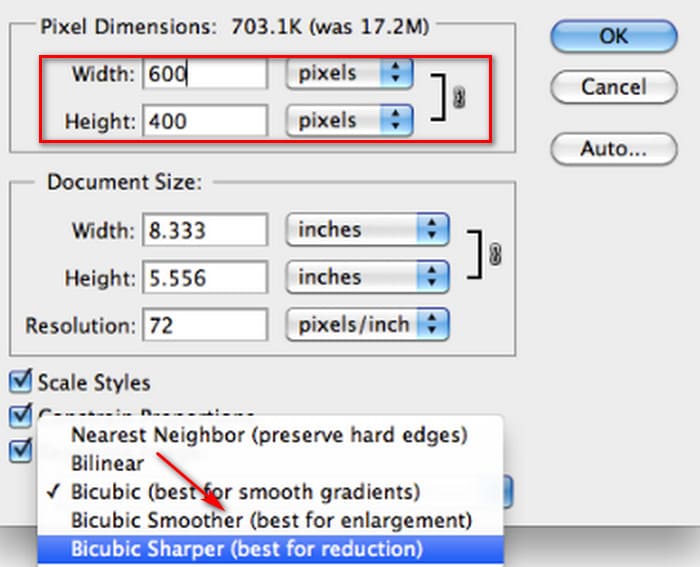
이제 원본 이미지의 크기를 성공적으로 줄였습니다. 하지만 첫 번째 단계와 마찬가지로, 작업을 완료한 후에는 이미지 파일 크기가 크게 변한 것을 확인할 수 있습니다. 이는 주로 압축률이 낮아졌다는 사실에 기인합니다.
이미지의 화질이 일부 손실되었을 수 있다는 점은 유의해야 합니다. 감상하기에 품질 저하가 너무 심하다고 느껴진다면, 이미지 향상 도구를 사용해 다시 보정할 수 있습니다.
3부. 포토샵에서 이미지 크기를 일괄적으로 조정하는 방법
포토샵으로 이미지 크기를 조정하려면 꽤 많은 단계가 필요합니다. 처리해야 할 이미지가 많을 때, 이미지를 하나씩 포토샵으로 드래그하여 편집하는 것은 매우 시간이 많이 걸리고 번거롭습니다. 다행히 이미지 크기를 일괄적으로 줄이는 또 다른 방법이 있습니다.
포토샵에서 이미지 크기를 일괄적으로 줄이는 방법은 다음과 같습니다.
1단계. 일괄 압축할 모든 사진을 먼저 하나의 폴더에 모아 둡니다.
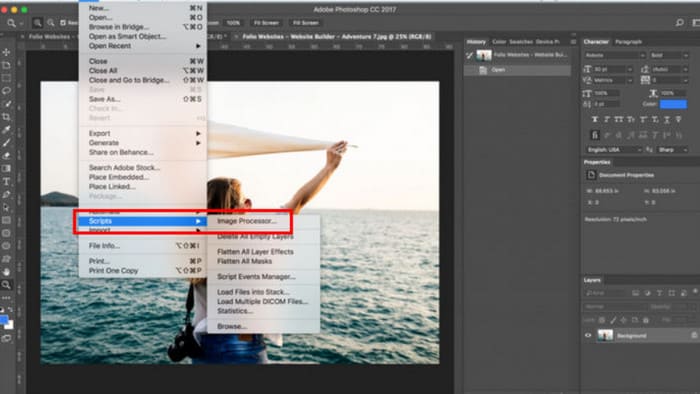
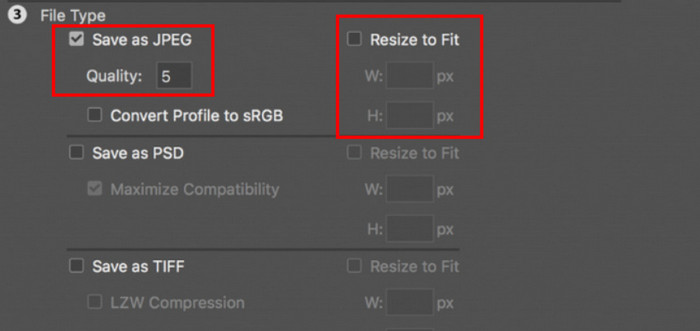
2단계. Photoshop을 실행한 뒤, File 메뉴에서 Scripts를 선택하고, 이어서 Image Processor를 선택합니다.
3단계. Select the images to process 아래의 Select Folder를 클릭해 압축할 사진이 들어 있는 폴더를 선택합니다.
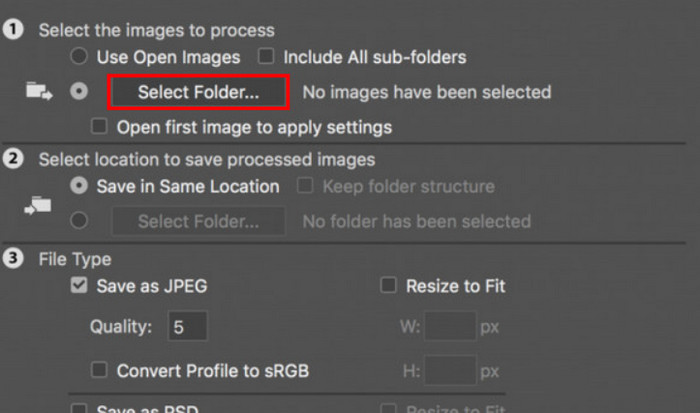
4단계. Photoshop은 자동으로 원래 폴더 안에 압축된 이미지를 저장할 새 폴더를 생성합니다.
5단계. File Type 섹션에서 Resize to Fit을 체크한 후, 리사이즈된 이미지의 최대 가로·세로 크기를 지정합니다.
4부. 포토샵 대체 온라인 이미지 크기 축소 프로그램 - FVC 이미지 압축기
Photoshop의 인터페이스는 초보자나 급하게 이미지를 처리해야 하는 사람들에게 여전히 너무 복잡하게 느껴질 수 있습니다. 이미지 크기를 줄이기까지 거쳐야 할 단계도 꽤 많습니다. 이런 경우 더 편리한 대안으로 FVC Free Image Compressor가 있습니다. 브라우저에서 처리할 이미지를 업로드하기만 하면 자동으로 이미지 용량을 압축해 주며, 웹 페이지에서 비율을 수동으로 조정하거나 이미지를 회전·뒤집는 것도 가능합니다.
무시할 수 없는 또 다른 문제가 있습니다. 포토샵을 정기적으로 사용하려면 구독이 필요합니다. 하지만 어도비 제품은 가격이 비쌉니다. FVC 무료 이미지 압축기는 완전 무료 온라인 도구입니다. 이미지 일괄 처리에 대해 생각해 보셨나요? FVC 무료 이미지 압축기 개발자들은 이 부분을 간과하지 않았습니다. 현재 이 플랫폼에서 최대 40개의 이미지를 일괄 처리할 수 있습니다.
1단계. FVC Free Image Compressor 공식 웹사이트에 접속합니다.
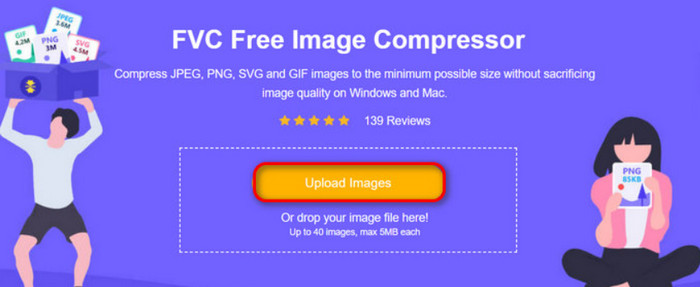
2단계. Upload Images를 클릭해 압축할 사진을 선택하고 업로드합니다.
3단계. 압축이 완료되면 변경된 파일 용량을 미리 확인한 뒤, Download All을 클릭해 압축된 이미지를 기기에 저장합니다.
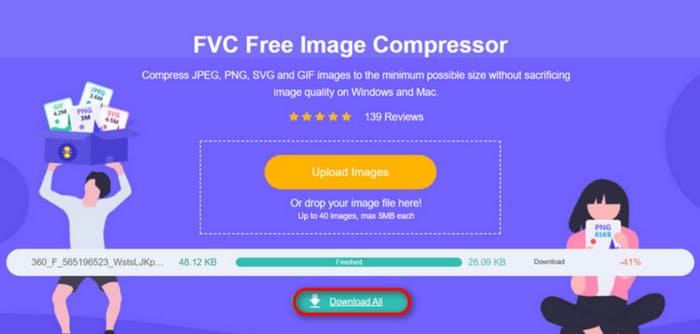
압축 결과를 확인한 후, 이미지 선명도가 크게 손상되지 않았다는 사실에 놀라셨나요? FVC 무료 이미지 압축기는 최첨단의 효율적인 압축 기술을 사용하여 이미지 해상도와 크기 간의 완벽한 균형을 찾아냅니다.
초보자든 전문가든 FVC Free Image Compressor가 Photoshop에 대한 최고의 대안이라는 것을 알게 될 것입니다.
5부. Photoshop에서 이미지를 축소하는 방법에 대한 FAQ
Photoshop에서 품질을 손상시키지 않고 이미지 크기를 줄이려면 어떻게 해야 하나요?
포토샵에서 이미지 크기를 왜곡 없이 줄이려면 작업 시 리샘플링(Resample)을 선택하는 것이 중요합니다. 또한 종횡비를 조정할 때 선명도의 변화를 주의 깊게 살펴보는 것도 중요합니다.
자르지 않고 사진을 더 작게 만들 수 있나요?
화면에 표시되는 이미지 크기를 바꾸고 싶다면 사진 리사이저를 사용할 수 있습니다. 또는 이미지 파일을 압축하는 방법도 고려해 보세요. 이렇게 하면 파일 크기를 크게 줄일 수 있습니다.
1MB 이하의 사진을 만들려면 어떻게 해야 하나요?
일부 특수 이미지 압축 프로그램을 사용할 수 있습니다. 특히 Photoshop이나 FVC Free Image Compressor처럼 압축 수준을 조절하고 압축된 이미지의 크기를 다운로드하기 전에 미리 볼 수 있는 도구를 사용하는 것이 좋습니다.
결론
위 내용을 통해 Photoshop에서 이미지를 축소하는 방법을 익혔다면 이제 직접 시도해 볼 수 있습니다. 각 단계마다 예시 이미지를 포함해 두어 모든 과정을 눈으로 확인할 수 있습니다. 장치에 별도로 Photoshop을 설치하고 싶지 않거나 복잡한 인터페이스가 부담스럽다면, FVC Free Image Compressor를 사용해 보세요. 간단한 단계로 손쉽게 이용할 수 있고, 서비스도 무료입니다.
-
 Premiere Pro 및 무료 온라인으로 MXF를 압축하는 방법
 더 작은 파일 크기로 MXF를 압축하는 방법은 무엇입니까? Adobe Premiere Pro에서 MXF 파일을 압축하는 방법은 무엇입니까? 이 게시물은 MXF 파일을 압축하는 두 가지 방법을 공유합니다.
-
 MOV 파일을 쉽게 압축하는 방법: 6가지 무료 선택
 MOV를 압축하려면 이 글에서 소개하는 6가지 옵션(데스크톱 소프트웨어 3종과 온라인 플랫폼 3종 포함)을 참고할 수 있습니다. 여기에서는 각 옵션의 사용 방법을 보여드리겠습니다.
-
 MP4 비디오를 더 작은 크기로 압축하는 방법
 MP4 동영상이 너무 커서 업로드 할 수 없습니까? 비디오 크기를 줄이고 싶습니까? 다음은 제한없이 MP4 파일을 더 작은 크기로 압축하는 3 가지 효율적인 방법입니다.
