


 비디오 컨버터 궁극
 스크린 레코더
 비디오 수리
 안전한 다운로드
품질을 저하시키지 않고 PowerPoint에서 사진 크기를 조정하는 방법
Lately, many people present everything digitally rather than in the traditional way, even before the pandemic. As we strive for the future, everything can become easier with the help of technology and software for presenting the business, visual aids, ideas, sales, etc., and you can all do them on Powerpoint. You can have this presenter on your device for its purpose—furthermore, many users are looking for a way to resize the image in this presenter. Are you willing to learn how to resize a picture in PowerPoint? Keep reading this article as we cover the information you need to know about this topic.

1부. 효과적인 2가지 방법을 사용하여 PowerPoint에서 그림 크기를 조정하는 방법 [개별 및 다중]
각 슬라이드에서 이미지의 길이와 높이를 조정할 때 정확한 치수를 설정하거나 프레임을 드래그하여 종횡비를 변경할 수 있습니다. 여기에서 자연스럽게 할 수 있지만 이미지의 크기가 변경되면 약간의 왜곡이 발생합니다. 따라서 PowerPoint에서 또는 개별적으로 여러 슬라이드의 그림 크기를 조정하는 방법을 알고 싶다면 아래에 추가한 단계를 따르십시오. 그에 따라 따라하시면 1분 이내에 크기를 조정할 수 있습니다.
PowerPoint에서 이미지 크기를 조정하는 3가지 방법 [개별 및 일괄]
1. Resize Image by Dragging the Frame
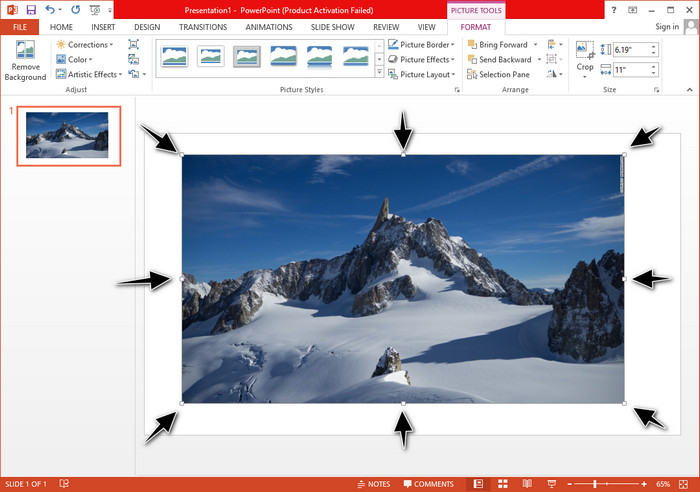
PowerPoint에 이미지를 업로드하면 이미지에 작은 점이 표시됩니다. 사진의 이 점은 조정 가능하므로 사양에 따라 사진 크기를 자유롭게 조정할 수 있습니다. 길이를 변경하면 높이가 크기 조정과 동일하게 따르지 않습니다.
2. Resize Image by Changing the Height and Length
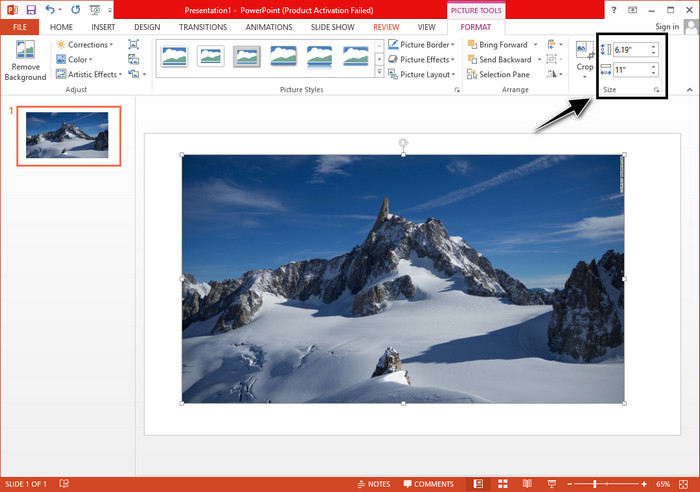
PowerPoint에 이미지를 업로드할 때 서식 탭을 클릭하여 이미지를 특정 크기로 변경합니다. 상단에는 정확한 높이와 길이를 추가할 수 있습니다. 그러나 한 측정값을 변경하면 기본 종횡비가 활성화되어 있기 때문에 다른 측정값이 자동으로 조정됩니다.
3. Resize Image as a Batch on Powerpoint
What should you do to change multiple images on a single PowerPoint slide? To do it, you will need to upload the photos on the slide. Once you’ve uploaded various images on the slide, you must press and hold Control, then tick every picture you want to resize. Follow what resizing option you want to use that we introduce above; drag the frame or change the numerical value.
2부. PowerPoint에서 무료로 그림을 왜곡하지 않고 크기를 조정하는 방법 [웹 서비스]
How to resize a picture in PowerPoint without distorting it? You can use the FVC Free Image Upscaler to automatically resize the photo you upload that you want to use on a PowerPoint presentation. Despite being an online tool, its performance is better than the PowerPoint resizer because it creates PPI to prevent the blurriness of the image even though you have to resize it. Are you wondering, or do you want to use this tool and start resizing your image? In that case, follow the succeeding steps we include as we teach you how to use this tool as easy as possible.
Advantages of Resizing a Photo Using the FVC Free Image Upscaler:
◆ You can use this photo resizer for free without quality loss.
◆ 업로드할 수 있는 다양한 형식을 지원합니다.
◆ 그것은 당신이 어떤 사진의 크기를 조정하는 데 도움이 될 수있는 강력한 AI 기술을 가지고 있습니다.
◆ 데스크탑에 있는 모든 검색 엔진에서 이 웹 솔루션에 액세스할 수 있습니다.
◆ 사용하기 전에 설치나 다운로드가 필요하지 않습니다.
FVC 무료 이미지 업스케일러를 사용하여 왜곡 없이 크기를 조정하는 방법에 대한 단계:
Step 1. Open the website of this resizer by clicking this link.
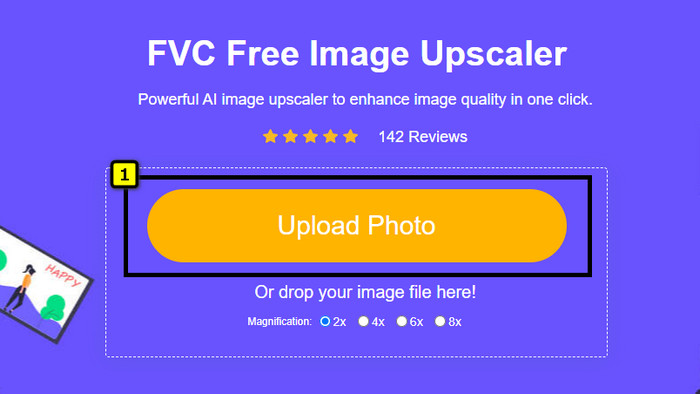
Step 2. When the website is opened, click the Upload Photo to add the photo you want to resize and use it on your PowerPoint presentation.
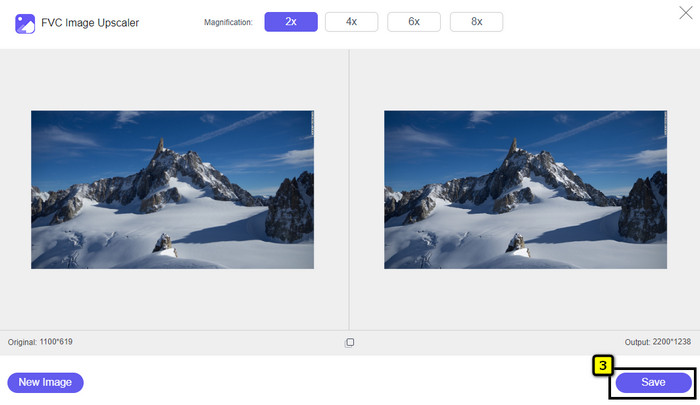
Step 3. After uploading the image, wait for it to load up. Select the Magnification you want to apply to your image by choosing the options such as 2x, 4x, 6x, or 8x.
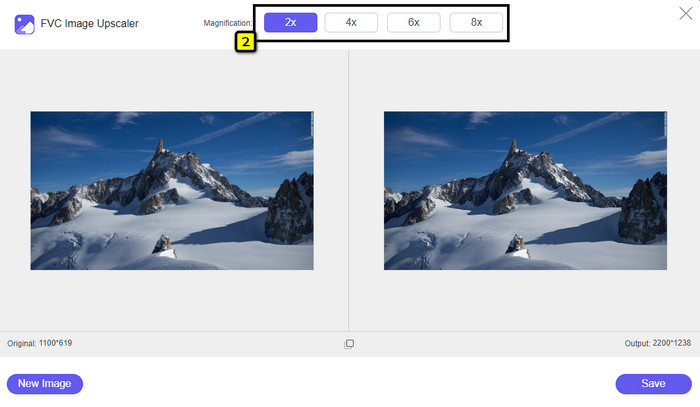
Step 4. Click Save to export the resized image you change here. As easy as that, the resized image on your local drive without any distortion or blurriness added.
3부. PowerPoint에서 그림 크기를 조정하는 방법에 대한 FAQ
Powerpoint용 사진의 최대 길이와 높이는 얼마입니까?
와이드스크린으로 Powerpoint의 최대 크기로 이미지 크기를 조정할 때 픽셀을 1280 x 720픽셀로 설정할 수 있습니다. 그러나 화면에 표시할 때는 1920 x 1080픽셀인 16:9 종횡비를 따라야 합니다.
PowerPoint에서 사진 크기를 조정하는 바로 가기가 있습니까?
이미지 높이를 변경하려면 Shift 키를 누른 상태에서 위쪽 화살표를 클릭하여 높이를 늘리고 아래쪽 화살표를 클릭하여 높이를 줄여야 합니다. 이미지의 너비를 변경하고 싶은 분들은 Shift 키를 다시 누른 상태에서 원하는 대로 너비를 늘리려면 오른쪽 화살표를 누르고 너비를 줄이려면 왼쪽 화살표를 누르면 됩니다.
PowerPoint에서 크기를 조정한 후 이미지가 흐릿해진 이유는 무엇입니까?
PowerPoint에서 이미지의 크기를 조정하려고 할 때 이미지가 늘어져 있어 이미지가 흐려질 수 있습니다. 그러나 치수를 변경하면서 픽셀을 생성할 수 있는 이미지 편집기를 원하면 PowerPoint에서 픽셀화된 이미지를 피할 수 있습니다.
PowerPoint에 GIF를 사용할 수 있습니까?
예, PowerPoint의 모든 슬라이드에 GIF를 사용할 수 있습니다. 그러나 GIF 크기가 원하는 크기에 맞지 않으면 크기를 조정해야 합니다. 그리고 크기가 조정된 GIF의 결과가 흐릿하거나 픽셀화되었습니다.
결론
To wrap it up, you can learn the three techniques for resizing the image on PowerPoint by following the tutorial we add in this post. Though you can easily do it on the presenter, there are times that it produces distortion when the image dimension is changed. You can solve this problem using the online tool we added because it doesn’t distort any resized images here. With the steps we add, you can learn how to resize the image on FVC Free Image Upscaler.
-
 최고의 사진 크기 조정 앱 온라인, 오프라인, Android 및 iPhone
 최고의 사진 크기 조정 앱은 무엇입니까? 페이지를 클릭하여 파일을 향상하거나 크기를 조정하는 데 사용할 수 있는 가장 강력한 5가지 사진 크기 조정 앱에 대해 알아보세요.
-
 이미지 크기 조정 방법 – Adobe 이미지 크기 조정 [온라인 및 오프라인]
 Adobe 크기 조정 이미지를 검색하는 경우 솔루션이 있습니다. 이 게시물을 자세히 보고 PC에서 Adobe를 사용하여 이미지 크기를 조정하는 방법을 배우십시오.
-
 Facebook용 사진 크기 조정 방법 [빠르고 쉬운 단계]
 Facebook에 대용량 이미지를 업로드하는 데 문제가 있는 경우 해결 방법이 있습니다. 이 문서를 완료하여 Facebook용 사진 크기를 조정하는 방법을 알아보세요.
