


 비디오 컨버터 궁극
 스크린 레코더
 비디오 수리
MKV에서 메타데이터를 추가/변경/제거하는 최고의 MKV 메타데이터 편집기
There isn't a wide variety of MKV metadata editors on the market because the MKV isn't much supported. But it doesn't mean that we can't edit the tags on our MKV files, so don't look gloomy. So for you to find out what is the best metadata editor that supports MKV, you can read the full scope of this article as we review different tools. What are you waiting for? Keep the ball on a roll because this won't last more than 7 minutes to have a tag editor.

1부. Windows 및 Mac에 권장되는 최고의 MKV 태그 편집기: FVC Video Converter Ultimate
FVC Video Converter Ultimate is the most popular MKV metadata editor on Windows and Mac. This tool lives up to its name and expectation, so downloading the software to edit the metadata is the best choice you will make. Its powerful features and functions will easily handle the job as if it is a piece of cake. Furthermore, this tool supports other formats to upload, such as MP4, AVI, MOV, FLV, WMV, and the 1000+ media formats without re-encoding the file for a less hassle experience.
또 뭔데? 도구를 다운로드한다고 가정합니다. MKV에 메타데이터를 추가하는 가장 빠른 도구와 다른 도구가 제공할 수 없는 가장 아름다운 메타데이터 편집기 GUI를 갖게 됩니다. 편집기 사용에 관심이 있으시면 MKV 파일의 데이터를 편집하는 방법을 설명하는 2부를 읽으십시오.
2부. 권장 MKV 메타데이터 편집기로 MKV 메타데이터를 편집하는 방법
도구 다운로드부터 시작하여 그에 따라 단계를 따르십시오. 이제 Windows 또는 macOS에서 다운로드할 수 있는 최고의 MKV 메타데이터 편집기를 사용해 보겠습니다.
Step 1. Tick the download button we present below; select which operating systems you are currently using. Install it immediately after you've downloaded the file, follow the installation process, and we promise that you wouldn't get wrong, then open it to proceed. Before we start, you'll need to get familiarized with the tool to have a smooth sailing process using the MKV tag editor.
Free DownloadFor Windows 7 or laterSecure Download
Free DownloadFor MacOS 10.7 or laterSecure Download
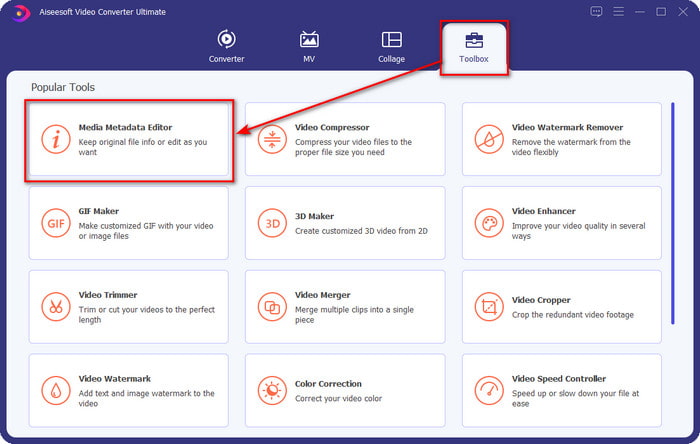
Step 2. Open the Toolbox, look for the Media Metadata Editor, and tap it to open.
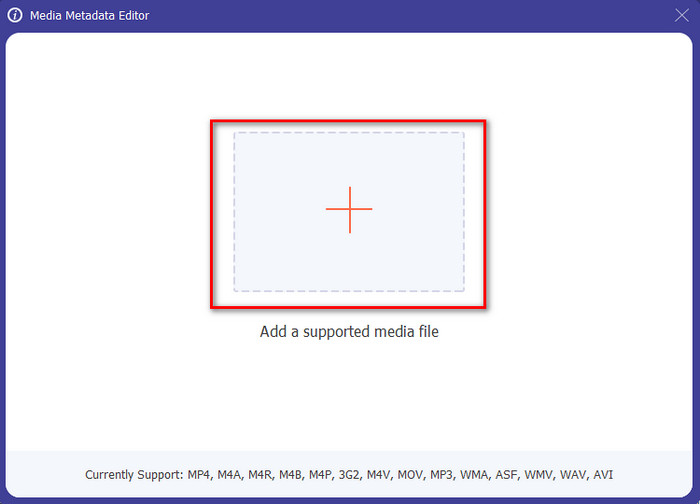
Step 3. Upload your MKV file by clicking the + icon, and a file folder will show, select the MKV file and press Open.
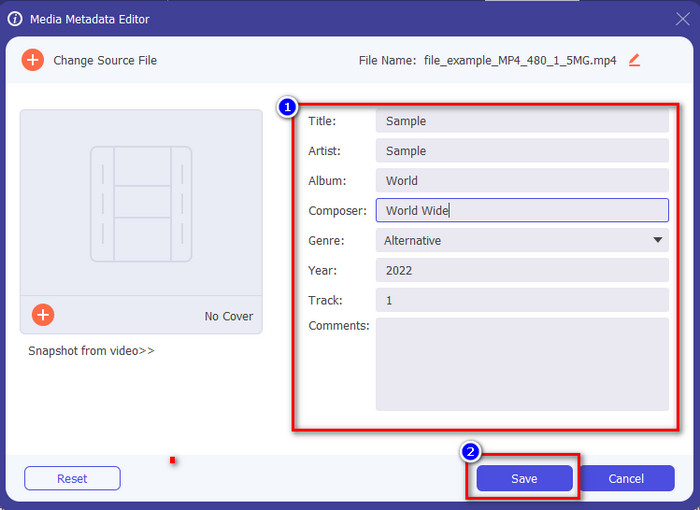
Step 4. Edit the metadata textbox; you can either fill them or remove them, do what you want to do with the metadata. After all of that, click Save to apply the change you've made earlier. With that, you have now edited the MKV tags.
3부. Windows, Mac 및 온라인에서 사용할 수 있는 3가지 무료 MKV 태그 편집기
GROUPDOCS.Metadata [웹에서 무료]
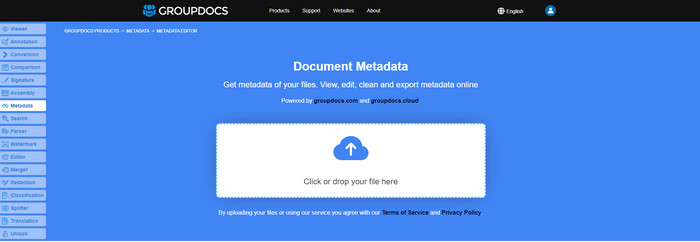
If you want to use an MKV metadata editor for free on the web, we highly suggest you try the GROUPDOCS.Metadata. It is the best choice to view and edit the metadata on your MKV as it works on all platforms, which means it is flexible and adaptable in any case. Moreover, it can easily manipulate the search and update of the tag according to the properties you will need, and if it needs to be removed, it will automatically do it. However, the tool can be challenging to handle on specific tasks, like updating the file's tags. So to get the hang of using the web tool, you will need to use it most of the time to improve your knowledge about the website functions and make it easier to handle.
Windows의 속성 [Windows의 내장 편집기]
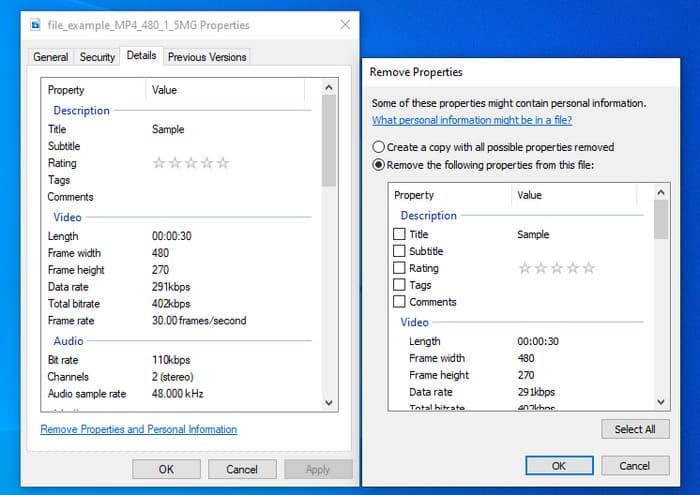
MKV 메타데이터를 변경하는 도구를 다운로드하고 싶지 않고 Windows의 내장 기능을 사용하여 메타데이터를 편집하고 싶습니까? 그런 다음 Windows에서 속성을 사용하는 것이 가장 좋습니다. 이 기능은 모든 Windows PC에서 사용할 수 있으며 사용하기 위해 도구나 인터넷을 다운로드할 필요가 없습니다. 이 무료 기능을 사용하여 메타데이터를 빠르게 보고 성공적으로 편집할 수 있습니다. 그러나 이 기능을 사용하려고 시도한 후 누락된 태그에 대한 보고가 있습니다. 사용자별로 파일의 태그를 자동으로 제거할 수 있습니다. 이 기능을 사용하는 대신 MKV 또는 미디어 파일에 포함된 태그에 노력을 낭비하기 위해 올바른 도구를 다운로드하려고 합니다. 그러나 이 기능이 어디에 있는지 보려면 주로 하단 부분에서 파일을 마우스 오른쪽 버튼으로 클릭하기만 하면 됩니다.
iFlicks [Mac용]
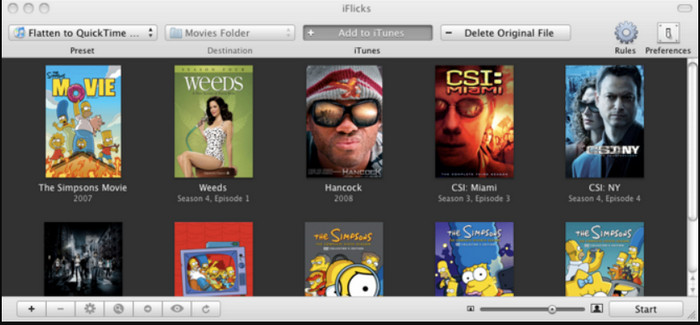
iFlicks는 MKV를 재생 가능한 형식으로 변환하거나 Mac에서 MKV 메타데이터를 편집하는 방법을 알려줍니다. 이 도구는 모든 미디어 파일에 대한 자세한 메타데이터를 제공하므로 iTunes와 잘 상호 작용합니다. 이 소프트웨어를 사용하면 태그라인, 장르, 날짜와 같은 파일에 대한 다양한 정보를 추가할 수 있습니다. 등급, 해상도 및 기타 정보는 온라인 데이터베이스에서 가져옵니다. 또한, 이 소프트웨어는 다운로드할 수 있는 위치에 대한 메타데이터를 컴파일하고 자동으로 파일에 적용합니다. 그러나 무료 평가판은 7일 동안만 사용할 수 있으므로 도구를 다시 사용하려면 구독료를 지불해야 합니다.
4부. MKV 메타데이터 편집기에 대한 FAQ
MKV는 Mac에서 재생할 수 있습니까?
MKV is playable on Mac if you use a third-party tool, such as the Blu-ray Player. But if you intentionally play the video on Quicktime, it won't work because it is unsupported. So, if you want to watch your MKV files on Mac, we highly recommend that you use a third-party Blu-ray Player, or you can convert the MKV format into MOV with the help of FVC Video Converter Ultimate.
메타데이터를 편집하기 전에 MKV를 변환해야 합니까?
사용하려는 도구가 MKV 형식 업로드를 지원하지 않는 경우 먼저 형식을 호환 가능한 형식으로 변환하는 것이 좋습니다. 그러나 위에서 언급한 요금을 사용하면 파일을 지원되는 형식으로 변환할 필요가 없습니다. 그러나 형식을 알 수 없기 때문에 MKV 태그를 편집할 수 있는 옵션이나 도구가 많지 않습니다. 찾기 어렵지만 MKV 형식을 지원하는 메타데이터를 업데이트하거나 변경하는 데 사용할 수 있는 모든 편집기를 검색하기 위해 최선을 다했습니다.
MKV 파일의 크기가 너무 큰 이유는 무엇입니까?
The main reason why MKV files are big is that they can contain multiple contents of a video, audio, and subtitle with different codecs and elements. And you've added metadata on that file, and the file size will become even enormous. So, the best way to save space while having an MKV file on your drive is to compress it without destroying the quality or losing the information on the file. Click this link to learn more about compressing video files.
결론
Even though there is a limited MKV metadata editor on the market, there are still powerful tools you can depend on available on different platforms. As we reviewed different software you can use, it is always still on your hands; which do you prefer to use on changing the metadata of your MKV file. Indeed, it is a tough decision because all of the tools are awesome to use. If you haven't decided which you prefer, we suggest you use the FVC Video Converter Ultimate because it is the most flexible software and has more advanced features that anyone can use. By pressing the download button, you will attain the best tag editor you can have on Windows and Mac!
-
 모든 미디어 파일에서 메타데이터를 제거하는 가장 쉬운 5가지 방법
 메타데이터를 제거하는 방법은 무엇입니까? 하기 힘든가요? 태그를 제거하려면 무료 도구를 구입하거나 사용해야 합니까? 이 모든 질문에 이 기사에 대한 답이 있습니다.
-
 5 최상위 MP4 메타데이터 편집기 [2022년 업데이트]
 MP4 메타데이터를 변경하려면 어떻게 해야 합니까? MP4의 메타데이터를 변경하는 가장 좋은 방법은 아래에 나열된 샘플과 같이 MP4 형식을 지원하는 태그 편집기를 사용하는 것입니다.
-
 2022년 사용자가 선택한 상위 5개 AVI 비디오 태그 편집기
 내가 사용할 수 있는 최고의 AVI 태그 편집기는 무엇입니까? AVI 파일용 태그 편집기 시장은 너무 광범위합니다. 그래서 오늘은 2022년에 가장 많이 뽑힌 5명의 편집자를 소개합니다.
