


 Video Converter Ultimate
 Perakam Skrin
 Pembaikan Video
 Muat Turun Selamat
Kaedah Percuma dan Profesional untuk Menukar MKV ke MOV
Tidak dapat membuka fail MKV dengan QuickTime Player pada Mac dan ingin menukar MKV kepada MOV?
MKV (Matroska Multimedia Container) ialah format bekas multimedia yang boleh menggabungkan audio, video dan sarikata dalam satu fail tunggal. MKV dibangunkan sebagai projek piawaian terbuka. MKV digunakan secara meluas di internet untuk video HD kerana ia menyokong penerangan, penarafan, seni kulit album dan banyak lagi. Namun, fail MKV tidak boleh dimainkan dalam QuickTime atau disunting dalam iMovie.

MOV ialah format yang paling mesra Apple. Jika anda menggunakan Mac, adalah lebih baik anda menukar MKV kepada MOV untuk tujuan main balik atau penyuntingan. Dalam hantaran ini, kami akan menunjukkan 2 cara mudah untuk menukar MKV kepada MOV pada Mac dan PC Windows.
Bahagian 1. Cara Menukar MKV ke MOV Percuma Dalam Talian
Apabila anda Google cara menukar MKV kepada MOV di internet, anda akan nampak banyak hasil carian ialah penukar MKV ke MOV dalam talian percuma. Di bahagian pertama ini, kami ingin memperkenalkan kepada anda satu alat penukar MKV ke MOV dalam talian yang hebat, iaitu FVC Free Online Video Converter untuk melakukan penukaran video MKV.
Ia sangat menyokong format video yang sering digunakan termasuk MKV, MOV, MP4, AVI, FLV, WMV, MPEG dan banyak lagi. Ia menawarkan kaedah langsung untuk menukar fail MKV anda secara langsung ke MOV secara dalam talian.
Muat turun Versi Desktop untuk menukar fail secara kelompok.
Langkah 1. Apabila anda ingin menukar fail MKV secara dalam talian, anda boleh pergi ke laman FVC Free Online Video Converter pada pelayar anda. Penukar MKV ke MOV percuma ini serasi dengan mana-mana pelayar popular seperti Chrome, IE, Safari dan Firefox.
Langkah 2. Klik butang Add Files to Convert untuk memasang pelancar bersaiz kecil bagi penukaran video MKV. Selepas itu, akan muncul tetingkap timbul untuk anda memilih dan memuat naik fail MKV yang ingin anda tukar kepada MOV.

Langkah 3. Selepas memuat naik, anda boleh lihat banyak format video yang kerap digunakan seperti MP4, MOV, FLV, AVI, WMV, VOB, WEBM dan banyak lagi yang disenaraikan untuk anda pilih. Anda boleh memilih MOV sebagai format keluaran.
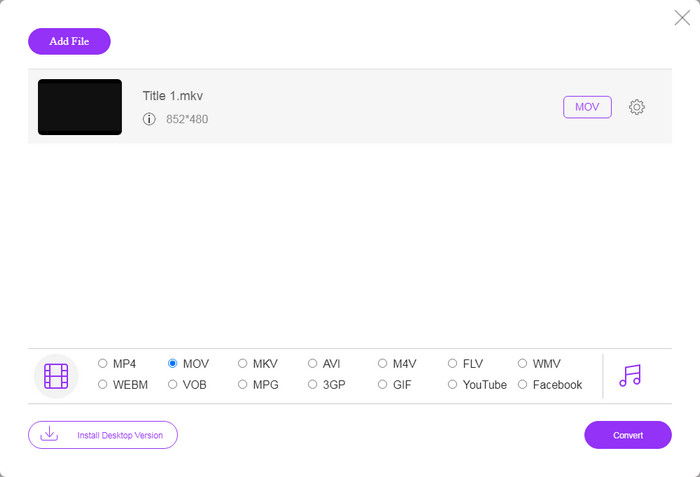
Langkah 4. Penukar MKV ke MOV ini membenarkan anda melaras pelbagai tetapan video dan audio. Anda boleh klik ikon Settings untuk mengubah suai tetapan ini.

Langkah 5. Klik butang Convert untuk mula menukar video daripada MKV kepada MOV pada komputer anda. Dalam langkah ini, anda boleh memilih folder destinasi yang sesuai untuk video MOV yang telah ditukar. Selepas penukaran, anda akan dibawa secara automatik ke folder tersebut.
Bahagian 2. Cara Terbaik Menukar MKV ke MOV Tanpa Kehilangan Kualiti
Anda harus tahu bahawa; kebanyakan penukar dalam talian percuma direka terutamanya untuk penukaran fail kecil. Anda lebih baik memilih penukar video profesional jika anda mendapat pengalaman menukar yang lebih baik dan kualiti output yang lebih tinggi.
Di sini kami sangat mengesyorkan perisian penukar video dan audio yang berkuasa, Video Converter Ultimate untuk anda menukar MKV kepada MOV pada Mac dan PC tanpa kehilangan kualiti. Ia berupaya menukar video sambil mengekalkan kualiti imej dan bunyi asal.
Video Converter Ultimate adalah perisian penukaran video dan audio profesional yang dapat menukar MKV ke MOV tanpa kehilangan kualiti.
- 1. Tukarkan video 4K, 1080p HD dan SD ke lebih daripada 300 format seperti MOV, MP4, AVI, FLV, MP3, dll.
- 2. Ciri penyuntingan hebat seperti trim, crop, rotate, watermark, 3D, boost, effects dan banyak lagi.
Muat Turun PercumaUntuk Windows 7 atau lebih baharuMuat Turun Selamat
Langkah 1. Dwi-klik pada butang muat turun di atas untuk memasang dan menjalankan penukar MKV ke MOV ini secara percuma pada komputer anda. Anda perlu memilih versi yang betul berdasarkan sistem anda.
Langkah 2. Pilih fungsi Converter untuk melakukan penukaran video MKV anda. Klik Add Files untuk menambah video MKV anda. Terdapat fungsi penukaran kelompok yang direka dalam penukar ini untuk anda menukar satu atau lebih fail MKV pada satu masa.

Langkah 3. Pilih format MOV sebagai format keluaran daripada senarai juntai bawah Convert All to. Kemudian klik butang Convert All untuk memulakan penukaran MKV ke MOV.

Dengan penggunaan teknologi pemecut terkini, penukar MKV ke MOV ini dapat memberikan kelajuan penukaran yang sangat pantas. Ia juga membolehkan anda memampatkan fail MOV dengan mudah.
MKV lwn MOV
Format kontena multimedia Matroska, dikeluarkan pada tahun 2002, ialah format sumber terbuka yang boleh merangkumi beberapa lagu video, audio, imej dan sari kata. Jadi, anda boleh menggunakannya untuk menyimpan klip video pendek, rancangan TV dan filem dengan mudah. Ia agak popular untuk subbing peminat anime.
Format MOV boleh digunakan untuk menyimpan filem, rancangan TV, klip video pendek atau filem rumah. Ia sebenarnya disimpan dalam Format Fail QuickTime (QTFF), yang telah diperkenalkan oleh Apple pada tahun 1991. Fail MOV sering digunakan apabila orang ingin menyimpan video dengan kualiti yang tinggi.
Bahagian 3. Soalan Lazim Menukar MKV ke MOV
Soalan 1. Bolehkah iMovie membaca MKV?
Tidak. Sebagai perisian penyuntingan video lalai untuk peranti Apple, iMovie dapat mengedit video MOV atau MP4 dengan mudah. Tetapi ia tidak menyokong format pemampatan wadah atau video seperti FLV, VOB, WebM, dan WMV.
Soalan 2. Adakah MKV lebih baik daripada MP4?
Anda tidak boleh semata-mata mengatakan MKV lebih baik daripada MP4, atau MP4 lebih baik. Kedua-dua MKV dan MP4 boleh memberikan video H.264 berkualiti tinggi. Tetapi sebagai format video yang paling popular, MP4 boleh disokong oleh lebih banyak peranti, sistem, pemain dan penyunting. Lihat halaman ini untuk membandingkan perbezaan antara MKV dan MP4.
Soalan 3. Bolehkah VLC menukar MKV menjadi MOV?
Ya. VLC boleh berfungsi sebagai penukar video yang baik untuk melakukan penukaran video daripada MKV kepada MOV. Anda boleh buka VLC, klik Media, pilih Convert/Save, tambah fail MKV anda dan pilih MOV sebagai format keluaran, kemudian klik butang Start untuk melakukan penukaran video daripada MKV kepada MOV dalam VLC. Anda juga boleh menggunakannya untuk menggabungkan fail MOV.
Kesimpulannya
Perlu untuk menukar MKV kepada MOV? Selepas membaca halaman ini, anda boleh mendapatkan 2 kaedah berkesan untuk menukar fail MKV anda kepada MOV. Jika anda mempunyai sebarang cadangan penukar MKV yang lain, sila kongsikannya dalam ruangan komen dengan pembaca lain.
-
 8 Pemain MOV Terbaik untuk Memainkan Fail MOV QuickTime dengan Kualiti Asal
 Ketahui lebih lanjut mengenai 8 pemain MOV terbaik yang tersedia untuk Windows dan Mac. Anda boleh memilih yang dikehendaki dan sesuai untuk memainkan fail MOV dengan kualiti yang asli.
-
 Rakaman Skrin QuickTime - Rakam Video dengan Audio di Mac & PC
 Skrin rakaman dengan audio di Mac sangat berguna. Pemain terbina dalam, QuickTime Player boleh melakukannya. Baca catatannya dan ketahui cara menangkap skrin dengan suara di Mac dan PC.
-
 4 Kaedah Terbaik untuk Menukar MOV ke MP3 pada Windows dan Mac dengan Mudah
 Apabila anda ingin mengekstrak fail audio MP3 dari fail MOV, anda dapat mengetahui lebih lanjut mengenai 4 penukar MOV ke MP3 yang paling berkesan untuk mendapatkan fail yang diinginkan dari artikel tersebut.

