


 Video Converter Ultimate
 Perakam Skrin
 Pembaikan Video
 Muat Turun Selamat
Cara Memampatkan Fail Audio WAV tanpa Kehilangan Sebarang Kualiti
Apabila orang ramai ingin menyimpan fail muzik mereka dalam bentuk berkualiti tinggi, mereka sering memilih WAV sebagai format audio. Namun, sebagai satu peraturan umum, semakin tinggi kualitinya, semakin banyak ruang storan yang diperlukan oleh fail tersebut. Berbanding dengan MP3, WAV boleh memberikan bunyi berkualiti tinggi, tetapi saiz fail akan lebih besar. Oleh itu, jika anda mahu berkongsi fail WAV dengan rakan-rakan anda atau mahu memuat naiknya ke perisian sosial, adalah lebih baik untuk mengurangkan saiznya terlebih dahulu. Kami akan memperkenalkan tiga alat berbeza untuk memampatkan fail WAV. Kelebihan, kekurangan dan cara penggunaan terperinci juga akan ditunjukkan kepada anda. Teruskan membaca untuk mengetahui lebih lanjut.

Bahagian 1. Cara Terbaik untuk Memampat Fail WAV
Kami bermula dengan mengesyorkan satu alat penyuntingan audio dan video yang agak serba lengkap, FVC yang dipilih khas, iaitu Video Converter Ultimate. Ia dilengkapi dengan alat analisis tercanggih yang boleh mula memproses fail anda sebaik sahaja anda memuat naiknya. Jika anda sedang mencari alat yang membolehkan anda melaraskan peratusan pemampatan audio WAV dengan bebas, ia akan menjadi pembantu terbaik anda. Anda juga boleh menyunting panjang audio, melaraskan saluran audio, dan menukar volum audio sebelum mengeksport fail. Selepas anda membuka pemampat audio terbina dalamnya, satu tetingkap baharu akan muncul. Di situ, anda boleh melihat banyak tetapan untuk dipilih. Ia menawarkan tahap penyesuaian yang tinggi dan membolehkan anda mengawal parameter audio dengan tepat. Jika anda rasa saiz fail WAV masih terlalu besar, anda boleh menggunakan penukar yang disediakan oleh FVC untuk menukar audio kepada format yang lebih mudah diedarkan, seperti MP3.
Muat Turun PercumaUntuk Windows 7 atau lebih baharuMuat Turun Selamat
Muat Turun PercumaUntuk MacOS 10.7 atau lebih baharuMuat Turun Selamat
Di sini, kami akan mengajar anda cara memampatkan fail WAV dengan FVC Video Converter Ultimate.
Langkah 1. Muat turun dan pasang FVC Video Converter Ultimate pada komputer anda.
Langkah 2. Masuk ke antara muka utama perisian ini, dan pilih Toolbox > Audio Compressor.
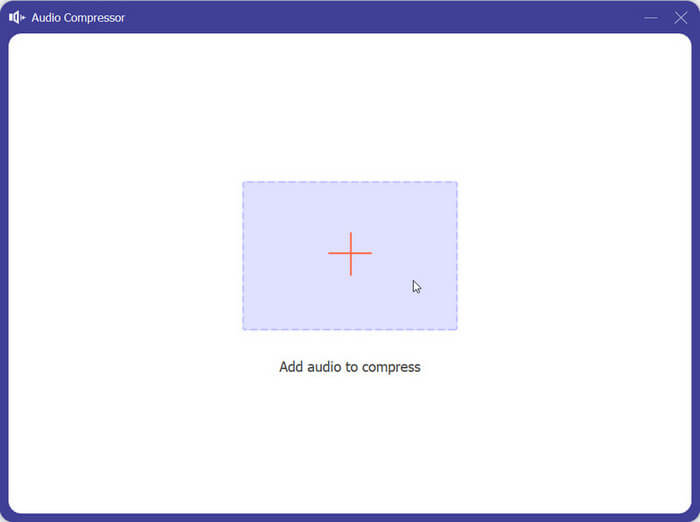
Langkah 3. Selepas memasuki tetingkap Audio Compressor, klik butang tambah besar untuk memuat naik fail WAV sasaran anda.
Langkah 4. Anda boleh menetapkan saiz fail selepas pemampatan dengan menukar nilai pada Size. Selepas pelarasan, anda boleh melihat peratusan fail yang dipampatkan.
Anda juga dibenarkan untuk menetapkan nama fail, format, saluran bunyi, kadar sampel dan kadar bit audio anda di sini.
Langkah 5. Untuk menyemak audio keluaran, klik Preview. Jika anda berpuas hati dengan kesannya, klik Compress.
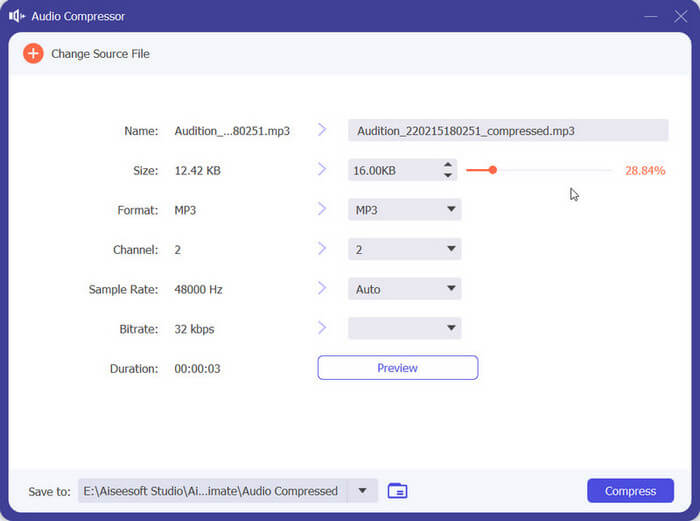
Pada masa ini, ia boleh memampatkan audio WAV sehingga 50% daripada saiz fail sumber. Kelajuan mampatannya sangat pantas sehingga kita tidak perlu menunggu untuk mengeksport fail yang dimampatkan. Hampir tidak ada kehilangan kualiti. Walau bagaimanapun, kami hanya mempunyai 5 peluang percuma, dan jika kami mahu lebih, kami perlu membayar.
Bahagian 2. Mampatkan Fail WAV Dalam Talian
Perisian desktop menawarkan lebih banyak ciri penyuntingan tetapi memerlukan anda memuat turun dan memasangnya pada komputer anda. Ini juga mengambil sebahagian daripada memori komputer anda dan mengambil sedikit masa untuk melancarkan perisian. Jika anda ingin mengalami pemampatan fail audio WAV yang lebih pantas, cuba alat dalam talian. Di antara banyak produk yang tersedia, kami mengesyorkan anda mencuba FreeConvert WAV Compressor, pemampat bersaiz bebas dengan antara muka yang sangat mesra pengguna. Apa yang anda perlu lakukan ialah pergi ke laman web rasminya, dan anda akan segera menemui butang sasaran. Walaupun anda tidak pernah menggunakannya sebelum ini, anda akan dapat bermula dalam masa yang singkat.
Di sini, kami akan mengajar anda cara mengurangkan saiz fail WAV dengan FreeConvert WAV Compressor.
Langkah 1. Buka FreeConvert WAV Compressor dengan pelayar anda.
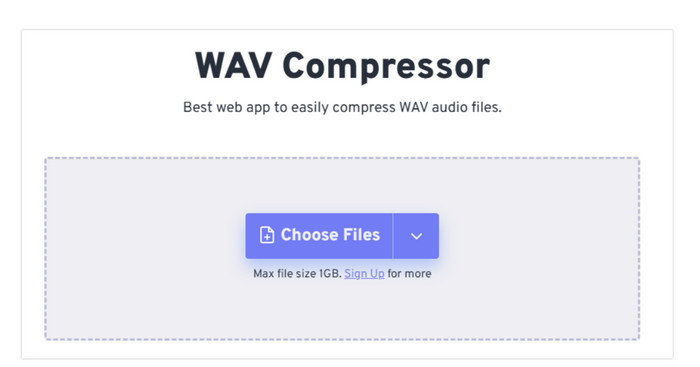
Langkah 2. Klik Choose Files untuk memuat naik audio yang anda ingin mampatkan.
.
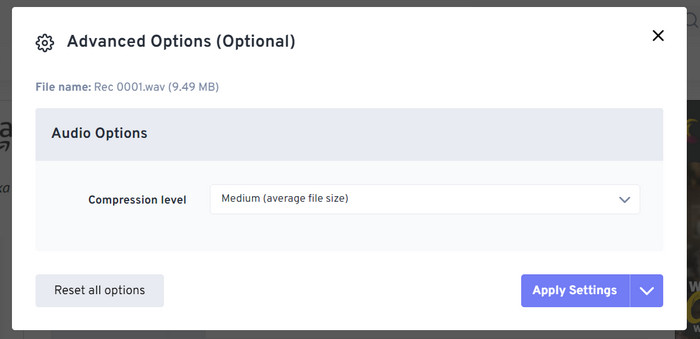
Langkah 3. Untuk melaraskan tahap pemampatan, klik Advanced settings (optional). Anda boleh memilih antara Low, Medium, dan Strong. Kemudian, pilih Apply Settings.
Langkah 4. Akhir sekali, klik Compress Now. Program ini akan dijalankan untuk memampatkan fail WAV anda secara dalam talian.
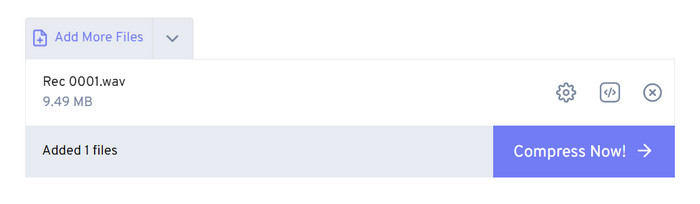
Selepas percubaan kami, kami mendapati ia berfungsi dengan agak cekap, dan kualiti bunyi fail output tidak jauh berbeza daripada fail sumber. Walau bagaimanapun, terdapat hanya tiga kadar mampatan yang boleh anda pilih dan anda tidak boleh menggambarkan peratusan mampatan dan saiz fail yang dimampatkan. Pada masa ini, pengguna hanya boleh menggunakannya untuk memampatkan fail sehingga 1GB.
Bahagian 3. Mampatkan Fail WAV dalam Audacity
Selain perisian pemprosesan multimedia semua-dalam-satu, terdapat banyak alat yang direka khusus untuk audio. Ia akan menampilkan tahap profesionalisme dan kehalusan yang lebih tinggi dalam aspek penyuntingan muzik ini. Jika anda menggunakan alat profesional untuk mengecilkan saiz fail WAV, kualiti bunyi mungkin dapat dilindungi pada tahap maksimum. Sebagai salah satu yang terbaik, Audacity kekal unggul sepanjang tahun. Pengguna boleh menggunakannya untuk melengkapkan proses sehenti rakaman audio dan pengubahsuaian. Operasi penyuntingan yang boleh dicapainya termasuk melaraskan panjang muzik, memampatkan saiz fail, menukar format audio, dan menambah kesan bunyi khas. Semua ini sangat mudah baginya.
Seterusnya, kami akan membimbing anda dalam memampatkan fail WAV dengan Audacity.
Langkah 1. Muat turun dan pasang Audacity pada peranti anda.
Langkah 2. Buka perisian, dan tekan File > Open.
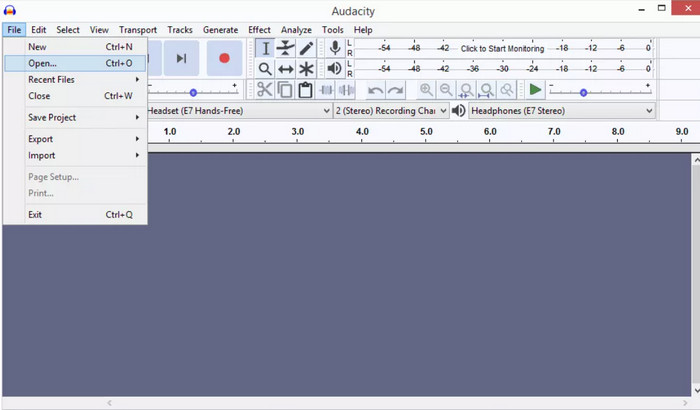
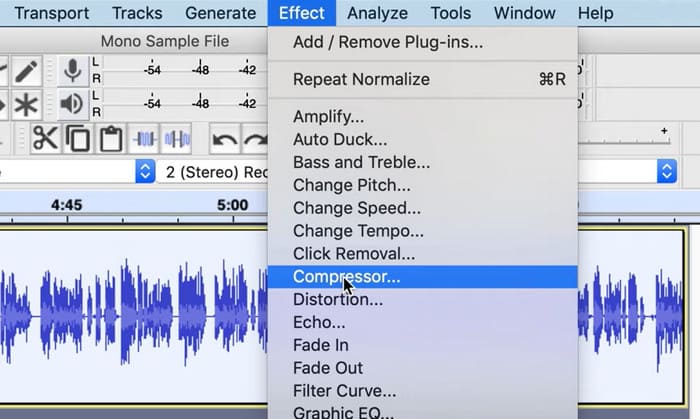
Langkah 3. Muat naik fail yang anda ingin mampatkan dan tekan Ctrl + A pada papan kekunci anda untuk memilih trek audio. Kemudian, klik Effect > Compressor.
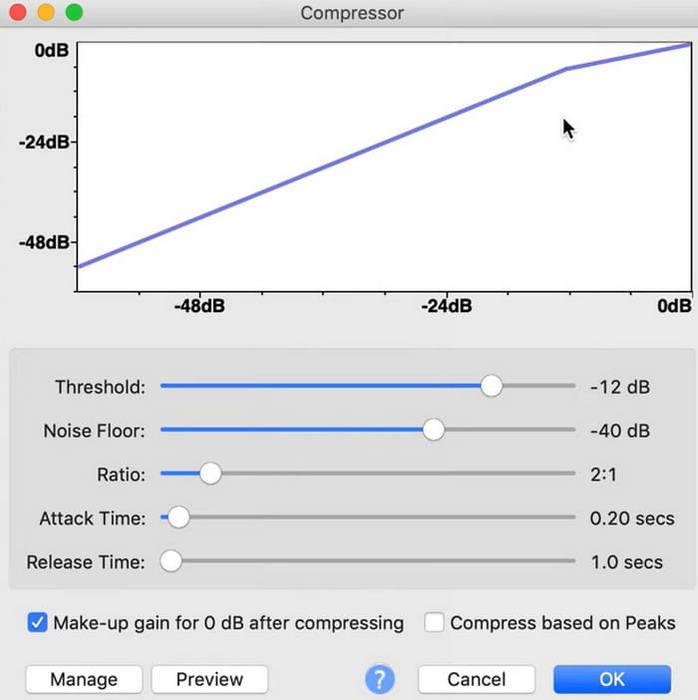
Langkah 4. Kini, anda boleh menukar parameter fail WAV anda, termasuk threshold, noise floor, ratio, attack, dan release time.
Langkah 5. Akhir sekali, klik File sekali lagi dan pilih Export.
Ia membolehkan anda memampatkan fail WAV secara percuma dan tanpa had saiz fail. Anda boleh mengawal kadar pemampatan dengan tepat dan mengeksport produk siap sebaik sahaja anda menggunakan tetapan. Antara mukanya agak kompleks, dan pengguna yang tidak berpengalaman akan mengalami kesukaran mencari ciri yang mereka perlukan. Ia akan mengambil sedikit masa untuk mempelajari cara menggunakannya dengan mahir.
Bahagian 4. Soalan Lazim Memampatkan Fail WAV
Mengapa fail WAV saya begitu besar?
Fail WAV biasanya ialah fail audio tidak termampat yang menyimpan data audio dalam format mentah tanpa sebarang kehilangan kualiti. Selain itu, fail WAV selalunya mempunyai kedalaman bit dan kadar pensampelan yang lebih tinggi berbanding format audio termampat. Jika anda perlu mengurangkan saiz fail WAV anda, anda boleh mempertimbangkan untuk memampatkannya atau menukar WAV kepada MP3.
Adakah memampatkan fail WAV mengurangkan kualiti?
Apabila anda memampatkan fail WAV kepada format audio yang hilang seperti MP3, AAC atau OGG, ia biasanya mengakibatkan pengurangan kualiti audio. Walau bagaimanapun, memilih alat pemampatan yang baik boleh mengimbangi masalah ini sedikit sebanyak. Adalah penting untuk mempertimbangkan keseimbangan antara saiz fail dan kualiti audio.
Bolehkah anda memangkas fail WAV dalam Windows Media Player?
Windows Media Player tidak mempunyai keupayaan terbina dalam untuk mengedit terus atau memangkas fail audio seperti fail WAV. Untuk memangkas fail WAV dalam Windows, anda boleh menggunakan aplikasi perisian lain yang menawarkan ciri penyuntingan audio, seperti FVC Video Converter Ultimate dan Audacity.
Kesimpulannya
Artikel ini bertujuan untuk membantu anda menyelesaikan masalah memampatkan fail WAV. Kami telah menyediakan tiga alat untuk anda pilih. Jika anda ingin menikmati perkhidmatan penyuntingan audio yang lebih menyeluruh, gunakan Video Converter Ultimate pilihan FVC. Jika anda tidak mahu memuat turun perisian tambahan ke komputer anda, anda boleh mempertimbangkan FreeConvert WAV Compressor. Jika anda mahukan perisian pemprosesan audio paling profesional untuk memampatkan fail anda, Audacity akan memenuhi keperluan anda.
-
 WAV Player - 5 Aplikasi WAV Player Teratas untuk Android, iPhone, PC dan Mac
 Bagaimana cara memainkan fail WAV di telefon Android? Pemain apa yang boleh bermain WAV? Catatan ini berkongsi 5 pemain WAV percuma terbaik untuk Android, iPhone, Mac dan PC.
-
 Tutorial Pemampatan Audio Mendalam pada 2024 (Langkah demi Langkah)
 Adakah anda perlu memampatkan audio tetapi memerlukan bantuan untuk mengetahui di mana untuk bermula? Dalam siaran ini, kami akan membentangkan pilihan terbaik untuk mengurangkan saiz fail trek anda.
-
 Pemampat Audio Berkesan untuk Pengguna Luar Talian dan Dalam Talian
 Ada masalah dengan fail audio yang besar? Terdapat banyak pemampat fail audio yang tersedia untuk pengguna luar talian dan dalam talian. Semak mereka di sini.
