


 Video Converter Ultimate
 Perakam Skrin
 Pembaikan Video
 Muat Turun Selamat
Apa itu Fail MTS dan Bagaimana Menukar / Memainkan Fail MTS
Anda akan mendapat video dirakam dalam format MTS jika anda menggunakan kamera video Sony atau Panasonic. Sebenarnya anda tidak akan menyedarinya sehinggalah anda tidak dapat memainkan fail MTS dengan pemain media atau peranti anda. Di sinilah timbul persoalan, apakah fail MTS?

Kini di banyak bidang dan produk elektronik, terdapat keperluan kualiti gambar yang lebih tinggi dan lebih tinggi untuk perarakan video. MTS adalah format video aliran pengangkutan definisi tinggi yang dapat menawarkan pengalaman visual berkualiti tinggi.
Namun, MTS bukan format fail yang popular. Banyak pemain media yang kerap digunakan dan peranti mudah alih iOS/Android tidak dapat memainkan fail MTS secara terus. Dengan mengambil kira perkara itu, di sini dalam artikel ini, kami ingin memberikan pengenalan terperinci tentang format MTS. Selain itu, kami akan menunjukkan kepada anda 3 cara mudah untuk menukar dan memainkan fail MTS.
Bahagian 1. Apakah Fail MTS - MTS vs MP4
MTS ialah sambungan fail bagi AVCHD (Advanced Video Coding High Definition) yang terutamanya digunakan oleh kamera video HD Sony dan Panasonic. Ia dibangunkan bersama oleh Sony dan Panasonic dan direka khas untuk video digital definisi tinggi. MTS ialah format video aliran pengangkutan MPEG dan H.264 definisi tinggi dan ia sangat menyokong HD 720p dan 1080i. Jadi berbanding dengan format lain, fail MTS dapat menawarkan kualiti video yang lebih tinggi.
MTS adalah sambungan fail video AVCHD pada camcorder digital. Apabila anda mengimport fail MTS ke komputer anda, sambungan fail akan bertukar menjadi M2TS secara automatik. MTS juga banyak digunakan untuk Blu-ray Disc Audio-Video (BDAV). Ia memiliki kemampuan untuk membawa pelbagai video, audio dan aliran lain.
Fail MTS boleh memberikan video berkualiti tinggi dengan saiz fail yang agak kecil. Tetapi seperti yang dinyatakan di atas, MTS tidak disokong oleh banyak pemain media, penyunting video, komputer dan peranti mudah alih. Anda mudah mendapat ralat main balik MTS disebabkan ketidakserasian. Oleh sebab itu, ramai orang mencari di internet tentang pemain MTS, cara memainkan fail MTS, dan cara menukar MTS kepada MP4 dan sebagainya.
MTS vs MP4
Berbanding dengan MTS, MP4 dapat dimainkan dengan mudah oleh hampir semua pemain media, alat dan alat penyuntingan video. MP4 adalah format wadah multimedia digital yang paling popular untuk menyimpan video. MP4 juga mampu membawa audio dan teks.
MP4 serasi dengan Windows 10/8/7 / XP / Vista PC, Mac, perisian penyuntingan, pemain media, peranti iOS / Android seperti iPhone, iPad, iPod touch, telefon Android, telefon Windows, dan banyak lagi. MP4 dapat menawarkan kualiti video yang tinggi sambil mengekalkan ukuran fail yang sesuai. Oleh itu, apabila anda mendapat format yang tidak disokong seperti MTS, anda boleh memilih untuk menukarnya ke MP4 untuk pemutaran yang lebih baik.
Bahagian 2. Cara Menukar MTS ke MP4 Secara Percuma
Apabila anda ingin berkongsi video MTS yang dirakam ke YouTube, Facebook atau platform lain, atau anda ingin mengedit dan melihatnya pada peranti anda, anda mungkin perlu menukar MTS ke MP4. Nasib baik, terdapat banyak penukar video MTS termasuk beberapa penukar dalam talian percuma yang dapat membantu anda membuat penukaran fail MTS. Di bahagian ini, kami akan memperkenalkan anda dengan penukar video dalam talian percuma yang popular, FVC Free Video Video Converter untuk menukar fail MTS anda.
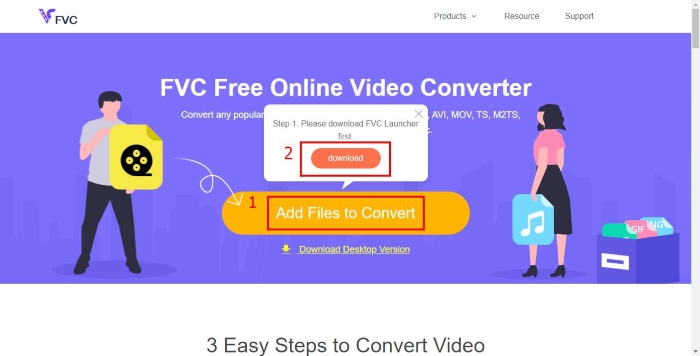
Langkah 1. Mula-mula, buka pelayar anda dan pergi ke laman rasmi FVC Free Online Video Converter. Di sini anda boleh terus ke https://www.free-videoconverter.net/free-online-video-converter/. Kemudian, klik butang Add Files to Convert untuk memuat turun dan memasang pelancar
Langkah 2. Apabila pelancar diaktifkan, muat naik fail MTS yang anda mahu tukar kepada MP4. Kemudian klik butang Convert untuk memulakan penukaran video daripada MTS ke MP4.
Bahagian 3. Cara Percuma Menukar MTS ke MP4 tanpa Kehilangan Kualiti (Disyorkan)
Dengan penukar video dalam talian percuma di atas, anda boleh melakukan penukaran video daripada MTS ke MP4 dengan mudah. Jika anda lebih menitikberatkan kualiti keluaran MP4, anda patut cuba Free MTS Converter. Ia membolehkan anda menukar MTS kepada MP4 tanpa sebarang kehilangan kualiti imej atau bunyi.
Muat Turun PercumaUntuk Windows 7 atau versi lebih baharuMuat Turun Selamat
Muat Turun PercumaUntuk MacOS 10.7 atau versi lebih baharuMuat Turun Selamat
Langkah 1. Dwi-klik butang muat turun di atas dan kemudian ikut arahan pada skrin untuk memasang dan menjalankan penukar MTS ke MP4 percuma ini pada komputer anda dengan cepat.
Langkah 2. Apabila anda masuk ke tetingkap pertama penukar video MTS ini, klik Add File(s) untuk memuatkan fail MTS yang anda mahu tukar. Dalam langkah ini, anda dibenarkan menambah satu atau lebih fail mengikut keperluan anda.
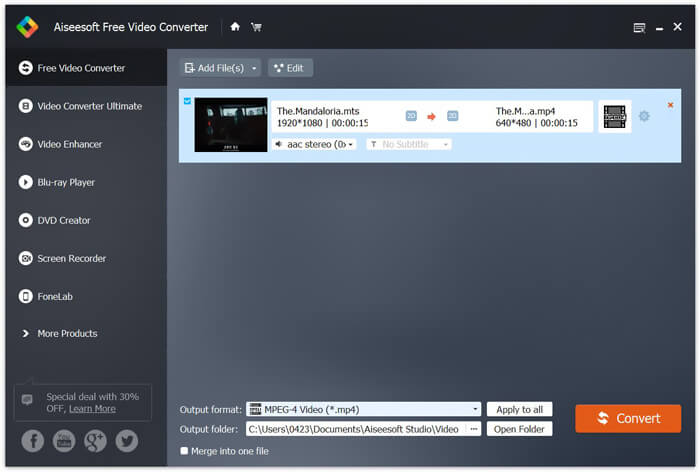
Langkah 3. Klik Output format dan kemudian pilih MP4 sebagai format sasaran. Di sini anda juga boleh memilih folder destinasi yang sesuai untuk video yang telah ditukar dengan mengklik pilihan Output folder. Selepas itu, klik butang Convert untuk memulakan penukaran video percuma daripada MTS ke MP4.
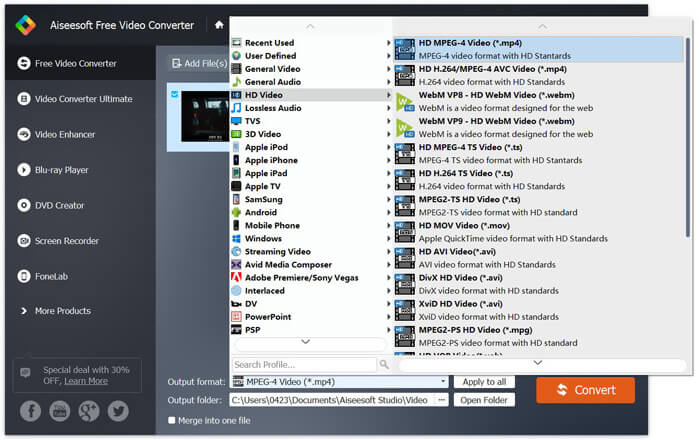
Free Video Converter direka dengan teknologi percepatan terkini yang menjamin anda kelajuan penukaran MTS / M2TS hingga MP4 yang sangat pantas. Lebih-lebih lagi, ia juga menawarkan beberapa ciri penyuntingan asas untuk anda menyesuaikan video sebelum penukaran terakhir. Anda harus memuat turunnya secara percuma dan mencuba.
Bahagian 4. Cara Menukar Percuma dan Memainkan Fail MTS dengan Pemain VLC
Sekiranya anda memasang Pemain Media VLC di komputer anda, anda boleh bergantung padanya untuk menukar fail MTS ke MP4, MOV, FLV, dan banyak lagi untuk memuat naik atau bermain dengan lebih baik. Sebenarnya, sebagai pemain media sumber terbuka, Pemain VLC membolehkan anda menikmati fail MTS secara langsung dengan pengalaman visual yang hebat. Di bahagian ini, kami ingin menunjukkan kepada anda cara bermain dan menukar fail MTS pada pemain VLC.
Mainkan fail MTS dengan Pemain VLC
Langkah 1. Pertama, anda perlu memastikan anda mempunyai Pemain VLC di komputer anda. Kemudian buka pemain media ini untuk main balik fail MTS.
Langkah 2. Klik Media > Open File untuk memuatkan fail MTS yang anda mahu mainkan. Selepas dimuatkan, VLC Player akan memainkan fail MTS tersebut secara automatik untuk anda.
Di sini anda harus tahu bahawa, tidak semua fail MTS dapat dilihat dengan kesan yang baik pada VLC Player.
Dalam beberapa kes, anda kemungkinan besar mengalami kesalahan bermain MTS. Anda harus menambahkan beberapa sambungan untuk menjadikan Pemain VLC menyokong fail MTS anda. Sebagai contoh, anda memerlukan perpustakaan untuk penyahkodan AACS untuk memainkan fail MTS.
Tukar fail MTS dengan Pemain VLC
Sebenarnya, apabila anda mendapat ralat main fail MTS, anda boleh memilih untuk menukar MTS anda ke format video yang popular seperti MP4, MOV, FLV, dan AVI dan sebagainya. Selepas itu, anda dapat menonton fail MTS dengan mudah pada mana-mana peranti dengan mudah.
Langkah 1. Buka VLC Player pada komputer anda. Klik Media > Convert/Save untuk memaparkan tetingkap timbul Open Media. Di sini anda boleh klik Add untuk mengimport fail MTS yang anda mahu tukar.
Langkah 2. Selepas diimport, klik Convert Save untuk membuka tetingkap Convert. Klik Profile dan kemudian pilih MP4 sebagai format sasaran. Dalam langkah ini, anda dibenarkan memilih folder destinasi yang sesuai untuk video keluaran dengan mengklik pilihan Browse.
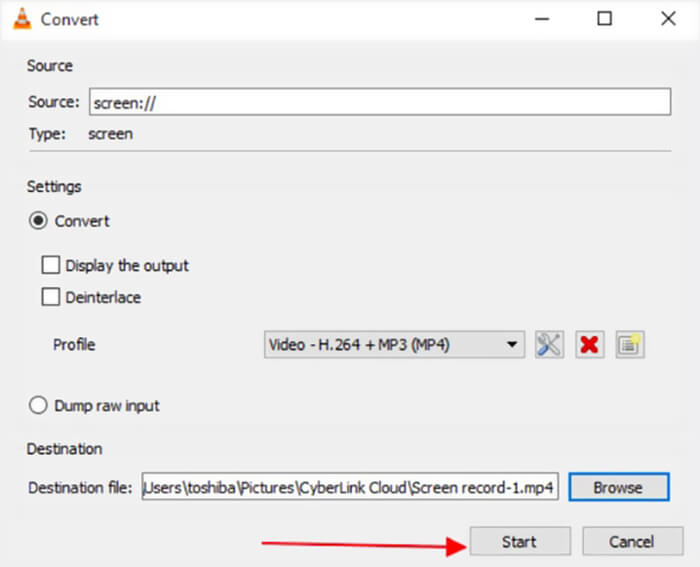
Langkah 3. VLC Player menyediakan beberapa fungsi penyuntingan asas. Sebelum penukaran akhir fail MTS, anda boleh suasikan kesan video mengikut keperluan anda. Kemudian anda boleh klik Start untuk memulakan penukaran video percuma bagi fail MTS.
Selepas membaca halaman ini, anda boleh mendapat pemahaman yang jelas tentang fail MTS. Selain itu, anda boleh mempelajari cara menukar dan memainkan fail MTS. Tinggalkan mesej kepada kami jika anda masih mempunyai sebarang soalan tentang format MTS.
-
 2 Kaedah Mudah Menukar MTS ke MP3 Percuma
 Adakah anda perlu mengeluarkan audio MP3 dari fail MTS tetapi tidak tahu caranya? Apakah penukar MTS ke MP3 yang terbaik? Catatan ini berkongsi 2 cara mudah untuk membantu anda menukar MTS / M2TS ke MP3 dengan kualiti audio yang tinggi.
-
 4 Kaedah Percuma Teratas untuk Menukar MTS ke MOV
 Tidak dapat memainkan fail MTS di komputer atau telefon iPhone / Android anda? Apakah fail MTS dan bagaimana memainkannya? Apakah Penukar Video MTS terbaik? Catatan ini berkongsi 4 cara mudah dan percuma untuk membantu anda menukar MTS ke MOV untuk main semula yang lebih baik.
-
 Apakah Perbezaan Antara MTS dan M2TS
 Apakah fail MTS atau M2TS? Apakah perbezaan antara M2TS dan MTS? Bagaimana saya dapat menonton fail MTS atau M2TS yang dirakam camcorder? Cari semua jawapan dalam catatan ini.
