


 Video Converter Ultimate
 Perakam Skrin
 Pembaikan Video
 Muat Turun Selamat
Cara Membahagikan Video kepada Bahagian menggunakan Kaedah Luar Talian dan Dalam Talian
Whatever footage you record for your initial video can have more material than you require. This is particularly true if your objective is to post brief videos to social networking sites, including YouTube, Instagram, or TikTok, etc. You need to split the video into different parts to eliminate undesirable footage. Applying various effects and transitions or speeding up a section of the video in a clip is also necessary. Splitting functions are crucial for your video timeline to contain the precise content you desire. In that case, this guidepost will offer practical methods to split videos easily and quickly.

Bahagian 1. Cara Memisahkan Video pada Komputer
Cara Membahagi Video Menggunakan Video Converter Ultimate
If you want to split your videos into parts, you can use your computer. One of the offline programs to use is Video Converter Ultimate. With the help of the splitting feature from this program, you can easily split the clip you want. Also, the program offers the Fast Split feature. This great feature lets you split videos by average and by time. This provides many segments when splitting the video. This way, you can also merge them and excellently create your video. Moreover, the program allows you to control and make some changes to the video. On the settings, you can modify the quality of your video, as well as the resolution, frame rate, and other parameters. You can also change the audio’s bitrate and sample rate. In addition, Video Converter Ultimate supports various video formats. It includes MP4, MOV, AVI, MKV, and more. This offline program is convenient for all users since it is accessible on Mac and Windows computers.
Step 1. Download Video Converter Ultimate on your Windows or Mac computers by clicking the Download button below. After the installation process, run the software on your computer.
Muat Turun PercumaUntuk Windows 7 atau lebih baharuMuat Turun Selamat
Muat Turun PercumaUntuk MacOS 10.7 atau lebih baharuMuat Turun Selamat
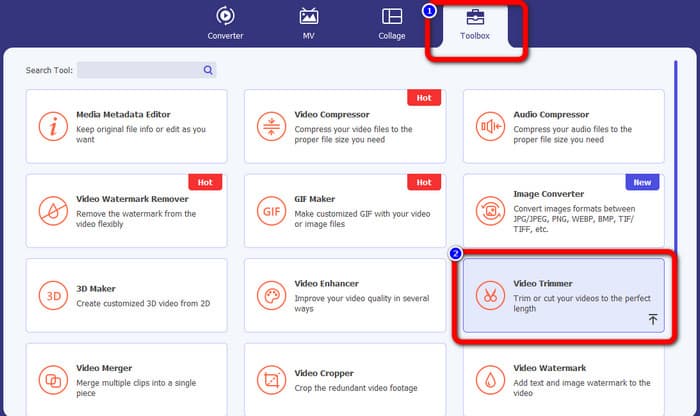
Step 2. After you launch the program, the interface will appear on the screen. Navigate to the Toolbox menu on the upper interface. Then, click the Video Trimmer tool.
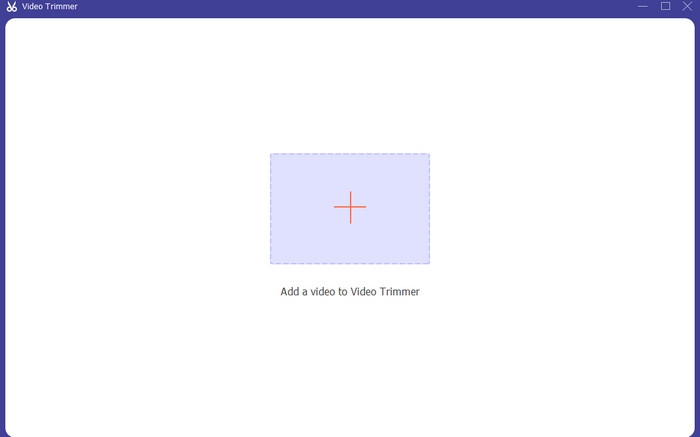
Step 3. Afterward, another interface will show up. Click the Plus button. When the file folder appears on the screen, select the video you want to split, and click Open.
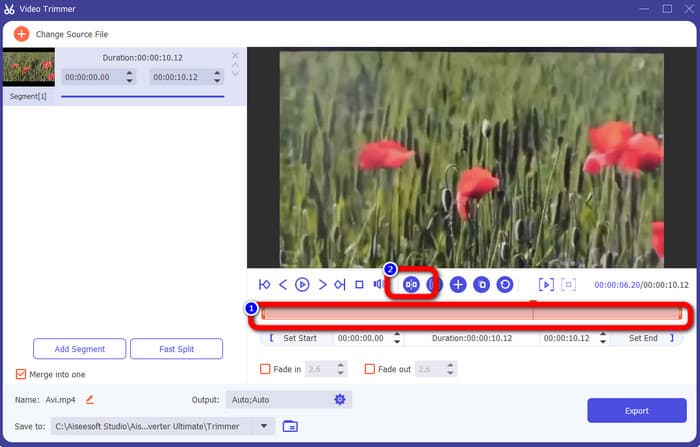
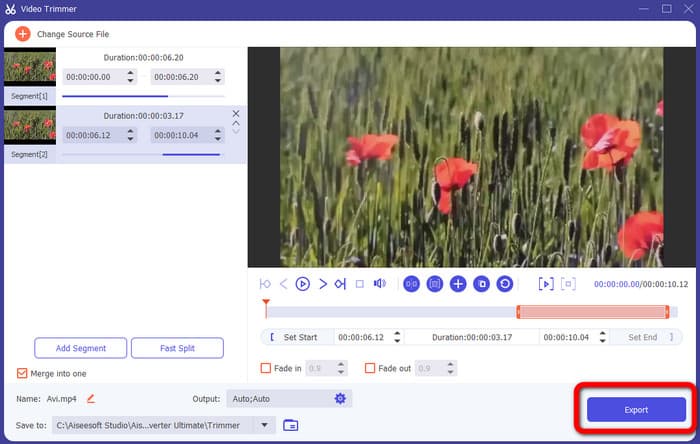
Step 4. Then, after adding the video, you can split it right away. Go to the video’s play head and click the portion you want to split. After that, click the Split icon to split the video.
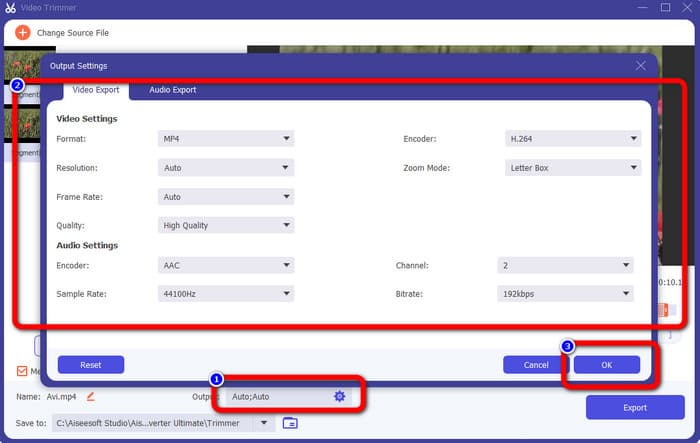
Step 5. If you want to edit other parameters, go to the Output settings. You can change the output format, video resolution, quality, frame rate, etc. Then click OK.
Step 6. When you are satisfied with the changes on your videos, navigate to the lower right corner of the interface and click Export. Finally, you can save your final output on your computer after the export process.
Cara Membahagikan Video Menggunakan Adobe Premiere Pro
Another way to split video is to use Adobe Premiere Pro. This program is a popular video editing software for professionals. It can help you to split your video into parts effectively. In addition, after splitting the video, the quality won’t change. Also, you can use Premiere Pro on Mac and Windows operating systems, which is convenient for users. Furthermore, besides splitting videos, Premiere Pro has more features to offer. It includes VR editing, motion graphics templates, effects, and audio editing. However, since it is an advanced video editing software, it is only for skilled users. It means this program might be unsuitable if you are a non-professional user. Its interface has many options, making it confusing for beginners. Also, when using the trial version, you can only use it for up to 7 days. To use the program continuously, you must purchase a subscription plan. Follow the method below to learn how to split video in Premiere Pro.
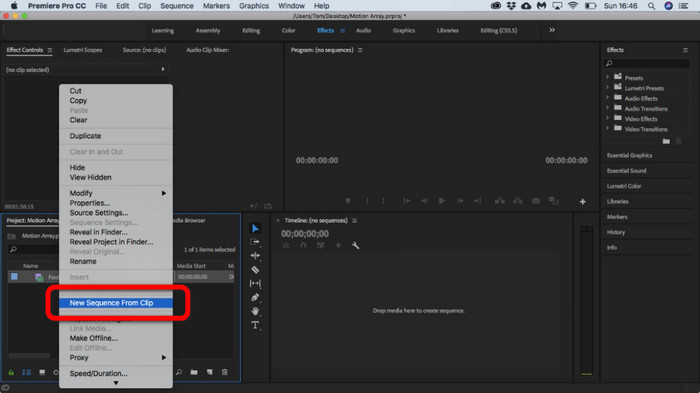
Step 1. Download Adobe Premiere Pro on your Mac or Windows computers. Then, launch it after the installation. Go to File > Import to add the clip. If you have the sequence, put it on the Timeline. If you don’t have a sequence, right-click and select the New Sequence From Clip option.
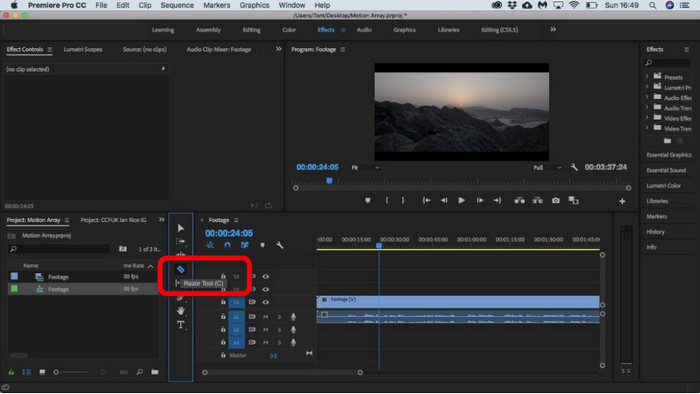
Step 2. Then, go to the Razor tool to split the clip.
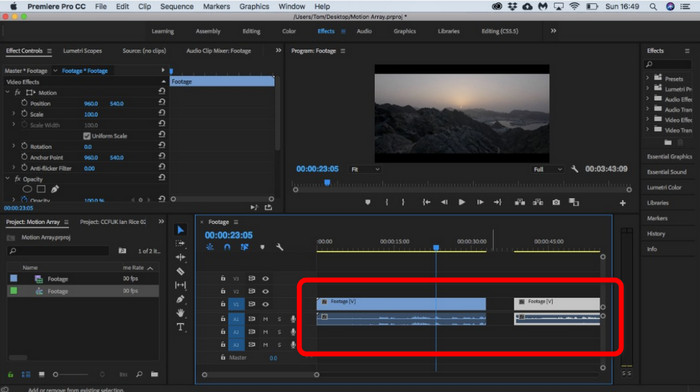
Step 3. After that, click the video on the Timeline you want to split. After clicking, you will have two clips on the same video.
Cara Membahagi Video Menggunakan After Effects
You can also split a video using Adobe After Effects. It is another offline program that can help you get the desired result on your video. It has various tools you might need when editing your video. Also, you can use shortcuts to split a video quickly. You can access After Effects on both Windows and Mac. However, Adobe After Effects has some drawbacks. It can only offer a 7-day free trial version. After the trial version, the software will charge you monthly. Also, the installation process is time-consuming. Also, the program consumes a lot of space on the computer. So ensure you have enough storage space before installing the video editing software. Use the steps below to know how to split video in After Effects.
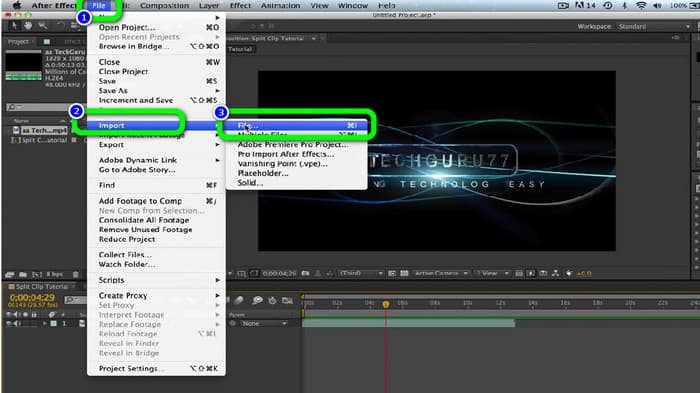
Step 1. Launch Adobe After Effects on your computers. Go to the File menu on the upper interface. Then select the Import > File option to add the video you want to split.
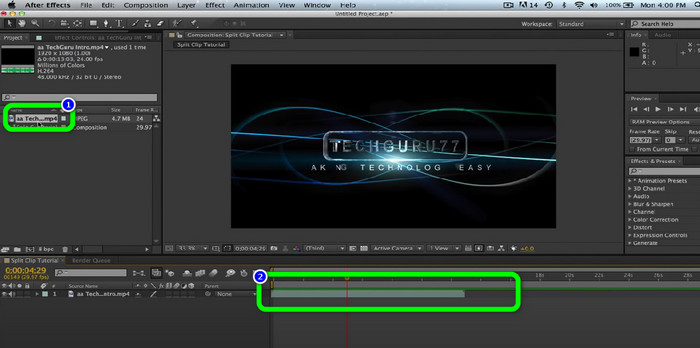
Step 2. After that, drag the video on the Timeline to start the splitting process.
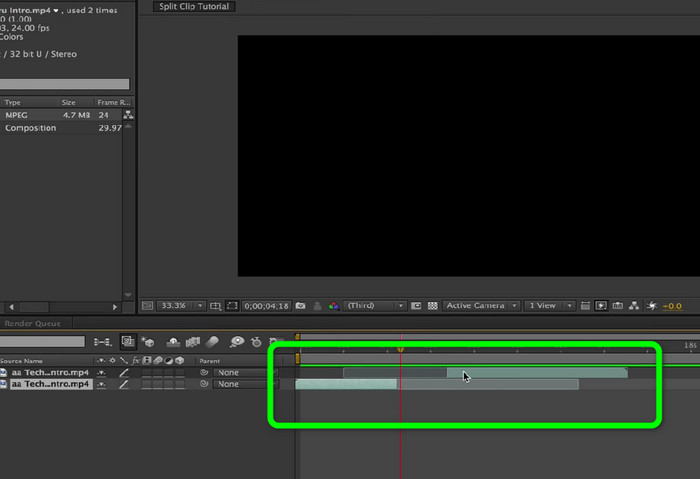
Step 3. The easiest way to split the video is to use shortcut keys. If you use a Mac computer, press CMND + Shift + D. If you use Windows, press CTRL + Shift + D. This way, you can split the video into two.
Cara Membahagikan Video Dalam Talian
Jika anda ingin membahagikan video dalam talian, gunakan Veed.io. Alat berasaskan web ini boleh memisahkan video anda dengan mudah. Hanya dengan beberapa klik, anda boleh mendapatkan hasil yang anda inginkan. Selain itu, anda boleh mengakses alat ini pada semua platform web. Ia termasuk Google Chrome, Mozilla Firefox, Internet Explorer dan banyak lagi. Walau bagaimanapun, untuk menyimpan video yang diedit pada komputer anda, anda mesti membuat akaun terlebih dahulu. Selain itu, sambungan internet amat disyorkan.
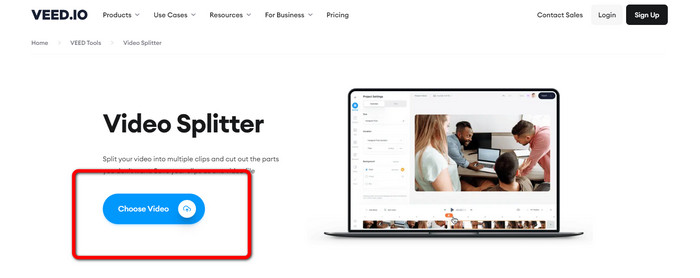
Step 1. Visit the Veed.io website on your browser. After that, click the Choose Video option to add the video from your computer.
Step 2. Then, click the part of the video you want to split and click the Split option. This way, the video will split instantly.
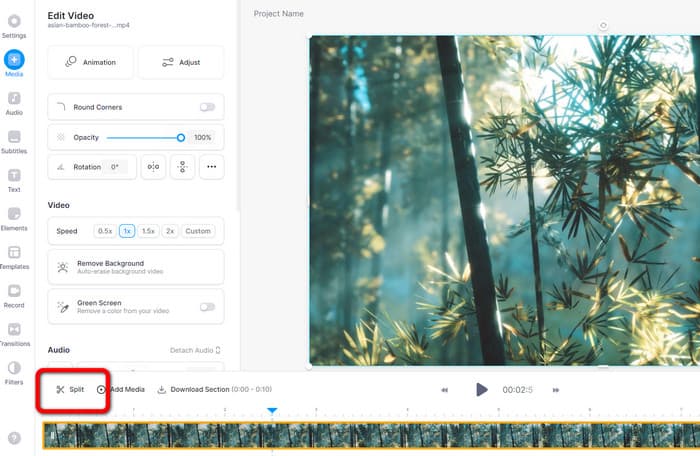
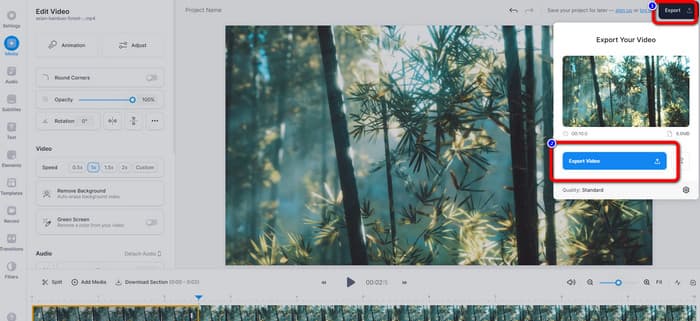
Step 3. After splitting the video, click the Export option on the top left corner of the interface. Then, click the Export video option to save your video. Click here to get how to cut videos online.
Bahagian 2. Bagaimana untuk Membahagikan Video pada iPhone
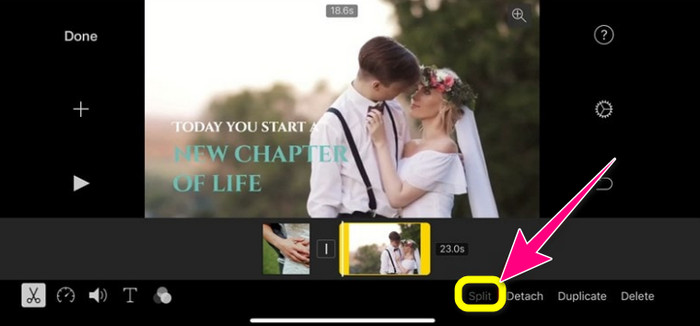
Do you want to know how to split a video on an iPhone? For iPhone users, you can split a video using the iMovie application. It offers a splitting function that lets you split videos into pieces. Also, the process is simple, making it suitable for all iPhone users. However, the iMovie application is only accessible to Apple devices like iPhones, iPad, Macbooks, and more. So, this application is not perfect if you use other devices like Android. See the steps below to know how to split videos on iMovie.
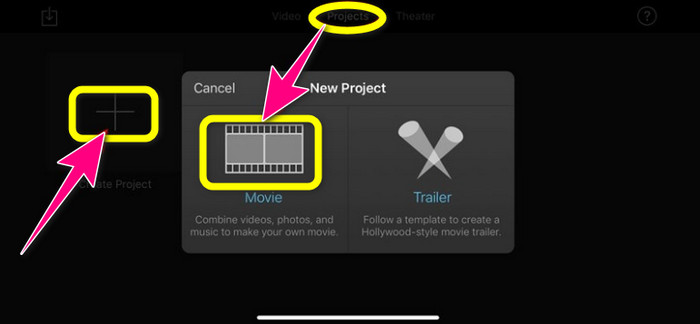
Step 1. Download iMovie on your iPhone. After that, launch it and click the Movie option under the Project options.
Step 2. Then, control the play head to the timeline and put it to the portion you want to split.
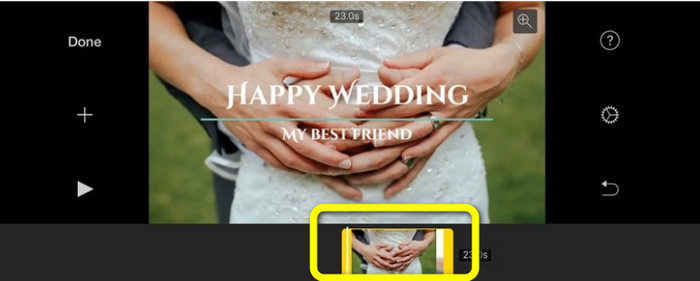
Step 3. Click the Split option to split the video. Then, save your final output. Learn more about how to shorten videos on iPhone.
Bahagian 3. Soalan Lazim tentang Cara Membahagi Video
1. Bagaimana untuk menggunakan FFmpeg untuk membahagikan video kepada bingkai?
Open Terminal or CMD on your Windows or Mac computers. Then type cd ~/Videos and press Enter. After that, the following command will split your video into frames. Type “ffmpeg -i video.mp4 thumb%04d.jpg -hide_banner” That’s it. You can now open your video from your output folder.
2. Bagaimana untuk memisahkan video menggunakan TikTok?
Lancarkan TikTok pada telefon anda. Selepas itu, pergi ke Draf anda untuk membuka video. Langkah seterusnya ialah mengklik pilihan Laraskan klip. Kemudian kawal tepi kepala permainan. Akhir sekali, klik butang Simpan.
3. Bagaimana untuk memisahkan video pada Windows 11/10?
If you want to split video on Windows 11/10, use Video Converter Ultimate. After downloading this program, you can start splitting your videos. Go to the Toolbox > Video trimmer tool. Then, add the video you want to edit, and start the splitting process by selecting the portion and clicking the Split tool. Then, you can export and save your final output.
Kesimpulannya
The methods above are the most effective when splitting a video offline and online. However, other video editing software is only suitable for professional users. In that case, if you want to split video easily, use Video Converter Ultimate. This program has the most straightforward methods among video editing software. Also, it has an intuitive interface, which is perfect for all users, especially beginners.
-
 11 Pemangkas Video Hebat untuk Digunakan [Percuma dan Berbayar]
 Berikut ialah senarai perisian penyuntingan video yang boleh anda gunakan untuk memangkas video. Kami benar-benar akan menyemak program ini dan memberikan semua butiran yang anda cari.
-
 Cara Memendekkan Video Dengan Mudah Menggunakan Alat Terbaik
 Ketahui cara memendekkan video menggunakan alat terbaik dan paling banyak digunakan. Baca artikel ini untuk mengetahui butiran lengkap tentang alatan dan cara menggunakannya
-
 Tukar Kelajuan Video Dengan Mudah Menggunakan Pengawal Kelajuan Video
 Adakah anda ingin tahu cara menukar kelajuan video video anda? Baca keseluruhan maklumat yang kami tambahkan dalam artikel ini sambil kami mempamerkan alat yang berbeza yang boleh anda gunakan.
