


 Video Converter Ultimate
 Skjermopptaker
 Videoreparasjon
Hvordan lage sakte film med det fineste konseptet
Vi har alle hatt lyst til å lage saktefilmvideoer, for gjennom saktefilm lærer vi å verdsette detalj etter detalj som kan fanges av enhetene våre på svært kort tid. Vi ser på saktefilm som én av mange måter å lagre minner på, i tillegg til å ta opp videoer i normal hastighet. På noen enheter finnes det imidlertid ikke en egen funksjon for å ta opp saktefilm direkte. Det er også vanskelig å finne den beste løsningen for alle som ikke har denne typen funksjon på enheten sin. Les denne artikkelen for å lære hvordan du lager saktefilmvideoer.

Del 1. Hvordan lage sakte film på Windows
Et program som Video Converter Ultimate kan gjøre alt en redigerer kunne ønsket seg av et gratis verktøy som dette. Det er tilgjengelig for både Windows og Mac, men skiller seg alltid ut blant programvaren som finnes på Windows. Det kan løfte videoen din til neste nivå og har en funksjon som heter Video Speed Controller, som kan justere avspillingshastigheten på videoen eller konvertere video til sakte film. Denne programvaren er tilgjengelig og kompatibel med et stort antall formater. Her er trinnene du må følge for å bruke programmet riktig:
Trinn 1. For å lagre programmet på PC-en, klikker du på Free Download. Etter at du har lastet det ned til skrivebordet, installerer du programmet og gjør det klart til å starte.
Gratis nedlastingFor Windows 7 eller nyereSikker nedlasting
Gratis nedlastingFor MacOS 10.7 eller nyereSikker nedlasting
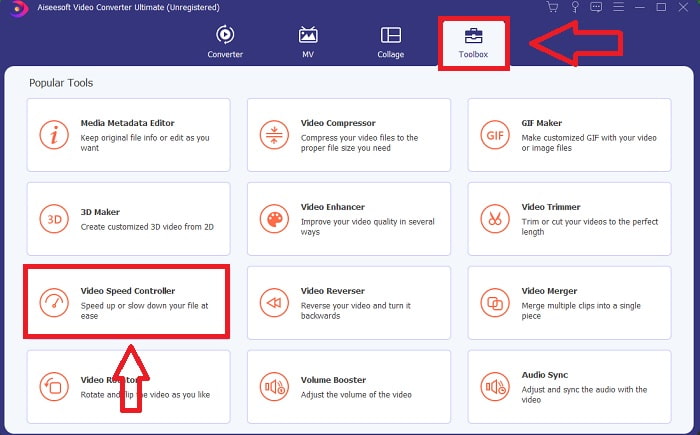
Trinn 2. Når du har installert programmet, starter du det og velger alternativet Toolbox, og fortsetter deretter med å klikke på Video Speed Controller for å begynne å redigere avspillingshastigheten på videoen.
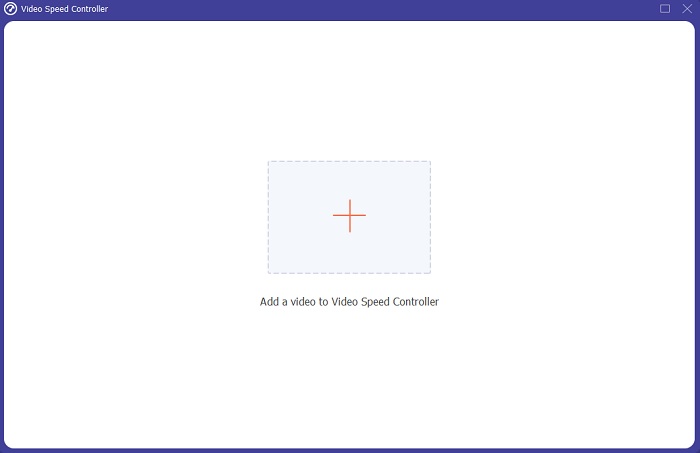
Trinn 3. Legg til en fil ved å klikke på +-ikonet på ønsket sted, og rediger deretter videoklippet.
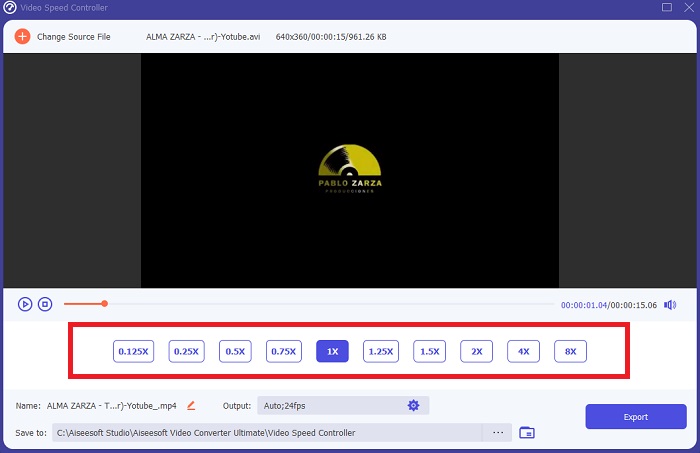
Trinn 4. Endre avspillingshastigheten ved å angi hvor mange ganger videoens bildefrekvens skal økes eller reduseres.
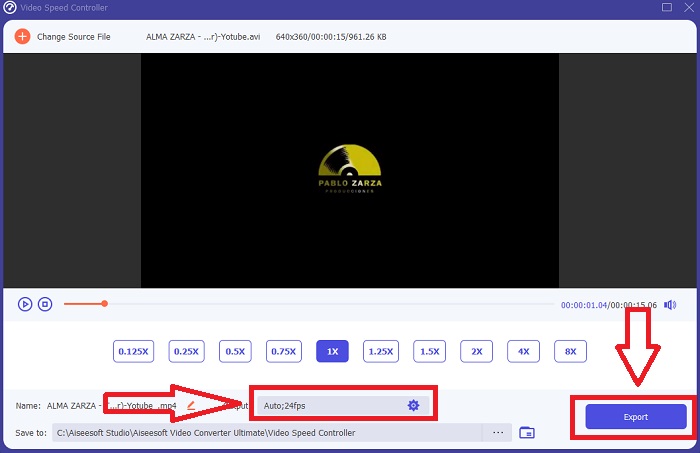
Trinn 5. Når du er ferdig med å justere avspillingshastigheten på videoklippet, kan du velge ønsket utdata ved å endre format, oppløsning og kvalitet, med mer. Når du er klar, klikker du på Export og velger et sted der arbeidet skal lagres.
Fordeler
- Det er gratis å laste ned programvare tilgjengelig i Windows og Mac.
- Den har mange verktøy som hjelper til med å redigere en video, og disse kan enkelt brukes.
Ulemper
- Den kan kjøpes for å låse opp de eksklusive funksjonene, men den er ikke så dyr.
Relatert:
Del 2. Hvordan lage slowmotion-video på Mac
Lag filmtrailere i Hollywood-stil med iMovie på Mac-en din i 4K-oppløsning. Etter at du har redigert videoene dine, kan du gi dem siste finpuss med animerte titler, musikk, filtre og effekter. Lag en polert, profesjonell video med Apples iMovie-programvare og del den med familie og venner. Det er slett ikke vanskelig. Hvis du bruker iMovies ulike maler og verktøy for finpuss, vil videoen din se enda bedre ut. Med denne nye funksjonen kan du endre hastigheten som Mac-en spiller av video med, eller til og med lage saktefilmvideo, siden de fleste redigerere må prioritere problemene som oppstår og trinnene som må tas med dette verktøyet på en Mac for å nå ønsket hastighet.
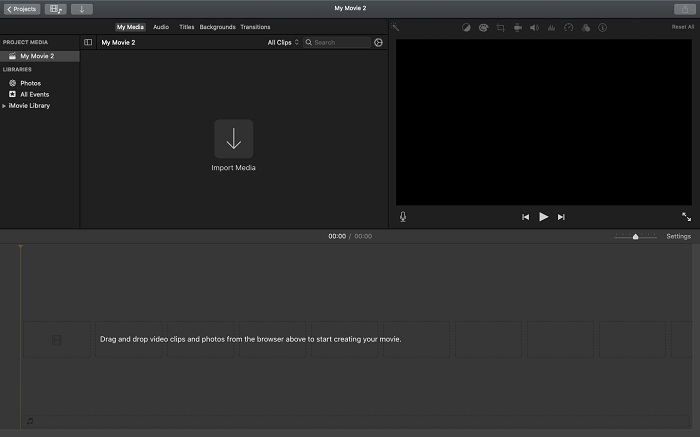
Trinn 1. Åpne iMovie-appen på Mac-en din og velg et videoklipp du vil jobbe med fra Timeline-panelet.
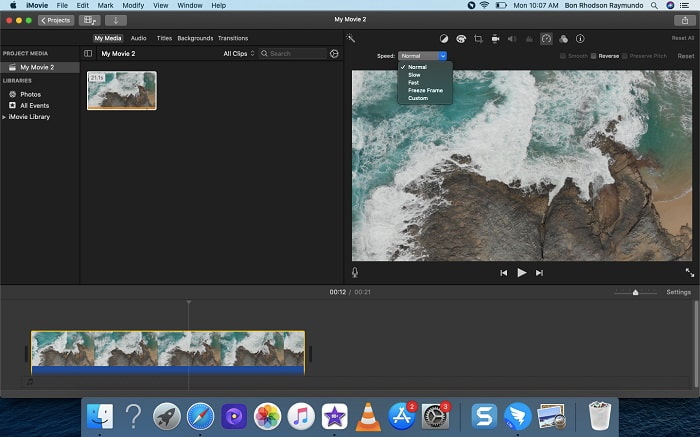
Trinn 2. Ved å klikke på Speed-knappen øverst til venstre i grensesnittet får du opp hastighetsinnstillingene. Du kan velge mellom Slow og Fast nedlastingshastighet fra en hastighetsknapp for å finjustere nedlastingen.
Trinn 3. Klikk på Upload-ikonet øverst til høyre i grensesnittet for å lagre filen på datamaskinens harddisk.
Fordeler
- Det er gratis å laste ned programvare på Mac.
- Den kan vise sporet til videoklippet som kan hjelpe deg å redigere enkelt.
Ulemper
- Noen av funksjonene er profesjonelt basert; den mangler verktøy som hjelper en video å forbedre sitt fulle potensial.
- Du kan ikke tilpasse avspillingshastigheten til videoen din ved å bruke denne programvaren fordi du bare vil velge de gitte alternativene.
Del 3. Hvordan lage slowmotion-video på nett
Metode 1. Bruk VEED
Hvis du leter etter det enkleste nettbaserte verktøyet du kan bruke til å lage en saktefilmvideo, er VEED det rette valget. For at det skal fungere, trenger du imidlertid en stabil internettforbindelse, siden det er et nettverktøy og bare er tilgjengelig på nettet. Med sitt oversiktlige grensesnitt og brukervennlige verktøy kan du lage saktefilmvideoer uten problemer. En av hovedfunksjonene kan senke hastigheten på en video; for å lage en saktefilmvideo må du redusere normalhastigheten på videoen, og med hjelp fra VEED trenger du ikke bekymre deg for hvordan du utfører prosessen. For å hjelpe deg på veien med dette nettverktøyet, finner du her trinnene du skal følge:
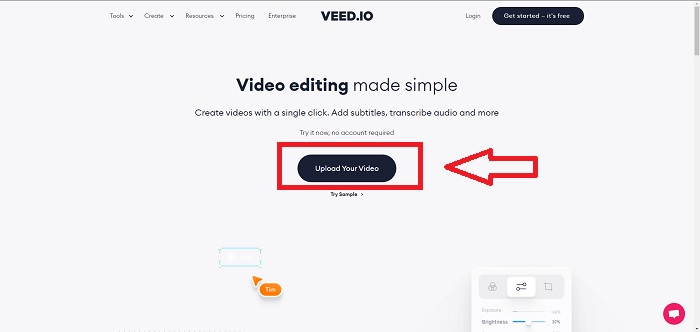
Trinn 1. Ved å klikke på knappen Upload Your Video kan du sende en videofil fra datamaskinen din til serverens lagringsnettverk.
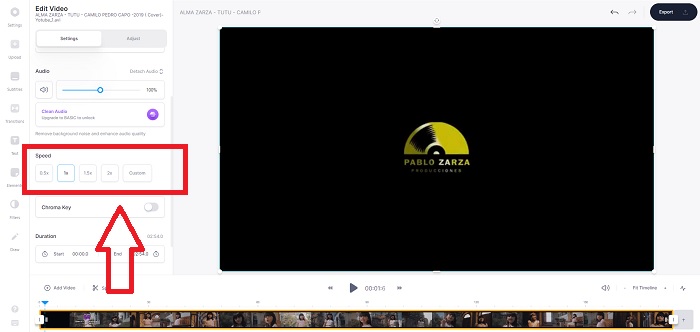
Trinn 2. Et videospor vises når du beveger musen over redigeringsgrensesnittet til nettverktøyet. Finn og klikk på alternativet Speed for å endre avspillingshastigheten. Ved å velge Custom kan du spille av videoklippet i en egendefinert hastighet, uavhengig av om hastigheten du ønsker er en forhåndsinnstilling eller ikke.
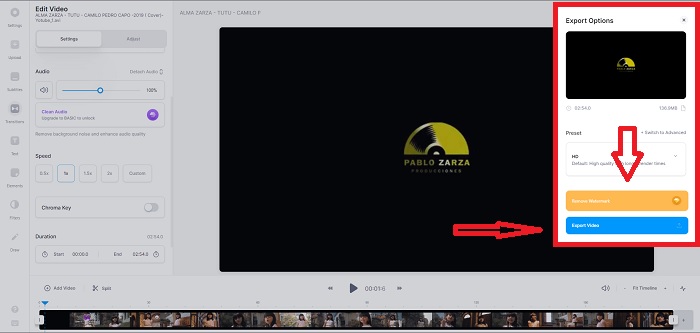
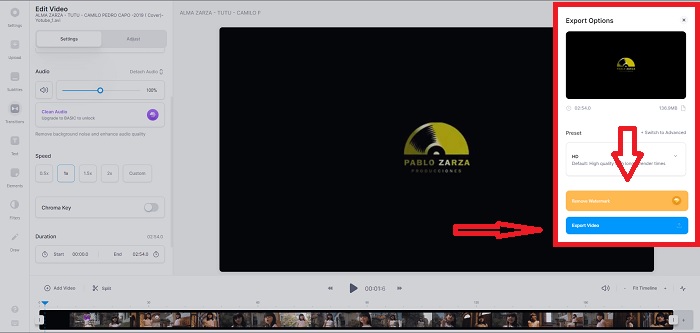
Trinn 3. Når du har redigert videoen til den hastigheten du vil ha, klikker du på Export for å fortsette i eksportfanen. I mellomtiden kan du oppgradere til premiumversjonen av nettverktøyet og velge videokvaliteten du ønsker, samt fjerne vannmerket. Når alt er på plass, kan du eksportere videoen til datamaskinen din.
Fordeler
- Den har opplæringsprogrammer som hjelper deg med å bruke nettverktøyet.
- Det er et godt nettverktøy som inneholder informasjon om verktøy, priser, ressurser og bedrifter.
Ulemper
- Den har bare et lite antall verktøy som skal brukes.
Metode 2. Bruk InVideo
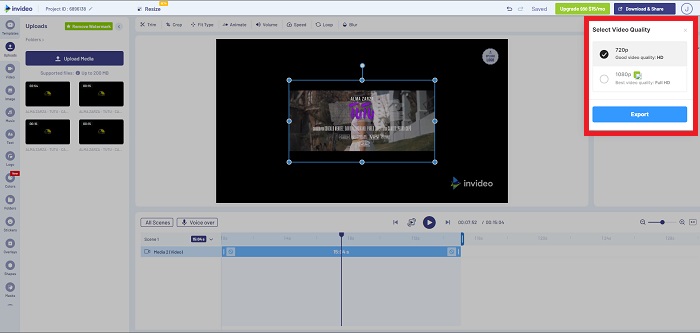
InVideo er et nettbasert verktøy som gir bedre videoytelse enn andre nettbaserte verktøy, ved hjelp av kreative maler og ulike verktøy det tilbyr. Denne nettjenesten regnes som en MP4-saktefilmkontroller, ettersom en av nøkkelfunksjonene ved videoredigering er kompatibiliteten til å konvertere alle videoklipp i MP4-format. InVideo fungerer som ryggstøtten for enhver redigerer når de har problemer med å velge riktig nettverktøy for å lage saktefilmvideoer. For å hjelpe deg ytterligere med problemet, følger du disse trinnene:
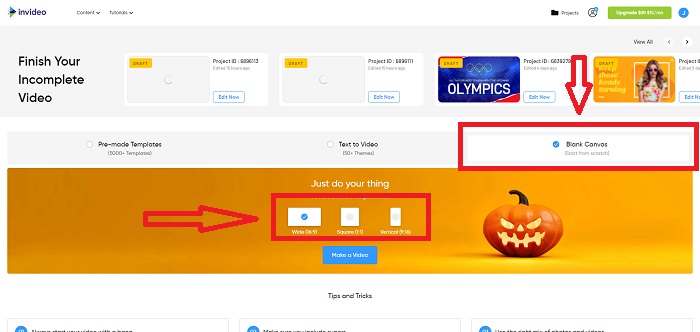
Trinn 1. For å bruke nettverktøyet må du opprette en konto. Å velge en mal å jobbe med er neste trinn i prosessen. For å begynne opplastingen klikker du på Upload-knappen øverst til venstre i grensesnittet. Opplastingen starter.
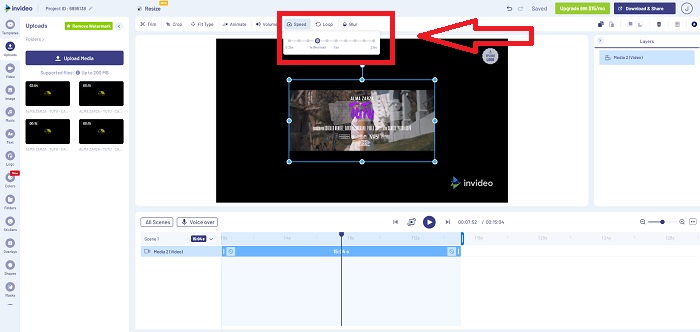
Trinn 2. Klikk på Speed-fanen øverst til høyre i grensesnittet og dra den til sporet for å redigere avspillingshastigheten på videoklippet. Bare klikk og dra Slider for å endre avspillingshastigheten.
Trinn 3. Last ned og del arbeidet ditt når du er ferdig med redigeringen, og oppgrader deretter til Premium for å få enda bedre resultater.
Fordeler
- Den har tilpassede maler som kan brukes gratis.
- Den inneholder profesjonelle funksjoner.
Ulemper
- Den må kjøpes for å låse opp alle funksjonene.
Metode 3. Bruk Typito
Hvis du lurer på hvilket nettbasert redigeringsverktøy som kan løse problemet med å legge video i sakte film, kan du prøve Typito. Typito gjør det enkelt å lage iøynefallende videoer som hjelper videoen din å skille seg ut fra andre videoer og fra mengden. Det er akkurat som Canva, men i video-redigeringsformat. Denne webapplikasjonen er ikke bare for profesjonelle. Bruk den til skoleprosjekter eller semiprofesjonelle multimedieprosjekter. Du trenger også en e-postadresse for å bruke og konvertere videoklippet med de ønskede justeringene.
Trinn 1. Dra og slipp mediefiler fra datamaskinens skrivebord, eller klikk på mappeikonet for å legge dem til.
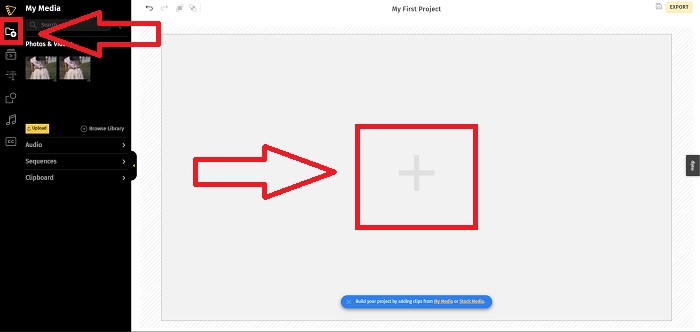
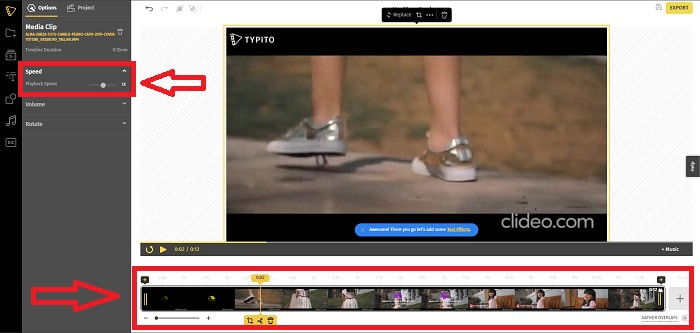
Trinn 2. For å begynne å redigere videoen går du til videosporen og velger videofilen. Klikk deretter på Add Projects. For å endre avspillingshastigheten på en video, finner du funksjonen Speed i venstre hjørne av grensesnittet og bruker Slider til å endre hastigheten på videoen.
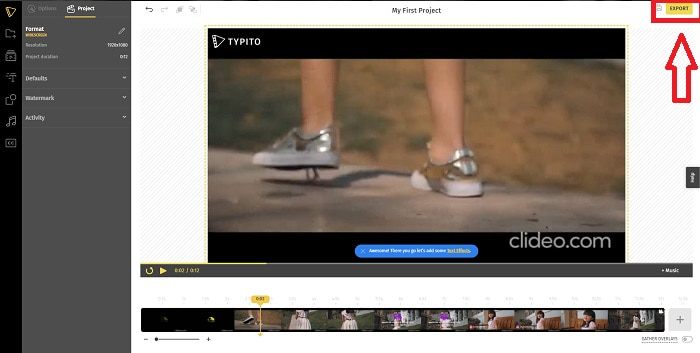
Trinn 3. Ved å klikke på Export øverst til høyre i grensesnittet kan du laste ned den konverterte filen til skrivebordet. Last den ned når den er klar.
Fordeler
- Det er et nettbasert verktøy som er enkelt å bruke.
- Den inneholder formater og maler du kan bruke til å redigere videoen din.
Ulemper
- Grensesnittet til webverktøyet er for enkelt.
- Den har få verktøy tilgjengelig.
Del 4. Vanlige spørsmål om hvordan lage sakte film
Mister jeg kvaliteten på videoen hvis jeg bremser ned?
Nei, det samme med å øke avspillingshastigheten til videoen din; sakte ned videoen mister ikke kvaliteten på videoen. Av en eller annen grunn hvorfor noen av videoene blir litt glitchy etter å ha redusert avspillingshastigheten til videoen, er videokvaliteten deres allerede kjedelig og lav. I tillegg, hvis du intensiverer for å redusere avspillingshastigheten til videoklippet ditt, vil bildefrekvensen deles i to, noe som forårsaker en forsinkelse og reduserer kvaliteten.
Hvilken app er best for sakte film?
Video Converter Ultimate er den beste gratis nedlastbare konverteren eller redigereren som finnes for Windows og Mac. Den har også funksjoner som kan forbedre og optimere videoen din, og den er tilgjengelig for alle brukere som vil bruke konverteren.
Er Google Foto den beste appen for å konvertere sakte filmer til normal hastighet?
Som man kan forestille seg, er det noen ulemper ved å bruke denne gratis appen. Først og fremst er videobehandlingshastigheten relativt lav, spesielt når du redigerer et langt videoklipp. I tillegg, hvis du deler videoen før du endrer avspillingshastigheten, vil bakgrunnslyden eller talefortellingen dempes. Uansett er det en flott gratis Android-app. Du kan fortsatt bruke tredjepartsapper, men de fleste av de praktiske å bruke er ikke gratis.
Konklusjon
For å avslutte denne artikkelen på topp: Å lage en saktefilmvideo vil være enkelt som bare det ved å bruke løsningene nevnt ovenfor. Video Converter Ultimate kan regnes som en saktefilmvideoredigerer som gjør arbeidet med saktefilm enda enklere og mer håndterlig enn før. Mengden funksjoner i dette programmet gjør at det med rette kan kalles en profesjonell redigerer du vil bruke.
-
 [Løst] Hvordan fikse videoer som ikke spilles av på iPhone med detaljerte trinn
 Lokale videoer på galleriet kan ikke spilles av på iPhone via standard videospiller? Online YouTube -videoer som ikke spilles av på iPhone, skjer alltid? Her er 5 løsninger for å hjelpe deg i denne artikkelen.
-
 5 brukbare metoder for å fikse QuickTime Kan ikke åpne MOV-filer
 MOV-formatet er hovedsakelig laget for avspilling i QuickTime Player. Noen ganger kan du imidlertid oppdage at de ikke spiller i den. Lær hvordan du fikser QuickTime vil ikke spille MOV-filer fra dette innlegget.
-
 Hvordan konvertere MKV-filer for å spille på PS3 jevnt [løst]
 Vil du spille MKV -videoer på PS3? PS3 kan imidlertid ikke spille av MKV -filer direkte. Denne artikkelen viser deg måter å konvertere MKV -videoer til PS3 -støttede videoformater for å spille på PS3 uten problemer.
