


 Video Converter Ultimate
 Skjermopptaker
 Videoreparasjon
Hvordan lage sakte filmer i Windows Movie Player
Videoproduksjonsbransjen har i det siste vokst på grunn av den økende etterspørselen etter videoinnhold fra internettbrukere. Ulike plattformer for videoforbruk vokser raskt, spesielt YouTube, som nå er den nest mest populære søkemotoren og vil fortsette å være det. På grunn av dette har innholdsskapere utforsket videoproduksjonens muligheter for å være så kreative som mulig for å møte de stadig høyere standardene til seere og potensielle seere. En av disse måtene er å gjøre et klipp i videoen i sakte film for å legge til en dramatisk effekt. For å gjøre dette kreves det imidlertid programvare eller en app som sannsynligvis er utilgjengelig for spirende skapere som nettopp har startet i bransjen. Denne artikkelen har derfor som mål å hjelpe ved å gi enkle trinn for hvordan lage en saktefilmvideo i Windows Movie Maker.

Del 1. Hvordan lage sakte film på Windows Movie Maker
Sakte filmer er en av de beste dramatiske effektene å inkludere i forskjellige typer videoer. Det kan være å fremheve et klipp, få en følelsesmessig innvirkning på en seer, og mange andre formål du kan finne på. Heldigvis kan dette enkelt gjøres ved å bruke Windows Movie Makers sakte filmeffekt. Den kan enkelt lastes ned i Microsoft Store, og bare følg denne saktefilmveiledningen for Windows Movie Maker for å oppnå det du har tenkt å gjøre med videoen din.
Trinn 1. Åpne Windows Movie Maker. For å laste opp videoer og bilder fra datamaskinen din, velg Legg til videoer og bilder, eller du kan bare dra og slippe videoer til storyboardet.
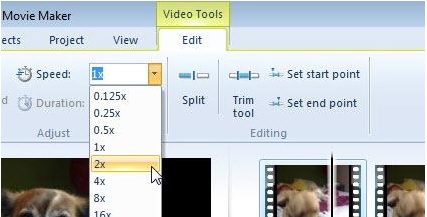
Trinn 2. Velg videoklippet og gå til Rediger-fanen under Videoinnstillinger (Video Tools).
Trinn 3. Klikk på nedtrekksmenyen under Hastighet for å velge en avspillingshastighet avhengig av hvor sakte eller rask du vil at videoen din skal se ut. For å sjekke om du har fått hastigheten du ønsket, trykker du på trekantens avspillingsknapp, og når du er fornøyd, klikker du på lagreikonet i øvre venstre hjørne av vinduet.
Windows Movie Maker er et utmerket gratis videoredigeringsprogram, men det mangler enkelte funksjoner sammenlignet med andre videoredigeringsapplikasjoner. Gå videre til neste del for å se et annet videoredigeringsprogram enn Windows Movie Maker som har saktefilm-effekter og samtidig tilbyr kraftige redigeringsverktøy.
Del 2. Video Converter Ultimate: Beste alternativet for å lage slowmotion-videoer
Hvis du synes Windows Movie Maker er utilstrekkelig for dine videoredigeringsbehov og ikke vil ty til et nettbasert verktøy eller annen ikke-gratis programvare, kan du bruke Video Converter Ultimate til å produsere videoene dine og legge til en saktefilm-effekt med bare ett klikk. Video Converter Ultimate er et av de beste alternativene til alle mediespillere, nettverktøy eller til og med programvare når det gjelder å justere avspillingshastigheten til en video. Med muligheten til å øke eller redusere avspillingshastigheten med ett klikk er det internettets mest brukervennlige programvare. I tillegg produserer det også videoer i høy kvalitet, selv når du konverterer videoer i normal hastighet til sakte film. For å vite mer om hvordan prosessen foregår, følger du trinnene nedenfor:
Trinn 1. Last ned programvaren ved å klikke på knappen Gratis nedlasting. Når .exe-filen er lastet ned, åpner du den for å fortsette installasjonen. Vent til den er ferdig, og klikk på knappen Start nå.
Gratis nedlastingFor Windows 7 eller nyereSikker nedlasting
Gratis nedlastingFor MacOS 10.7 eller nyereSikker nedlasting
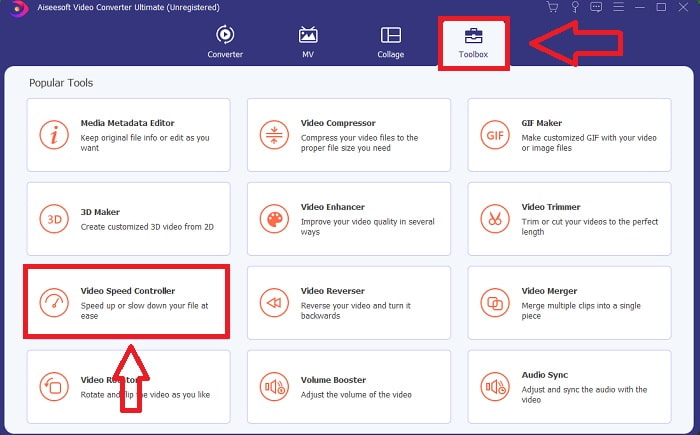
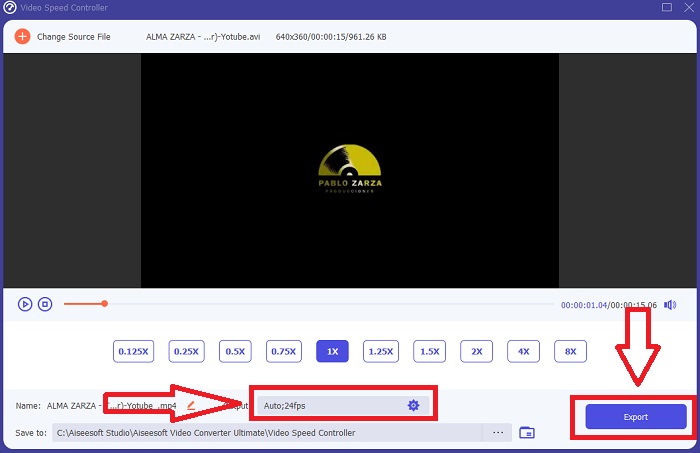
Trinn 2. Etter installasjonen kan du gå direkte til programmet ved å starte det. Klikk på funksjonen Verktøykasse helt til høyre på fanen øverst, og deretter på alternativet Videohastighetskontroller for å begynne å redigere.
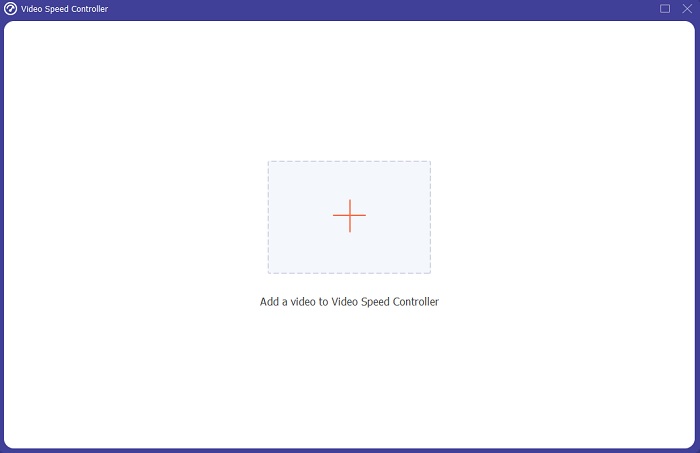
Trinn 3. Et nytt vindu vil dukke opp midt på skjermen. Klikk på + for å legge til videofilen du ønsker å redigere.
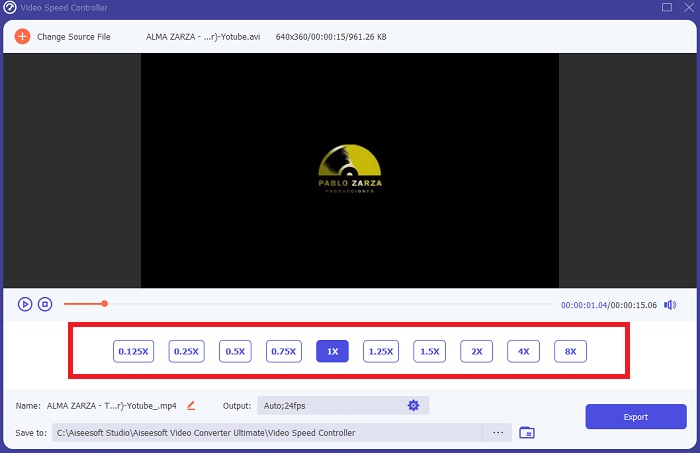
Trinn 4. Når videofilen er åpnet, kan du velge mellom de ulike avspillingshastighetene som vises under videoen, avhengig av hvor mye saktefilm-effekt du vil gi videoen din.
Trinn 5. Du kan redigere videoutdataene når det gjelder video – som format, oppløsning, bildefrekvens og kvalitet – og lyd, som samplingsfrekvens og bithastighet, i innstillingene for utdata. Du kan også velge hvor videoen skal lagres for eksport rett under innstillingene for utdata. For å lagre klikker du på knappen Eksporter nederst til høyre i vinduet og venter til det er ferdig.
Relatert:
Del 3. Vanlige spørsmål om å lage slowmotion-video
Hvordan fungerer sakte film?
Sakte film er ganske enkelt teknikken for å spille av opptak med en lavere bildehastighet enn da den ble tatt opp. Dette vil imidlertid ikke fungere med hvilken som helst video - eller i det minste ikke bra. Du vil være sikker på at du tar opp med en rimelig bildefrekvens. Hvis du tar 120 bilder per sekund og deretter spiller av det med 24 bilder per sekund, vil klippet ditt kjøre i 5 sekunder siden 120/24 = 5. Denne videoen har blitt bremset fem ganger.
Hva er bildefrekvensen, og hva betyr den for sakte film?
Hvilken FPS bør jeg bruke for sakte film?
For å lage en sakte video kan du bruke en rekke bildefrekvenser. I virkeligheten kan en hvilken som helst bildefrekvens over 24-30 FPS brukes til å lage saktefilmer, men utseendet og følelsen vil variere. Som et tommelfingerspørsmål, jo høyere bildefrekvens, desto tregere kan filmen din være. I tillegg, jo raskere bildefrekvensen er, desto lenger varer saktefilmbildet ditt. Dette betyr imidlertid ikke at tregere alltid er bedre. Alt avhenger av hvor treg du vil at filmen skal virke og hvor lenge du vil at klippet skal vare.
Konklusjon
Å være i videoproduksjonsbransjen eller bare lage innhold som en hobby betyr å utforske hvordan du gjør videoen din annerledes enn før eller fra andre. Derfor er det viktig å legge til allsidighet til arsenalet ditt – du vil aldri vite hva som vil fange seernes oppmerksomhet hver dag som har gått. En av de enkleste er å lære å leke med løpetempoet til klippene dine. Sakte film kan være over hele internett allerede, men det avhenger alltid av hvordan du bruker det og gjør det til ditt eget. Så det er ganske viktig å ha programvare ved din side som du er sikker på at vil kunne redigere avspillingshastigheten til videoen sømløst når som helst. Denne artikkelen vil gi det enkleste og beste alternativet for å gjøre deg kjent med hvilken programvare du skal bruke for å lage sakte filmer.
-
 Topp 4 beste VOB -spillere for Android -mobiler for forskjellige bruksområder
 Når du laster ned VOB -videoer og vil se dem på Android, kan du velge den mest passende blant de fire beste VOB -spillerne i denne artikkelen.
-
 Topp 5 beste Windows Media Player -alternativer for Android -mobiler
 Siden du ikke kan laste ned Windows Media Player for Android, bør du lese denne artikkelen og lære om de 5 beste alternativene til Windows Media Player.
-
 Topp 5 beste videospillere for iPhone du ikke bør gå glipp av i 2021
 For å spille av videoer i alle formater og få en bedre seeropplevelse på iPhone, bør du lese denne artikkelen og lære om de beste 5 videospillerne for iPhone 12/11/X/8/7/6.
