


 Video Converter Ultimate
 Skjermopptaker
 Videoreparasjon
5 siste metadatauttrekkere for å trekke ut data på fil [bevist]
Metadata er data du ikke kan se i selve mediefilen; det er i bunn og grunn skjult innhold. Hver fil har ulike sett med metadata, og som oftest må du hente ut metadata fra filen fordi de angir viktig informasjon. For å gjøre dette trenger du et verktøy som kan hente ut metadata fra filen din. Uten videre om og men: finn ut hvilket metadatauttrekksverktøy som gir en enkel, men effektiv måte å fjerne metadata fra filen din på.

Del 1. Top of the Line Metadata Extractor/Editor på Windows og Mac frakoblet
FVC Video Converter Ultimate er det beste eksemplet på et metadatauttrekksverktøy du kan bruke på datamaskinen din selv uten internettforbindelse. Dette verktøyet kan hjelpe deg med å hente ut alle metadataene fra filen din uten at du trenger å anstrenge deg nevneverdig. I motsetning til andre uttrekksverktøy kan dette verktøyet også fjerne, redigere eller til og med opprette nye metadata i filene dine. I tillegg kan du gjøre mange andre ting når du har lastet ned omformeren; vil du se nøkkelfunksjonene? Ta en titt på listen nedenfor.

FVC Video Converter Ultimate
5 689 200+ nedlastinger- Kan raskt trekke ut, redigere og legge til metadata på alle video- og lydfiler selv om du ikke er en ekspert.
- Den støtter ulike formater du kan laste opp på verktøyet, inkludert MP4, MOV, AVI, MKV, FLV og mer.
- Det grafiske brukergrensesnittet er utmerket sammenlignet med den andre datauttrekkeren du kan finne på markedet.
- Ingen vannmerke brukes etter at du eksporterer mediefilen hit.
- Det fungerer best selv om du ikke har en avansert Windows- eller Mac-enhet.
Gratis nedlastingFor Windows 7 eller nyereSikker nedlasting
Gratis nedlastingFor MacOS 10.7 eller nyereSikker nedlasting
Du kan få alt dette hvis du bruker det ultimate verktøyet, og for å lære deg hvordan du trekker ut informasjonen på filen din ved å bruke verktøyet, følg veiledningen vi gir nedenfor.
Trinn 1. Last ned programvaren til datamaskinen ved å klikke på det operativsystemet du bruker, Windows eller Mac. Klikk deretter på filen for raskt å installere den på datamaskinen, og start programmet for å begynne prosessen med å hente ut metadata.
Gratis nedlastingFor Windows 7 eller nyereSikker nedlasting
Gratis nedlastingFor MacOS 10.7 eller nyereSikker nedlasting
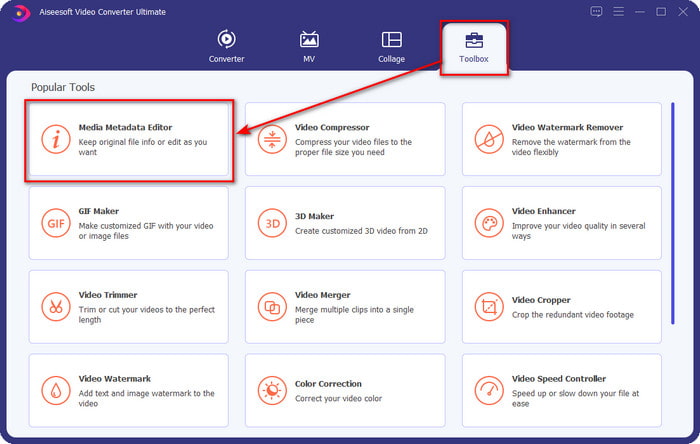
Trinn 2. Når du har åpnet verktøyet, går du til delen Verktøykasse, finner Media Metadata Editor og klikker på den.
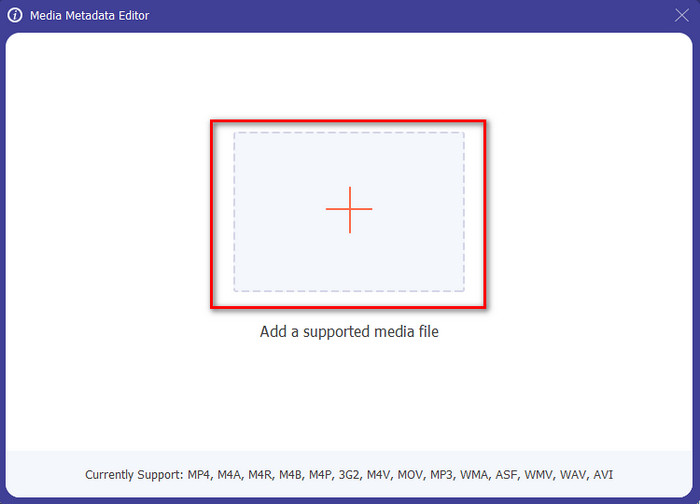
Trinn 3. Etter at du har klikket på den, vises et nytt vindu. Klikk deretter på +-ikonet for å laste opp mediefilen du ønsker. Finn mediefilen i mappen som dukker opp, klikk på filen og trykk Open for å sette den inn.
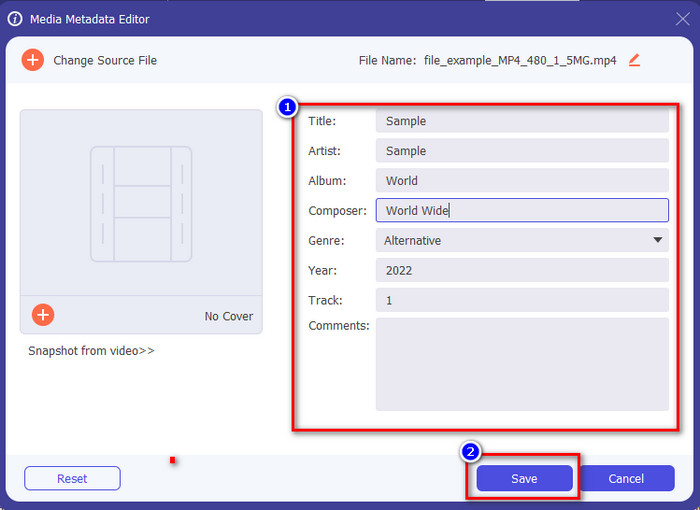
Trinn 4. Nå kan du hente ut eller fjerne metadata du ikke vil ha med i filen, men du kan også endre metadata ved å fylle ut tekstboksen. Når du er ferdig, klikker du Save for å bruke endringene du har gjort i filens metadata. Er det ikke enkelt? Vel, vi visste allerede at dette verktøyet er lett å bruke, så prøv det!
Del 2. Topp 4 metadataekstraksjonsverktøy tilgjengelig på nettet
Før vi introduserer alternativet for å trekke ut metadata på filen din, må du vite at alle de etterfølgende uttrekkerne trenger en internettforbindelse for å bruke eller få tilgang til. Så hvis du har en ustabil tilkobling, er dette verktøyet kanskje ikke det beste for å trekke ut metadataene. Men hvis du vil vite de fire beste metadatafjernerne, kan du lese følgende detaljer nedenfor.
Topp 1. Brand Folder – Metadata Extractor
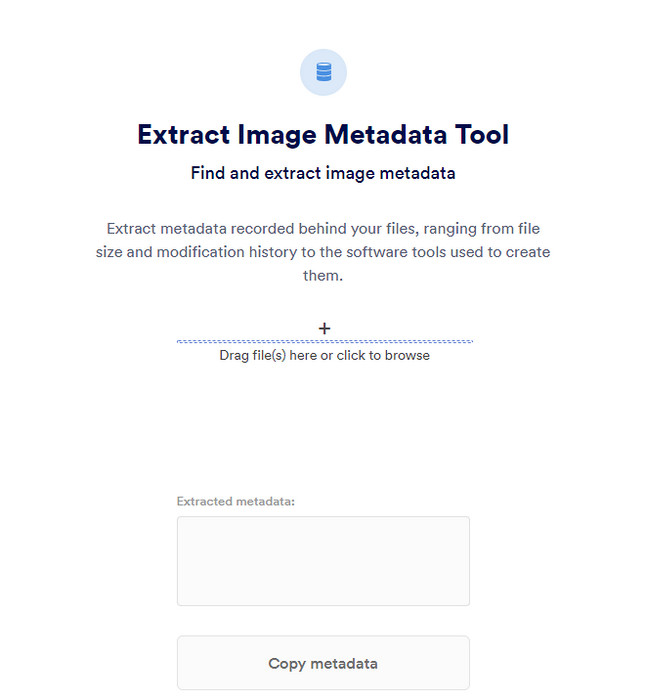
Hvis du vil bruke et metadatauttrekksverktøy som er gratis på nett, kan Brand Folder – Metadata Extractor tilby dette for deg. Dette nettbaserte uttrekksverktøyet er det beste gratisvalget for å fjerne data i bildet eller PDF‑en din, og etter at du har hentet dem ut, kan du kopiere dem til utklippstavlen. Nettverktøyet tilbyr også flere funksjoner du kan trenge til filen din. Selv om det er gratis å bruke, har verktøyet noen ulemper; for det første kan du bare hente ut data fra bilde eller PDF fem ganger om dagen, og etter det kan du ikke bruke det igjen.
Fordeler
- Et gratis verktøy på nettet.
- Enkel å bruke selv om du ikke er en proff på å trekke ut data.
- Den trekker automatisk ut dataene på bildet og filen enkelt.
Ulemper
- Du kan bare bruke den fem ganger om dagen.
- Den kan ikke trekke ut videometadata fordi den ikke støttes.
- Noen ganger kan du ikke bruke verktøyet på grunn av dårlig internettforbindelse.
Topp 2. EXIF-Viewer
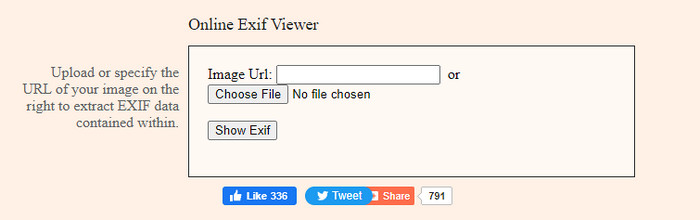
Et annet kraftig metadatauttrekksverktøy på nett er EXIF-Viewer. Dette verktøyet lar deg vise, fjerne og redigere metadata i mediefilen din gratis. Selv om brukergrensesnittet ser dårlig ut, er verktøyets effektivitet god sammenlignet med det første verktøyet på listen. Men når du bruker verktøyet, er ikke tilkoblingen din sikret, og noen kan stjele informasjonen din hvis du bruker dette verktøyet, så vær forsiktig med hvilke filer du laster opp her.
Fordeler
- Den støtter forskjellige varianter av mediefilformater.
- Den har en enkel GUI.
- Få tilgang til verktøyet gratis på nettet.
Ulemper
- Tilkoblingen er ikke sikret når du først har tilgang til den.
- Nettverktøyet bruker lengre tid på å laste inn metadataene.
- Annonser ligger på nettsiden.
Topp 3. EXIFMeta
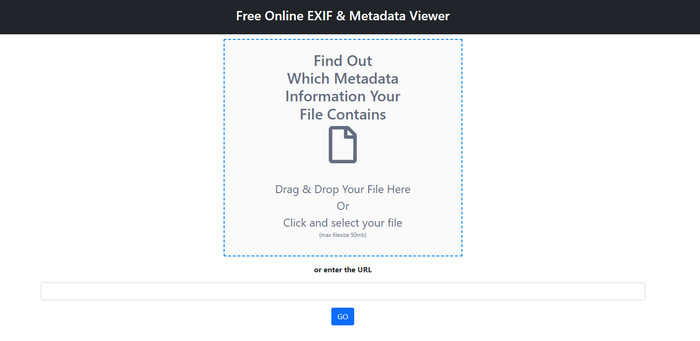
EXIFMeta er et annet eksempel på et metadatauttrekksverktøy på nettet som du kan bruke til å vise de skjulte dataene i filene dine. Nettverktøyet støtter også ulike mediefiltyper du kan laste opp, som bilder, video, lyd og dokumenter. Hvis du bruker dette verktøyet, kan du se grunnleggende informasjon om mediefilen din. Selv om nettverktøyet tilbyr mange muligheter for hva du kan gjøre med metadataene dine, er ikke ytelsen like god som hos de andre verktøyene. I tillegg må du forsikre deg om at mediefilen din er mindre enn 50 MB for å kunne laste den opp til verktøyet.
Fordeler
- Du kan enkelt laste opp forskjellige mediefiler her.
- Den har et mye bedre GUI enn det andre webverktøyet.
- Se de innebygde metadataene på mediefilen din ved hjelp av dette verktøyet.
Ulemper
- Du er begrenset til å laste opp en videofil som er under 50 MB.
- Noen ganger fungerer det dårlig hvis du vil trekke ut metadataene.
Topp 4. Kodeverktøy – EXIF Metadata
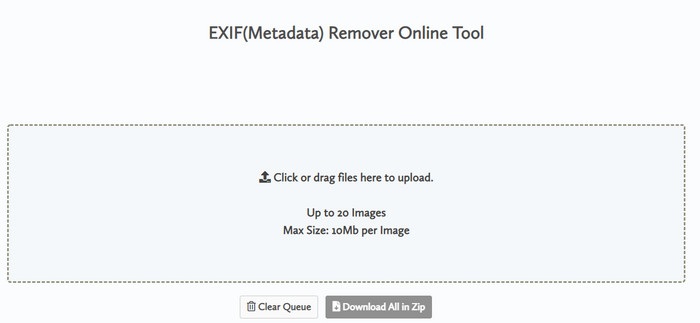
Med Coding tools – EXIF Metadata kan du raskt fjerne metadata fra bildene dine. Dette metadatauttrekksverktøyet er gratis å bruke på nettet, noe som betyr at du kan bruke verktøyet så lenge du har internettforbindelse, akkurat som de andre uttrekksverktøyene ovenfor. I motsetning til de andre nettverktøyene lar dette deg sette inn flere filer og fjerne metadata samtidig. Selv om nettverktøyet tilbyr svært gode funksjoner for uthenting, vil opplasting av filene ta tid hvis filstørrelsen er stor og nettet ditt er tregt.
Fordeler
- Det er trygt å få tilgang til din favorittnettleser.
- En enkel og lett å forstå GUI.
- Ingen annonser på nettgrensesnittet.
Ulemper
- Den beholder bildefilen din i 1 time før du sletter den.
- Mesteparten av tiden, når du laster opp, mislykkes det.
- Det er en begrensning på filstørrelsen du kan laste opp.
Del 3. Vanlige spørsmål om Metadata Extractor
Kan jeg legge til metadata i filen min?
Du kan lese trinnene vi gir på det ultimate verktøyet for å legge til metadata på en hvilken som helst fil.
Kan noen se metadataene mine?
Det er trist å si det, men ja, hvis du legger ut en mediefil på internett, kan noen se metadata i filen din. Med metadata kan noen få vite informasjon om bildene og annen personlig informasjon som plassering, tidspunkt, dato, enheten som er brukt, og mye mer.
Hvorfor må jeg trekke ut metadataene?
Mange kan forekomme, men vi trekker ut metadataene på filen fordi vi ikke vil at noen skal invadere personvernet vårt. Selv om metadata har en god side, husk at det også har en ulempe. Så pass på at metadata kan hjelpe deg å vite informasjon om filen, men den kan også brukes til å trekke ut informasjon om filen av noen.
Konklusjon
Metadatauttrekksverktøyene vi presenterer i denne artikkelen, gjør en god jobb med å hente ut metadata fra mediefilen du har. Selv om du fjerner eller redigerer metadata, kan du fortsatt vise mediefilen uten at den blir ødelagt. Da vi undersøkte mer om forskjellene mellom verktøyene, fant vi ut at FVC Video Converter Ultimate er det ultimate hjelpemiddelet til denne oppgaven. Enten du er proff eller ikke, kan du enkelt fjerne eller endre metadata med bare noen få klikk. Så hvis du ikke har noe verktøy å bruke, anbefaler vi på det sterkeste at du bruker dette ultimate verktøyet for å gjøre jobben og fullføre den feilfritt.
-
 4 av de beste metadataviserne på nett og uten nett [Oppdatert 2025]
 Kan jeg sjekke metadataene til filen min? Ja, det kan du, ved hjelp av dette innlegget vil vi introdusere deg de forskjellige metadataviserne du kan bruke.
-
 Topp 5 videometadataredigerere for 2025 [Ubiased review]
 Vil du se videometadataene dine? I så fall, les detaljene nedenfor for å forstå emnet fullt ut og vite hvilket verktøy som passer deg best.
-
 7 populære musikktag-redigerere på Windows, Mac og mobile enheter
 Musikkkoder er populære å bruke for å arrangere musikken i biblioteket ditt i henhold til dataene inne. Hva om du vil endre det? Les detaljene nedenfor for å vite mer.
