


 Video Converter Ultimate
 Skjermopptaker
 Videoreparasjon
3 enkle måter å spole frem en video på din iPhone
Vil du øke hastigheten på videoavspilling på iPhone gratis, men vet ikke hvordan?
Etter opptak, under den grunnleggende redigeringen, trenger du ofte å endre avspillingshastigheten på videoen. Når det gjelder å øke hastigheten på en video på iPhone, kan du bruke de innebygde redigeringsfunksjonene i Bilder‑appen, den offisielle videoredigereren iMovie eller noen tredjeparts verktøy for å endre videohastighet. Dette innlegget deler 3 effektive metoder for å spole en video forover på iPhone.

Del 1. Slik spoler du en Slo-mo-video på iPhone med bilder-appen
iOS kommer med noen grunnleggende redigeringsfunksjoner for iPhone- og iPad-brukere for direkte redigering av en video eller et bilde. Når du vil spole fremover en slo-mo-video på iOS-enheten din, kan du bruke den innebygde editoren i Bilder-appen for enkelt å endre videoavspillingshastigheten. Merk at denne metoden bare fungerer for å endre videohastighet fra slo-mo til en vanlig hastighet.
Trinn 1. Åpne Bilder‑appen på iPhone, trykk på Album nederst på skjermen, bla ned til alternativet Medietyper, og velg deretter Sakte film. Her kan du finne saktefilmvideoen du ønsker å spole forover.
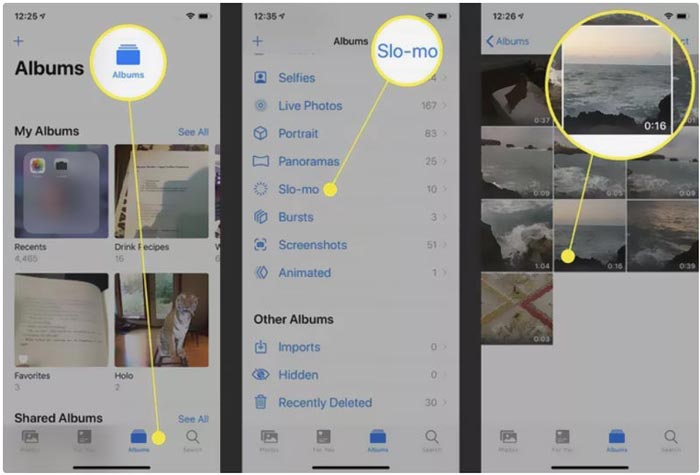
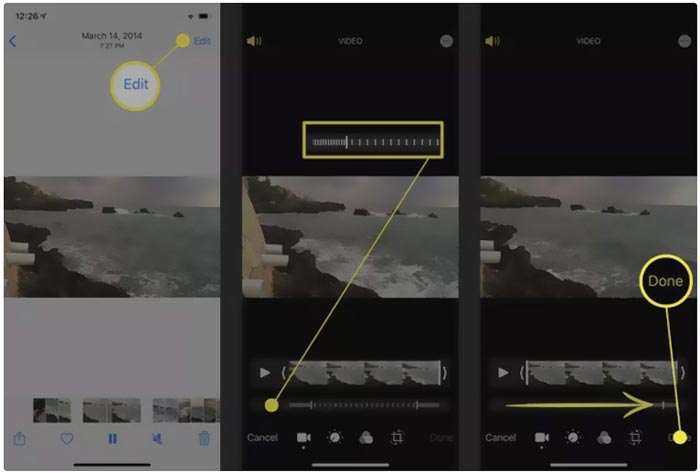
Trinn 2. Åpne saktefilmvideoen, og trykk på Rediger øverst til høyre for å vise flere redigeringsalternativer.
Trinn 3. Et sett med vertikale linjer vises under saktefilmvideoen. Nå kan du trykke på linjene og fritt øke avspillingshastigheten. Deretter kan du trykke på Ferdig for å bekrefte handlingen og lagre endringen.
Del 2. Hvordan spole frem en video på iPhone og iPad ved hjelp av iMovie
iMovie er den offisielle videoredigereren for iOS- og macOS‑enheter som iPhone, iPad og Mac. Den er utstyrt med mange vanlige redigeringsfunksjoner. Du kan enkelt spole en video forover eller senke hastigheten på en video på iPhone ved hjelp av iMovie.
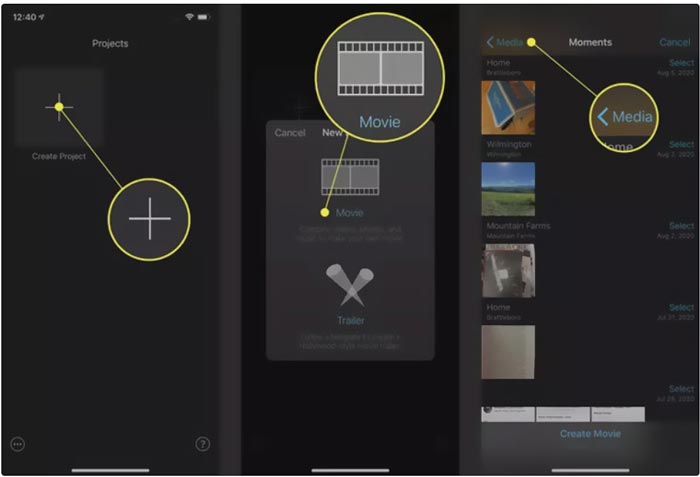
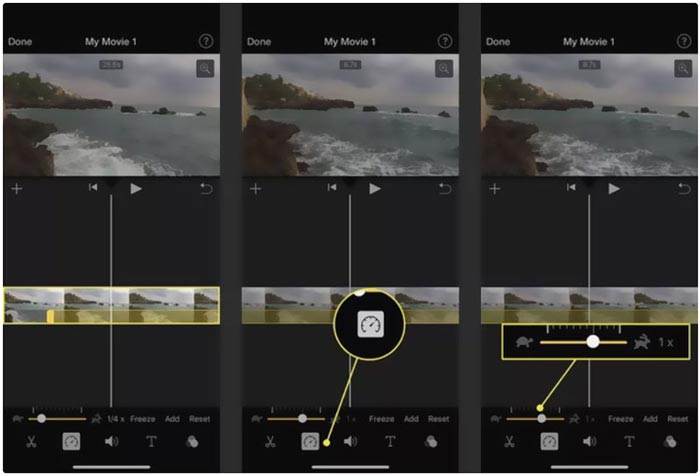
Trinn 1. For å spole en video forover på iPhone med iMovie, må du først gratis installere appen fra App Store og deretter opprette et nytt prosjekt for å endre videohastigheten. Velg og legg inn videoen du vil øke hastigheten på, i det opprettede prosjektet.
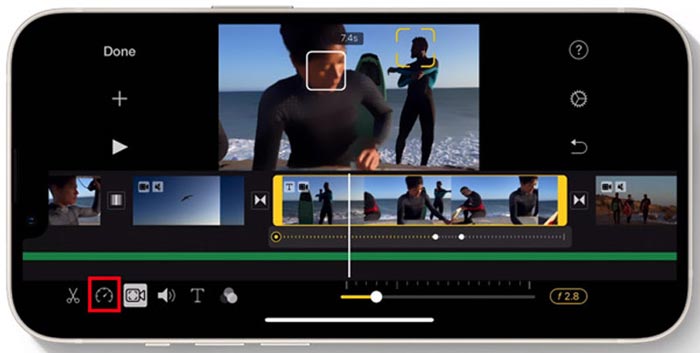
Trinn 2. Marker videoklippet på tidslinjen for å vise redigeringsalternativene nederst på iPhone‑skjermen. Du kan trykke på det andre klokke-ikonet for å få tilgang til kontrollene for avspillingshastighet. Nå kan du enkelt øke avspillingshastigheten ved å dra linjen mot høyre.
Del 3. Hvordan spole fremover en video tatt opp av iPhone
For videoer som er tatt opp med iPhone, kan du også velge å redigere dem på datamaskinen og enkelt endre avspillingshastigheten. Her introduserer vi det fullverdige programmet for videoredigering og konvertering, Video Converter Ultimate, for å endre videohastigheten.

FVC Video Converter Ultimate
5 689 200+ nedlastinger- Tilby Video Speed Controller-verktøyet for å spole fremover eller sakte film en video.
- Støtt alle populære videoformater inkludert MP4, MOV, AVI, FLV og MKV.
- 10 videoavspillingshastighetsendringsalternativer for å øke hastigheten eller senke en video.
- Ulike redigeringsfunksjoner for å redigere video, tilpassede bilde/lydeffekter og forbedre kvaliteten.
Gratis nedlastingFor Windows 7 eller nyereSikker nedlasting
Gratis nedlastingFor MacOS 10.7 eller nyereSikker nedlasting
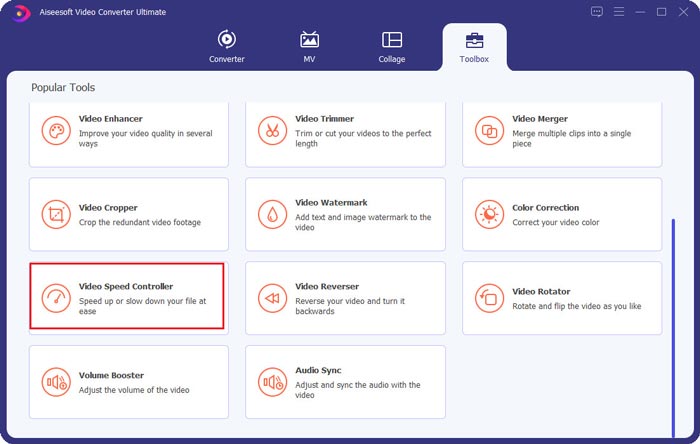
Trinn 1. Last ned og åpne Video Converter Ultimate på din Windows 11/10/8/7‑PC eller Mac. Klikk på Verktøykasse for å få tilgang til flere verktøy. Finn og åpne Video Speed Controller for å spole en video forover.
Trinn 2. Legg til videoen din ved å klikke på det store plusstegnet. Deretter har du 10 alternativer for å øke hastigheten eller sette videoen i sakte film. Med den innebygde medieavspilleren kan du se hastighetsendringen direkte. Du kan øke hastigheten på en video til 1,25x, 1,5x, 2x, 4x eller 8x, etter behov.
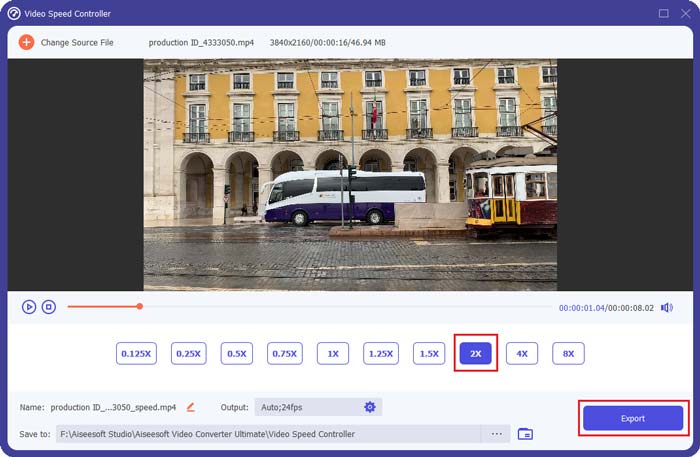
Trinn 3. Når du er fornøyd med avspillingshastigheten, kan du ganske enkelt klikke på knappen Eksporter for å lagre den redigerte videoen på datamaskinen.
Relatert:
2 enkle måter å gjøre en video raskere på TikTok
6 trendy videohastighetskontrollere for å øke eller senke hastigheten på videoer
Del 4. Vanlige spørsmål om endring av videoavspillingshastighet på iPhone
Hvordan spole frem en video på iPhone online?
Når du trenger å øke hastigheten på en video på iPhone, kan du bruke noen online videohastighetsvekslere som Clideo, Kapwing, Media.io og mer for enkelt å få jobben gjort.
Kan jeg spole frem en video på TikTok-appen?
Ja. Du kan åpne TikTok-appen, trykke og holde på videoen du vil øke hastigheten til du ser flere menyer vises på bunnskjermen. Nå må du rulle disse menyene fra høyre til venstre for å finne Hastighet-alternativet. Velg og bruk den til å spole fremover TikTok-videoen.
Kan jeg spole frem en video på iPhone mer enn 2X?
iMovie lar deg bare øke hastigheten på videoen til 2X. Når du vil spole fremover en videoavspillingshastighet mer enn 2X på en iPhone, må du stole på noen tredjepartsapper. Du kan også velge å kopiere iPhone-videoen til en datamaskin, og deretter stole på den anbefalte videohastighetskontrolleren for å justere videohastigheten.
Konklusjon
Dette innlegget dekker hvordan du spoler en video forover på iPhone ved hjelp av Bilder‑appen, iMovie og tredjeparts verktøy for endring av videohastighet. Du kan velge den metoden du foretrekker for å øke eller senke avspillingshastigheten.
-
 Topp 8 videooppløsningsomformere for bruk i multiplattformer [Oppdatert 2022]
 Har du ingen anelse om den beste videooppløsningskonverteren på enheten din? I så fall kan du lese denne artikkelen fullt ut for å vite mer om tilgjengelige videokonverterere.
-
 Topp 3 måter å legge til filtre på GIF med de beste GIF-redigererne [Favoritt]
 Vil du vite hvordan du legger til et filter i GIF for å gjøre det bedre? I denne bloggen vil du enkelt lære de forskjellige teknikkene for å legge til filtre til GIF-ene dine.
-
 Topp 6 videofilterapper du kan laste ned på Android og iPhone [2022]
 Vil du ha de beste videofiltermobilappene? Vel, vi vil gi deg det du ønsker. Denne artikkelen vil presentere en gjennomgang av de 6 siste filterappene du kan laste ned.
