


 Video Converter Ultimate
 Skjermopptaker
 Videoreparasjon
 Sikker nedlasting
Enkle trinn for å lage en perfekt time-lapse-video på din iPhone
Det finnes ulike kreative måter du kan filme en video på med en iPhone. Du kan for eksempel ta opp i sakte film, bruke kvadratmodus på kameraet, og du kan til og med lage en time‑lapse‑video. Hvis du lurer på hvordan du kan lage en time‑lapse‑video på iPhone, har vi løsningen for deg. Denne artikkelen vil hjelpe deg å lære hvordan du lager en time‑lapse‑video med iPhone‑kameraet ditt.

Del 1. Hva er en time-lapse-video
Hvis du lurer på hva time-lapse-videoer er og hvor du best kan bruke dem, må du sannsynligvis ikke hoppe over denne delen. For i denne delen vil du vite hva en time-lapse-video er og hvordan du ideelt sett kan bruke den.
En time-lapse er en videoredigeringsteknikk der bildefrekvensen per sekund (FPS) strekkes ut, noe som gjør den raskere når du spiller den. Men i en vanlig video er videoavspillingshastigheten den samme som bildefrekvensen. En time-lapse-video fungerer ved å fange opp mange bilder per sekund og tas langsommere enn normal hastighet for å lage en time-lapse-video. Dessuten er denne videoteknikken perfekt hvis du vil ta en video om skyens bevegelse på himmelen, en travel gate som mange går forbi, og til og med plantens vekst. I tillegg er time-lapse en videoteknikk der bildene per sekund tas med langsommere hastighet enn normalt.
Del 2. Hvordan ta opp en video-time-lapse på iPhone
Når du hører ordet time-lapse, kan det høres for teknisk ut. Men ikke bekymre deg fordi det er mange måter å lage en time-lapse-video på. Den beste og enkleste måten å lage en time-lapse-video på er å bruke en iPhone eller en hvilken som helst Apple-enhet. Apple-enheter har en innebygd time-lapse-opptaker som lar deg ta den beste videoen uansett anledning.
Trinn for hvordan du lager en time-lapse-video på iPhone:
Trinn 1. Åpne først kamera-appen på iPhone-en din.
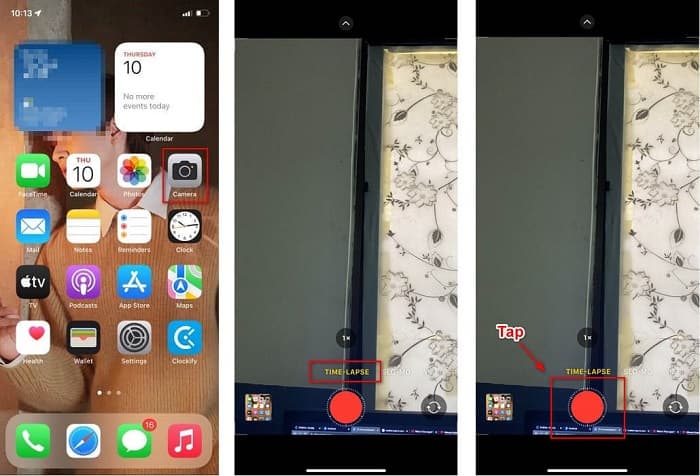
Trinn 2. Finn deretter time‑lapse-opptakeren i kameravalgene ved å sveipe over lukkerknappen.
Trinn 3. Gjør klar scenen du vil ta opp, og når du er klar, trykker du på opptaksknappen.
Trinn 4. Når du er ferdig med opptaket, trykker du på den røde stoppknappen for å avslutte time‑lapse‑opptaket.
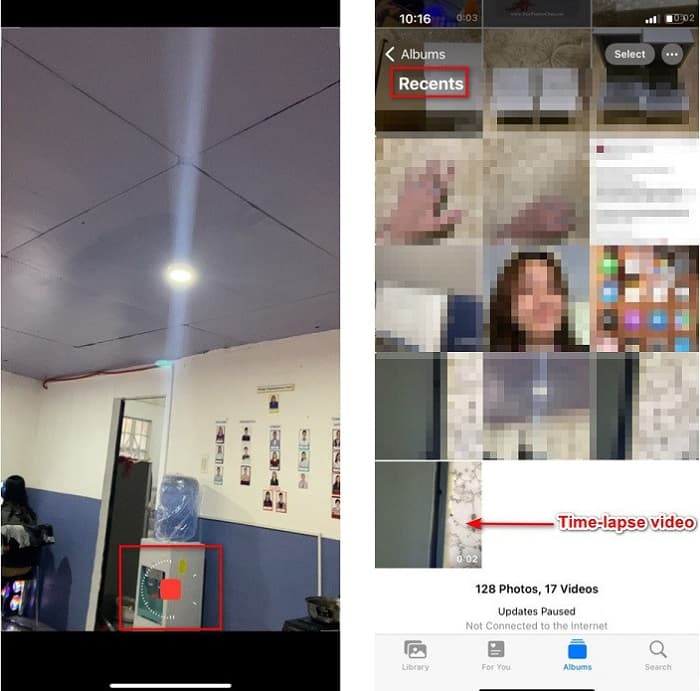
Trinn 5. Time‑lapse‑videoen lagres automatisk i Bilder under mappen Nylige.
Relatert:
Hvordan øke hastigheten på en video på iPhone
Hvordan lage en GIF av bilder på iPhone
Del 3. Slik bremser du en Time-Lapse-video på datamaskinen
Tror du det er mulig å senke hastigheten på en time‑lapse‑video som allerede er tatt opp? Grunnleggende sett er svaret ja. Hvis time‑lapse‑videoen du tok opp er raskere enn du hadde tenkt, og du vil gjøre den tregere, har du flaks – vi har funnet et verktøy som kan gjøre jobben for deg. FVC Video Converter Ultimate er ikke bare et verktøy for å konvertere filer. Det har også en innebygd kontroller for videohastighet der du kan justere hastigheten på time‑lapse‑videoen din.
Videre har den også flere verktøy å bruke som Video Reverser, Color Correction, Video Watermark og mange flere. I tillegg støtter den en rekke filformater som MP4, AVI, MKV, M4V, MOV og 1000+ mer. Så hvis du leter etter det beste verktøyet for å bremse time-lapse-videoen, er dette verktøyet det beste for deg.
Fordeler
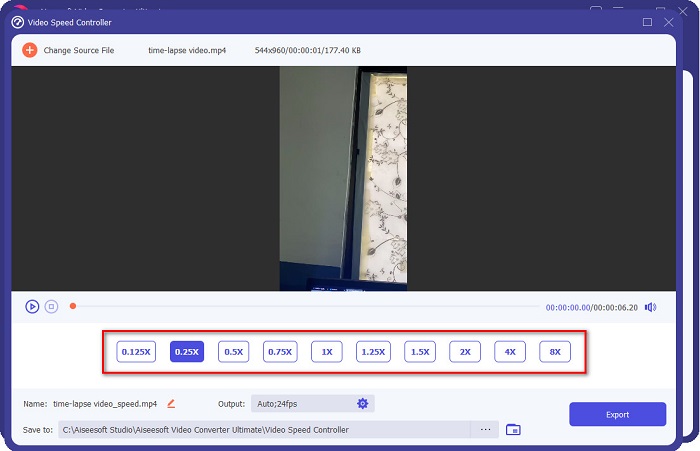
- Den lar deg justere videoavspillingshastigheten til 0,125x, 0,25x, 0,5x, 0,75x, 1,25x, 1,5x, 2x, 4x og 8x videohastighet.
- Den har mange avanserte funksjoner du kan bruke, som GIF-maker, 3D-maker og Video Speed Controller.
- Den har et brukervennlig programvaregrensesnitt.
- Tilgjengelig på alle medieplattformer, inkludert Windows og Mac.
Ulemper
- Kjøp appen før du får full tilgang til dens unike funksjoner.
Slik bremser du en time-lapse-video med FVC Video Converter Ultimate:
Trinn 1. Last ned FVC Video Converter Ultimate ved å klikke på Last ned-knappen nedenfor for Windows eller Mac. Etter at du har installert appen, starter du programmet.
Gratis nedlastingFor Windows 7 eller nyereSikker nedlasting
Gratis nedlastingFor MacOS 10.7 eller nyereSikker nedlasting
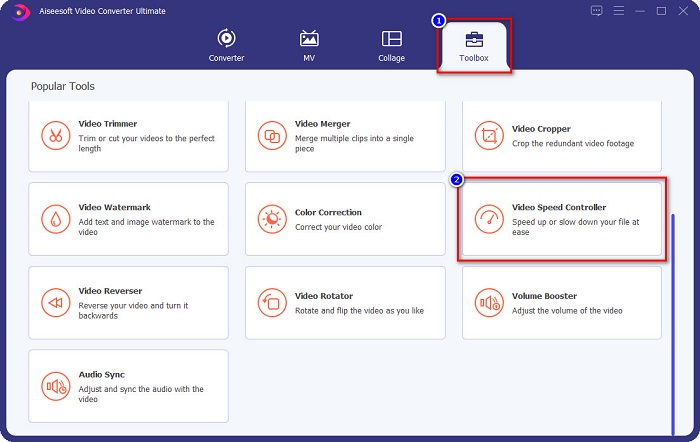
Trinn 2. Etter at du har åpnet appen, klikker du på Verktøykasse-valget øverst i hovedgrensesnittet. Og i Verktøykasse-panelet klikker du på Video Speed Controller.
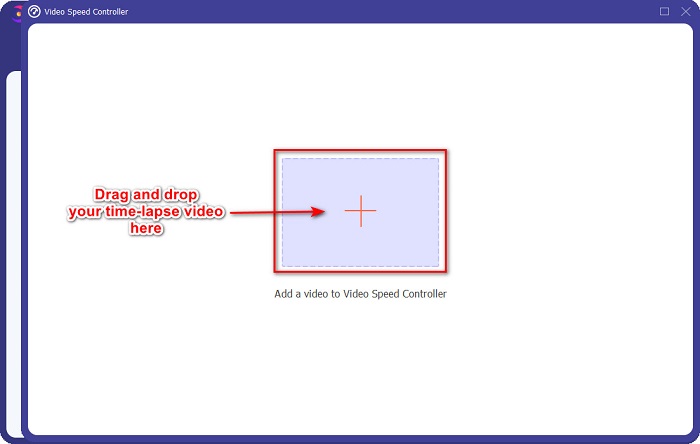
Trinn 3. Klikk så på +-knappen for å legge til time‑lapse‑videoen du vil gjøre tregere. Du kan også dra og slippe videofilen din til +-tegnet.
Trinn 4. I det neste grensesnittet vil du se alternativer for avspillingshastighet under videoen du har lastet opp. Velg deretter ønsket avspillingshastighet.
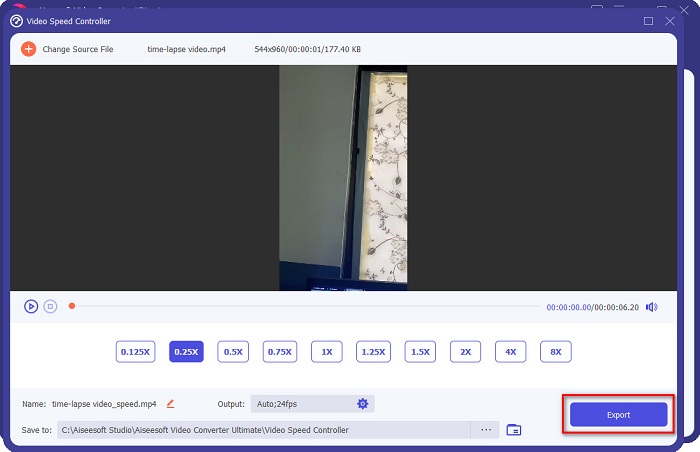
Trinn 5. Til slutt klikker du på Eksporter-knappen for å laste ned videofilen din. Du finner den i filsystemet på datamaskinen, og du vil se at videohastigheten er senket.
Del 4. Andre alternativer for hvordan lage en time-lapse-video
Å lage en time-lapse-video er ikke bare tilgjengelig for brukere av Apple-enheter. Du kan også lage en time-lapse ved hjelp av apper. Vi søkte etter de mest brukte appene på google og fant de beste appene som kan lage en time-lapse-video. Så les denne delen grundig hvis du ikke er en Apple-bruker eller ser etter en app som kan ta en time-lapse-video.
Alternativ 1. Framelapse
Framelapse er en time‑lapse‑opptaker som lar deg redigere oppløsningen på videoen helt opp til UHD 2160p 4K. I tillegg kan du sette en timer, justere hvitbalanse og eksponeringskompensasjon på videoen. Dessuten lar denne appen deg stille inn bildeintervallet for videoen.
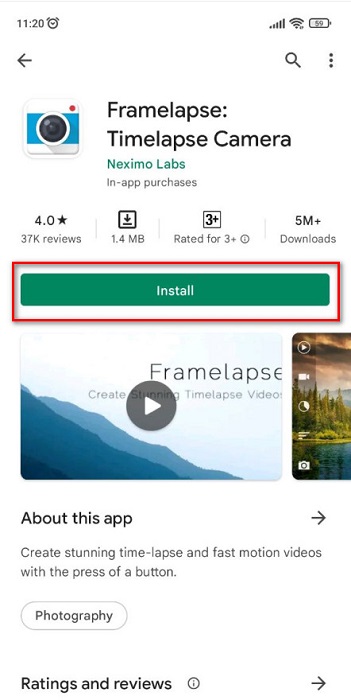
Trinn 1. Last ned Framelapse fra App Store, og åpne deretter appen.
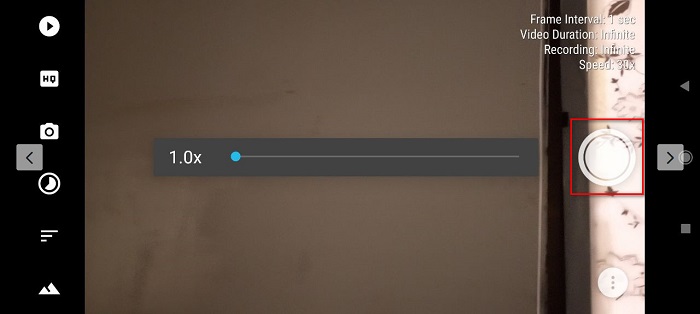
Trinn 2. I det første grensesnittet til programmet trykker du på den hvite opptaksknappen for å begynne å ta opp en time‑lapse‑video.
Trinn 3. Til slutt klikker du på stoppknappen når du er ferdig med å ta opp en time‑lapse‑video. Du finner time‑lapse‑videoen i Galleri/Bilder.
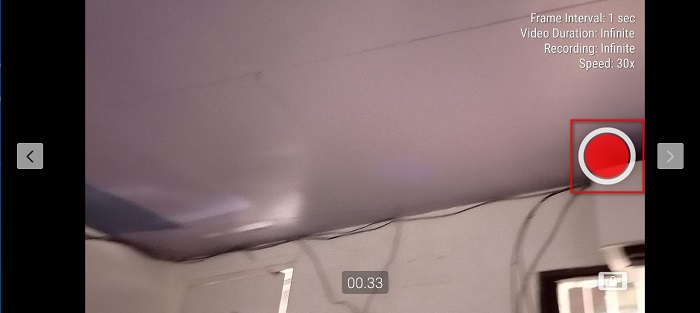
Alternativ 2. Superlapse
Appen Superlapse er en av de enkleste time‑lapse‑opptakerne som er tilgjengelig i App Store. Denne appen er perfekt for å ta opp gode time‑lapse‑videoer fordi du kan justere bildeintervall og opptaksvarighet. I tillegg kan du enkelt dele time‑lapse‑videoen din på nettet ved hjelp av denne appen. Den er imidlertid bare tilgjengelig på Android‑enheter.
Trinn 1. Først laster du ned Superlapse fra Android App Store. Åpne deretter appen.
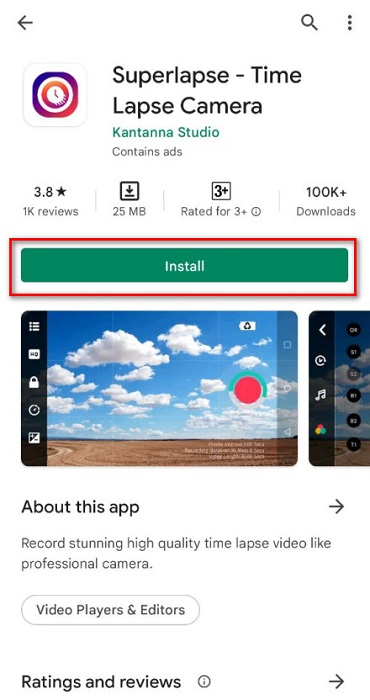
Trinn 2. Trykk så på opptak-knappen for å starte opptak av en time‑lapse‑video.
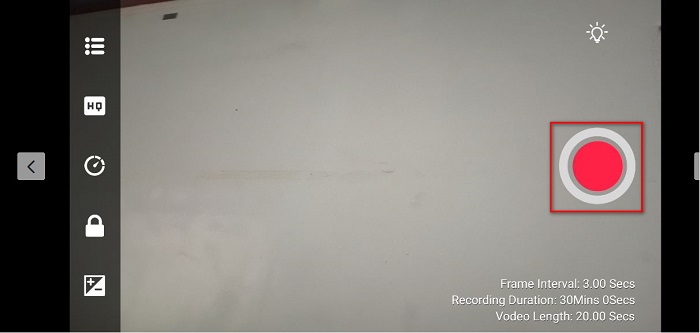
Trinn 3. Når du er ferdig med opptaket, trykker du på opptaksknappen igjen for å avslutte opptaket.
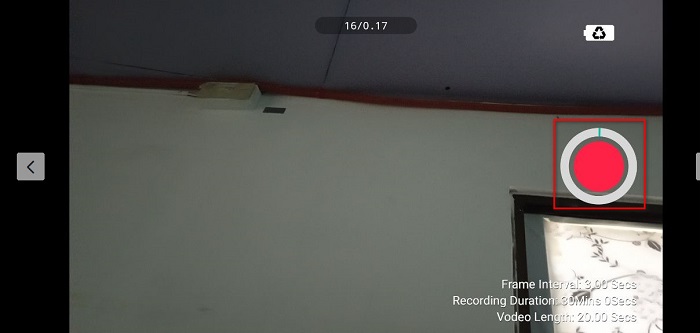
Alternativ 3. Time Lapse-kamera
Den siste time‑lapse‑videolageren vi skal snakke om, er Time Lapse Camera. Denne time‑lapse‑opptakeren er gratis tilgjengelig på alle Android‑enheter. Den har også et svært enkelt brukergrensesnitt, noe som gjør den nybegynnervennlig. I tillegg kan du velge om du vil lage en foto‑lapse eller video‑lapse. Og hvis du vil ta opp video om natten, kan du velge nattmodus. Videre kan du justere videooppløsning, bildeintervall og legge til et filter i time‑lapse‑videoen din.
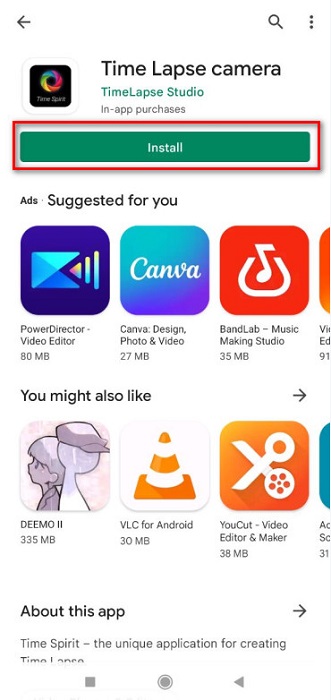
Trinn 1. Installer Time Lapse Camera på telefonen din. Start deretter appen.
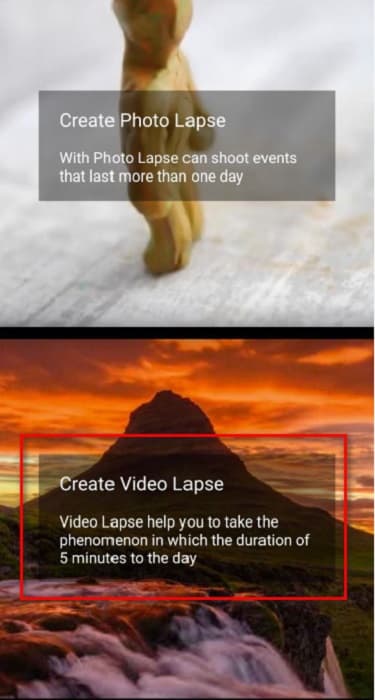
Trinn 2. I hovedgrensesnittet til programmet klikker du på Create Video Lapse. Trykk deretter på Normal mode.
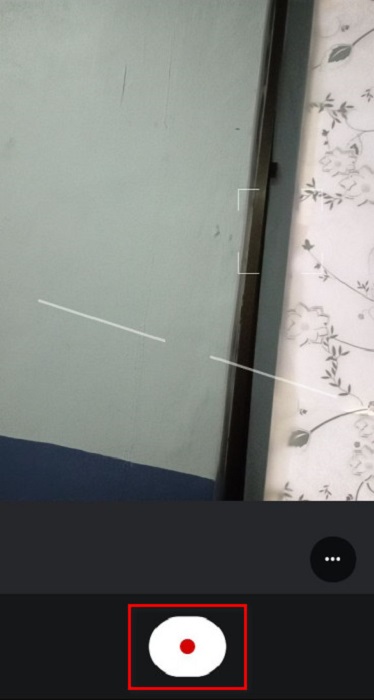
Trinn 3. Til slutt trykker du på opptaksknappen for å begynne å ta opp time‑lapse‑videoen din. Etter opptak trykker du på stoppknappen for å avslutte opptaket.
Del 5. Vanlige spørsmål om hvordan lage en time-lapse-video
Har Android-enheter en innebygd time-lapse-opptaker?
Ja. Andre Android-enheter som smarttelefoner har en innebygd time-lapse-opptaker. Men hvis Android-enheten din ikke har en innebygd time-lapse-opptaker, kan du bruke en tredjepartsapp.
Kan du lage en vanlig video til en time-lapse-video?
Ja. Du kan lage en vanlig video til en time-lapse-video på iPhone, eller du kan bruke et tredjepartsverktøy som er i stand til å konvertere din vanlige video til en time-lapse-video.
Hva er den maksimale tiden kan en time-lapse-video ha på iPhone?
Uavhengig av hvilken enhet du tar opp en time-lapse-video, har alle time-lapse-videoer maksimalt 40 sekunder.
Konklusjon
Alt i alt er det enkelt å ta opp en time‑lapse på iPhone. Men hvis du ikke er iPhone‑bruker, finnes det apper du kan prøve. Hvis du vil gjøre time‑lapse‑videoen din litt tregere for å gjøre den perfekt, trenger du et verktøy som hjelper deg å justere hastigheten på videoen. Og hvis du leter etter det beste verktøyet til dette, er FVC Video Converter Ultimate det beste og mest komplette verktøyet du kan bruke.
-
 Toppfakta du bør vite om QuickTime Slow Motion
 Har du prøvd å bruke QuickTime Media Player til å spille av video i sakte film? Les denne artikkelen for å vite mer om den utmerkede tjenesten denne mediespilleren har.
-
 Beste måter å bruke iMovie til å lage videoer i sakte film [Løst]
 Har du noen gang brukt iMovie-appen til å konvertere video med normal hastighet til sakte film? Dette er muligheten til å vite mer om denne applikasjonen, så fortsett å lese.
-
 3 beste sakte filmkameraer du bør vurdere å kjøpe
 Har du problemer med å velge det beste kameraet for å lage sakte filmer? Fortsett å lese og vurder disse listede beste saktefilmkameravalgene for deg.
