


 Video Converter Ultimate
 Skjermopptaker
 Videoreparasjon
 Sikker nedlasting
Hvordan endre størrelse på et bilde på iPhone ved å bruke 3 effektive måter [gratis]
Ikke alle bildene fra nettet som du har lagret på iPhonen din passer som bakgrunns- eller Hjem-skjermbilde på grunn av bildeforhold og dimensjoner. Noen ganger, når du bruker et bilde med feil dimensjoner som bakgrunn eller Hjem-skjerm, blir det uskarpt og får svarte kanter i stedet for å fylle skjermen. Plagsomt, ikke sant? Heldigvis kan du laste ned en bildeforminsker i App Store, bruke Snarveier, eller dra nytte av den innebygde bildeeditoren du allerede har. For å endre størrelsen på et bilde på iPhone raskt, kan du bruke noen minutter på å lese denne artikkelen for å forstå det bedre og løse størrelsesproblemet du har på enheten din.

Del 1. 3 effektive måter å endre størrelse på et bilde på iPhone [Nedlastbar og innebygd]
Bruke snarvei [innebygd]
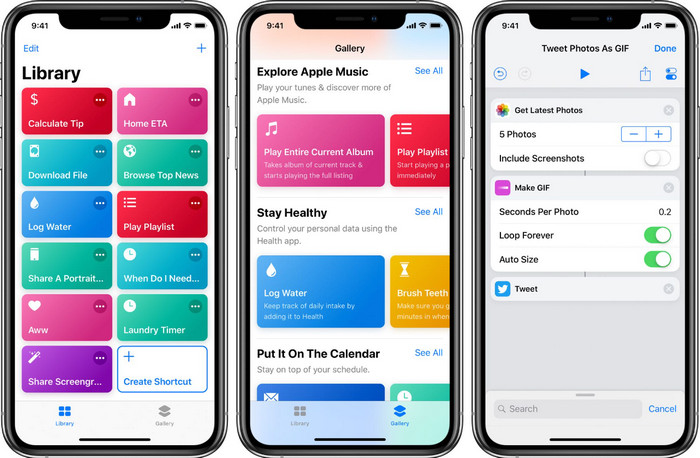
Snarveier lar iOS‑brukere lage avanserte funksjoner du kan bruke, for eksempel å endre størrelsen på bildet du har lagret lokalt. Alle iOS‑versjoner fra 13 og oppover har denne appen forhåndsinstallert. Siden appen er relativt ny, finnes den ikke ferdig installert på eldre versjoner. Men du kan laste den ned gratis fra App Store på iPhone eller iPad. For å vise hvordan du endrer størrelsen på et bilde på iPhone med denne, kan du følge trinnene vi har lagt til nedenfor.
Trinn 1. Åpne appen på iPhonen din, og trykk på pluss-knappen øverst for å legge til en snarvei for å endre størrelsen på bilder på enheten.
Trinn 2. Trykk på de tre linjene/prikkene, og gi snarveien et navn; for denne snarveien kan du bruke navnet Resizing Photo. Slå på Vis i Del-ark slik at hver gang du vil dele et bilde, vil det automatisk bli endret i størrelse hvis du velger denne snarveien.
Trinn 3. Fjern valget for «Alt» under typen Del-ark, og sett det til kun Bilder. Trykk deretter på Ferdig for å lagre innstillingene du har laget.
Trinn 4. Før du bruker denne funksjonen, må du trykke på pluss-ikonet, velge Media, og deretter trykke på Endre bildestørrelse. Du kan angi lengden slik du trenger den, og trykke Ferdig for å lagre. Nå vil du hver gang du deler et bilde ha muligheten til å endre størrelsen automatisk med denne snarveien.
Bruke Foto-appen [innebygd]
En annen innebygd app du fritt kan bruke på iPhone i alle versjoner, er Foto-appen. Gjennom mange år som en pålitelig bildeeditor og -forbedrer for alle iPhone‑brukere, ville det vært ufullstendig om vi ikke nevnte denne appen. Noen vet hvordan denne appen fungerer for å endre størrelse, og noen gjør det ikke. Så for de brukerne som ikke vet hvordan man endrer størrelsen på et bilde på iPhone, kan denne veiledningen hjelpe.
Trinn 1. Åpne Foto‑appen og trykk på bildet du vil endre størrelsen på.
Trinn 2. Etter at du har valgt bildet du vil endre størrelsen på, trykker du på Rediger.
Trinn 3. Trykk på beskjæringsikonet øverst i høyre hjørne, og trykk på knappen med firkantlignende symbol.
Trinn 4. Her vil det være ulike forhåndsinnstillinger for bildeforhold du kan velge mellom, og deretter trykker du på Ferdig for å lagre endringene.
Bruke bildestørrelse [Nedlastbar]
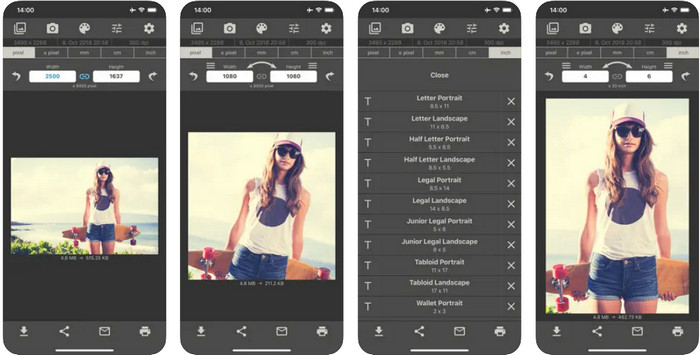
Image Size er en tredjepartsapp du kan stole på og laste ned til iOS for enkelt å endre størrelsen på bilder til iPhone‑bakgrunn. I motsetning til de to metodene vi har introdusert, må du laste ned denne appen fra App Store før du bruker den. Det er ikke en innebygd app i iOS, men den er tilgjengelig for de fleste iOS‑versjoner og kan lastes ned umiddelbart. Siden den er gratis å bruke og laste ned, vil det dukke opp mange annonser mens du bruker den. Hvis du ikke bryr deg om annonsene, kan du gå videre til trinnene for å bruke denne bildeforminsker-appen på iPhonen din.
Trinn 1. Installer denne bildeforminskeren på iOS‑enheten din, og åpne den.
Trinn 2. Trykk på bilde-ikonet for å laste opp bildet du vil at appen skal endre størrelsen på.
Trinn 3. Øverst vil du se at det er satt inn mål for bildet; endre dette til ønsket høyde og bredde.
Trinn 4. Trykk på nedlastings-knappen for å lagre bildet du har endret størrelsen på.
Del 2. Beste måten å endre størrelse på et bilde på nettet uten annonser eller installasjonsprosess
Med FVC Free Image Upscaler kan du enkelt endre dimensjonene på hvert bilde automatisk ved hjelp av AI. Du trenger ingen lang erfaring med å endre bildestørrelse, for det er lett å få til med denne appen. Millioner av brukere bruker denne appen for å endre størrelse, oppskalere, forbedre og øke kvaliteten på bildene sine på én gang. Det som gjør dette verktøyet enda bedre, er at du kan bruke det gratis. Er ikke det imponerende? Jo, det er det. En alt‑i‑ett‑editor er det denne appen tilbyr deg. For å hjelpe deg med å endre størrelsen på bildet ditt, følger du trinnene nedenfor og bruker dette verktøyet.
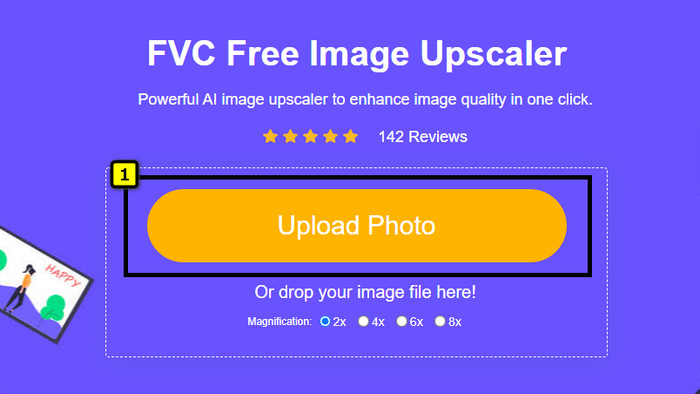
Trinn 1. Du kan åpne dette nettverktøyet ved å klikke på denne lenken, og en ny fane vil dukke opp på skjermen.
Trinn 2. For å legge til bildet du vil endre størrelsen på, klikker du på Add Image. Finn bildet i filutforskeren som vises på skjermen, og trykk på Open for å legge det til her.
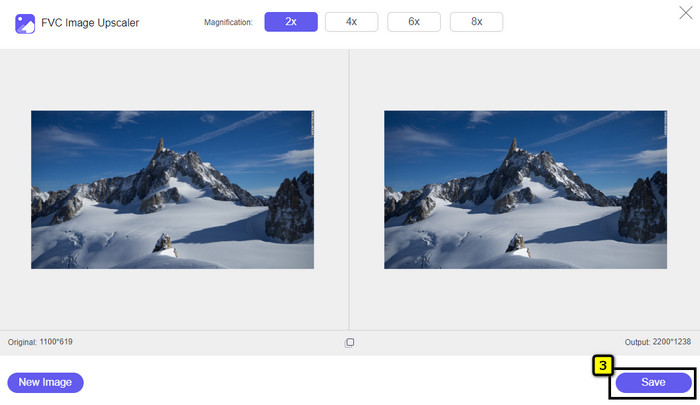
Trinn 3. Denne appen vil laste inn bildet du har lastet opp, og du velger forstørrelsen du vil bruke på bildet ditt. Den vil automatisk endre størrelsen på bildet til nye dimensjoner.
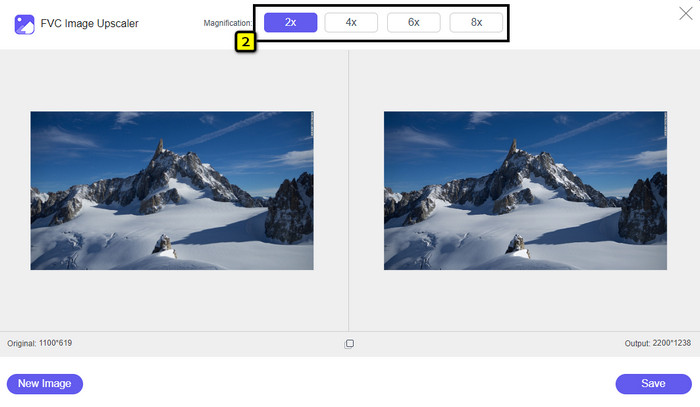
Trinn 4. Når du er ferdig med å justere bildet, trykker du på Save for å laste ned den endrede versjonen til den lokale stasjonen din.
Del 3. Vanlige spørsmål om hvordan du endrer størrelse på bildet på iPhone
Hva er den perfekte dimensjonen å bruke som bakgrunnsbilde på iPhone?
For brukere av iPhone SE, 6, 6 plus, 7, 7 plus, 8, 8 plus, må standarddimensjonen på bildet som skal brukes som bakgrunn være hvor som helst mellom 1136 x 640 og 1920 x 1080 px. Det er standard lengde og høyde for bildet du vil bruke som bakgrunn på iPhone-enheter. Men for de som bruker iPhone XR, 11 og 13, kan du nå bruke 828 x 1792 eller så store som 3073 x 1420 px som skjermdimensjon.
Hva er ulempen med å beskjære i stedet for å endre størrelse på bilder på iPhone?
Når du beskjærer bildet, vil du se at det vil kutte ut dimensjonen til det. Ja, bildestørrelsen vil endres, men det generelle utseendet på det er ikke det samme som å endre størrelse. Mens du endrer størrelse, kan du fritt endre høyden og lengden på et bilde uten å kutte ned kanter eller noen form. Så hvis du vil bruke bildet som bakgrunn og få det til å passe, bør du endre størrelsen på det i stedet for å beskjære det på iPhone.
Hvorfor ble det å gjøre bildet større uskarpt etter å ha endret størrelse på iPhone?
Fordi disse applikasjonene og måtene vi inkluderer i denne artikkelen ikke lager PPI, strekker de ut det endrede størrelsesbildet på din iPhone. Så hvis du ikke liker å oppleve denne typen problemer, må du bruke nettverktøyet vi inkluderer her for å lage PPI når du endrer størrelsen på bildet på iPhone.
Konklusjon
Du kan stole på verktøyene vi har funnet på iPhone som kan hjelpe deg å enkelt endre størrelsen på et bilde på iPhone. Selv om du ikke laster ned noen app, kan du bruke de innebygde appene som allerede finnes på enheten din. Hvis du vil være mer spesifikk, kan du bruke og laste ned appene vi har nevnt. Men hvis du vil endre størrelsen på bildet uten å påvirke kvaliteten, bruker du nettverktøyet vi har lagt til. Les del 2, der vi har lagt inn en veiledning om hvordan du bruker det.
-
 5 av de beste GIF-resizerne tilgjengelig på alle plattformer [2022]
 Vil du vite hvilke GIF-resizers du kan bruke? I så fall vil informasjonen nedenfor snakke om resizerne du kan bruke på GIF-ene dine på alle plattformer.
-
 Hvordan endre størrelse på bilde - Adobe Endre størrelse på bilde [online og offline]
 Hvis du søker etter Adobe Resize image, så har vi løsningen for deg. Se dette innlegget grundig for å lære hvordan du endrer størrelse på bilder ved hjelp av Adobe på PC-en.
-
 Hvordan endre størrelse på bilde for Facebook [Raske og enkle trinn]
 Hvis du har problemer med å laste opp et stort bilde på Facebook, har vi en løsning for deg. Fullfør denne artikkelen for å lære hvordan du endrer størrelse på bilder for Facebook.
