


 Video Converter Ultimate
 Skjermopptaker
 Videoreparasjon
 Sikker nedlasting
Enkleste metoder for hvordan du fjerner ManyCam-logoen på enheten din
Vil du lære hvordan du fjerner ManyCam-logoen på Windows og Mac? I så fall vil dette innlegget gi deg ulike måter å fjerne en logo fra videoene dine som du bør prøve. Det er litt irriterende å spille av favorittvideoene dine med vannmerker eller logoer. Du kan ikke nyte videoene fullt ut, og de blir en distraksjon. Du kan til og med ikke se enkelte deler av videoene på grunn av vannmerker, bilder, tekst eller logoer. Heldigvis kan du bruke utmerkede programvarer med funksjon for å fjerne vannmerker til å fjerne disse unødvendige elementene fra videoene dine.
Ved hjelp av disse applikasjonene vil du aldri bli skuffet igjen. Hvis du er interessert i å vite de beste metodene for å fjerne ManyCam-logoen, er det beste valget ditt å lese denne artikkelen.

Del 1: Slik fjerner du ManyCam-logoen ved å aktivere abonnementet
Hvis du vil lære hvordan du fjerner vannmerker fra ManyCam, er du på rett sted. ManyCam er programvare for direktestrømming som er tilgjengelig både på Windows og Mac. Dette programmet lar deg lage unike sendinger på plattformene dine, lage veiledninger, forretningspresentasjoner, spillstrømming og mer. I tillegg har det flere gode funksjoner du kan dra nytte av, som å legge til musikk, ta opp skjermen, legge til grønnskjerm, strømme spill og mye mer. For innholdsskapere er ManyCam verdifullt og nyttig. Det har viktige verktøy de trenger, som skjermopptak og skjermcasting, noe som gjør det praktisk for dem.
Men hver gang du oppretter eller redigerer videoen din, er det en Manycam-logo på den nedre delen av videoen, noe som er urovekkende. Heldigvis kan du fjerne denne logoen ved å aktivere abonnementet på ManyCam. Følg disse trinnene nedenfor for å lære hvordan du fjerner Manycam-logoen ved å aktivere abonnementet.
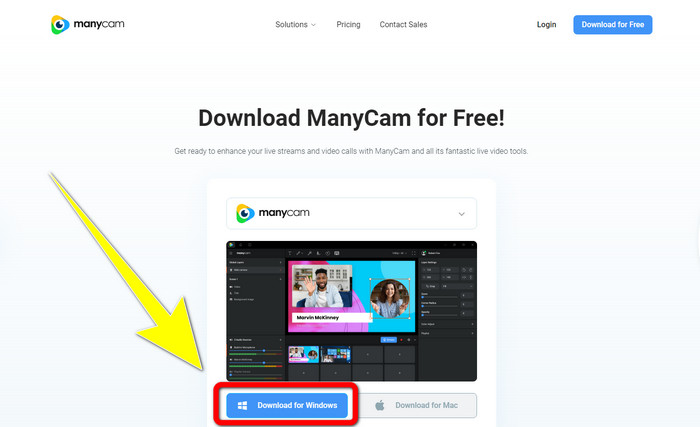
Trinn 1: For å laste ned ManyCam klikker du på knappen Download for Windows. Fortsett deretter til installasjonsprosessen.
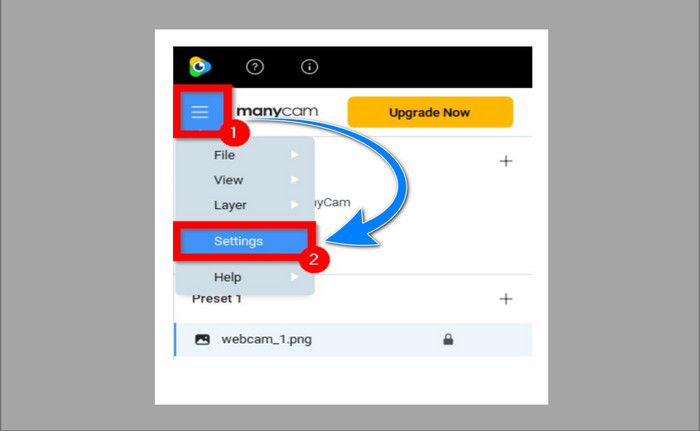
Trinn 2: Start programmet på datamaskinen din og klikk på hamburgerikonet i ManyCam, gå deretter til Settings > Account og logg inn på kontoen du opprettet etter at du kjøpte abonnementet.
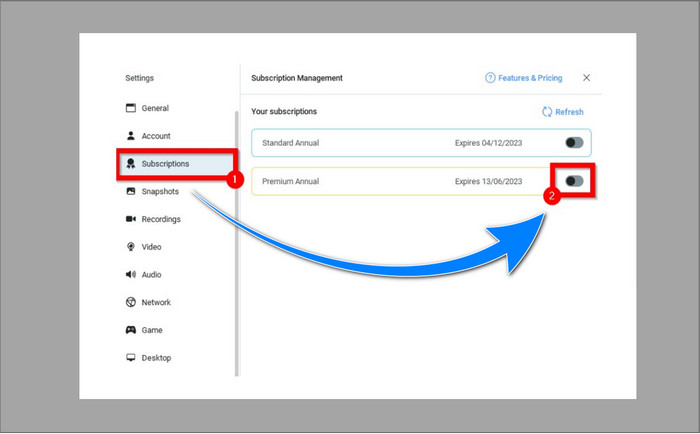
Trinn 3: Gå til fanen Subscription for å forsikre deg om at abonnementet er aktivert.
Trinn 4: Hvis abonnementet allerede er aktivert, vil en pop-up-melding vises, og da er du ferdig.
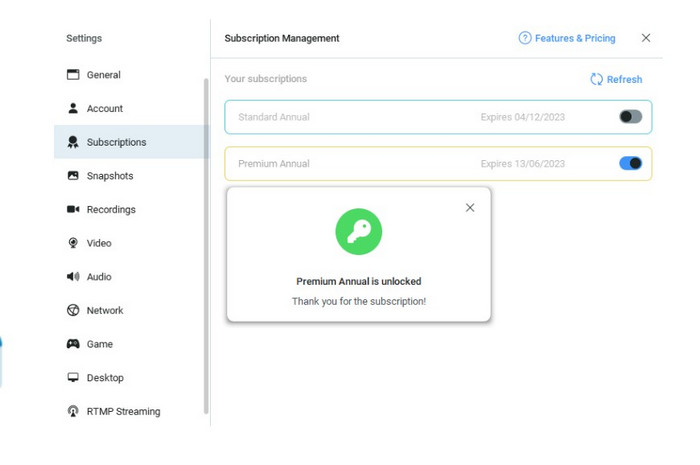
Hvis ManyCam-applikasjonen din allerede er aktivert, vil vannmerkene eller logoen på videoene dine automatisk bli fjernet. Du kan glede deg over å se favorittvideoene dine uten å møte vannmerker på dem.
Del 2: Slik fjerner du ManyCam-logoen uten abonnement
Vil du fjerne vannmerket fra ManyCam gratis? I tillegg til ManyCam-programmet kan du også bruke et annet program til å fjerne logoen fra ManyCam. Den beste applikasjonen du kan bruke er Video Converter Ultimate. Dette programmet kan fjerne unødvendige elementer i videoene dine, som tekst, vannmerker, logoer osv. I tillegg har Video Converter Ultimate mange redigeringsverktøy du kan bruke, som videohastighetskontroll, videoforbedring, legge til og fjerne vannmerker, fargekorrigering, volumforsterker og mer. Det beste verktøyet du kan bruke til å fjerne vannmerker med Video Converter Ultimate er Video Watermark Remover.
Dette verktøyet vil hjelpe deg å eliminere vannmerker med letthet. Videre er denne applikasjonen tilgjengelig på både Windows og Mac. Du vil heller ikke ha problemer med å bruke denne applikasjonen. Den støtter også flere lyd- og videofilformater, som MP4, FLV, MOV, MKV, MP3, AAC og mer. Hvis du vil fjerne ManyCam-logoen ved hjelp av Video Converter Ultimate, vil denne artikkelen vise deg to måter. Disse måtene bruker videobeskjæring og fjerning av videovannmerke.
1. Bruke Video Cropper
Trinn 1. Last ned FVC Video Converter Ultimate og fortsett til installasjonsprosessen.
Gratis nedlastingFor Windows 7 eller nyereSikker nedlasting
Gratis nedlastingFor MacOS 10.7 eller nyereSikker nedlasting
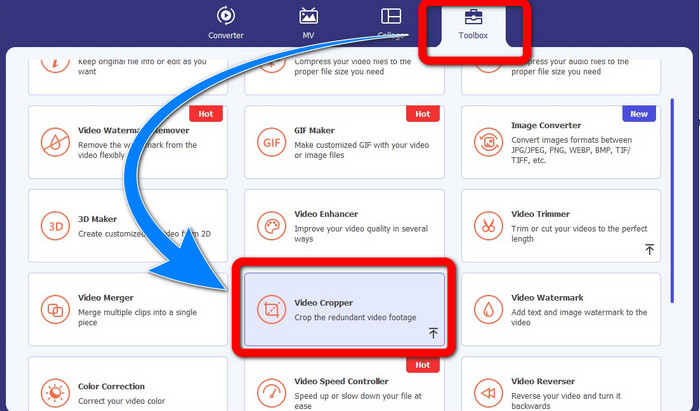
Trinn 2: Etter installasjonen starter du programmet. Klikk på Toolbox > Video Cropper.
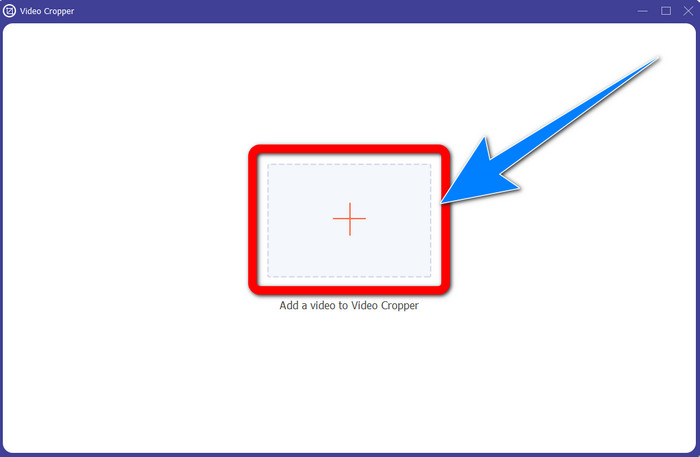
Trinn 3: Etter at du har klikket på Video Cropper, vil et nytt vindu dukke opp. Klikk på Plus-knappen og legg til videoene dine med vannmerke fra ManyCam.
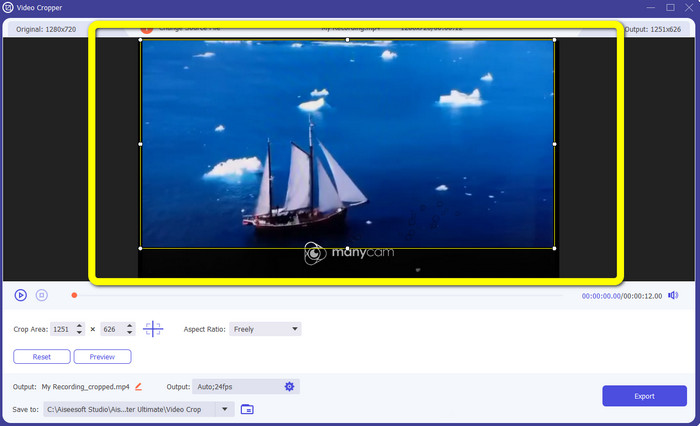
Trinn 4: Når filen din er lagt til, kan du beskjære videoen og fjerne vannmerket.
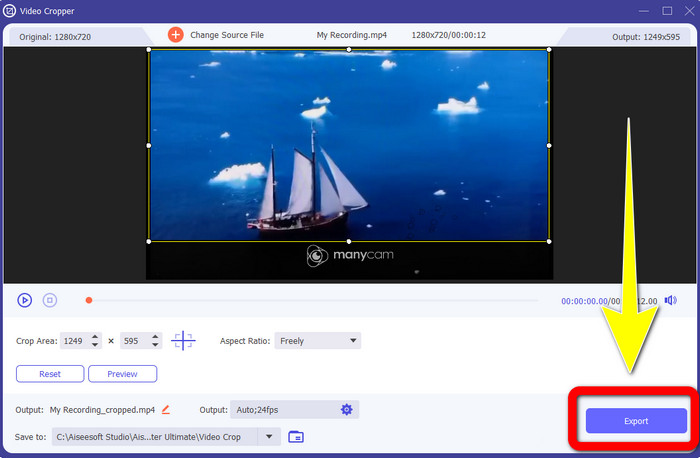
Trinn 5: Når vannmerket er fjernet, klikker du på knappen Export for å lagre det endelige resultatet. Du kan nå spille av favorittvideoen din uten vannmerke.
2. Bruke Video Watermark Remover
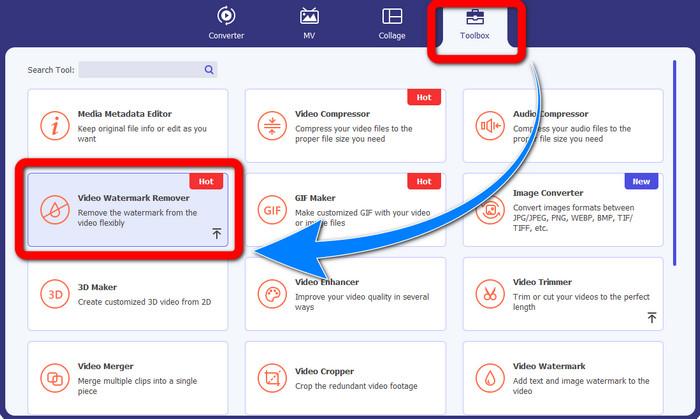
Trinn 1: Åpne programmet. Gå til Toolbox > Video Watermark Remover.
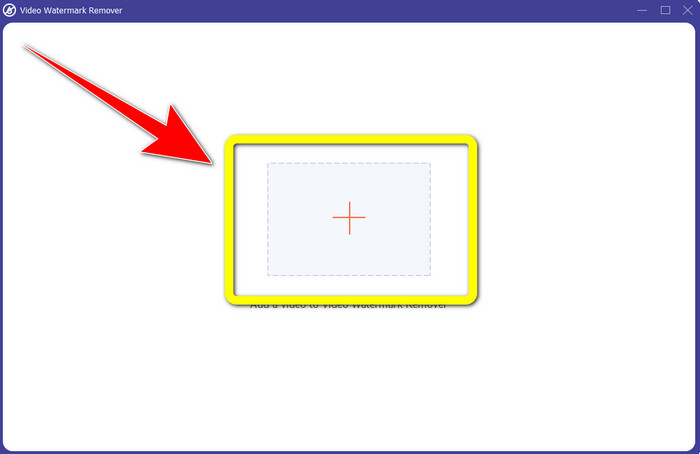
Trinn 2: Et nytt vindu vil vises etter at du har klikket på Video Watermark Remover. Klikk på Plus-knappen for å legge til videoen din med vannmerker fra ManyCam.
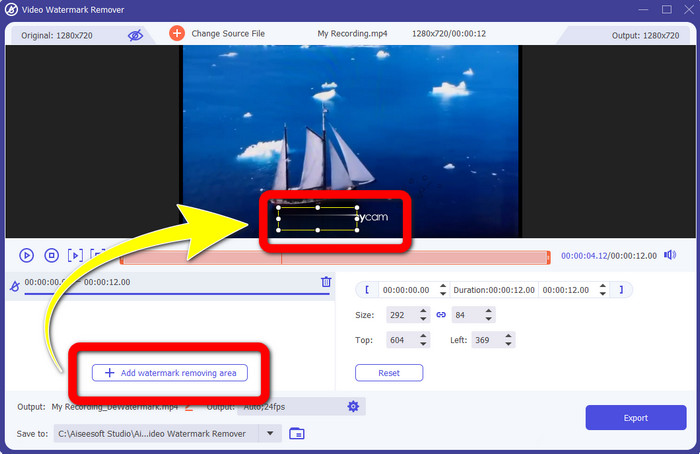
Trinn 3: Når du har lagt til videoen din, klikker du på Add Watermark Removing Area, og en boks vil vises på videoen din. Dra boksen til vannmerket for å dekke det.
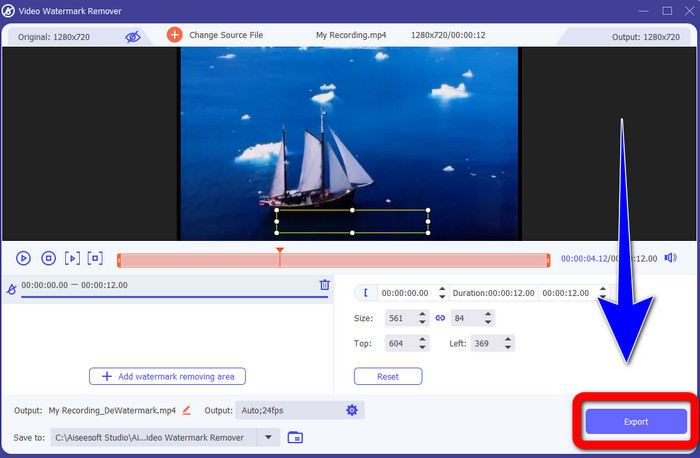
Trinn 4: Når du er ferdig med å fjerne vannmerker fra videoene dine, klikker du på Export for å lagre resultatet. Dette er den beste måten å fjerne ManyCam-logoen gratis.
Del 3: Vanlige spørsmål om fjerning av ManyCam-logoen
Hvor lang tid vil det ta å fjerne logoen?
Du trenger ikke vente lenger fordi fjerningsprosessen av logoen eller eventuelle unødvendige gjenstander tar bare noen få sekunder.
Kan jeg fjerne ManyCam-logoen på telefonen min?
Ja! Du kan fjerne ManyCam-logoen på Android-er eller iPhone ved hjelp av forskjellige programmer med vannmerkefjernere. Se etter applikasjonen i Play Store eller App Store, og prøv å bruke de applikasjonene du kan se på toppresultatene.
Er det en beste måte å fjerne vannmerker på min Mac?
Ja, absolutt! Du kan bruke et utmerket program med funksjon for å fjerne vannmerker til å fjerne vannmerker på Mac. Dette programmet er Video Converter Ultimate. Det fungerer perfekt både på Windows og Mac. Denne programvaren kan hjelpe deg med å fjerne unødvendige elementer i videoene dine, som logoer, vannmerker, bilder og tekst.
Kan jeg bruke beskjæringsverktøyet fra ManyCam-applikasjonen for å fjerne ManyCam-logoen?
Dessverre, nei! Å bruke beskjærings-verktøyet for å fjerne logoen fra ManyCam er ikke effektivt. Selv om du prøver å beskjære videoen for å fjerne logoen, vil den fortsatt vises. Den eneste løsningen for å fjerne logoen er å aktivere abonnementet i ManyCam.
Bortsett fra ManyCam, er det en alternativ måte å fjerne vannmerker på videoene mine?
Ja det er! Bortsett fra ManyCam, er det flere applikasjoner med vannmerkefjerner du kan bruke uten å kjøpe. En av de beste applikasjonene du kan bruke til å fjerne vannmerker på videoene dine, er Video Converter Ultimate. Den er enkel og lett å bruke, som passer for nybegynnere.
Konklusjon
Basert på informasjonen ovenfor kan du lære hvordan du fjerner ManyCam-logoen på Windows og Mac. Du kan bruke ManyCam-programmet til enkelt å fjerne logoen etter at du har aktivert abonnementet. I tillegg, hvis du vil bruke et program med funksjon for å fjerne vannmerker gratis, bør du bruke Video Converter Ultimate. Dette programmet vil være til stor hjelp når det gjelder å fjerne unødvendige elementer i videoene dine.
-
 Enkleste metoder for hvordan du fjerner vannmerke fra bilder
 Er du irritert over vannmerkene på bildene dine? Ikke bekymre deg! Denne artikkelen vil gi enkle og enkle metoder for å fjerne vannmerker fra bildene dine.
-
 Slik fjerner du Powtoon-vannmerket ved hjelp av 4 effektive metoder
 Les denne artikkelen for å lære hvordan du fjerner Powtoon-vannmerket ved å bruke de beste verktøyene vi inkluderte her og en veiledning.
-
 Apowersoft Watermark Remover Review – Funksjoner, fordeler og ulemper og priser
 Apowersoft Watermark Remover er en av de beste fjerning av vannmerker som støtter online og offline, klikk på denne for å vite mer!
