


 Video Converter Ultimate
 Skjermopptaker
 Videoreparasjon
 Sikker nedlasting
Detaljerte prosedyrer for å konvertere AVI-filer til M4V-format
Multimediebeholderformatet AVI, som står for Audio Video Interleaved, er en funksjon i Windows‑videoprogramvaren. Det gjør det mulig å spille av lyd- og videodata samtidig, kombinert i én enkelt fil. Med sine unike funksjoner, inkludert synkronisert kontroll og visning i sanntid, ble AVI raskt et av de mest brukte videoformatene. Men hvis du vil spille av videoen på en Mac, må du konvertere AVI til M4V, fordi M4V er et Apple‑format som kan spilles av i iTunes, Apple QuickTime Player og på iOS‑enheter. Av og til vil du kanskje konvertere .avi‑filer på en Mac til et universelt format som M4V. I denne situasjonen anbefales det å konvertere AVI til M4V for at det skal fungere som det skal på Mac OS. Vi viser deg de beste metodene for å konvertere AVI til M4V ved hjelp av både nettbaserte og lokale programmer.

Del 1: Introduksjon til AVI og M4V
| AVI | M4V | |
| Filnavn | Audio Video Interleave | MPEG-4-video |
| Filutvidelse | .avi | .m4v |
| Beskrivelse | AVI-filformatet er en av de mest populære multimediebeholderne som noen gang er laget. Akronymet AVI, som står for audio video interleaved, ble opprinnelig gjort tilgjengelig for publikum av Microsoft i 1992 som en del av deres multimediarammeverk, "video for Windows." En AVI-fil med filtypen.avi kan ha både synkronisert video- og lydinnhold fordi det er et containerformat. Dermed kan forfattere redigere og kode lyd- og videosekvenser eller videosekvenser ved å bruke standarden. | Apple opprettet filtypen M4V, som er bemerkelsesverdig lik MP4-filtypen, for innholdet i iTunes Store. Apple-enheter er de eneste som kan spille av M4V-filer. For å spille på Apple-enheter kan andre videoformater som MP4 og MOV konvertere til M4V. Det primære skillet mellom M4V- og MP4-filformatene er at førstnevnte støtter DRM-Copyright Protection, som forbyr brudd på opphavsretten til medieinnhold. Datamaskinen må gi tillatelse ved å logge på iTunes-kontoen for å kjøpe mediefilen for å spille av en DRM-beskyttet M4V-fil. Men hvis filene ikke er DRM-beskyttet, kan brukeren ganske enkelt gi nytt navn til M4V-filtypen til MP4 for å gjøre den kompatibel med ikke-Apple-enheter. |
| Utviklet av | Microsoft | Apple inc. |
| Tilknyttede programmer | VLC Media Player Apple QuickTime Player Adobe Premiere Pro 2020 Windows media spiller | KMPlayer Mediespiller klassisk Zoom spiller \VLC Media Player |
| Filkategori | Video | Video |
| MIME-type | video/x-video | video/x-m4v |
Del 2: Beste måten å konvertere AVI til M4V
Vil du konvertere AVI til M4V gratis? Du kan bruke FVC Free Video Converter Online. Dette verktøyet kan enkelt konvertere AVI‑filformatet ditt til M4V. I tillegg støtter det flere videoformater, som FLV, MP4, MOV, WMA og flere. Hvis du også planlegger å konvertere flere AVI‑filer til ulike filformater, kan du bruke dette programmet fordi det tilbyr batch‑konvertering. Du kan også redigere videoene dine før konvertering, for eksempel ved å endre bildefrekvens, oppløsning og bithastighet. Dessuten kan FVC Free Video Converter Online konvertere lydfiler som MP3, AAC, AC3, FLAC osv.
Egenskaper
◆ Konverter en rekke videofilformater, for eksempel M4V, AVI, MP4, MOV, VOB, FLV, WMV, etc.
◆ Kan endre videoens oppløsning, bithastighet og bildefrekvens.
◆ Konverter lydfiler som MP3, AAC, AC3, FLAC, etc.
Følg de enkle veiledningene nedenfor for å konvertere AVI til M4V enkelt.
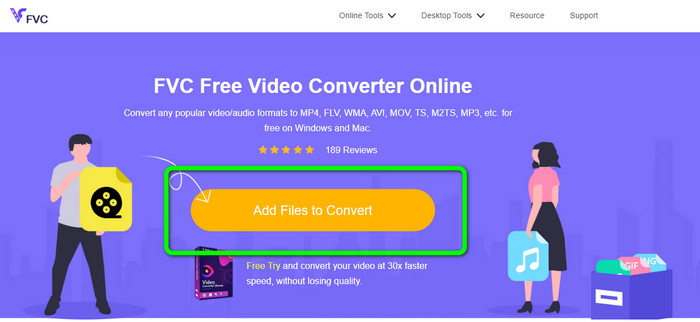
Trinn 1: Åpne først nettleseren din og gå til nettstedet FVC Free Video Converter Online. Trykk på knappen Legg til filer for å konvertere for å laste opp AVI‑filen din.
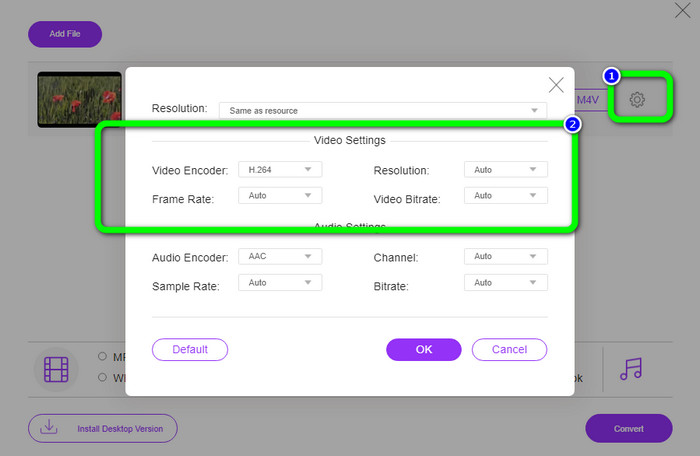
Trinn 2: Hvis du ønsker å endre videoens oppløsning, bildefrekvens og bithastighet, klikker du på Innstillinger‑ikonet på venstre side av grensesnittet. Når du er ferdig med å endre dem, trykker du på OK.
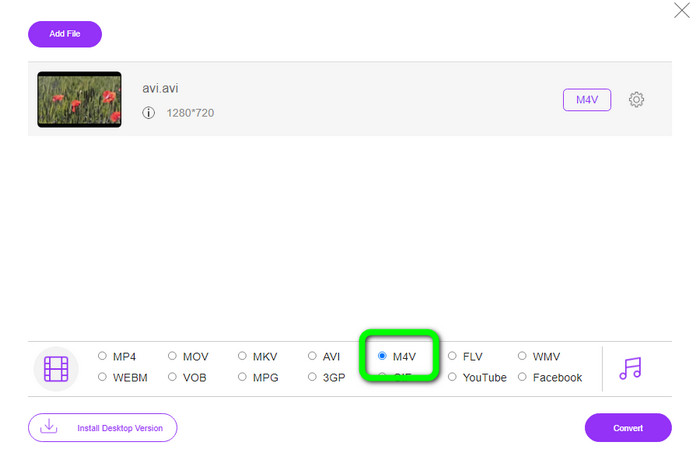
Trinn 3: Velg deretter M4V‑filen som utdataformat nederst i grensesnittet.
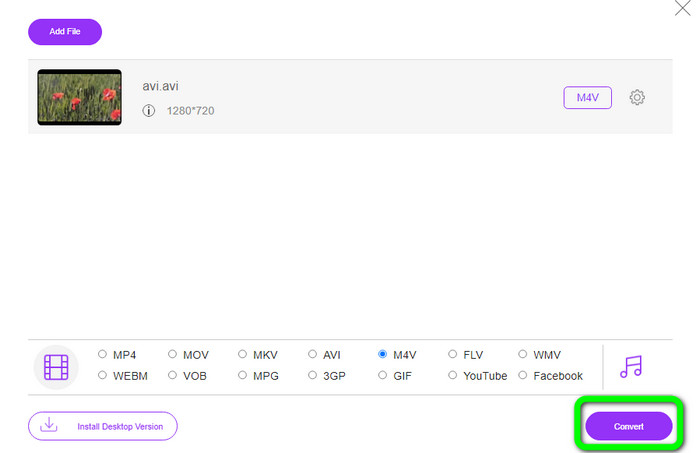
Trinn 4: Til slutt, for å lagre videofilen din, klikker du på Konverter‑knappen. Vent på konverteringsprosessen og last ned det endelige resultatet.
Del 3: Enkel metode for å konvertere AVI til M4V på Windows og Mac
En annen utmerket konverter du kan bruke er FVC Video Converter Ultimate. Dette verktøyet kan konvertere AVI til M4V på Windows. Det kan konvertere filene dine umiddelbart fordi det har en ultrasnabb konverteringsprosess som er 30 ganger raskere. Du kan også konvertere flere filer samtidig fordi det støtter batch‑konvertering. I tillegg har det en enkel arbeidsflyt med et intuitivt grensesnitt som er perfekt for nybegynnere. Dessuten er dette skrivebordsverktøyet ikke bare tilgjengelig på Windows, men også på Mac. Videre kan du også gjøre noen endringer i videoene dine mens du konverterer. Du kan redigere videoene ved å forbedre dem, klippe dem, legge til filtre og mer.
Funksjoner
◆ Konverterer 100+ videofiler, inkludert M4V, MP4, AVI, FLV, MKV, MOV, VOB, WMV og mer.
◆ Å lage en collage med gratis maler og filtre er tilgjengelig.
◆ Tilbyr musikkvideoprodusent.
◆ Rediger videoer ved hjelp av en videoforbedrer, trimmer, vannmerke‑fjerner, kompressor osv.
◆ Konverter bildefilformater, for eksempel BMP, JPG, PNG, etc.
◆ Gjør en video raskere og sakte ned.
Bruk de detaljerte veiledningene nedenfor for å vite hvordan du konverterer AVI til M4V på Windows og Mac ved å bruke FVC Video Converter Ultimate. Vi vil bruke Windows-versjonen.
Trinn 1: Last ned FVC Video Converter Ultimate på Windows eller Mac ved å klikke på nedlastingsknappen.
Gratis nedlastingFor Windows 7 eller nyereSikker nedlasting
Gratis nedlastingFor MacOS 10.7 eller nyereSikker nedlasting
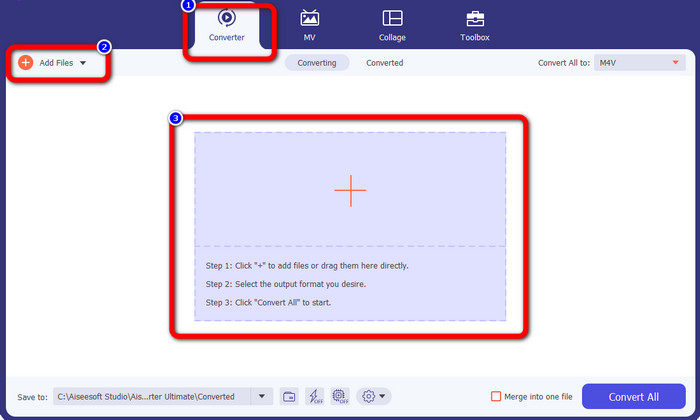
Trinn 2: Gå til Panelet Konverter etter at du har åpnet programmet. Deretter har du tre alternativer for å legge inn AVI‑filen din. Først kan du klikke på knappen Legg til fil i den andre boksen. Det andre alternativet er å klikke på pluss‑tegnet i den tredje boksen. Og til slutt kan du slippe filen direkte i midten.
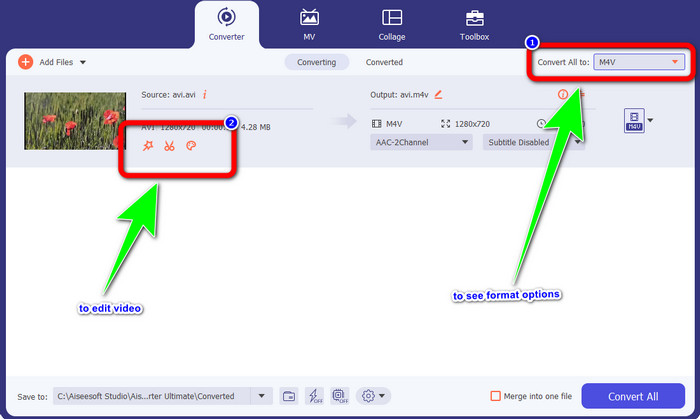
Trinn 3: Etter at du har lagt til AVI‑filen, klikker du på knappen Konverter alle til for å se formatvalgene, og velger M4V‑filformatet. Hvis du vil redigere videoen din, kan du gå til den andre boksen. Der kan du bruke verktøyene til å redigere videoen, som å legge til filtre, rotere og beskjære videoer, klippe og mer.
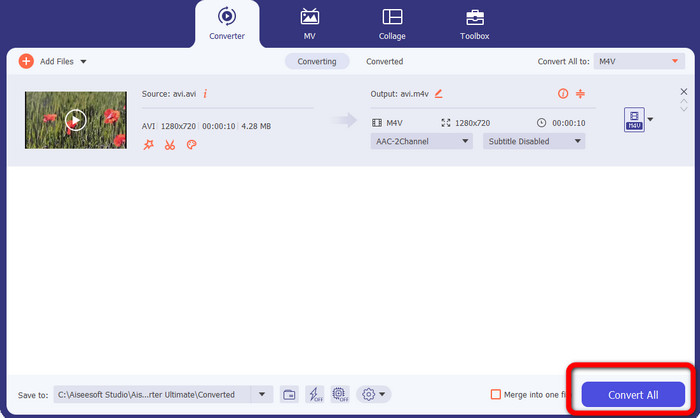
Trinn 4: Som siste trinn klikker du på Konverter‑knappen. Vent på den raske konverteringsprosessen og lagre den konverterte videoen.
Del 4: Hvordan konvertere AVI til M4V ved hjelp av håndbrems
Handbrake er en annen konverter for å konvertere AVI til M4V gratis. Den kan konvertere flere filtyper som WEBM, M4V, MP4, MKV osv. Med hjelp av dette verktøyet kan du enkelt konvertere mange filer. Handbrake er imidlertid komplisert å bruke. Du må ha nok kunnskap om denne konverteren. I tillegg er installasjonsprosessen forvirrende. Du må gjennom mange trinn før du kan bruke den, noe som er tidkrevende for brukere.
Trinn 1: Last ned Handbrake på datamaskinen din.
Trinn 2: Velg AVI‑filen du vil konvertere.
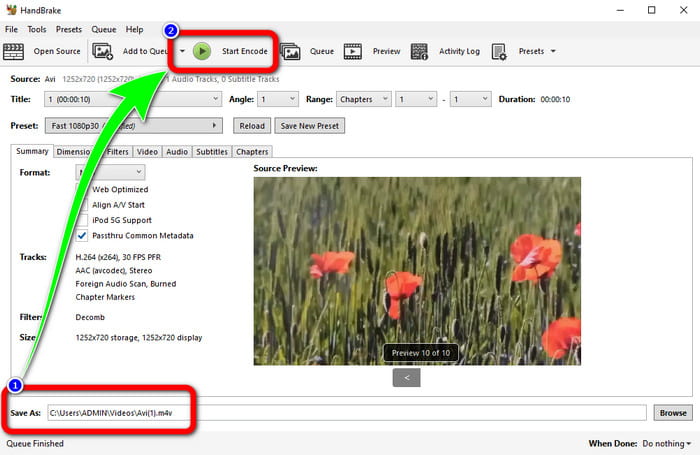
Trinn 3: Gå til Format og velg M4V. Start deretter konverteringsprosessen ved å klikke på Start‑knappen.
Del 5: Vanlige spørsmål om konvertering av AVI til M4V
1. Hvordan konvertere AVI til M4V på Mac?
Du kan bruke FVC Video Converter Ultimate. Denne omformeren kan enkelt konvertere AVI til M4V ved hjelp av Mac-en.
2. Hvor stor er en AVI-fil?
Siden AVI-videoer er ukomprimerte, tar de opp mer plass på harddisken. For eksempel kan en enkelt time med 352x288 AVI-videoopptak bruke opptil 33 GB (3300 MB) med harddiskplass.
3. Er AVI-filen universell?
Ja. Selv om mer moderne formater som MP4, MOV eller WMV har erstattet AVI‑formatet, bruker folk fortsatt AVI på grunn av hvor bærbart det er. Nesten enhver datamaskin eller enhet kan spille av AVI‑filer.
Konklusjon
Denne veiledningen viser deg utmerkede metoder for å konvertere AVI‑filer til M4V ved hjelp av de tre konverterne. Men hvis du vil ha en ultrasnabb konverteringsprosess, bruker du FVC Video Converter Ultimate. Og hvis du vil ha en enklere metode, bruker du FVC Free Video Converter Online.
-
 Topp 5 M4V-spillere for Windows / Mac / Android / iOS du bør vite
 Når du ikke kan spille av M4V-videoene dine på QuickTime Player, bør du lære mer fra de 5 utmerkede M4V-spillerne for Windows, Mac, Android og iOS fra denne artikkelen
-
 AVI VS MP4 - Forskjeller og likheter mellom AVI og MP4-formater
 Hvilket videoformat er bedre, AVI eller MP4? Hvis du vil få den detaljerte sammenligningen, kan du sjekke denne AVI VS MP4-artikkelen. Du kan kjenne forskjellene og likhetene mellom AVI og MP4 i mange aspekter
-
 3 Video Converter Program Brukes til å konvertere iTunes M4V til AVI på Mac
 Har du ingen anelse om hvordan du konverterer MKV til et AVI-format? Når vi fortsetter å lese denne artikkelen, vil vi kjenne til de 3 verktøyene som kan hjelpe deg med å konvertere dette filformatet
