


 Video Converter Ultimate
 Skjermopptaker
 Videoreparasjon
 Sikker nedlasting
Hvordan kutte en video på Android ved å bruke de beste videotrimmerappene
Det er enkelt å ta opp spektakulære videoer eller bare skjermen når du alltid har en smarttelefon. Det pleide å være utfordrende å redigere disse videoene på Android-telefonen din, men slik er det ikke lenger. I dette emnet ser vi på enkle måter å klippe video på Android-enheter. Vi vil bruke flere videoredigeringsapper/programmer som vil være effektive for deg. I tillegg kan du også klippe en video på datamaskinen. I denne veiledningen lærer du de enkleste metodene for å forkorte videolengden ved hjelp av en datamaskin. Hvis du vil lære alle metodene for hvordan du klipper ut en del av en video på Android og datamaskin, les innlegget nå.

Del 1. Hvordan trimme videoer på Android
I denne delen vil vi gi deg to effektive metoder for å kutte videoen din med Android. Den første applikasjonen er en forhåndsbygd app, og den andre er en nedlastbar applikasjon. Så du vil gi et alternativ på hva du skal bruke når du trimmer en video. Uten videre, la oss begynne å oppdage disse metodene.
Bruker Galleri
Hvis du ikke vil laste ned noen apper fra Play-butikken, bruk Galleri-appen. Denne forhåndsbygde appen er ikke bare i stand til å vise bilder og videoer. Den har flere funksjoner å tilby enn du kan forestille deg. Hvis du planlegger å kutte videoen din med denne appen, kan du gjøre det. Galleri har et skjæreverktøy som lar deg kutte/trimme video enkelt og umiddelbart. Den har også et intuitivt grensesnitt, noe som gjør det mer egnet for alle Android-brukere. I tillegg, i tillegg til å klippe videoer, kan appen gjøre mer. Du kan også justere videohastigheten ved å bruke videohastighetsjusteringen. Galleri-appen er imidlertid kun egnet for grunnleggende redigering. Det er ikke applikasjonen du trenger hvis du vil forbedre videoen din og kombinere alle de trimmede videoene. Du må se etter mer avansert videoredigeringsprogramvare for ønsket resultat. Hvis du vil vite hvordan du klipper et videoklipp på Android ved å bruke denne applikasjonen, se trinnene nedenfor.
Trinn 1. Åpne Android-enheten din og start Galleri-appen. Finn deretter videoen du vil klippe/trimme.
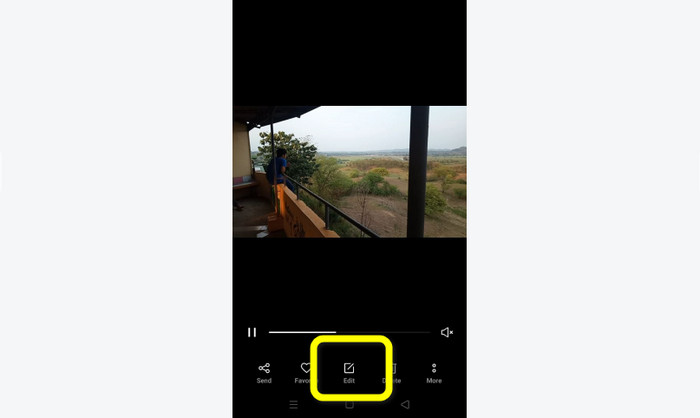
Trinn 2. Etter at du har åpnet videoen du vil trimme/klippe, går du til alternativene nedenfor. Trykk på Rediger-alternativet for å gå videre til neste prosess.
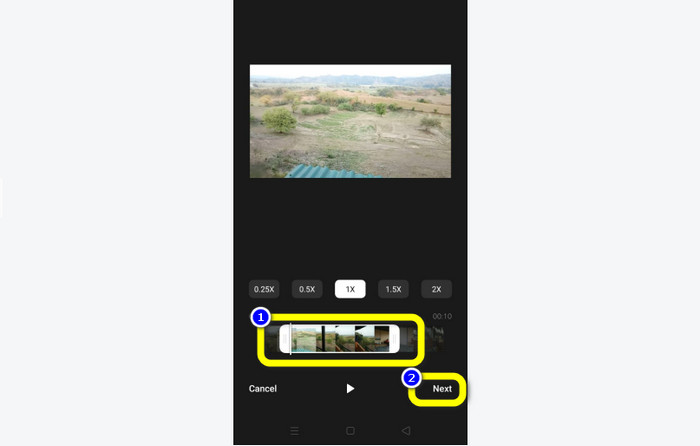
Trinn 3. Deretter kan du begynne å trimme videoen på Android-enheten din. Dra i kanten på videoen eller tidslinjen. Dra hver side for å trimme videoen. Når du er ferdig med å trimme, trykker du på Neste-alternativet nederst til venstre i grensesnittet.
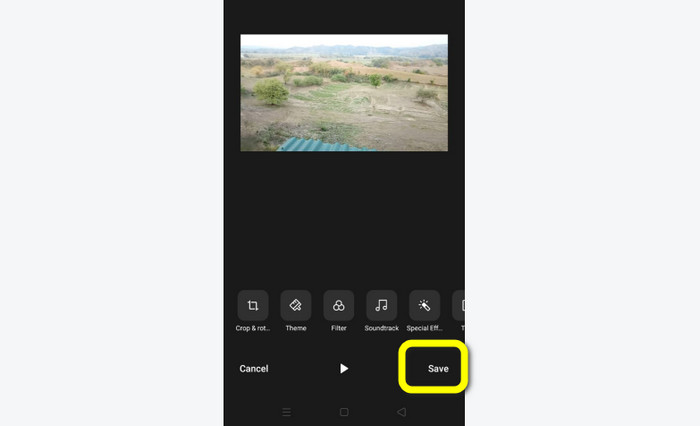
Trinn 4. Deretter kan du trykke på Lagre-knappen for å lagre den redigerte videoen på telefonen. Hvis du vil redigere videoen mer, kan du også beskjære, rotere, legge til filtre og mer.
Bruke Vid.Fun
I tillegg til Galleri-appen kan du også bruke en nedlastbar app for å klippe videoer på Android. Du kan laste ned Vid.Fun-appen for å klippe videoer på Android-enheten din. VidFun er en gratis app å laste ned. I tillegg har den et enkelt grensesnitt med en grunnleggende redigeringsprosess. På denne måten kan selv en uerfaren bruker ta i bruk appen. Dessuten har Vid.Fun flere funksjoner enn bare klipping av videoer. Du kan også bruke denne appen hvis du vil legge tekst på videoene dine. I tillegg kan du bruke et volumforsterker-verktøy for å justere volumet på videoen. Videre kan du fjerne en vannmerking, justere videohastigheten, legge til klistremerker, rotere en video og mer. Imidlertid har Vid.Fun noen ulemper. VidFun har en treg eksportprosess, noe som er tidkrevende for brukerne. Det hender også at appen ikke fungerer som den skal. Se metodene nedenfor for å klippe videoer ved hjelp av Vid.Fun-appen.
Trinn 1. Gå til Google Play Store og søk etter Vid.Fun-appen. Installer deretter appen på Android-telefonen din. Åpne appen etter at installasjonen er fullført.
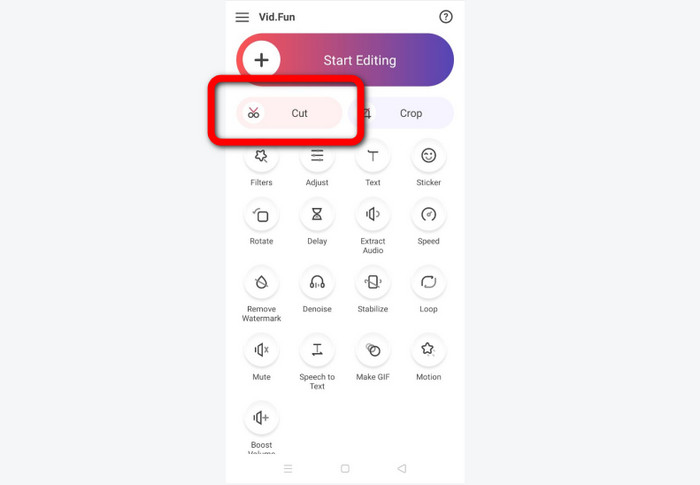
Trinn 2. Når appens grensesnitt vises, velger du Cut-alternativet. Deretter vil filene dine vises på skjermen. Trykk på videoen du vil klippe, og trykk på Yes-knappen.
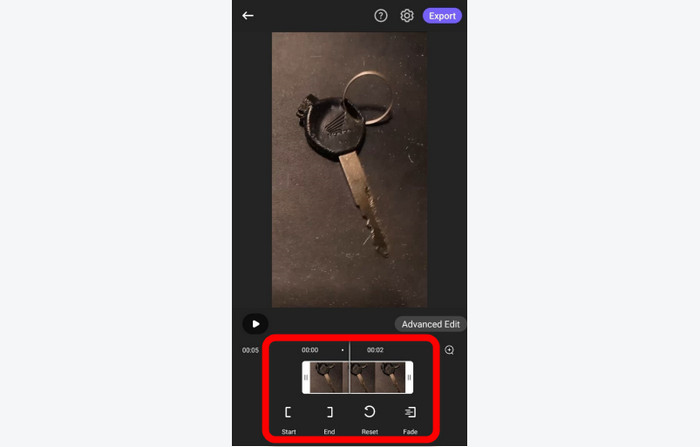
Trinn 3. Etter det kan du gå videre til trimmeprosessen. Dra i kanten på videoen. Du kan også bruke Start- og End-alternativene for trimming.
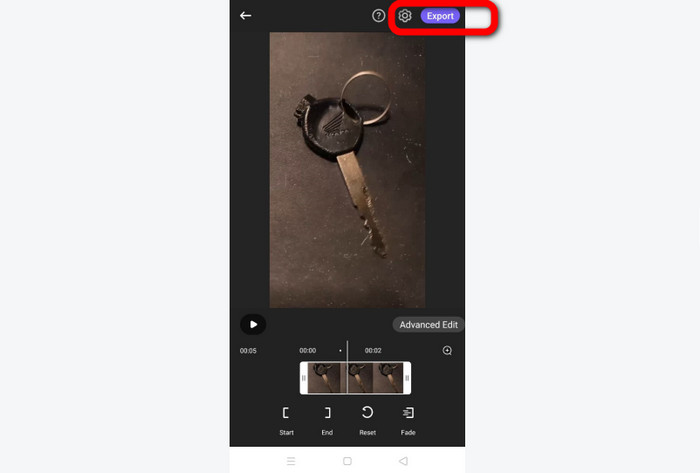
Trinn 4. Når du er ferdig med å trimme/klippe videoen, kan du trykke på Export-knappen. Vent på eksportprosessen, og behold videoen på Android-enheten din.
Del 2. Hvordan klippe Android-videoer på PC
I den forrige delen lærte du hvordan du klipper videoer med en Android-enhet. I denne delen lærer du hvordan du klipper videoer ved hjelp av en datamaskin. Hvis du vil bruke skrivebordet til å redigere en video, spesielt for å klippe eller trimme den, kan du bruke Video Converter Ultimate. Dette offline-programmet har et intuitivt grensesnitt som gjør at du raskt forstår alle alternativene. Dessuten er trimmeprosessen enkel. Du kan trimme/klippe videoen med bare noen få klikk. I tillegg har det en rask eksportprosess, noe som gjør det praktisk for alle brukere. Siden det er et lettbrukt program, kan både profesjonelle og nybegynnere bruke det. Videre kan du lagre sluttresultatet i ulike formater. Det inkluderer AVI, FLV, MOV, MP4 og mer. Dessuten er Video Converter Ultimate gratis å laste ned og tilgjengelig både på Mac og Windows. Programmet lar deg også endre videoens oppløsning, kvalitet, bildefrekvens og koder. Du kan også endre samplingsfrekvens og bitrate for lyden. På denne måten kan du sikre at du får best mulig resultat med dette offline-programmet. Følg de enkle instruksjonene nedenfor for å lære hvordan du klipper en Android-video på PC.
Trinn 1. Last ned Video Converter Ultimate på Mac- eller Windows-datamaskinen din. Klikk på Download-knappen nedenfor for å få tilgang til programmet. Både Windows- og Mac-versjoner er tilgjengelige. Kjør deretter programmet etter installasjonsprosessen.
Gratis nedlastingFor Windows 7 eller nyereSikker nedlasting
Gratis nedlastingFor MacOS 10.7 eller nyereSikker nedlasting
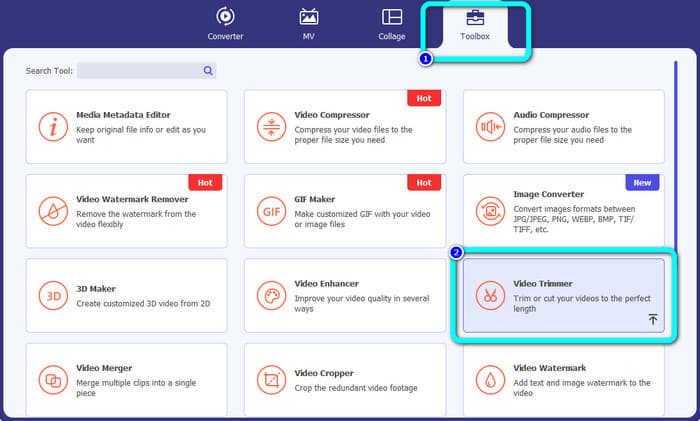
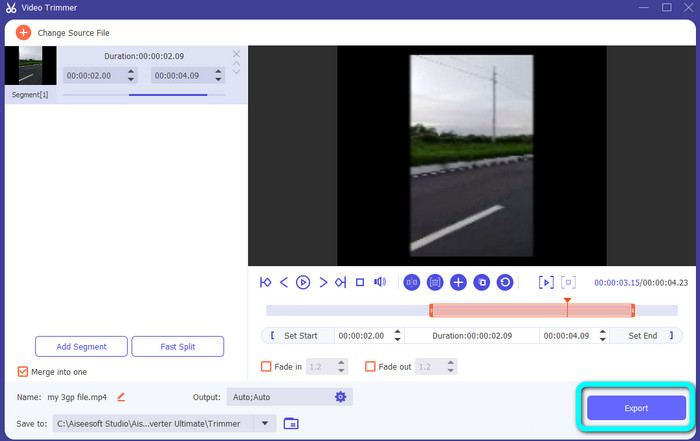
Trinn 2. Når programmets grensesnitt dukker opp, går du til Toolbox øverst i grensesnittet og velger Video Trimmer Tool.
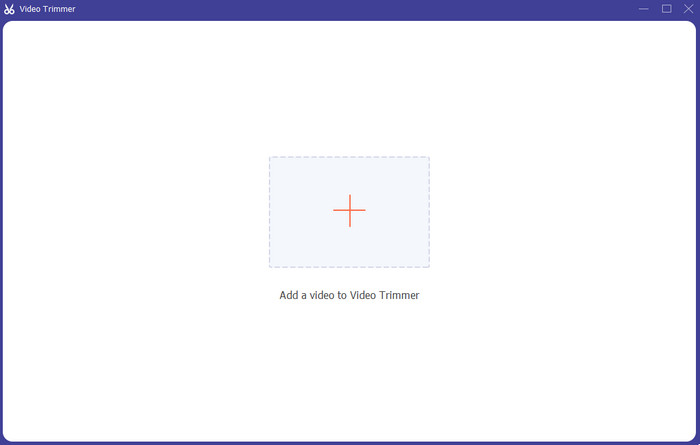
Trinn 3. Et nytt grensesnitt vises etter at du har klikket på Video Trimmer-verktøyet. Klikk på Plus-symbolet for å sette inn Android-videoen. Merk at Android-videoen allerede må være overført til datamaskinen før du bruker programmet.
Trinn 4. Deretter er du inne i trimmeprosessen. For å trimme videoen må du justere kantene på videoen. Du kan justere startkanten og sluttkanten.
Trinn 5. Etter prosessen kan du lagre den redigerte videoen ved å klikke på Export-knappen. Etter eksportprosessen kan du nå spille av den redigerte videoen.
Del 3. Vanlige spørsmål om hvordan du trimmer videoer på Android
Hvordan kutte midten av en video på Android?
Hvis du vil trimme den midtre delen av videoen din med en Android-enhet, kan du fortsatt bruke applikasjonene introdusert ovenfor. Du kan følge samme prosedyre og klippe den midtre delen av videoen.
Hvordan gjenopprette trimmede videoer på Android?
Gå til Galleri-appen. Klikk deretter på Album-alternativene. Klikk deretter på papirkurven. Du vil se de slettede videoene og klikke på Gjenopprett-knappen.
Kan jeg trimme video på Android ved å bruke iMovie?
Absolutt ikke. iMovie er bare kompatibel med Apple-enheter, som iPhone, iPad og Mac.
Konklusjon
Der har du det! Nå har du lært hvordan du klipper video på Android og datamaskiner. Så hvis du er Android-bruker, kan du følge trinnene nevnt ovenfor. Hvis du vil bruke datamaskinen til å klippe eller trimme en Android-video, bruker du Video Converter Ultimate. Dette offline-programmet lar deg klippe og trimme Android-videoen din enkelt og raskt.
-
 Utmerkede måter å klippe video på nettet på en praktisk måte
 Å klippe en video er den beste måten å lage videohøydepunkter på. Så dette innlegget vil gi deg metodene for å trimme videoer på nettet med letthet. Les for å lære mer.
-
 Hvordan forkorte en video på iPhone [Detaljerte veiledninger]
 Er du iPhone-bruker og vil trimme videoene dine? Ikke bekymre deg mer. Denne guideposten vil gi alle detaljer om hvordan du klipper en video på iPhone og iPad.
-
 Enkleste måter å øke hastigheten på en video på Android-enhetene dine [2023]
 Visste du at du kan øke hastigheten på en video på Android? Så hvis du vil vite hvordan du øker hastigheten på en video på Android-telefonen din, kan du lese denne oppskriften.
