


 Video Converter Ultimate
 Skjermopptaker
 Videoreparasjon
 Sikker nedlasting
Hvordan rotere videoer med enkle, men effektive roterende verktøy
Er du lei av å se videoer som er sidelengs eller opp ned? Eller kanskje du filmet noe i en vanskelig vinkel og vil fikse det? Heldigvis er rotering av en video en enkel prosess som kan gjøres på både Windows- og Mac-datamaskiner. Enten du er en profesjonell videograf eller bare ønsker å redigere noen personlige opptak, er det å kunne rotere videoer en nyttig ferdighet å ha.
I denne veiledningen skal vi utforske noen av de mest populære metodene for å rotere videoer på Windows- og Mac-datamaskiner. Vi går gjennom ulike programvarealternativer og viser deg de enkle trinnene for hver videorotator.

Del 1. Videorotatorer for Windows og Mac
Kanskje du har filmet en video på telefonen og ved et uhell holdt den sidelengs, eller du vil lage en mer visuelt tiltalende komposisjon. Uansett hva årsaken kan være, er det en rekke forskjellige programvarealternativer tilgjengelig for å hjelpe deg med å snu videoer på Windows og Mac. Her skal vi takle dem én etter én.
1. Video Converter Ultimate
Hvis du er på utkikk etter pålitelig og brukervennlig videoredigeringsprogramvare for å hjelpe deg med å rotere videoer, er FVC Video Converter Ultimate et utmerket valg. Denne allsidige programvaren lar deg rotere videoene dine til hvilken som helst vinkel du ønsker med bare noen få klikk. I tillegg til å rotere videoer tilbyr denne appen også en rekke andre videoredigeringsfunksjoner, som trimming, beskjæring, legge til undertekster og justering av videoinnstillinger som lysstyrke og kontrast.
Nøkkelfunksjoner i FVC Video Converter Ultimate:
◆ Roter videoer til alle vinkler
◆ Vend horisontalt eller vertikalt
◆ Brukervennlig grensesnitt
◆ Batchkonvertering eller videorotasjon
◆ Ytterligere videoredigeringsfunksjoner
Fremgangsmåten for hvordan du kan liggende eller portrettere videoer er som følger:
Trinn 1. Last ned og installer FVC Video Converter Ultimate på datamaskinen din.
Gratis nedlastingFor Windows 7 eller nyereSikker nedlasting
Gratis nedlastingFor MacOS 10.7 eller nyereSikker nedlasting
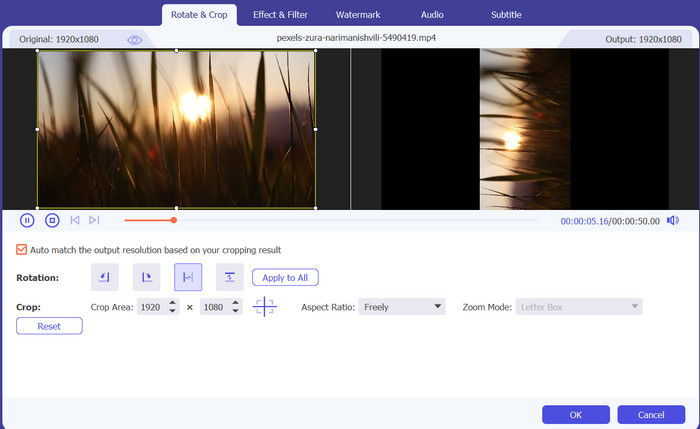
Trinn 2. Start programvaren og klikk på knappen Add File for å legge til videoen du vil rotere.
Trinn 3. Trykk på knappen Edit ved siden av videofilen for å åpne panelet for videoredigering.
Trinn 4. Klikk på fanen Rotate, og velg ønsket rotasjonsvinkel for videoen din. Du kan også speilvende videoen horisontalt eller vertikalt ved behov.
Trinn 5. Forhåndsvis den roterte videoen for å forsikre deg om at den ser bra ut, og klikk deretter OK for å lagre endringene.
2. VLC Media Player
VLC Media Player er en gratis og åpen kildekode mediespiller som er mye brukt av mennesker over hele verden. En av de fremtredende funksjonene til VLC er dens evne til å rotere videoer. Med VLC kan du enkelt rotere videoer som ble tatt opp i en vanskelig vinkel eller orientering.
VLCs nøkkelfunksjoner:
◆ Tilpassbare videorotasjonsvinkler
◆ Batch videorotasjon
◆ Tastatursnarveier
Slik roterer du videoer i VLC:
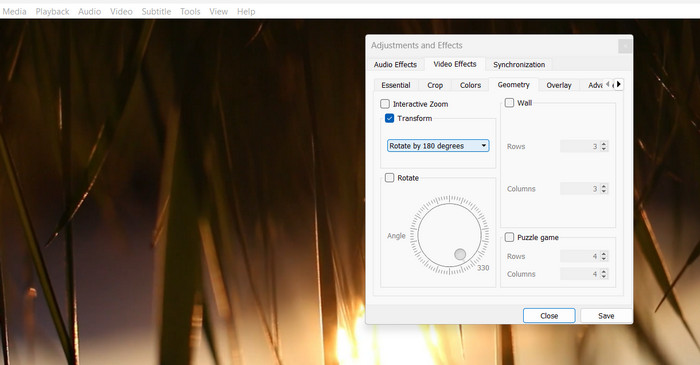
Trinn 1. For å rotere videoer i VLC åpner du ganske enkelt videoen i VLC,
Trinn 2. Klikk på menyen Verktøy (Tools), og velg Effects and Filters.
Trinn 3. I fanen Video Effects klikker du på fanen Geometry og velger deretter ønsket rotasjonsvinkel.
3. Premiere
Adobe Premiere er en populær videoredigeringsprogramvare som brukes av både profesjonelle og amatører. Det som er bra med Premieres videorotasjonsfunksjon er at den tilbyr et bredt spekter av tilpasningsalternativer, inkludert nøkkelbilder for mer presise justeringer. Du kan også bruke Premiere til å beskjære og endre størrelse på videoene dine, legge til overganger og bruke fargekorrigering og andre effekter.
Premieres nøkkelfunksjoner:
◆ Videostabilisering
◆ Korreksjon av sideforhold
◆ Nøyaktig rotasjon
Her er trinnene for hvordan du roterer videoer i Premiere:
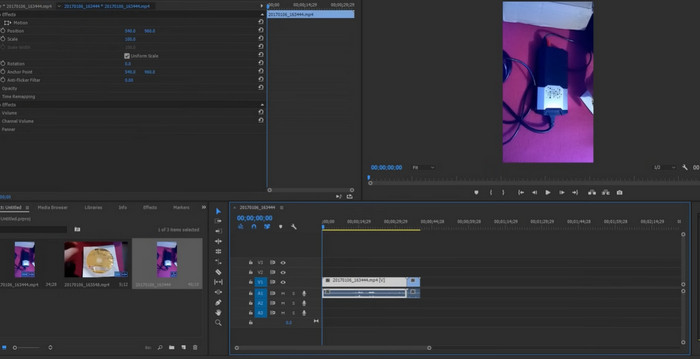
Trinn 1. For å rotere en video med Premiere importerer du ganske enkelt videoklippet og drar det ned på tidslinjen.
Trinn 2. Velg deretter klippet ved å klikke på det, og gå til panelet Effect Controls.
Trinn 3. I fanen Motion kan du bruke alternativet Rotation til å endre videovinkelen etter behov.
4. PowerDirector
PowerDirector er en allsidig videoredigeringsprogramvare som tilbyr en rekke funksjoner, inkludert muligheten til å rotere videoer. Med PowerDirector kan du enkelt fikse videoer som ble tatt opp i feil retning eller i en vanskelig vinkel.
PowerDirectors nøkkelfunksjoner:
◆ Keyframe-kontroll
◆ Redigering av flere kameraer
◆ Kreative videoeffekter
Her er en kort veiledning for hvordan du utfører PowerDirector-roteringsvideoer:
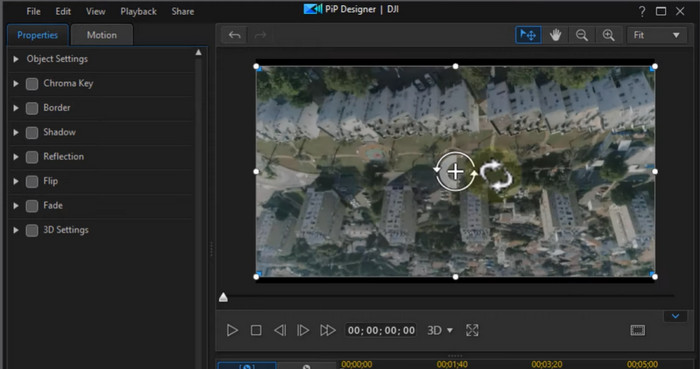
Trinn 1. For å rotere en video i PowerDirector importerer du ganske enkelt videoklippet ditt i programvaren og drar det ned på tidslinjen.
Trinn 2. Klikk deretter på klippet for å velge det, og gå til fanen Fix/Enhance. Her finner du alternativet Rotation, der du kan justere vinkelen på videoen etter behov.
5. DaVinci Resolve
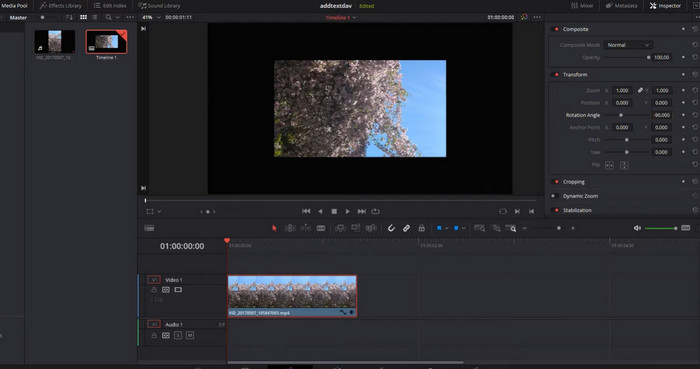
En av de beste egenskapene til DaVinci Resolve relatert til videorotasjon er dens evne til å rotere videoer med presisjon og kontroll. Du kan enkelt justere rotasjonsvinkelen ved hjelp av Transform-panelet, som lar deg angi den nøyaktige rotasjonsgraden du trenger. DaVinci Resolve tilbyr også nøkkelbildekontroll, slik at du kan lage jevne og presise rotasjonsanimasjoner over tid.
DaVinci Resolves nøkkelfunksjoner:
◆ Nøyaktig rotasjonskontroll
◆ Avansert fargekorrigering
◆ Visuelle effekter
Her er trinnene for å utføre DaVinci Resolve-rotere videoer:
Trinn 1. Åpne DaVinci Resolve og opprett et nytt prosjekt. Importer deretter videoen din i mediebiblioteket ved å klikke på knappen Import Media. Dra videoen fra mediebiblioteket til tidslinjen.
Trinn 2. Klikk på knappen Inspector for å åpne Inspector-panelet. Velg Transform-fanen: I Inspector-panelet velger du fanen Transform.
Trinn 3. Juster rotasjonsvinkelen: I fanen Transform kan du justere rotasjonsvinkelen ved å endre verdien for Rotation. Du kan også bruke keyframe-kontrollen til å lage myke og presise rotasjonsanimasjoner over tid.
Del 2. Video Rotator kun for Windows
Nå, når du ser etter videorotatorer dedikert til Windows-brukere, kan du se på programmet nedenfor.
1. Windows Media Player
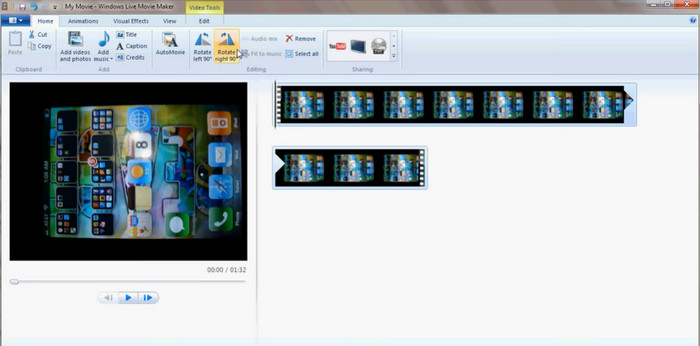
Windows Media Player kan være en VLC-alternativ avspiller for videoer som kommer forhåndsinstallert på Windows-datamaskiner. Den kan spille av en rekke video- og lydfilformater og tilbyr noen grunnleggende videoredigeringsfunksjoner, inkludert rotasjon av video. Du kan også rotere videoene dine 90 grader til venstre eller høyre, noe som er nyttig hvis du har tatt opp en video med feil orientering. Fra en liggende video kan du rotere den til stående format.
Windows Media Players nøkkelfunksjoner:
◆ Avspilling av ulike medieformater
◆ Innebygd kodekstøtte
◆ Roter videoer 90 grader
Her er en instruksjon om hvordan du roterer en video i Windows Media Player:
Trinn 1. Åpne ganske enkelt videofilen i avspilleren, og klikk deretter på knappen Organize øverst i vinduet.
Trinn 2. Velg Options fra rullegardinmenyen, og klikk deretter på fanen Performance.
Trinn 3. Under delen Video Acceleration bør du se et alternativ for å Rotate Video by 90 degrees.
Trinn 4. Merk av i boksen ved siden av dette alternativet for å aktivere videorotasjon, og klikk deretter Apply og OK for å lagre endringene.
2. ClipChamp
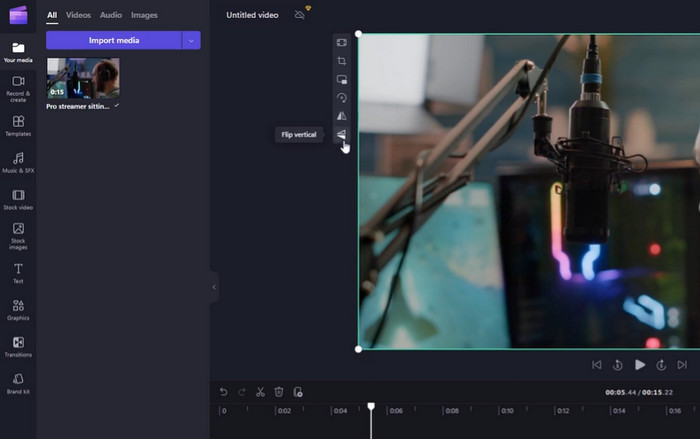
Clipchamp er en app for videoredigering og konvertering som fungerer helt på nett. Den lar brukere redigere og forbedre videoene sine med en rekke verktøy og funksjoner, inkludert videorotasjon, beskjæring, trimming, legging til tekst og filtre, og mer.
ClipChamps nøkkelfunksjoner:
◆ Skylagring
◆ Integrasjon med sosiale medier
◆ Tilpassbar videoutgang
Her er trinnene for å utføre ClipChamp-roteringsvideo:
Trinn 1. Logg inn på ClipChamp-kontoen din, klikk på knappen Create a video på dashbordet og velg videoen du ønsker å rotere fra datamaskinen din.
Trinn 2. Etter at videoen er lastet opp, klikker du på knappen Edit for å åpne Clipchamp-videoredigereren.
Trinn 3. For å snu videoen klikker du på knappen Rotate i venstre panel i redigeringsprogrammet.
Trinn 4. Når du har rotert videoen, klikker du på knappen Save i redigeringsprogrammet for å lagre endringene.
Del 3. Video Rotator kun for Mac
Mac-datamaskiner har også dedikerte verktøy for å rotere videoer. Nedenfor er noen av de anbefalte.
1. iMovie
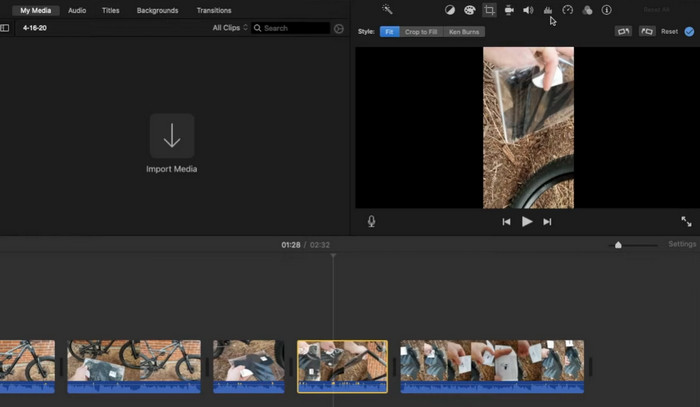
iMovie er en utmerket videoredigeringsprogramvare utviklet av Apple, som er tilgjengelig for macOS, iOS og iPadOS. Det er en robust og brukervennlig applikasjon som lar brukere redigere og forbedre videoene sine med en rekke funksjoner og verktøy, inkludert videorotasjon.
Nøkkelfunksjoner i iMovie:
◆ Titler og tekstoverlegg
◆ Spesialeffekter
◆ Sømløs integrasjon med Apple-produkter
Følg veiledningen nedenfor for å utføre iMovie-rotering av video.
Trinn 1. Åpne iMovie og velg prosjektet du vil redigere. Finn videoklippet du vil rotere på tidslinjen og velg det.
Trinn 2. Klikk på knappen Crop, som ser ut som en firkant med to piler som sirkler rundt, plassert i verktøylinjen over visningen. Velg Rotate fra rullegardinmenyen som vises.
Trinn 3. Bruk rotasjonskontrollene for å justere vinkelen på videoklippet. Du kan også bruke glidebryteren til å speilvende videoen horisontalt eller vertikalt.
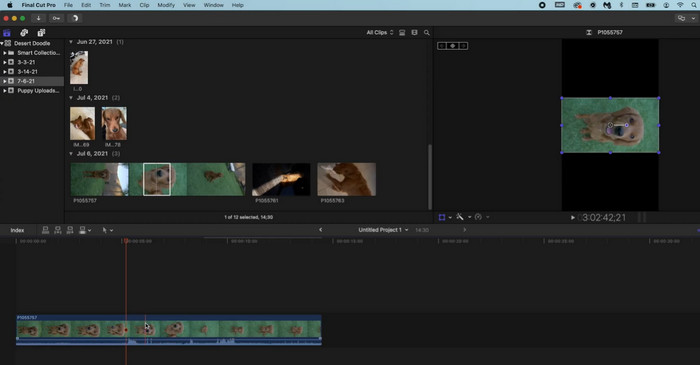
2. Final Cut Pro
Final Cut Pro er en flott videoredigeringsprogramvare designet for Mac-brukere. Den tilbyr et bredt spekter av videoredigeringsverktøy og funksjoner, inkludert muligheten til å rotere videoer. Du kan enkelt rotere videoene dine til ønsket retning og enkelt lage videoer av høy kvalitet.
Nøkkelfunksjoner i Final Cut Pro:
◆ Støtte for flere kameraer
◆ Støtte for 360-graders video
◆ Lydredigeringsverktøy
Her er en trinn-for-trinn-guide for Final Cut Pro Rotate Videos:
Trinn 1. Start Final Cut Pro og importer det ønskede opptaket til prosjektet ditt. Når videoen er importert, drar du den ned til tidslinjen nederst på skjermen.
Trinn 2. Klikk på knappen Crop i verktøylinjen øverst på skjermen for å beskjære bildet.
Trinn 3. Velg Rotate fra rullegardinmenyen Crop. Bruk rotasjonshjulet til å justere orienteringen på videoklippet.
Del 4. Vanlige spørsmål om videorotatorer
Kan jeg rotere en video uten å miste kvalitet?
Ja, du kan rotere en video uten å miste kvalitet ved å bruke videoredigeringsprogramvare som tillater tapsfri rotasjon.
Kan jeg utføre FFmpeg-rotere videoer?
Ja, du kan bruke FFmpeg til å rotere videoer. For å rotere en video med FFmpeg, må du bruke transponerings- eller roteringsfiltrene.
Er det mulig å konvertere portrettvideoer til liggende?
Ja, det er mulig å konvertere en portrettvideo til et landskap ved hjelp av videoredigeringsprogramvare eller verktøy. En ting å gjøre dette er å legge til svarte streker på sidene av portrettvideoen for å få den til å passe til 16:9-sideforholdet til landskapsvideoer.
Konklusjon
Ved å rotere videoene dine kan du forbedre seeropplevelsen for publikum og gjøre videoene dine mer visuelt tiltalende og profesjonelle. Fra innhold til sosiale medier til bedriftspresentasjoner og personlige videoer kan videorotatorer gjøre en stor forskjell for kvaliteten og virkningen av det visuelle innholdet ditt.
-
 11 bemerkelsesverdige videotrimmere å bruke [gratis og betalt]
 Her er listene over videoredigeringsprogramvare du kan bruke til å trimme en video. Vi vil virkelig vurdere disse programmene og gi alle detaljene du leter etter.
-
 5 beste Windows Video Editor med tips for profesjonelle og nybegynnere [2023]
 Ser du etter et Windows-videoredigeringsprogram som gir redigeringsfunksjoner av høy kvalitet? Les deretter denne artikkelen mens vi optimaliserer ulike verktøy du kan velge.
-
 7 beste metadataredigerere for media/bilder/dokumenter [nett og offline]
 Vil du vite den beste metadataredigereren? Heldigvis gir denne artikkelen den beste metadataredigereren du kan bruke for å enkelt endre kodene på hver fil.
