


 Video Converter Ultimate
 Skjermopptaker
 Videoreparasjon
Hvordan sende spillbare videoer på Discord-den rette måten
Det er ikke et uvanlig problem for Discord‑brukere å oppleve at sending og opplasting av videoer mislykkes. Dette problemet skyldes noen begrensninger i dette verktøyet. Hvis du er en av dem, finner du her alt du trenger å vite om hvordan sende avspillbare videoer på Discord og hva du må huske på når du gjør det. I denne artikkelen lærer du også hva du kan gjøre når du sender videoer som ikke er kompatible med de støttede formatene og størrelsesbegrensningene til dette verktøyet. La oss nå lære, og til slutt sende videoer på Discord på riktig måte!

Del 1. Hva er kravene for å laste opp videoer i Discord
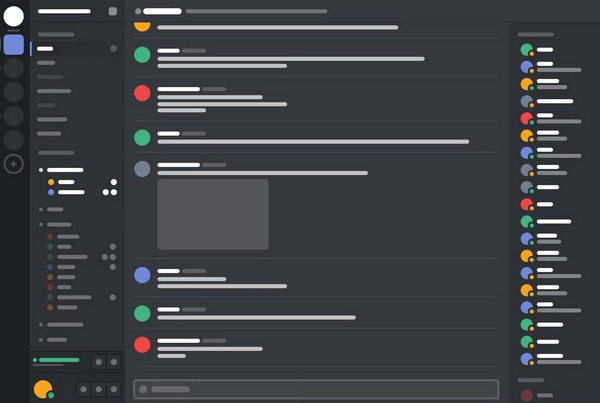
Discord er en allsidig kommunikasjonsplattform der folk kan chatte, snakke og til og med sende videoer. Det er som et virtuelt rom hvor fellesskap, inkludert spillere og andre interessegrupper, kan henge sammen. Du kan opprette servere og bli med hvilken som helst av dem, og på disse serverne kan du skrive meldinger, snakke med stemmen din og til og med ha videosamtaler. Discord er kjent for å være lett å bruke og allsidig, noe som gjør det populært for alle slags nettgrupper og diskusjoner.
I mellomtiden er opplasting av videoer i Discord på en eller annen måte begrenset av forskjellige grunner. Så for å laste opp videoer i Discord, her er de grunnleggende kravene du må følge:
Videolengde: Discord lar brukere laste opp videoer på opptil 8 minutter og 16 sekunder. Enhver video som overskrider denne grensen, må klippes eller redigeres før opplasting.
Videoformat: Dette verktøyet støtter en rekke videoformater, inkludert MP4, MOV, AVI og FLV. Det anbefales imidlertid å konvertere videoen til MP4‑format for best mulig kompatibilitet.
Videostørrelse: Det har en maksimal filstørrelsesgrense på 100 MB for brukere med Discord Nitro og 8 MB for gratisbrukere. Hvis videofilen din overskrider denne grensen, må du komprimere eller redusere størrelsen før du laster den opp med en videokompressor for Discord. Det finnes ulike nettbaserte verktøy og programmer for dette formålet.
Videokvalitet: Dette verktøyet anbefaler en oppløsning på 720p (1280x720 piksler) eller 1080p (1920x1080 piksler) for videoopplastinger.
Bildeforhold: Det støtter også både standard 4:3 og widescreen 16:9 bildeforhold for videoer. Det anbefales imidlertid å bruke widescreen‑forholdet 16:9, ettersom det er vanligere og gir en bedre seeropplevelse på moderne enheter.
Retningslinjer for innhold: Når du laster opp videoer til Discord, er det viktig å følge retningslinjene deres for innhold. Videoer skal ikke inneholde eksplisitt eller støtende innhold, bryte opphavsrettslovgivningen eller krenke noens personvern. Sørg for at videoen din følger disse retningslinjene for å unngå potensielle problemer.
Del 2. Hvordan sende spillbare videoer på Discord
Nå som du har lært kravene for å sende spillbare videoer på Discord. I denne delen lærer du hvordan du sender dem.
Trinn for å sende spillbare videoer på Discord
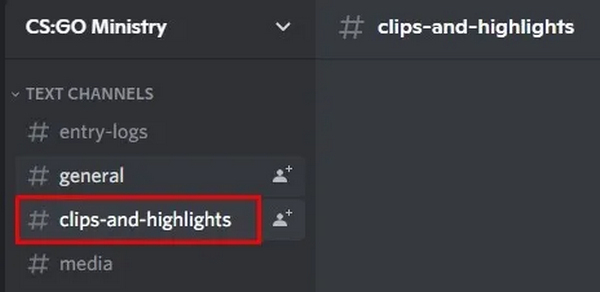
Trinn 1. Åpne først verktøyet på datamaskinen din og velg en kanal.
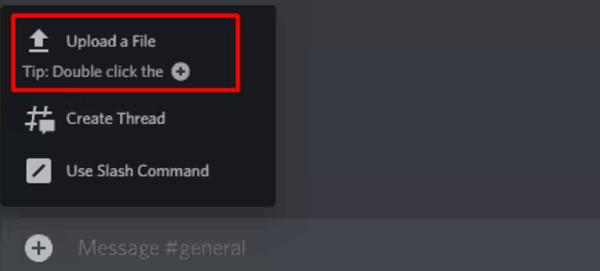
Trinn 2. Nederst til venstre i Discords meldingslinje klikker du på Legg til-knappen og velger Last opp en fil. Du kan også dobbeltklikke på Legg til‑knappen for å åpne Filutforsker direkte.
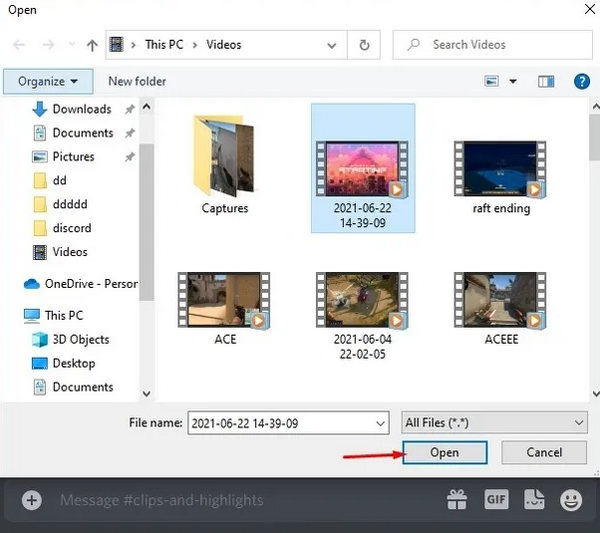
Trinn 3. Når Filutforsker åpnes, finner du videoen du vil laste opp. Marker videoen og klikk på Åpne-knappen.
Trinn 4. Om ønskelig kan du redigere videovedlegget ved å klikke på Blyant-ikonet. Denne funksjonen er nyttig hvis videoen inneholder spoilere for en film eller TV‑serie.
Trinn 5. Trykk Enter i Discords meldingslinje for å laste opp videoen. Du vil se fremdriften mens videoen lastes opp.
Trinn 6. Når videoen er ferdig opplastet, vil medlemmene i den kanalen kunne se den innebygde videoen.
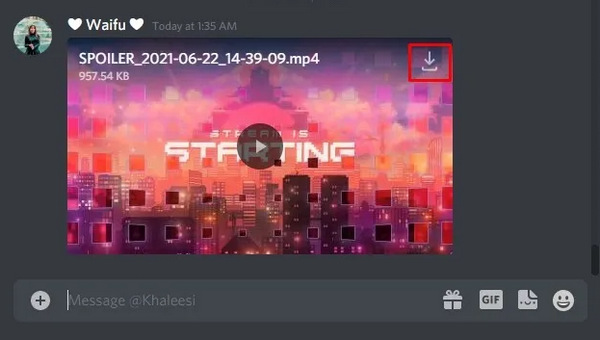
Trinn 7. I tillegg kan vennene dine og andre medlemmer laste ned videoen ved å klikke på Last ned-ikonet.
Hvordan fikse Discord-videoer som ikke kan spilles
Hvis de nedlastede videoene fra Discord ikke kan spilles av, kan du reparere dem ved å bruke et videoreparasjonsverktøy som FVC Video Repair. Dette verktøyet fikser vanlige videoproblemer, det er allsidig og støtter de mest populære videoformatene for å sikre kompatibilitet. Så enten videoen er ødelagt, har tapte data, hakker eller viser feilmeldinger, kan dette verktøyet løse dem.
For å bruke FVC Video Repair, følg disse enkle trinnene:
Trinn 1. Last ned og installer programmet på enheten din.
Gratis nedlastingFor Windows 7 eller nyereSikker nedlasting
Gratis nedlastingFor MacOS 10.7 eller nyereSikker nedlasting
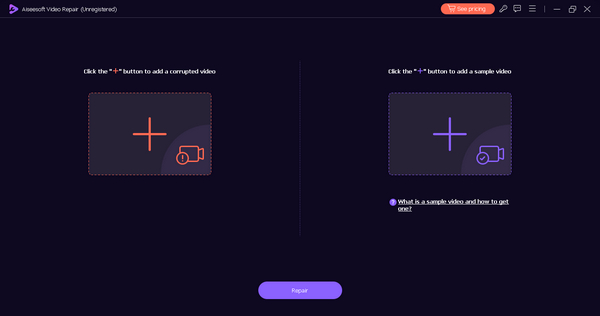
Trinn 2. Deretter legger du til videoen som ble lastet ned fra Discord ved å klikke på Rød pluss-knappen. Klikk på Blå pluss-knappen for å legge til eksempelvideoen.
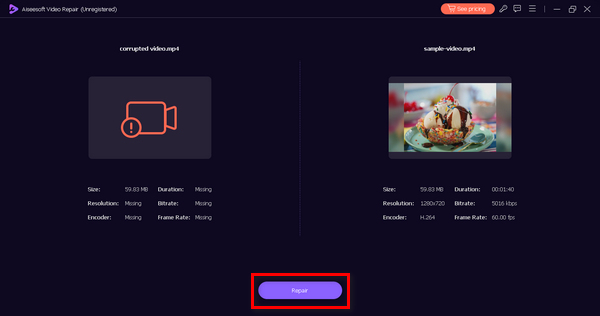
Trinn 3. Deretter klikker du på Reparer-knappen for å reparere videoen.
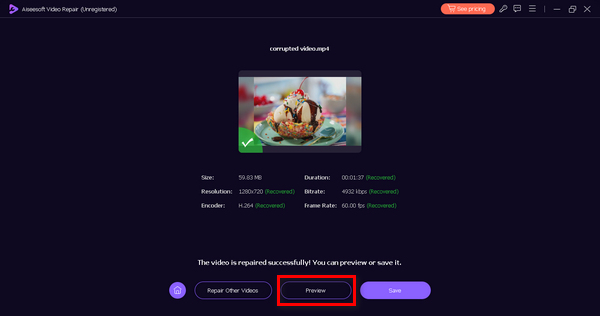
Trinn 4. Til slutt kan du kontrollere videoen ved å forhåndsvise den. Du trenger bare å klikke på Forhåndsvis-knappen, og når du mener at reparasjonen er vellykket, kan du lagre den ved å klikke på Lagre‑knappen.
Hvordan lage en spillbar Discord-video for deling
Hvis du ikke kan legge ut en avspillbar video på Discord fordi formatet ikke støttes eller størrelsen er for stor, anbefaler vi at du bruker FVC Video Converter Ultimate. Dette allsidige verktøyet kan hjelpe deg med å konvertere videoene dine til ønskede formater for Discord, komprimere dem og forbedre kvaliteten slik at de oppfyller Discords krav. Alle disse verktøyene er gode hjelpemidler når du sender eller laster opp videoer på Discord, så gå ikke glipp av muligheten til å ha dem, for de er viktige for å redusere problemer ved sending og opplasting i dette verktøyet.
For å bruke FVC Video Converter Ultimate, her er guiden:
Trinn 1. Gå først til nettstedet deres, last ned programmet og installer det på datamaskinen din.
Gratis nedlastingFor Windows 7 eller nyereSikker nedlasting
Gratis nedlastingFor macOS 10.7 eller nyereSikker nedlasting
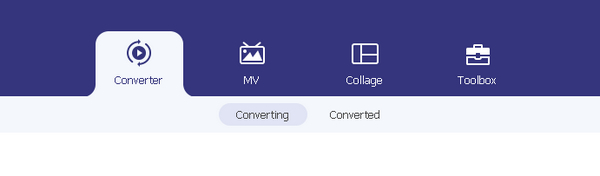
Trinn 2. Nå vil du se fanene Converter, MV, Collage og Toolbox. Blant disse fire velger du den du ønsker å bruke.
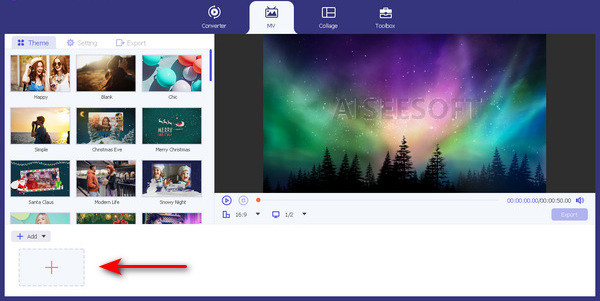
Trinn 3. Klikk nå på knappen Legg til fil for å legge til bilder eller videoer.
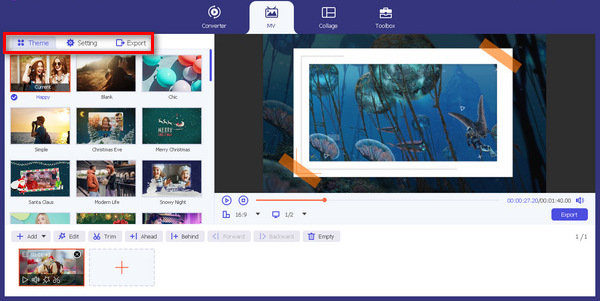
Trinn 4. Slipp kreativiteten løs ved å utforske tema, mal, justere videolengden og andre redigeringsfunksjoner.
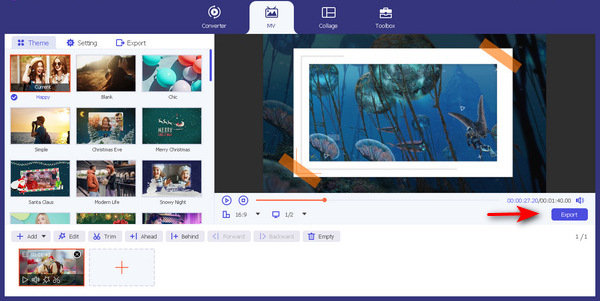
Trinn 5. Til slutt, når du er ferdig, velger du formatene som støttes av Discord (MP4, MOV, AVI og FLV), og klikker på Eksporter-knappen.
Etter det kan du laste opp og dele videoen din på Discord for jevn avspilling.
Del 3. Vanlige spørsmål om sending av spillbare videoer på Discord
Kan du laste ned videoer fra Discord?
Ja. Brukere kan laste ned videoer fra Discord. Bare klikk på nedlastingsikonet knyttet til videoen, så lagres den på enheten din.
Kan du sende videoer i Discord chat?
Ja. Du kan sende videoer i Discord chat. Bare følg den detaljerte veiledningen i dette innlegget. Bortsett fra det, husk kravene for å sende og laste opp spillbare videoer på Discord-kanalen din.
Sensurerer Discord videoen som er lastet opp?
Discord har retningslinjer for innhold og fellesskapsstandarder for å sikre et trygt miljø. Selv om det ikke nødvendigvis sensurerer videoer, kan det iverksette tiltak mot innhold som bryter vilkårene for bruk, som inkluderer eksplisitt eller forbudt materiale.
Hvordan sletter jeg en video jeg lastet opp på Discord?
For å slette en video du lastet opp på Discord, høyreklikk på videoen i chatten eller kanalen og velg alternativet for å slette. Alternativt kan du gå til filen i kanalen, klikke på de tre prikkene ved siden av videoen og velge slettealternativet.
Er det en grense for størrelsen på videoer jeg kan laste opp på Discord?
Discord har begrensninger på filstørrelse ved opplasting. Gratisbrukere har vanligvis en grense på 8 MB, mens brukere med Discord Nitro har en høyere grense på 100 MB. Hold deg innenfor disse grensene når du laster opp videoer, ellers kan du bruke videokonverteringsverktøy som FVC Video Converter Ultimate til å komprimere videoene du har tenkt å sende.
Konklusjon
Discord er et svært nyttig verktøy som alle kan bruke i dag. Når man bruker det, spesielt når det gjelder å sende og laste opp avspillbare videoer, må man imidlertid merke seg kravene denne plattformen stiller. Men dette er egentlig ikke et problem. Du kan gjøre noe med begrensningene for videostørrelse, formater og kvalitet ved å bruke en videokompressor og videoreparasjonsverktøy. Nå som du vet hvordan du sender avspillbare videoer på Discord på riktig måte, bør du ha all denne informasjonen i bakhodet.
-
 Videoene mine spilles ikke av, hva bør jeg gjøre for å fikse dem
 Sitter du med videoer som ikke spilles av, og du vet ikke hvordan du fikser dem? Du er på rett vei for å fikse problemet. Her er alt du trenger å vite.
-
 Raske løsninger for å fikse Kan ikke spille av videofeil 150
 Har du noen gang vært borti den frustrerende manglende evnen til å spille av videofeil 150 under videoseeropplevelsen? Ikke bekymre deg, for vi har dekket deg om hvordan du fikser det.
-
 Discord GIF Resizer: Hvordan fikse Kan ikke endre størrelse på GIF-feil på Discord
 Brukere av Discord har problemer med å laste opp GIF-er på grunn av filstørrelsesbegrensninger. Sjekk dette innlegget for tips om hvordan du endrer størrelsen på GIF-er for Discord.
