


 Video Converter Ultimate
 Skjermopptaker
 Videoreparasjon
 Sikker nedlasting
4 enkle måter å lagre skjermbilder til JPG [2025 Guide]
Skjermbilder lagres vanligvis i PNG-format. Derfor vil det ta litt tid å endre dem til formatet du foretrekker, spesielt når de allerede er lagret. Hvis du opplever dette og ønsker å lagre skjermbilder som JPG, er denne artikkelen for deg. I denne artikkelen går vi gjennom ulike metoder og verktøy du kan bruke, fra tredjepartsprogramvare til innebygde alternativer på enheten din. På denne måten kan du velge metoden som fungerer best for deg. La oss komme i gang!

Del 1: Den enkleste måten å lagre skjermbilde til JPG på Windows og Mac
Hvis du ser etter en enkel måte å lagre skjermbilder som JPG på både Windows og Mac, er FVC Screen Recorder den perfekte løsningen for deg. Dette skjermopptaksverktøyet er utviklet for å forenkle prosessen med å ta og lagre skjermbilder i hvilket som helst format du foretrekker. Med det intuitive grensesnittet kan du uten problemer ta skjermbilder av hele skjermen på Mac eller Windows, bestemte vinduer eller egendefinerte områder, og deretter lagre dem som JPG eller et annet ønsket format med bare noen få klikk. Dessuten, hvis du vil forbedre eller tilpasse skjermbildet ditt, har det mange avanserte funksjoner som kan hjelpe deg med å redigere skjermbildet før du lagrer det som JPG.
Trinn 1. Last først ned og installer FVC Screen Recorder på Windows- eller Mac-datamaskinen din.
Gratis nedlastingFor Windows 7 eller nyereSikker nedlasting
Gratis nedlastingFor MacOS 10.7 eller nyereSikker nedlasting
Trinn 2. Når du har startet verktøyet, klikker du på ikonet Snapshot i høyre hjørne.
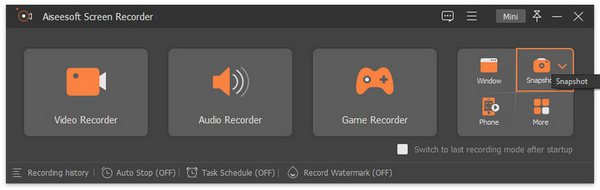
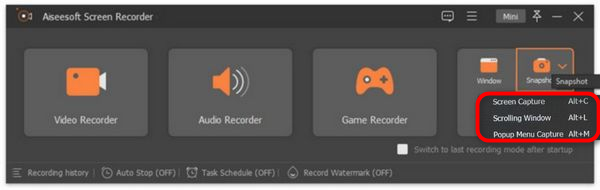
Trinn 3. Etter at du har klikket på Snapshot-ikonet, har du tre alternativer for hvordan du vil ta et skjermbilde. Du kan velge mellom Screen Capture, Scrolling Window eller Pop-up Menu Capture.
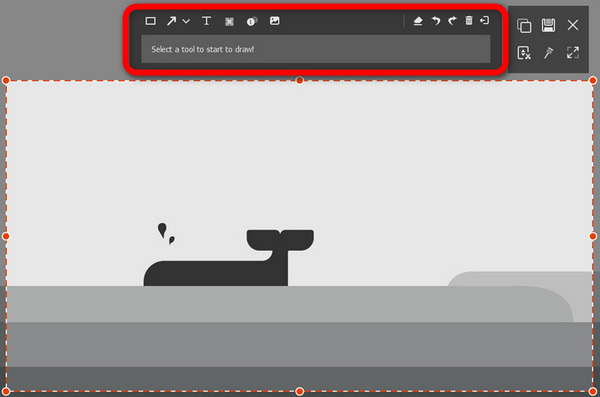
Trinn 4. Dra nå markøren over området på skjermen på Windows-enheten din for å velge delen du vil ta skjermbilde av.
Trinn 5. Klikk deretter på knappen Save, gå til Save as Type, og velg JPG fra rullegardinmenyen.

Med det brukervennlige grensesnittet for å ta skjermbilder og lagre dem til JPG eller et hvilket som helst formatfil du foretrekker, er FVC Screen Recorder virkelig det beste valget for alle som søker en problemfri måte å ta og lagre skjermbilder til JPG-format på både Windows og Mac-plattformer.
Del 2: Lagre skjermbilde som JPG på Windows med klippeverktøy
Snipping Tool er en av de vanligste innebygde applikasjonene som er tilgjengelige på Windows-operativsystemer i dag, og er designet for å ta skjermbilder. Med bruk av klippeverktøyet kan brukere lagre skjermbildene til JPG etter å ha tatt dem.
Trinn 1. Først må du gå til Start i Windows.
Trinn 2. Gå deretter til søkefeltet og søk etter Snipping Tool. .
Trinn 3. Nå vil du se knappen New. Klikk på den for å begynne å ta et skjermbilde.
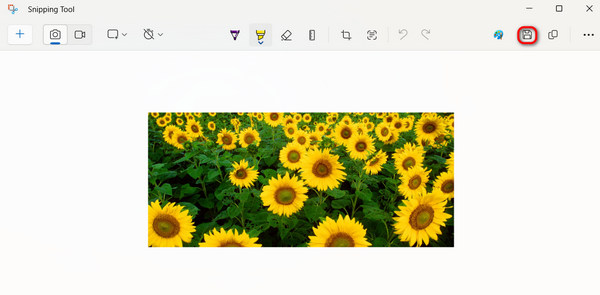
Trinn 4. Til slutt, for å lagre skjermbildet og konvertere det til JPG, klikker du på knappen Save og velger JPG i rullegardinmenyen Save as Type.
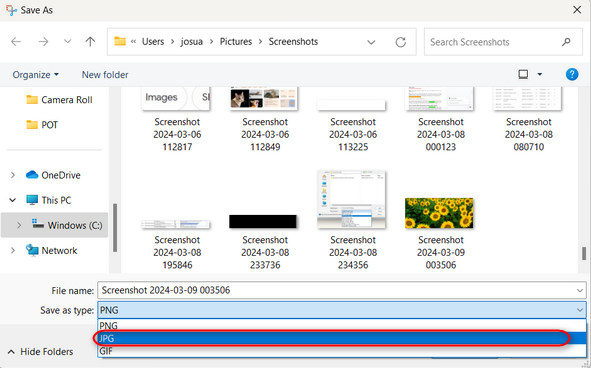
Så hvis du er en Windows-bruker og ønsker å lagre skjermbilder til JPG, er det definitivt et praktisk alternativ å bruke klippeverktøyet. Vær imidlertid oppmerksom på at den mangler avanserte funksjoner som finnes i tredjepartsverktøy og kan føles utdatert for noen brukere.
Del 3: Lagre skjermbilde som JPG på Mac ved hjelp av forhåndsvisning
Hvis du bruker Mac, kan du bruke Verktøyet Forhåndsvisning (Preview) til å lagre og ta skjermbilder på Mac som JPG. Dette verktøyet er innebygd i macOS, så du trenger ikke å installere noe for å bruke det. Du trenger bare å åpne skjermbildet i appen og lagre det som JPG.
Trinn 1. Først må du ta et skjermbilde ved hjelp av de innebygde hurtigtastene for skjermbilder på Mac.
Ta skjermbilde av hele skjermen: Trykk Command + Shift + 3.
Ta skjermbilde av et valgt område: Trykk Command + Shift + 4.
Ta skjermbilde av et bestemt vindu: Trykk Command + Shift + 4, deretter Mellomromstasten.
Trinn 2. Når du har tatt et skjermbilde, klikker du på miniatyren for å åpne det i Preview, som vises nederst til høyre på skjermen.
Trinn 3. Gå nå til menyen File i Preview.
Trinn 4. Velg Export fra menyen File, eller trykk Command + Shift + S.
Trinn 5. Velg til slutt JPG som filformat fra rullegardinmenyen, og klikk deretter Save.
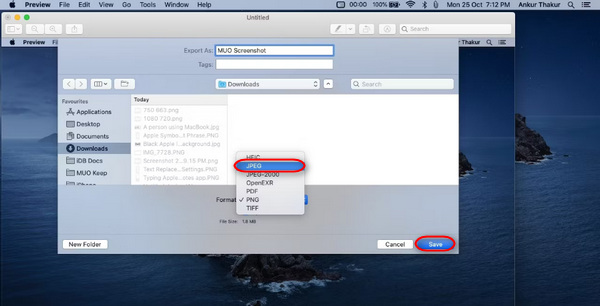
Selv om dette kan høres enkelt og raskt ut, er det fortsatt ubeleilig å ta et skjermbilde og manuelt endre formatet til JPG i forhåndsvisning, og det vil ta litt tid. Men hvis dette ikke er et problem for deg, kan du bruke denne metoden til å lagre skjermbilder til JPG på Mac-en.
Del 4: Tips: Hvordan konvertere et skjermbilde til JPG Online
Hvis du ser etter et nettbasert konverteringsverktøy for å konvertere skjermbilder til JPG, er FVC Free Image Converter det beste for deg. Dette verktøyet lar deg konvertere bildeformater som JPG, JPEG, PNG, GIF, BMP, TIFF, WEBP, ICO og SVG til JPG, PNG og GIF. Det er også raskt og enkelt å bruke, og det brukervennlige grensesnittet gjør det tilgjengelig for alle typer brukere.
Trinn 1. Gå til den offisielle nettsiden til FVC Free Image Converter.
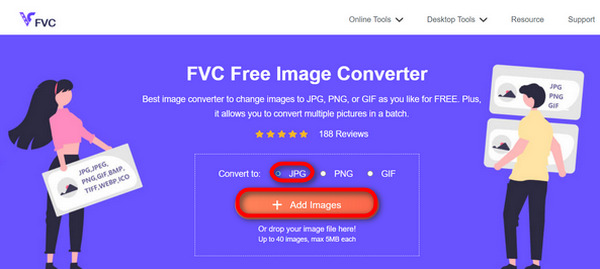
Trinn 2. Klikk på Add Images, og velg JPG i Convert To-alternativet.
Trinn 3. Når prosessen er fullført, klikker du bare på knappen Download All for å lagre det konverterte skjermbildet som JPG.
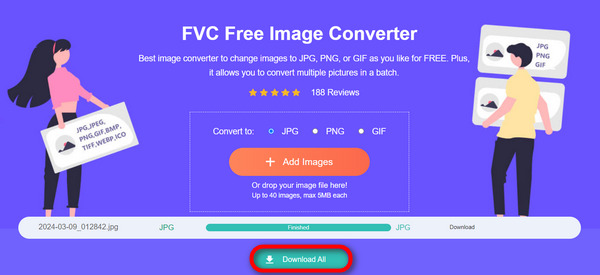
Med FVC Free Image Converter er det raskt og enkelt å konvertere skjermbilder til JPG. Det er det beste alternativet når du har problemer med andre metoder nevnt ovenfor.
Del 5: Vanlige spørsmål om konvertering av skjermbilde til JPG
Kan jeg konvertere flere skjermbilder til JPG-format samtidig?
Ja. Du kan konvertere flere skjermbilder til JPG-format samtidig ved å bruke konverteringsverktøy som har en batchkonverteringsfunksjon som FVC Free Image Converter. Dette verktøyet lar deg velge flere skjermbilder og konvertere dem til JPG-format på én gang, noe som sparer deg for tid og krefter.
Påvirker konvertering av skjermbildebilder til JPG kvaliteten?
Ja, men ikke så mye. Konvertering av skjermbilder til JPG vil bare ha en minimal nedgradering i kvalitet, men det er noe som tåles. Når du velger JPG-komprimering, sørg for å balansere filstørrelsen og bildekvalitetsinnstillingene for å oppnå tilfredsstillende resultater.
Kan jeg justere bildekvaliteten når jeg lagrer skjermbilder til JPG?
Ja. Det finnes ulike bilderedigeringsprogramvare og online-omformere som har funksjoner for å justere bildekvalitetsinnstillingene når du lagrer skjermbilder til JPG. Dette lar dem kontrollere komprimeringsnivået som brukes på bildet.
Konklusjon
Der har du det. Enten du bruker Windows eller Mac, finnes det flere enkle måter å konvertere dem til JPG-format. Med disse metodene kan du nå enkelt administrere og lagre skjermbildene dine i JPG-format. Så neste gang du trenger å lagre et skjermbilde, kan du huske disse enkle metodene, spesielt når du vil lagre skjermbildet som JPG.
-
 Topp 5 ledende veiledninger for å konvertere PNG til JPG raskt
 Hvis du trenger å konvertere PNG-filen til JPG-format, kan du lære de beste måtene her. Du vil også lære forskjellen mellom PNG- og JPG-filformater.
-
 Slik løser du skjermbilde som ikke fungerer på iPhone [2025]
 Har du problemer med å ta skjermbilder på iPhone? Vi har deg! Lær vår omfattende guide for å hjelpe deg med å fikse skjermbilder som ikke fungerer på iPhone, raskt og enkelt.
-
 Uanstrengte metoder for hvordan du konverterer SVG til JPG-format
 Finner du den beste måten å konvertere SVG til JPG? Dette innlegget vil gi noen surefire veiledninger du kan prøve. Du vil også finne SVG til JPG-konverteren for deg.
