


 Video Converter Ultimate
 Skjermopptaker
 Videoreparasjon
 Sikker nedlasting
Konverter JPG til MP4 på Windows/Mac uten å miste kvaliteten
JPG er det vanligste bildeformatet, og vi bruker det til ulike formål, fra å dele bilder på nettet til å lagre digitale øyeblikksbilder på enhetene våre. Med sin utbredte kompatibilitet og relativt lille filstørrelse, har JPG blitt det beste valget for å fange og bevare visuelle minner i hverdagen.
Men nå for tiden har det blitt vanlig å lage videoer av bilder. Det er også en annen måte å bevare minner på, på en mer kreativ og engasjerende måte. Du kan legge til lyd, overganger, eller bare lage en enkel lysbildefremvisning som en MP4‑video med favorittmusikken din som bakgrunn. Så hvis du liker dette og planlegger å gjøre om JPG til MP4, fortsett å lese denne artikkelen og lær hvordan du konverterer dem med 4 ulike metoder uten å miste kvalitet. Slipp løs de kreative kreftene i deg i dag!

Del 1: Ultimate måte å konvertere JPG til MP4 på Windows/Mac [Best for nybegynnere]
Den beste måten å konvertere JPG til MP4 på er ved å bruke FVC Video Converter Ultimate. Dette verktøyet har en spesiell funksjon som heter MV, som lar brukere lage MP4‑videoer av høy kvalitet fra JPG‑bildene sine. Det følger med forhåndsinnstilte temaer du fritt kan bruke, samt ulike effekter og filtre. Du kan også enkelt rotere og beskjære JPG‑filer før du eksporterer dem til MP4. Det morsomste med dette verktøyet er at du kan importere din egen lyd, tilpasse videoen med en vannmerking og mer. Til slutt er verktøyet ikke vanskelig å bruke, siden det har et svært intuitivt og brukervennlig grensesnitt. Følg trinnene nedenfor for å gjøre dette:
Trinn 1. Først må du skaffe programvaren enten til Windows eller Mac, deretter laste den ned og installere den.
Gratis nedlastingFor Windows 7 eller nyereSikker nedlasting
Gratis nedlastingFor MacOS 10.7 eller nyereSikker nedlasting
Trinn 2. Etterpå åpner du verktøyet, og blant de 4 fanene øverst klikker du på MV.

Trinn 3. Når du er på MV‑hovedgrensesnittet, klikker du på knappen Add File for å legge til JPG‑filene du vil konvertere til MP4.

Trinn 4. For å legge til, redigere og klippe MP4‑videoen din, klikker du på knappen øverst over Add File-knappen. Du kan også velge et forhåndsinnstilt tema ved å klikke på fanen Theme øverst.

Trinn 5. For å beskjære og rotere bildene, legge til filtre og effekter og legge til en vannmerking for å gjøre den mer personlig, klikker du bare på Edit-ikonet nedenfor, så åpnes et nytt vindu.

Trinn 6. Når alt er klart, klikker du på Export-knappen, der du kan endre formatet til MP4 og justere bildefrekvens, oppløsning og kvalitet. Du kan også angi hvilken mappe du vil lagre de konverterte JPG‑til‑MP4‑filene i. Til slutt klikker du på knappen Start Export for å lagre filen.

FVC Video Converter Ultimate forenkler å gjøre JPG til MP4 med det brukervennlige grensesnittet, tilpassbare funksjoner, forhåndsinnstilte temaer, redigeringsverktøy, utdata av høy kvalitet og kompatibilitet med både Windows- og Mac-operativsystemer. Det er faktisk den ultimate måten å få kjedelige bilder til å bli til morsomme og kreative videoer.
Del 2: Konverter JPG til MP4 på Windows 11/10 med standardverktøybilder
På Windows 10 og 11 er Clipchamp nå integrert med Photos-appen, som lar brukere konvertere JPG til MP4-filer. Denne integrasjonen gjør redigering enklere som deretter kan lagres til MP4. Så for å veilede deg med dette, følg trinn-for-trinn-prosessen nedenfor:
Trinn 1. På PC‑en går du først til Startmenyen og klikker deretter på Photos.
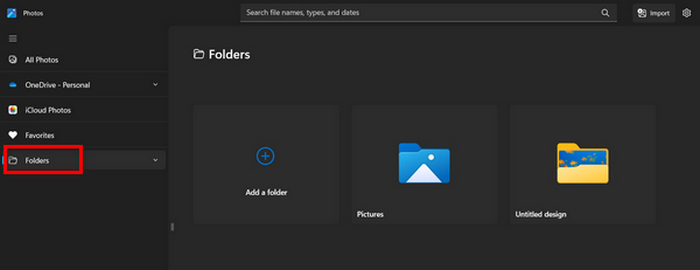
Trinn 2. I Photos går du til Folders i venstre fane. Du blir bedt om å legge til en mappe, eller du kan ganske enkelt velge bilder fra Pictures‑mappen som du vil gjøre om til MP4.
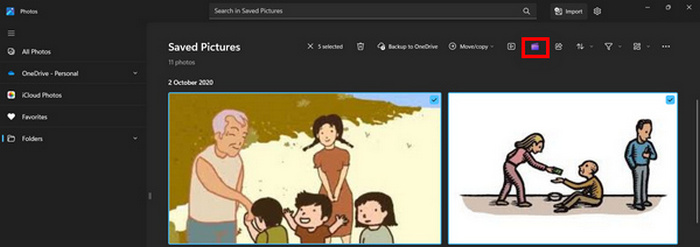
Trinn 3. Når du har valgt JPG‑bildene du vil konvertere, klikker du på ikonet Create a video.
Trinn 4. I et nytt Window blir du spurt om du vil legge til mediefiler i denne videoen. Klikk på Yes to Add Video.

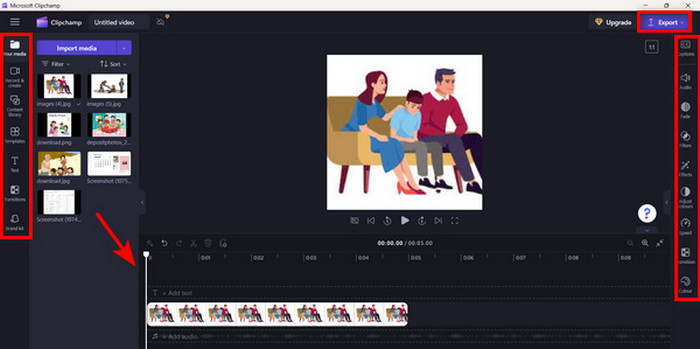
Trinn 5. Dra deretter de importerte mediefilene til tidslinjen. Du kan bruke redigeringsvalgene i venstre fane, der du kan legge til tekst, velge maler og mer. I fanen til Right kan du legge til lyd, effekter, filtre osv. Når du er ferdig, klikker du bare på Export-knappen, så lagres MP4‑filen direkte på datamaskinen.
Hvis du er en Windows-bruker, gjør denne metoden konvertering av JPG til MP4 veldig rask. Imidlertid kunne denne metoden vært enklere sammenlignet med andre verktøy. Du kan heller ikke eksportere 2K/4K-videooppløsning ved å bruke gratisversjonen, og du har ikke tilgang til andre gode effekter og filtre sammenlignet med andre konverteringsverktøy.
Del 3: Konverter JPG til MP4 på Mac med iMovie
Hvis du er en Mac-bruker, er det en praktisk løsning for å konvertere JPG til MP4 for deg. Mac har en innebygd app som heter iMovie. Dette er en videoredigeringsapp som tilbyr grunnleggende redigering for sine brukere, men bortsett fra dette kan denne også brukes til å gjøre JPG-filer om til MP4. De trenger bare å importere bildene sine, legge til noen effekter og filtre og deretter lagre dem som MP4.
Trinn 1. På Mac‑en din åpner du iMovie‑appen og klikker på Create New.
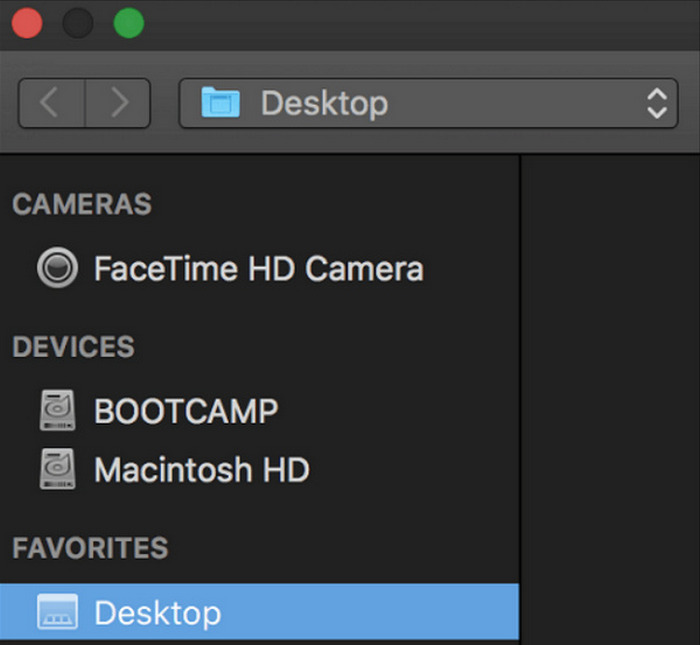
Trinn 2. Etterpå legger du til JPG‑filen din i appen ved å klikke på knappen Import Media i hovedgrensesnittet.
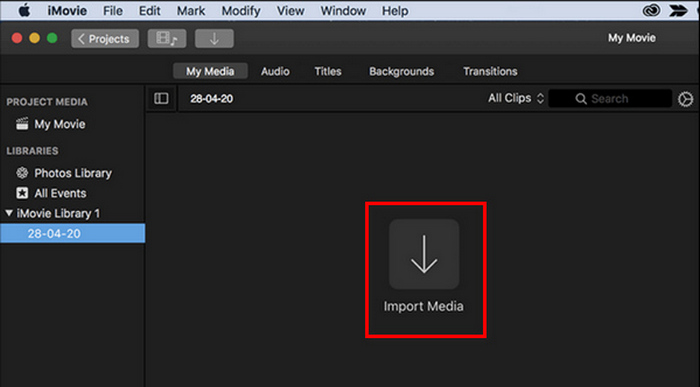
Trinn 3. Finn deretter JPG‑filene du vil konvertere til MP4.
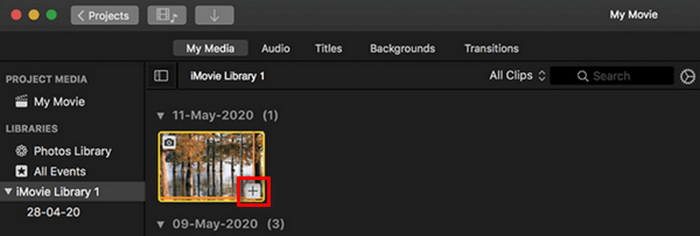
Trinn 4. Når JPG‑filen din vises i appgrensesnittet, kan du velge den og se et Plus-tegn. Klikk på det for å legge bildet til tidslinjen.
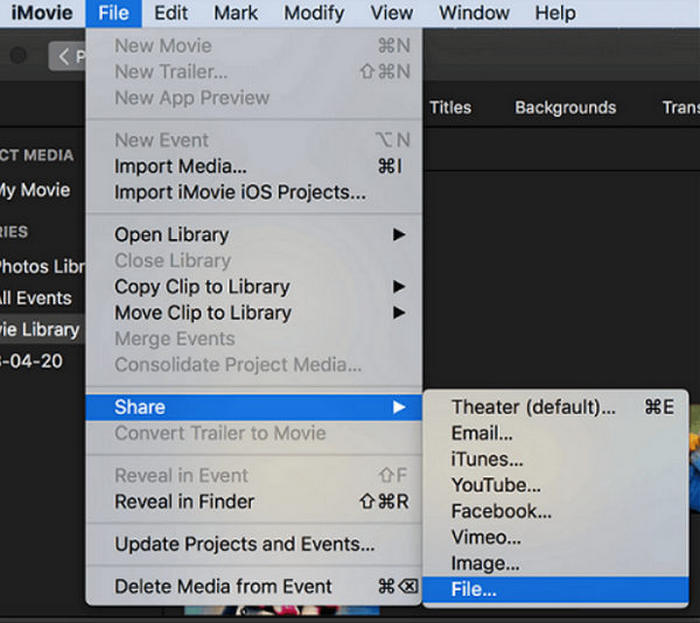
Trinn 5. Etter at du har lagt JPG‑filene til tidslinjen, kan du dra i hjørnene for å utvide varigheten på den endelige MP4‑filen. Klikk deretter på menyen File øverst, velg Share og deretter File for å eksportere filen.
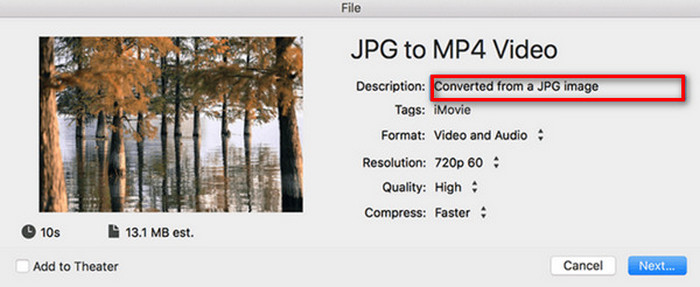
Trinn 6. Til slutt gir du MP4‑filen ditt et navn øverst, fyller ut andre metadatafelt for videofilen og klikker på Next. Velg ønsket plassering der du vil lagre MP4‑filen du skal konvertere. Når du har valgt plassering, starter konverteringsprosessen.
iMovie gir Mac‑brukere en praktisk måte å konvertere JPG til MP4‑filer på, med sitt brukervennlige grensesnitt og integrerte redigeringsverktøy. Men det kan mangle avanserte funksjoner sammenlignet med andre konverteringsverktøy, noe som begrenser tilpasningsmuligheter og effekter. Selv om det er egnet for grunnleggende redigering, blir brukere nå mer konkurransedyktige og kreative, og ser etter et verktøy som virkelig kan dekke alles behov og forventninger. I tillegg fungerer ikke dette verktøyet på Windows. Hvis du liker iMovie, kan du finne iMovie for Windows-verktøy her.
Del 4: Konverter JPG til MP4 Online
Nå, hvis du leter etter en annen måte å konvertere JPG til MP4 på, kan det være noe for deg å konvertere dem på nettet. En av de beste online-konvertererne for dette er Online Convert.com. Du kan kjøre dette verktøyet fra forskjellige nettlesere på datamaskinen din, og det kan enkelt brukes på grunn av dets intuitive brukergrensesnitt.
Trinn 1. I nettleseren din søker du etter nettstedet Online Convert.com.
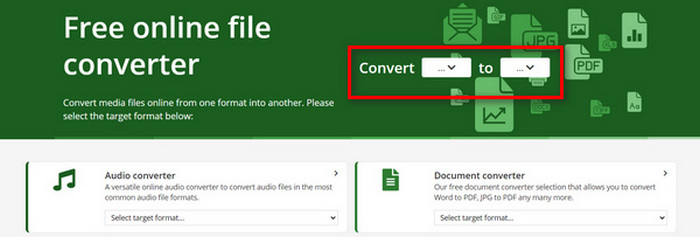
Trinn 2. Når du er på nettstedet deres, velger du formater deretter. Siden du skal konvertere JPG til MP4, velger du JPG i rullegardinmenyen Convert og MP4 i rullegardinmenyen To.
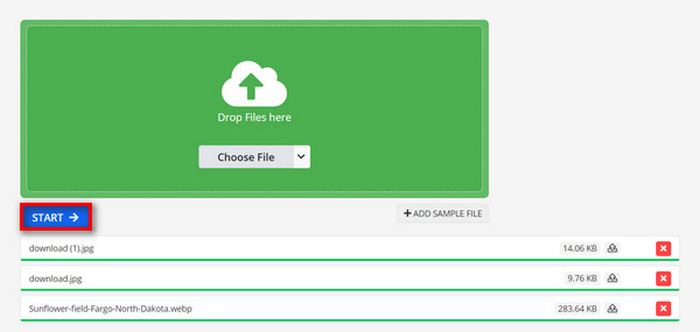
Trinn 3. Etterpå laster du opp JPG‑filene du vil konvertere ved å klikke på rullegardinmenyen Choose File, der du kan importere filer fra enheten din, Dropbox, Google Drive eller til og med fra en URL.

Trinn 4. Når du har lastet opp JPG‑filene du vil konvertere til MP4, klikker du på knappen Start.
Trinn 5. Til slutt laster du ned MP4‑filen ved å klikke på knappen Download.
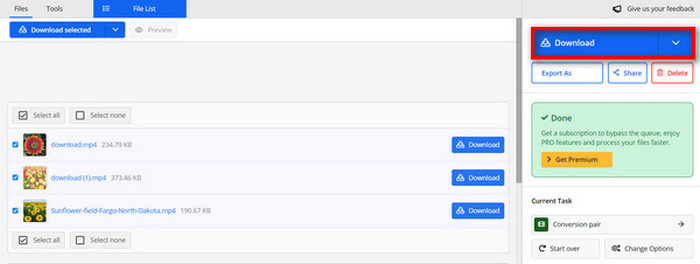
Konverterte utdata fra dette verktøyet er et resultat av en forhåndsinnstilt videoinnstilling som brukerne manuelt justerte før de konverterte filene. Selv om dette enkelt gjør JPG til MP4, kan du ikke forbedre den konverterte videoen direkte basert på din kreative stil.
Del 5: Vanlige spørsmål om konvertering av JPG til MP4
Er JPEG det samme som JPG?
JPEG og JPG er i hovedsak det samme digitale bildeformatet, og begge filetternavnene viser til JPEG‑formatet som ble opprettet av Joint Photographic Experts Group, eller JPEG. Lær her hvordan du kan konvertere JPEG til JPG.
Når bør jeg konvertere JPG til MP4?
Du bør konvertere JPG til MP4 når du vil lage en visuell presentasjon eller dele en serie bilder som en video, som å lage lysbildeserier, digitale fotoalbum eller videolysbilder. Bortsett fra dette, hvis du vil være kreativ med hvordan du vil at JPG-filene dine skal bli sett, så er konvertering av dem til MP4 den ultimate måten å legge til overganger, musikk, tekstoverlegg og andre multimedieelementer.
Hvordan kombinerer jeg JPG og MP4?
Den eneste måten å kombinere JPG og MP4 på er å bruke videoredigeringsverktøy. Med denne tilnærmingen har du full kontroll over arrangementet, timingen og tilpasningen av både bildene og videoen du vil kombinere.
Konklusjon
Nå er det din tur! Å konvertere JPG til MP4 er en ny måte å bevare minner på, på en kreativ måte. Så hvis du har JPG‑filer og vil konvertere dem, følg alle metodene som er presentert i denne artikkelen og velg den som passer deg best. Kom i gang i dag og se magien skje!
-
 Topp 5 ledende veiledninger for å konvertere PNG til JPG raskt
 Hvis du trenger å konvertere PNG-filen til JPG-format, kan du lære de beste måtene her. Du vil også lære forskjellen mellom PNG- og JPG-filformater.
-
 Uanstrengte metoder for hvordan du konverterer SVG til JPG-format
 Finner du den beste måten å konvertere SVG til JPG? Dette innlegget vil gi noen surefire veiledninger du kan prøve. Du vil også finne SVG til JPG-konverteren for deg.
-
 Nyttige metoder for å konvertere TIFF til JPG/PNG enkelt
 Ikke gå glipp av disse utmerkede måtene å gjøre TIF til JPG/PNG-formater på. Dette innlegget vil gi den nødvendige informasjonen du trenger å vite. Det inkluderer deres forskjeller.
