


 Video Converter Ultimate
 Skjermopptaker
 Videoreparasjon
 Sikker nedlasting
3 beste metoder for å konvertere PNG til MP4 [raske løsninger]
I dag blir folk hektet på å gjøre bildene sine om til videoer med effekter, tekst, overganger og filtre. Selv om PNG er et flott bildeformat for bilder, kan vi være mer kreative ved å konvertere dem til MP4. Det kan høres uvanlig ut for noen, men mange konverterer disse filene for å lage en kortfilm eller en morsom video. Så hvis du er på jakt etter et konverteringsverktøy som gjør om PNG til MP4, er du på rett sted.
Dermed har vi utarbeidet 3 verktøy som du kan vurdere for å enkelt konvertere et bilde til et videoformat. Bli kjent med hver av dem og lær hvordan du bruker dem nå!

Del 1: Konverter PNG til MP4 med best kvalitet på skrivebordet
En av de beste måtene å konvertere PNG til MP4 på, er å bruke FVC Video Converter Ultimate. Dette konverteringsverktøyet er ikke en vanlig konverterer, ettersom det er integrert med ulike funksjoner som MV, som lar deg gjøre PNG-filer om til en MP4-video. Det har flere forhåndsinnstilte temaer som du fritt kan bruke. Du kan også legge til din egen bakgrunnsmusikk, legge til filtre og effekter, og til og med gjøre videoen personlig ved å plassere et vannmerke på den. I tillegg kan du enkelt rotere, trimme og klippe bildet basert på dine preferanser og din kreative visjon. Så hvis du virkelig er opptatt av den kreative siden av ting og vil gjøre bildene dine om til en dynamisk MP4-fil, er dette det perfekte konverteringsverktøyet for deg.
Trinn 1. Last først ned programvaren på Windows- eller Mac-enheten din og installer den.
Gratis nedlastingFor Windows 7 eller nyereSikker nedlasting
Gratis nedlastingFor MacOS 10.7 eller nyereSikker nedlasting
Trinn 2. Deretter åpner du verktøyet og klikker på fanen MV.

Trinn 3. Legg nå til PNG-filene du vil konvertere til MP4 ved å klikke på knappen Add File.

Trinn 4. Når du har importert PNG-filene til MV-maker, kan du legge dem til, redigere dem og klippe dem sammen til en video. Klikk bare på knappen øverst over Add File-knappen. Du kan også velge et forhåndsinnstilt tema ved å klikke på fanen Theme øverst.

Trinn 5. For å legge til filtre og effekter og for å beskjære og rotere bildene, klikker du bare på ikonet Edit nedenfor. Du kan også gjøre MP4-videoen personlig ved å legge til et vannmerke.

Trinn 6. Når alt er klart, klikker du på knappen Export for å lagre MP4-videoen. Før du eksporterer, husk å angi mappen der du vil lagre utskriftsfilen, og sørg for at utdataformatet er satt til MP4.

Du kan også endre bildefrekvensen, oppløsningen og kvaliteten på videoutgangen.
Trinn 7. Til slutt kan du få tilgang til den eksporterte videoen i mappen du valgte.
Når du konverterer PNG til MP4 ved å bruke FVC Video Converter Ultimate, kan du virkelig garantere et kvalitetsresultat. Det intuitive grensesnittet gjør konverteringen enkel å behandle, og redigeringsfunksjonene kan heve det visuelle utseendet til videoutgangen din. I tillegg kan du velge din foretrukne videooppløsning opptil 4K for å sikre kompatibilitet med enheten din og ulike mediespillere.
Del 2: Konverter PNG til MP4 med FFmpeg
En annen metode du kan bruke for å konvertere PNG til MP4, er å bruke FFmpeg. Dette verktøyet er gratis og åpen kildekode og tilbyr en omfattende pakke med biblioteker og programmer for håndtering av ulike multimediabygg og strømmer. Med FFmpeg kan du sømløst konvertere en sekvens av JPG-bilder til en MP4-videofil via kommandolinjefunksjonen. Du trenger bare å bruke en kommando eller en kode limt inn i terminalen eller kommandolinjen, så vil den behandle konverteringen og opprette utdatafilen deretter.
Trinn 1. Last ned og installer FFmpeg på datamaskinen din.
Trinn 2. Åpne Terminal eller Command prompt.
Trinn 3. Gå til mappen som inneholder bildesekvensen din.
Trinn 4. Bruk følgende kommando for å opprette videoen. Anta at filnavnet på bildet er happy: ffmpeg -framerate 1 -i happy%d.png -c:v libx264 -r 30 output.mp4

Trinn 5. Om ønskelig kan du angi startnummeret for bildesekvensen ved å bruke alternativet -start_number. For eksempel, hvis bildesekvensen starter fra happy3.png, legger du til -start_number 3 i kommandoen.
Trinn 6. Trykk på Enter for å utføre kommandoen. FFmpeg begynner da å behandle bildene og opprette videoen.
Trinn 7. Når prosessen er fullført, kan du få tilgang til videoen i mappen du har angitt.
Selv om dette verktøyet ser ut til å ha en lovende konverteringsprosess og resultat, er ulempen kompleksiteten til grensesnittet, noe som gjør det vanskelig for brukere å navigere i prosessen med å konvertere PNG til MP4.
Fordeler
- Gratis og åpen kildekode.
- Kraftig kommandolinjegrensesnitt.
Ulemper
- Bratt læringskurve for nybegynnere.
- Mangel på grafisk brukergrensesnitt.
Del 3: Konverter PNG til MP4 Online
En annen metode for å gjøre PNG om til MP4, er å bruke et konverteringsverktøy. Med nettbaserte konverterere kan du sikre kompatibilitet med ulike enheter, siden du kun trenger en nettleser og en internettforbindelse. Et av de beste nettbaserte konverteringsverktøyene vi kan anbefale, er FlexClip. Dette er et allsidig nettverktøy som lar deg konvertere PNG-bilder til MP4-videoer. Du trenger bare å importere PNG-filene dine, og deretter får du et brukervennlig grensesnitt som gjør det enkelt å gjøre dem om til en videofil når du eksporterer.
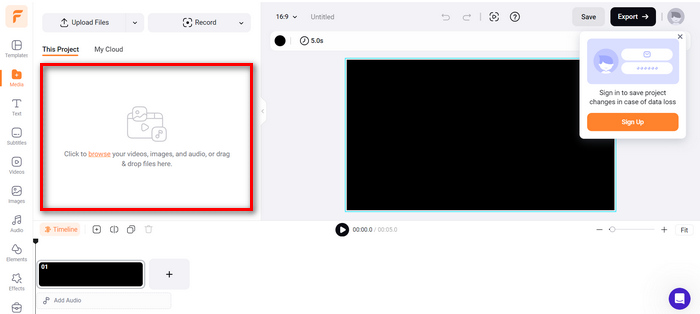
Trinn 1. Gå først til fanen Media og klikk på Browse for å importere PNG-filene dine.
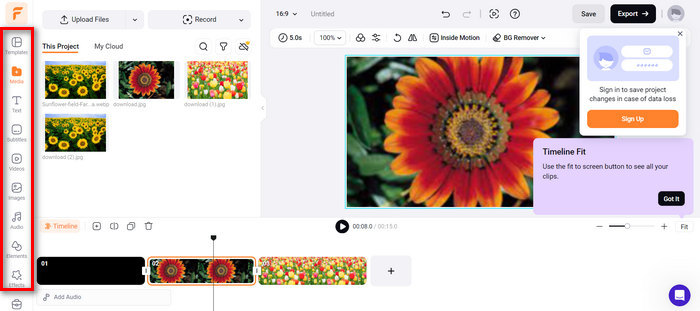
Trinn 2. Deretter drar du PNG-filene til tidslinjen slik at du kan trimme dem og legge til overganger i resultatet. Ved å gå til venstre fane i programvarens grensesnitt kan du også forbedre den visuelle kvaliteten på videoen ved å legge til tekst, undertekster, lyd, elementer og effekter.
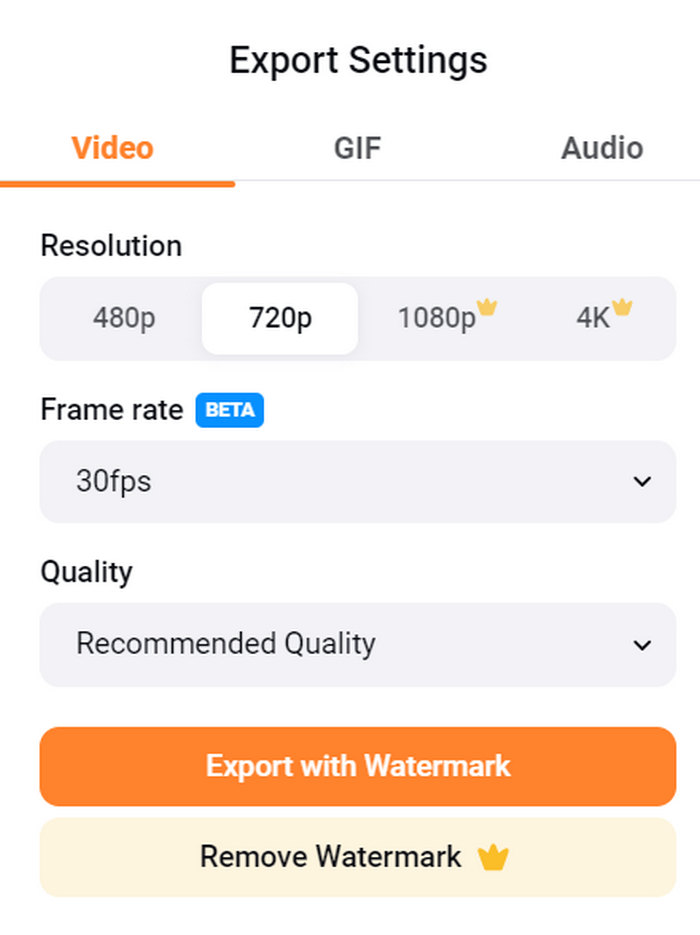
Trinn 3. Nå kan du laste ned MP4-filen din ved å klikke på knappen Export, men husk å velge ønsket videooppløsning, bildefrekvens og kvalitet først.
Med FlexClip kan du enkelt konvertere PNG til MP4 online uten å bekymre deg for lagringsforbruk på enheten din. Men hvis du bruker gratisversjonen, kan du ikke nyte alle funksjonene, noe som vil hindre deg i å endre den foretrukne utgangen.
Fordeler
- Enkelt å bruke grensesnitt.
- Allsidige redigeringsfunksjoner.
- Tilpassbare utdataalternativer.
- Rask konverteringsprosess.
Ulemper
- Krever internettforbindelse.
- Begrensede funksjoner i gratisversjonen.
- Eksporterte videoer har vannmerker.
Del 4: Vanlige spørsmål om konvertering av PNG til MP4
Hvorfor vil jeg konvertere PNG til MP4?
Å konvertere PNG til MP4 gjør det mulig for brukere å forvandle statiske bilder til dynamiske videoer, noe som kan være nyttig for å lage lysbildefremvisninger, animasjoner eller legge til lydelementer. MP4-formatet er også mye brukt og kompatibelt med en rekke enheter og plattformer. Derfor gjør det PNG til MP4 mer egnet for deling og strømming.
Hva er den beste metoden for å konvertere PNG til MP4?
Den beste metoden avhenger av brukernes preferanser og behov. Hvis de foretrekker skrivebordsprogramvare med avanserte redigeringsfunksjoner, kan de bruke verktøy som FVC Video Converter Ultimate. Hvis de vil ha en åpen kildekode-løsning med et kommandolinjegrensesnitt, er FFmpeg et godt alternativ. Foretrekker de en nettløsning med enkelhet, anbefales FlexClip.
Hvordan varierer PNG og MP4 fra hverandre?
PNG eller Portable Network Graphics er et filformat som vanligvis brukes for stillbilder med tapsfri komprimering, ideelt for grafikk og bilder med gjennomsiktighet. På den annen side er MP4 eller MPEG-4 et videofilformat kjent for sine komprimeringsmuligheter, som lagrer både video- og lyddata.
Konklusjon
Å konvertere PNG til MP4 handler ikke bare om konvertering. Det handler om kreativitet og lidenskap. Tenk deg å gjøre statiske og stille bilder om til dynamiske videoer. Det krever mye kreativitet og, selvfølgelig, et perfekt konverteringsverktøy. Så ikke gå glipp av denne sjansen – prøv en av disse metodene i dag!
-
 Fullskala måter å konvertere JPG til PNG online og offline
 Leter du etter nyttige metoder for å konvertere JPG til PNG-filformat? Denne guideposten har svaret du trenger. For å oppdage disse metodene, les artikkelen.
-
 Topp 5 ledende veiledninger for å konvertere PNG til JPG raskt
 Hvis du trenger å konvertere PNG-filen til JPG-format, kan du lære de beste måtene her. Du vil også lære forskjellen mellom PNG- og JPG-filformater.
-
 Trinn-for-trinn veiledninger om hvordan du konverterer ICO til PNG
 Klikk på denne guideposten for å lære de enkleste metodene for å konvertere ICO til PNG. La oss oppdage ICO til PNG-konvertererne for online og offline prosedyrer.
