


 Video Converter Ultimate
 Skjermopptaker
 Videoreparasjon
 Sikker nedlasting
3 beste metoder for enkelt å konvertere H. 264 til MP4 [2024]
Sliter du med å spille av videoene dine i H.264-format på grunn av inkompatibilitetsproblemer? Vel, du er ikke alene. Mange brukere opplever det samme problemet og velger å konvertere filen til et format som støttes bredt av ulike enheter som MP4.
So, if you’re one of them and are looking for ways to convert this file to have a seamless playback experience on your device, this article will provide you with the best methods to easily convert H.264 to MP4. Ready to make your videos universally compatible? Let’s dive in!

Del 1: Er H.264 det samme som MP4
Både H.264 og MP4 er videoformater, men de tjener forskjellige formål. H.264, også kjent som AVC (Advanced Video Coding), er en videokomprimeringsstandard som vanligvis brukes for opptak, komprimering og distribusjon av høyoppløst videoinnhold. På den annen side er MP4 (MPEG-4 Part 14) et containerformat som kan lagre ulike typer data, inkludert video, lyd, undertekster og stillbilder.
Mens H.264 spesifikt refererer til videokomprimeringsteknologi, omfatter MP4 et bredere spekter av multimedieinnhold. I enklere termer er H.264 som kodemetoden som brukes til å komprimere videodata, mens MP4 er som beholderen som inneholder den komprimerte videoen sammen med andre multimediekomponenter.
Del 2: Rask og enkel måte å konvertere H.264 til MP4
The quickest and easiest way to convert H.264 to MP4 is by using the FVC Video Converter Ultimate. This desktop software tool is designed to handle various video and audio files like MP4, MKV, MOV, AVI, FLV, WMV, WEBM, M4V, TS, MXF, MPG, 3GP, VOB, and more. With these, you have a range of options as to what format you want your H.264 file to be converted. Moreover, It also has a custom profile that you can use to edit the output settings like the video codec, resolution, frame rate, bitrate, and more. Lastly, you can guarantee a fast conversion process and lossless quality output as this supports up to 4K resolution with a 30× conversion speed compared to other converter tools.
Step 1. First, download the software tool and install it on your computer.
Gratis nedlastingFor Windows 7 eller nyereSikker nedlasting
Gratis nedlastingFor MacOS 10.7 eller nyereSikker nedlasting
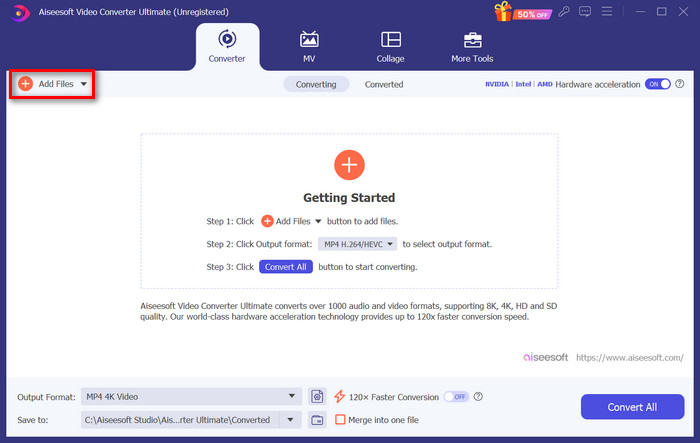
Step 2. On the Converter tab, click on the Add Files button and import your H.264 files.
Step 3. Once the H.264 video file is imported, select MP4 among the list of formats by clicking the Output format button.
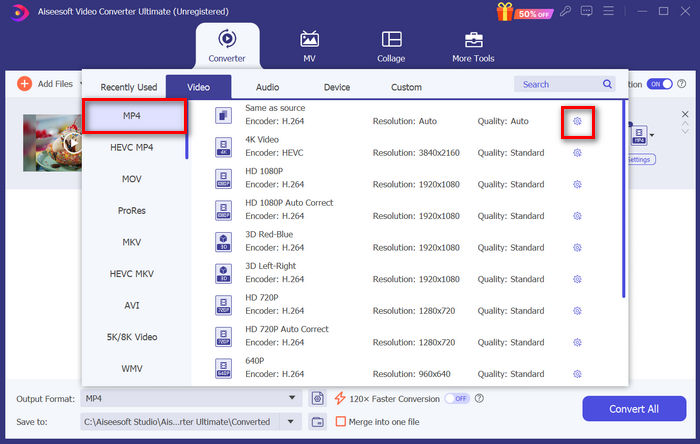
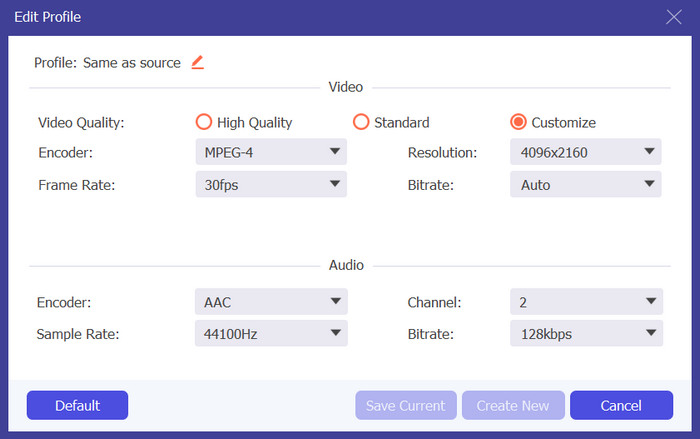
Meanwhile, if you want to customize the Custom Profile, go to the Settings dialog box. From there, you can edit the video codec, quality, file name, etc. When done, just click the Create New button to save.
Step 4. Once done, just click the Convert All button.
With FVC Video Converter Ultimate, conversion of H.264 to MP4 can be done quickly without consuming much of your time and effort. Moreover, you can convert other formats like H.265, and AVCHD to MP4. Other than that, you can be assured of maintaining high-quality output throughout the process.
Del 3: Konverter H.264 til MP4 ved hjelp av FFmpeg
FFmpeg er et kommandolinjeverktøy som brukes til å administrere multimediefiler, og tilbyr muligheter som spenner fra avspilling til konvertering og redigering. Med sine allsidige funksjoner lar dette verktøyet brukere effektivt konvertere H.264 til MP4-format, og gir en praktisk løsning for de som er komfortable med kommandolinjegrensesnitt.
Step 1. First, you need to obtain the FFmpeg executables on your computer.
Step 2. Next, open the command-line window in the folder with executables. A terminal window pop-up will open.
Step 3. After that, add the H.264 file that you want to convert to MP4.
Step 4. Lastly, enter the command: ./ffmpeg.exe -i inputfilename.mkv outputfilename.mp4 and press Enter.
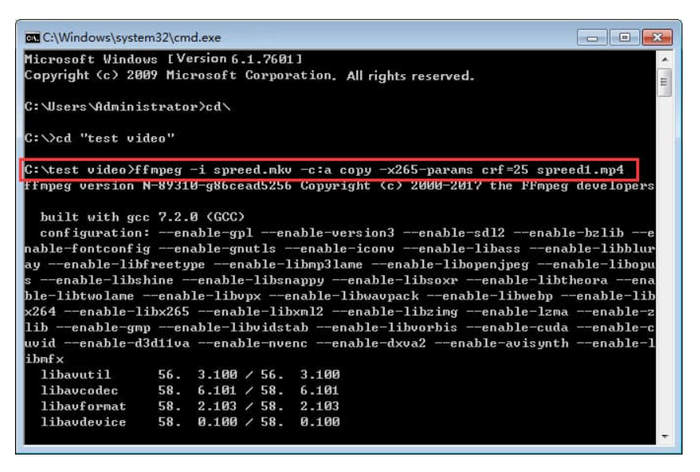
Hvis du er kjent med kommandolinjer, kan FFmpeg fungere best på din side når du konverterer H.264 til MP4. Men hvis ikke, vil du finne dette verktøyet vanskelig å navigere, som er en av dets bortfall når det kommer til brukervennlighet for nye brukere.
Del 4: Konverter H.264 til MP4 Online
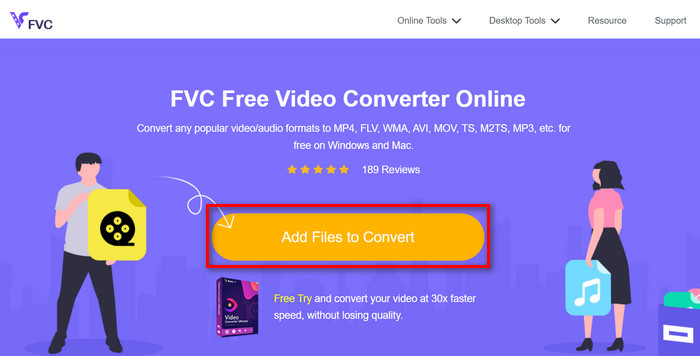
If you are looking for a tool to convert H.264 to MP4 online, the best tool that you can use for this is the FVC Free Video Converter Online. This tool offers a quick and very intuitive way of converting H.264 files to the format that you want, as you are only required to just import the file and select your preferred format and everything is magic.
Step 1. First, you need to import H.264 file that you want to convert by clicking the Add Files to Convert button
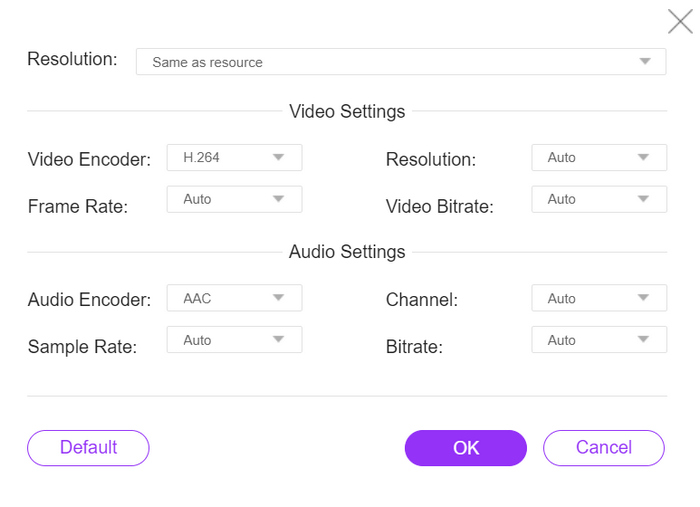
Step 2. Now, for the output format, choose MP4. Also, if you want to manually set the resolution, video encoders, bitrate, etc, just click the Gear icon on the side of the output format. If done, click the OK button.
Step 3. Lastly, to start the conversion process, just click the Convert button.
Du har ingenting å bekymre deg for angående utskriftskvaliteten til den konverterte H.264-filen, siden dette verktøyet støtter en videooppløsning på opptil 1080P. Dessuten vil konverteringshastigheten ikke ta så lang tid som denne er 30× raskere sammenlignet med andre konverteringsverktøy.
Del 5. Vanlige spørsmål om konvertering av H.264 til MP4
H264 vs mp4, hva er bedre?
Når det kommer til kompatibilitet, ser MP4 ut til å være bra, gitt at folk ofte velger å konvertere H.264 til MP4 for forbedret enhetsstøtte og avspillingsopplevelse. Imidlertid har begge formatene sine styrker og tjener forskjellige formål effektivt.
Kan jeg beholde den originale kvaliteten på H.264-videoen min når jeg konverterer til MP4?
Ja, du kan beholde den originale kvaliteten på H.264-videoen din når du konverterer til MP4, spesielt hvis du bruker et anerkjent konverteringsverktøy som FVC Video Converter Ultimate eller FFmpeg. Disse verktøyene tilbyr alternativer for å justere innstillinger som oppløsning, bitrate og kodek for å sikre utdata av høy kvalitet.
Hvilke videospillere er kompatible med H.264-format?
Tallrike videospillere er i stand til å spille H.264-format, inkludert som VLC Media Player, Windows Media Player og QuickTime Player.
Konklusjon
That's it! Now you have all the tools and methods in converting H.264 to MP4 effortlessly. Whether you prefer desktop software, a command-line tool, or an online converter, the choice is yours. Get started today and ensure compatibility with any device!
-
 Beste gratis MPG til MP4-konverterer i 2024 (dypende gjennomgang)
 Hvorfor trenger du å endre MPG til MP4? Få svaret i dette innlegget og kjenn den høyt rangerte MPG-konverteren til MP4 på markedet.
-
 Lyd til MP4: Konvertering av lydfiler til MP4-format
 Konverter favorittsanger, podcaster og opptak til MP4-format for en unik blanding av lyd og bilde. Oppdag hvordan du konverterer WMA til MP4 eller annen lyd til videoformat.
-
 Topp 5 beste FLV til MP4-konvertering gratis og betalt (2024 anmeldelser)
 Hold deg til dette innlegget og lær om oppdateringene angående FLV- og MP4-filer. I tillegg har vi kuratert den mest pålitelige FLV-konverteren til MP4.
