


 Video Converter Ultimate
 Skjermopptaker
 Videoreparasjon
 Sikker nedlasting
MP4-video vises ikke i Premiere Pro: Grunner og løsninger for å lære
Premiere Pro er et flott profesjonelt verktøy for videoredigering. Noen ganger kan det imidlertid oppføre seg ustabilt og forårsake avspillingsproblemer som avbryter arbeidet ditt. Det er også frustrerende når du prøver å redigere jevnt, og videoen stadig hakker, glitcher eller, enda verre, ikke vises i det hele tatt. Dette er et vanlig problem som mange brukere av Adobe Premiere Pro opplever. Heldigvis finnes det måter å løse dette på. Ved å finne den konkrete årsaken til hvorfor MP4-videoen ikke vises i Premiere Pro og følge trinnene i denne veiledningen, kan du komme i gang igjen med redigering og avspilling uten hodebry. La oss derfor dykke inn og komme rett til saken!
Del 1. Hvorfor MP4-videoen ikke vises i Premiere Pro
For de som opplever feil i Premiere Pro når det kommer til visning av MP4-videoer, har vi her samlet noen av årsakene til at dette skjer.
Programvareversjon:
Det kan være versjonen av Premiere Pro du bruker. Med andre ord kan det hende du bruker utdatert programvare som mangler støtte for visse MP4-filformater eller funksjoner.
Maskinvarebegrensninger:
Det kan også være maskinvaren i systemet ditt. Enheten din oppfyller kanskje ikke kravene for å dekode og vise MP4-filen korrekt i Premiere Pro.
Filplassering:
Deretter kommer filplasseringen. MP4-filen din kan ligge i en mappe som Premiere Pro ikke får tilgang til på grunn av tillatelsesinnstillinger eller problemer med filstien.
Korrupt fil:
En annen grunn til at MP4-videoen ikke vises i Premiere Pro, kan være at filen er ødelagt. Dette kan hindre Premiere Pro i å lese den riktig.
Codec-inkompatibilitet:
Hvis MP4-filen ikke er ødelagt, kan den være kodet med en codec som Premiere Pro ikke støtter.
Feil importinnstillinger:
Du bør også vurdere å sjekke importinnstillingene. Feil importinnstillinger eller metadata knyttet til MP4-filen kan føre til at den ikke vises i Premiere Pro.
Korrupt buffer (cache):
Selvsagt, som med andre programmer, kan mediebufferen i Premiere Pro være ødelagt. I så fall kan dette gi problemer med å importere eller vise MP4-filen.
Del 2. Metoder for å løse problemet med at Premiere Pro ikke viser MP4-videoer
Konverter MP4 til et kompatibelt format:
Hvis MP4-filen din er hovedårsaken til dette problemet, bør du vurdere å konvertere den til andre videoformater. Med det sagt anbefaler vi på det sterkeste at du bruker et kraftig videokonverteringsverktøy som garantert gir utmerket video for bruk i Premiere Pro.
Bonus: Bruk FVC Video Converter Ultimate for videokonvertering
Video Converter Ultimate, anbefalt av FVC, er tilgjengelig for både Windows og Mac, noe som gjør det tilgjengelig for alle. Det har et brukervennlig grensesnitt og en svært avansert, ultrarask maskinvareakselerasjonsteknologi som gjør konverteringen opptil 120 ganger raskere. Dessuten er det ikke begrenset til å konvertere MP4; det støtter over 1000 andre formater du kan velge som utdataformat.
Ut over enkel formatkonvertering tilbyr det en rekke kraftige redigeringsverktøy i verktøykassen (Toolbox). Disse verktøyene, drevet av kunstig intelligens, sørger for sømløs forbedring og redigering av videoene dine uten problemer! Nå skal vi se nærmere på massekonverteringsprosessen som programmet tilbyr, ved å følge trinnene nedenfor.
Gratis nedlastingFor Windows 7 eller nyereSikker nedlasting
Gratis nedlastingFor MacOS 10.7 eller nyereSikker nedlasting
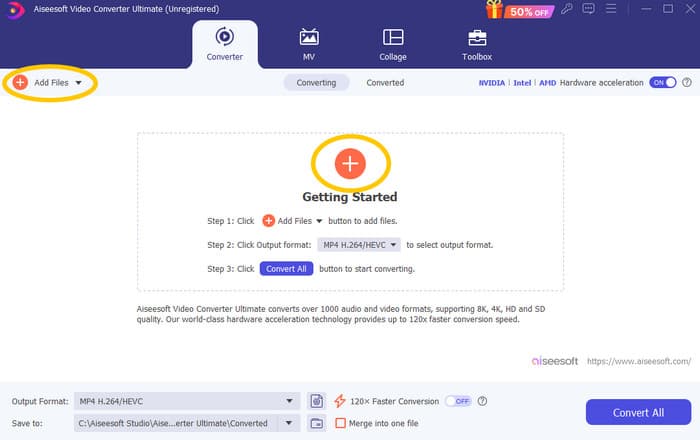
Trinn 1. La oss si at du allerede har installert programmet på datamaskinen. Du kan nå starte det og klikke på Add-knappen for å importere filer. Du kan også bruke fanen Add Files eller dra filer inn fra mappen din.
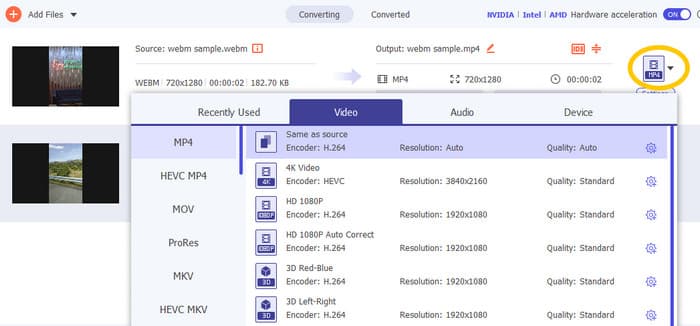
Trinn 2. Klikk deretter på nedtrekkspilen i utdataformat-delen og velg ønsket format fra Video-menyen. Klikk på ønsket koder (encoder) for å bruke den.
Trinn 3. Når alt ser riktig ut, klikker du på knappen Convert All for å starte konverteringen.

Reparer korrupte MP4-filer:
Hvis MP4-videoen ikke vises i Premiere Pro, kan den være ødelagt. Da kan du bruke et dedikert videoreparasjonsverktøy som Video Repair for å rette opp i korrupsjonen. Du kan raskt reparere og spille av en ødelagt fil uten styr. Programmet har en svært høy suksessrate og er enkelt å bruke med bare noen få klikk. I tillegg fungerer programvaren ved å kopiere de fungerende delene fra en eksempelvideo for å lappe sammen de ødelagte delene, slik at du får jevn avspilling. Det støtter dessuten reparasjon av MP4 og mange andre formater, samtidig som informasjonen din holdes trygg. Slik reparerer du den korrupte MP4-filen din.
Trinn 1. Last ned videoreparasjonsverktøyet på datamaskinen og åpne det for å begynne.
Gratis nedlastingFor Windows 7 eller nyereSikker nedlasting
Gratis nedlastingFor MacOS 10.7 eller nyereSikker nedlasting
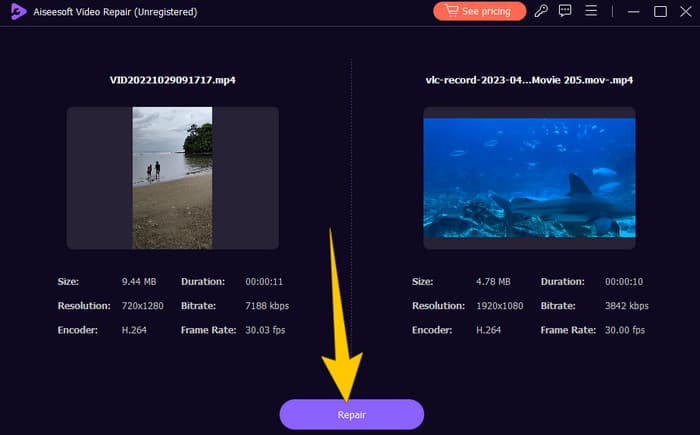
Trinn 2. I hovedgrensesnittet klikker du på den røde Plus-knappen for å laste opp den korrupte MP4-videoen. Klikk deretter på den blå knappen for å laste opp eksempelvideoen.
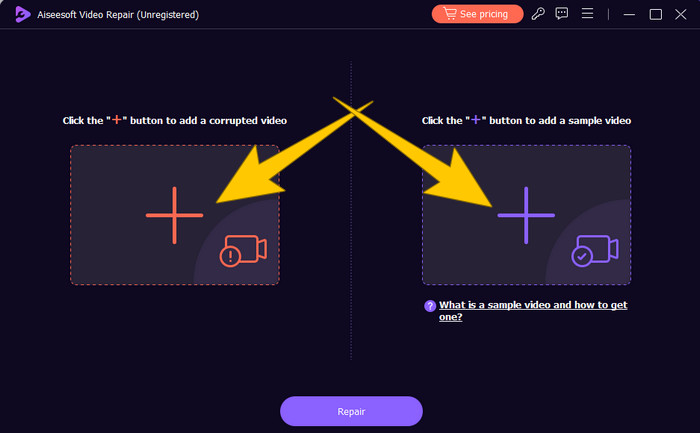
Trinn 3. Etter at filene er importert, er det på tide å reparere dem. For å gjøre dette klikker du på knappen Repair.
Start datamaskinen på nytt og tilbakestill Premiere Pro:
Vurder å tilbakestille Premiere Pro og starte datamaskinen på nytt for å friske opp systemressursene. Ved å gjøre dette kan du også tilbakestille preferansene til standardinnstillinger, noe som noen ganger kan løse kompatibilitetsproblemer.
Tøm bufferfiler (cache):
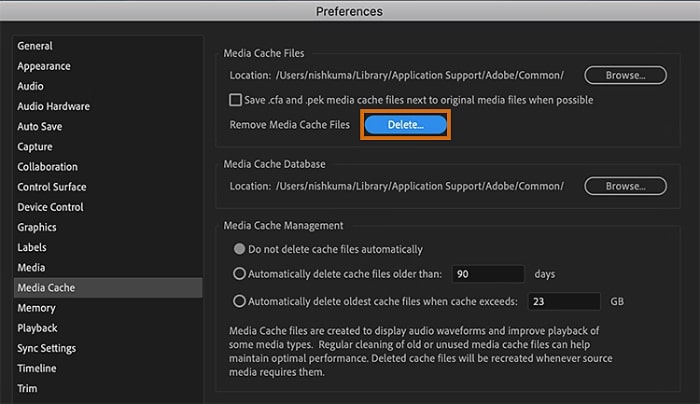
Det anbefales alltid å tømme cache-filene i Premiere Pro. Slett derfor cache-filene for å fjerne ødelagte eller utdaterte data som kan være årsaken til problemet. Du trenger bare å gå til Edit > Preferences > Media Cache > Delete.
Endre innstillinger i Premiere Pro:
Til slutt bør du sjekke innstillingene i Premiere Pro og forsikre deg om at de samsvarer med spesifikasjonene til MP4-filene dine. Dette inkluderer bildefrekvens, oppløsning og codec. Ja, når du justerer disse innstillingene slik at de stemmer med MP4-filene dine, kan kompatibilitetsproblemer noen ganger løses.
Del 3. Vanlige spørsmål om Premiere Pro og problemet med at MP4 ikke vises
Hva bør jeg gjøre hvis MP4-filene mine har en inkompatibel codec og derfor ikke vises i Premiere Pro?
Hvis MP4-filene dine har en inkompatibel codec, kan du bruke en HD-videokonverter som Video Converter Ultimate for å konvertere dem til et kompatibelt format.
Hvorfor vises ikke MP4-filene mine i Premiere Pro?
MP4-filer kan la være å vises i Premiere Pro av flere grunner, for eksempel inkompatibel codec, problemer med innstillingene i Premiere Pro og filkorrupsjon.
Kan jeg feilsøke problemet med at MP4-filer ikke vises i Premiere Pro?
Ja, du kan feilsøke problemet ved å sjekke codec-en til MP4-filene. Dette sikrer at MP4-filene samsvarer med codec-ene Premiere Pro støtter. Du kan også prøve å reparere korrupte MP4-filer og justere innstillingene i Premiere Pro om nødvendig.
Konklusjon
Dette innlegget forklarer årsakene til at MP4-videofiler ikke vises i Premiere Pro. I tillegg får du løsninger, slik at du får en idé om hvordan du kan løse problemet. Oftest er det selve videofilen som er årsaken til problemet. Derfor må du sørge for at den er i god stand hver gang du åpner den i Premiere Pro.
-
 Raske og enkle måter å synkronisere lyd og video i Adobe Premiere Pro
 Vil du vite hvordan du synkroniserer lyd og video i Premiere Pro? Da passer denne artikkelen for deg. Vi har testet det selv med enkle og konkrete trinn.
-
 Hvordan øke hastigheten på video i Premiere Pro og med alternativer
 Vil du vite hvordan du bruker Premiere Pro til å øke hastigheten på en video? Da er du i riktig artikkel, for her gir vi trinnene og andre rimelige alternativer.
-
 Spilles ikke Instagram-videoer av? Slik kan du fikse det
 Metabeskrivelse: Laster du opp Instagram-videoer som ikke spilles av? Ikke fortvil – denne artikkelen gir deg innsikt og raske løsninger på problemet. Les nå!
