


 Video Converter Ultimate
 Skjermopptaker
 Videoreparasjon
 Sikker nedlasting
Hvordan stille inn Spotify-sangen din ringetone - en full-stegs guide
Spotify tilbyr et enormt bibliotek med musikk, podkaster og annet lydinnhold til brukere over hele verden. Millioner av sanger er tilgjengelige for å lyttes til når du vil. Hvis du også vil bruke den vakre musikken som ringetone på smarttelefonen din, må du først laste ned den valgte lydfilen til enheten din. Det gode er at denne prosedyren ikke er komplisert. I denne artikkelen deler vi hele prosessen for hvordan du gjør en Spotify‑sang til ringetonen din i tre deler og analyserer hver del i detalj for deg. Når du forbereder ringetonene dine, kan det hende du må klippe ut en del av lyden. Med dette i tankene vil vi også anbefale et av de mest profesjonelle verktøyene for redigering av lyd og video. Noen ofte stilte spørsmål om konfigurering av ringetoner vil også bli besvart.

Del 1. Last ned Spotify-sang for ringetone
Kan du bruke Spotify for ringetoner? Svaret er ja, selvfølgelig. Det du trenger å vite før du fortsetter offisielt er at du for øyeblikket ikke kan laste ned musikk direkte til enheten din via Spotify og angi dem som ringetoner. Derfor trenger vi hjelp av noen verktøy. I følge vår undersøkelse er Spotify Downloader et ganske godt valg. Alt du trenger å gjøre er å åpne den offisielle nettsiden i nettleseren din, kopiere lenken til favorittmusikken din og lime den inn i den tilsvarende delen. Dermed vil du kunne laste ned filen direkte til datamaskinen din. Hvis du har problemer med det, vil vi forklare trinnene i den følgende delen.
Her er hva du trenger å gjøre for å laste ned Spotify-sanger for ringetoner med Spotify Downloader.
Trinn 1. Gå til den offisielle Spotify Downloader-nettsiden i nettleseren din.
Trinn 2. Åpne Spotify‑appen på telefonen din. Finn deretter lyden du vil laste ned.
Trinn 3. Trykk på ikonet med tre prikker, og velg Del > Kopier lenke.
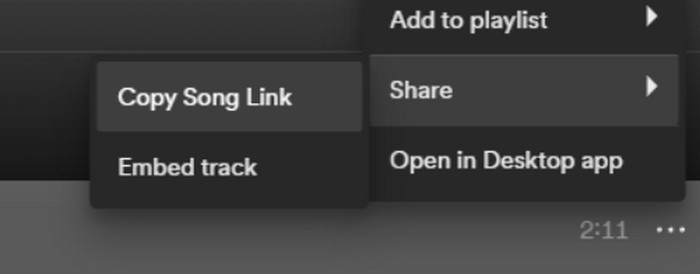
Trinn 4. Gå nå til Spotify Downloader‑siden. Lim inn den kopierte lenken og klikk Send inn.
Trinn 5. Når prosessen er ferdig, klikker du Last ned.

Del 2. Lag en Spotify-sang til din ringetone
Etter at du har lastet ned favorittmusikken din til enheten din, kan du begynne å redigere den. Vi kan redigere klimakset til sangen eller favorittdelen av sangen og gjøre en Spotify-sang til ringetonen din. Det bør bemerkes at iPhone- og Android-telefoner støtter forskjellige ringetonelydformater. Foreløpig støtter iPhone kun ringetoner i M4R-format, mens Android-telefoner for øyeblikket støtter MP3, M4A, WAV og OGG. Hvis du finner ut at lydfilformatet ditt ikke oppfyller kravene ovenfor, kan du bruke en profesjonell formatkonverterer til å hjelpe deg.
I dette tilfellet anbefaler vi at du prøver et alt‑i‑ett lydredigeringsverktøy, det nøye utvalgte Video Converter Ultimate, for å få en komplett løsning for sangredigering. I tillegg til selve formatkonverteringen støtter det også redigering av lengden på lyden, justering av volum og lydspor, samt å legge til fade‑in eller fade‑out‑effekter på ringetonene dine. Du vil ha liten eller ingen ekstra ventetid når du bruker det til å behandle filene dine. Det hjelper deg å endre parameterne til lyden din med høy effektivitet.
Gratis nedlastingFor Windows 7 eller nyereSikker nedlasting
Gratis nedlastingFor MacOS 10.7 eller nyereSikker nedlasting
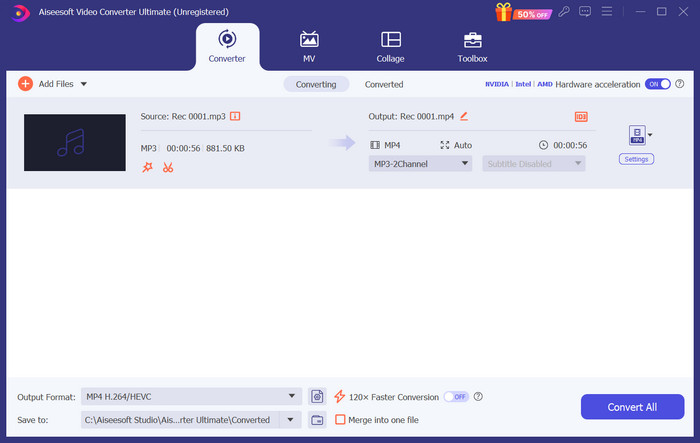
Her vil vi lære deg hvordan du lager ringetone fra Spotify med FVC Video Converter Ultimate.
Trinn 1. Last ned og installer FVC Video Converter Ultimate på datamaskinen din. Sørg for at du har lagret favorittsangen din på enheten.
Trinn 2. Åpne dette programmet på skrivebordet og klikk Legg til filer for å laste opp Spotify‑sangen til denne plattformen.
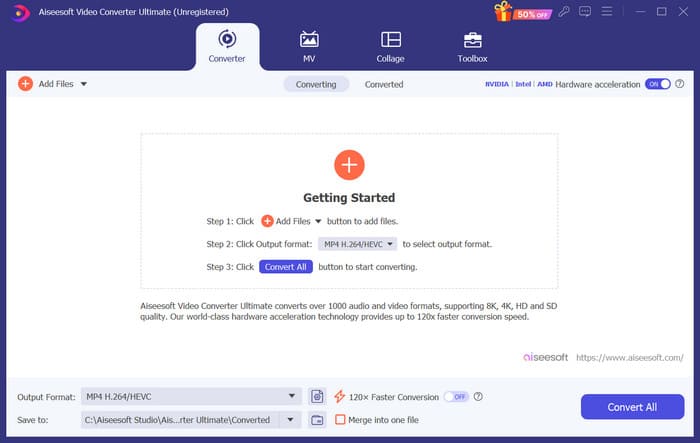
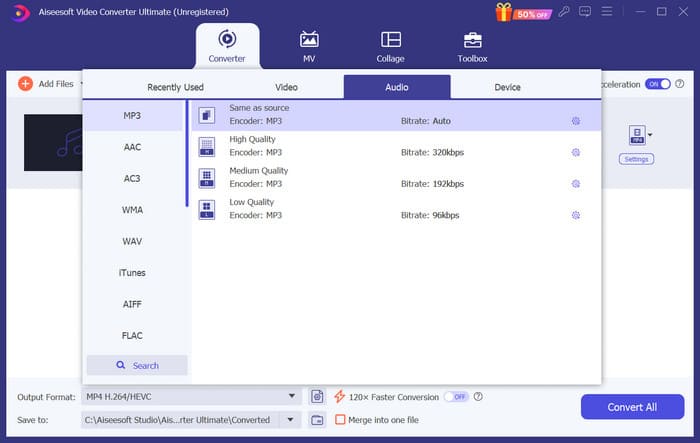
Trinn 3. For å konvertere formatet på ringetonen din, åpner du rullegardinmenyen ved siden av Utdataformat. Deretter kan du velge ønsket format blant alle alternativene under Lyd.
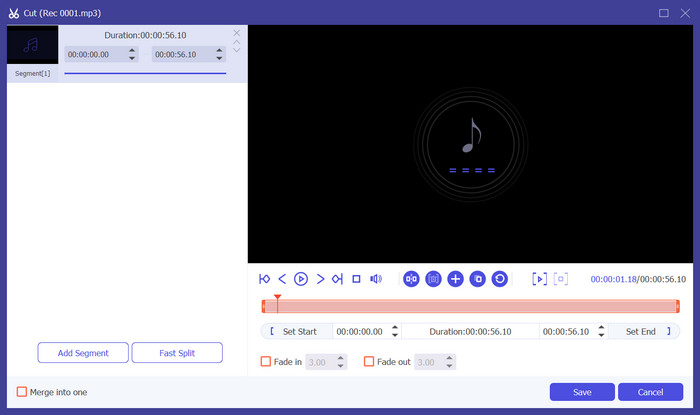
Trinn 4. For å velge en del av sangen som telefonens ringetone, klikker du Klipp. Du kommer da inn på siden for klipping. Dra glidebryteren for å velge delen du vil beholde. I dette vinduet kan du også legge til fade‑in‑ og fade‑out‑effekt på ringetonen din.
Trinn 5. For å endre volum eller lydspor for filen, klikker du Rediger. På den nye siden kan du til og med forhåndsvise redigeringsresultatet direkte. For å lagre endringen, klikk OK.
Trinn 6. Når du er ferdig med å stille inn ringetonen, klikker du Konverter alle for å eksportere filen.
Del 3. Sett Spotify Song som ringetone
Nå som vi har vår nye ringetone klar og har redigert den til riktig lengde, må vi ta det siste steget: angi Spotify-sangen som ringetone for innkommende anrop på telefonen din. Tatt i betraktning at forskjellige enheter fungerer forskjellig, vil vi veilede deg i å konfigurere den på enheten din fra både iPhone og Android-telefoner.
Android
I denne delen vil vi veilede deg gjennom å sette Spotify-sanger til ringetoner på Android-telefonen din. Vi vil bruke en Samsung-telefon som eksempel. Før vi begynner, bør du overføre Spotify-sangen din til telefonen. Transformasjon via USB-kabel eller Bluetooth er begge ruter som kan refereres til.
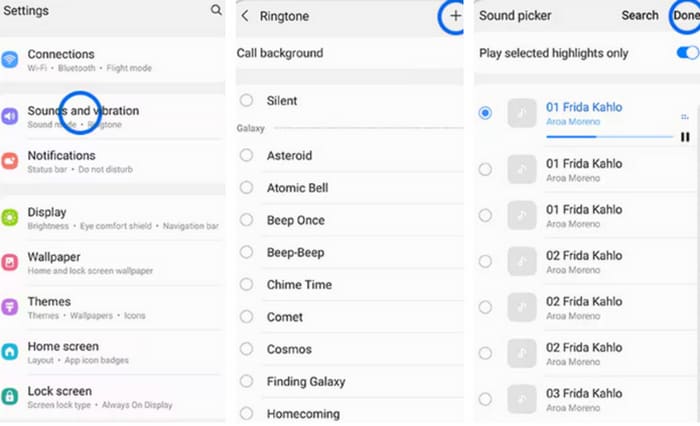
Trinn 1. Gå til Innstillinger på telefonen din, og trykk på Lyder og vibrasjon > Telefonringetone > Mine lyder.
Trinn 2. Trykk på Legg til, og velg den redigerte Spotify‑sangen blant alle filene på mobilen din.
Trinn 3. For å lagre justeringen, trykk på Ferdig. Nå har du lagt til en Spotify‑sang som ringetone på Samsung‑telefonen din.
iPhone
Hvis du vil lage en ringetone til iPhone, må du kanskje bruke tredjepartsverktøy. Det mest populære verktøyet er GarageBand, og vi forklarer hvordan du gjør Spotify‑sanger til iPhone‑ringetoner.
Trinn 1. Last ned og kjør GarageBand på iPhone‑en din. Velg Prosjekt.
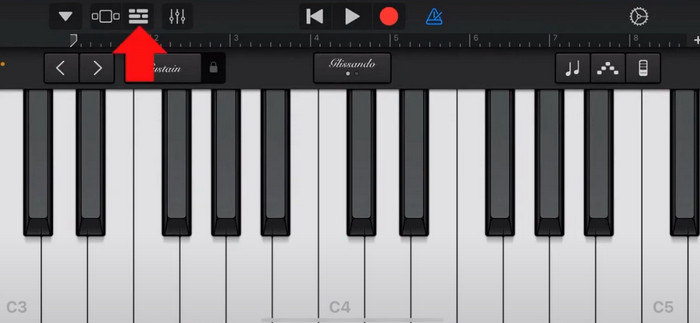
Trinn 2. Deretter velger du Loop > Filer. For å velge Spotify‑sangen din, velger du Bla gjennom elementer fra Filer‑appen.
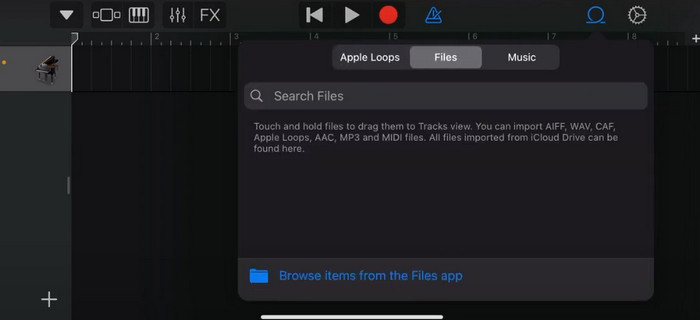
Trinn 3. Legg den trimmede Spotify‑filen på tidslinjen.
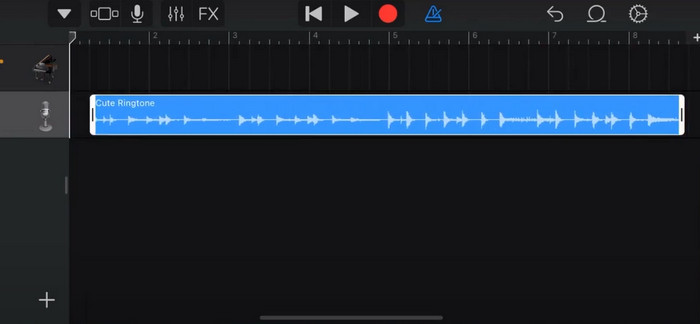
Trinn 4. Deaktiver metronom. Trykk deretter på pil‑ned‑ikonet og velg Mine sanger.
Trinn 5. Hold inne sangklippet, og trykk på Del.
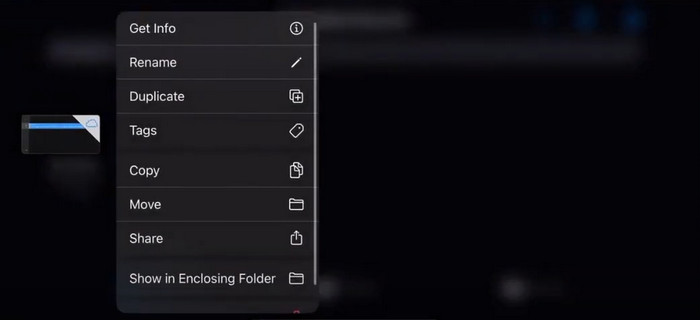
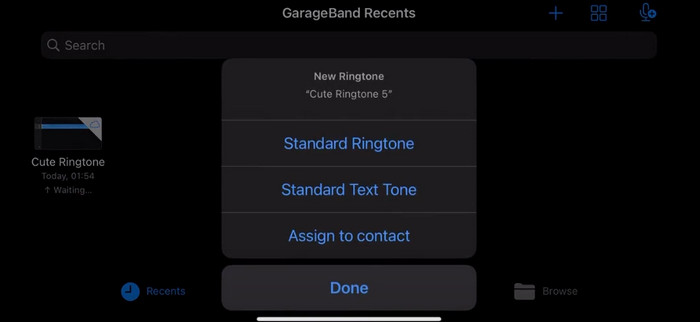
Trinn 6. Velg Ringetone > Eksporter. Trykk på Bruk lyd som > Standardringetone.
Del 4. Vanlige spørsmål om å lage en Spotify-sang til din ringetone
Kan jeg bruke en Spotify-sang som ringetone direkte?
Spotify tillater ikke brukere å direkte bruke en sang fra appen som ringetone på en mobilenhet. Det finnes imidlertid alternative metoder du kan bruke for å angi en Spotify-sang som ringetone. Du kan kjøpe sangen du liker fra en digital musikkbutikk som iTunes eller Google Play Musikk. Det er tilgjengelige tredjepartsverktøy som lar deg konvertere Spotify-sanger til MP3-filer.
Hvordan lager jeg en tilpasset ringetone for iPhone uten iTunes?
Hvis du vil lage en tilpasset ringetone for iPhone uten å bruke iTunes, kan du bruke GarageBand, en musikkapp som er tilgjengelig på iOS-enheter. Denne metoden lar deg tilpasse ringetonen med favorittlydklippene dine på enheten.
Hvordan konvertere Spotify til en iPhone-ringetone uten datamaskin?
Det er vanskelig å konvertere en Spotify-sang direkte til en iPhone-ringetone uten å bruke en datamaskin. Du kan imidlertid finne noen alternative metoder for å oppnå et lignende resultat. Du kan for eksempel bruke en ringetonemaker-app eller velge GarageBand.
Konklusjon
Ovenfor har vi gitt deg en fullstendig oversikt over hvordan du kan sette en Spotify‑sang som ringetone for innkommende anrop. Vi har dekket alle trinnene og gitt deg et toppmoderne lydredigeringsverktøy, det anbefalte Video Converter Ultimate, for å hjelpe deg med å tilpasse sangen din. Hvis du ønsker det, kan dette verktøyet også enkelt hjelpe deg med å lage en video som ringetone. Vi mener du vil finne de instruksjonene du trenger.
-
 Beste gjennomgang Hvordan konvertere WAV til ringetone på kort tid
 Ønsker du å konvertere WAV til en ringetone uten problemer? Våre brukervennlige verktøy får jobben gjort! Nyt lydkonvertering av høy kvalitet på et blunk - ingen teknisk hodepine. Prøv dem i dag!
-
 Hvordan lage et talememo til en ringetone på iPhone og Android
 Hvis du vil gjøre et talememo til en ringetone, les denne artikkelen. Enten du er iPhone-bruker eller Android-bruker, kan du finne løsninger i innholdet vårt.
-
 5 MP3-kuttere for å kutte hvilken som helst lyd enkelt [2024 Oppdatert]
 Trenger du en MP3-kutter for å trimme lyden? I så fall, les denne artikkelen fordi vi tilbyr verktøyene du kan stole på for enkel lydklipping.
