


 Video Converter Ultimate
 Skjermopptaker
 Videoreparasjon
 Sikker nedlasting
Hvordan komprimere PDF-filer for e-post 3 effektive måter å velge på
Å sende store filer via e‑post kan absolutt være brysomt. Det kan faktisk skape problemer for deg, eller føre til at meldingen ikke blir levert i det hele tatt. I tillegg begrenser mange e‑postleverandører vedlegg til en viss filstørrelse, noe det er lett å overstige med en kompleks PDF. Dette gjelder særlig PDF‑filer med mange bilder eller svært lange dokumenter. For å løse dette tyr de fleste i denne situasjonen til fildelingstjenester som Dropbox eller Google Drive. Men de glemmer nesten et hendig triks, nemlig filkomprimering. Mange gratis nettverktøy kan gjøre dette, og noen av dem er ganske populære. Men hvordan komprimere en PDF for e‑post på en effektiv måte? Det er det du nå skal lære når du fortsetter å lese innholdet nedenfor.

Del 1. Hva er den beste PDF-størrelsen for e-post
Her er et faktum: det er ikke noe magisk tall for den ideelle PDF-størrelsen for e-post. Det du bør passe på er grensen for vedlegg for e-postplattformen din. Populære tjenester begrenser vedlegg rundt 20 MB, noe som kan være overraskende enkelt å nå, spesielt med PDF-filer som inneholder mange bilder eller er svært lange dokumenter. Hvis PDF-filen din er større enn den nevnte 20 MB-grensen, vil e-posten din sannsynligvis ikke bli sendt, og du vil få en feilmelding. Når det er sagt, i stedet for å sikte på en bestemt størrelse eller den beste PDF-størrelsen for e-post, er det best å spille det trygt og holde det under 20 MB. På den måten kan du være sikker på at den vil legge ved og sende.
Del 2. Ett klikk for å komprimere PDF-filer for e-post
Her er en rask og god måte å komprimere filer til e‑post på. Gjør deg klar til å prøve dette gratisverktøyet som heter FVC Free PDF Compressor, som kan krympe tunge PDF‑filer uten å ødelegge dem. Siden de fleste e‑posttjenester bare tillater vedlegg på rundt 20 MB, kan PDF‑filer med bilder eller mye tekst lett nå denne grensen. Denne kompressoren kan gjøre PDF‑en din mye mindre, til og med under 100 kilobyte! Du trenger ikke å bekymre deg for hvordan den krymper PDF‑er dramatisk for e‑post, for den bevarer fortsatt filkvaliteten. Faktisk vil du sannsynligvis ikke engang merke forskjell på originalen og den komprimerte versjonen.
Dessuten er dette fantastiske verktøyet superenkelt å bruke, og alle med alle nivåer av ekspertise kan bruke det. Alt du trenger å gjøre er å dra og slippe PDF-filen inn i programmet, så krymper den automatisk ned. Deretter, med bare et klikk, kan du lagre den mindre PDF-filen på datamaskinen. På denne måten kan du raskt komprimere PDF til e-poststørrelse online til en størrelse som er perfekt for å sende e-post eller laste opp alt uten vannmerker på det endelige dokumentet. For å få en bedre forståelse av prosessen, se de detaljerte retningslinjene nedenfor.
Trinn 1. Klikk på fanen Add PDF File i hovedgrensesnittet og velg PDF‑filen du trenger å komprimere.
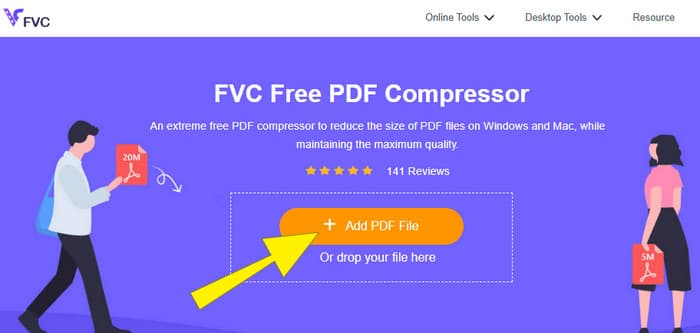
Trinn 2. Mens PDF‑filen lastes opp, jobber verktøyet samtidig med å komprimere den.
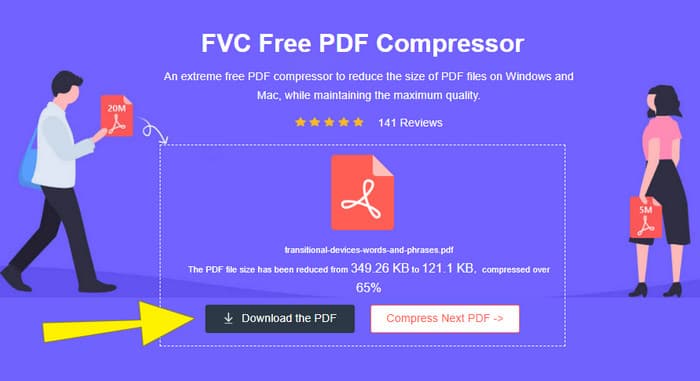
Trinn 3. Når det er ferdig, klikker du på knappen Download the PDF.
Del 3. Komprimer PDF-filer for e-post med redigeringsfunksjoner
Hvis du foretrekker et verktøy som også har redigeringsfunksjoner, er Adobe Acrobat det du trenger til denne oppgaven. Adobe Acrobat er et program kjent for å opprette, redigere og administrere PDF‑filer. Det er som en kraftig verktøykasse spesielt laget for å jobbe med PDF. En av de nyttige funksjonene er PDF‑komprimering, som du kan bruke når du har en tung PDF som ikke kan sendes på e‑post på grunn av størrelsesbegrensninger. Adobe Acrobat, som finnes både som nettbasert og som skrivebordsversjon, kan hjelpe deg å komprimere store PDF‑filer for e‑post uten å redusere kvaliteten for mye. Dette gjør den blant annet ved å redusere størrelsen på bilder i PDF‑en eller fjerne unødvendige fonter. Men med Adobe og programseriene deres er det ikke overraskende at det kan være en bratt læringskurve. Derfor følger her trinnene som kan gjøre prosessen enklere.
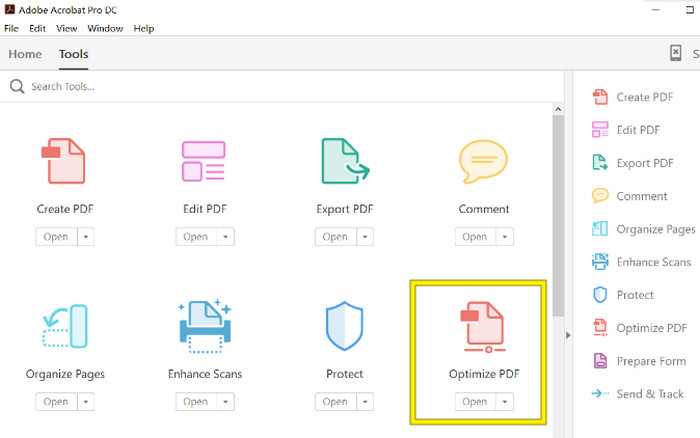
Trinn 1. Start Acrobat og åpne PDF‑filen du vil jobbe med. For å gjøre dette, gå til Tools - Optimize PDF - Open.
Trinn 2. Når du har åpnet PDF‑filen, klikker du på alternativet Reduce File Size i den nye menyen som vises. Deretter angir eller bruker du de tilgjengelige redigeringsalternativene for å oppnå ønsket komprimering og optimalisering.
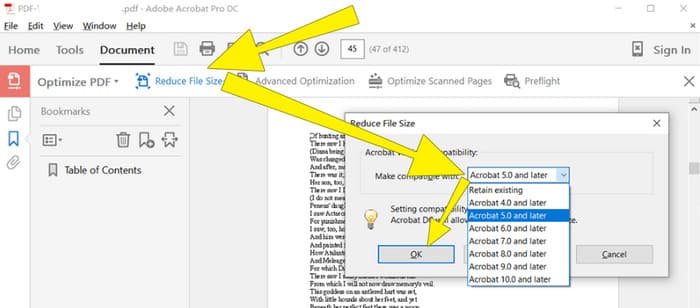
Trinn 3. Etterpå lagrer du den komprimerte PDF‑filen.
Del 4. Komprimer PDF-filer for e-post ved å konvertere
Vil du lære et nytt triks for hvordan du kan komprimere en PDF for å sende via e‑post? La oss konvertere filen til JPG. Dette konverteringstrikset kan utføres perfekt ved hjelp av PowerPoint. PowerPoint er et program du sannsynligvis bruker til å lage presentasjoner. Tenk deg en lysbildefremvisning med tekst, bilder og kanskje til og med videoer. PowerPoint lar deg bygge disse presentasjonene med enkeltbilder (slides) som du klikker deg gjennom for å vise publikum. Det er et populært verktøy for lærere, studenter, forretningsfolk og alle som vil dele informasjon visuelt.
Nå kan det være nyttig å sette inn en PDF i PowerPoint-presentasjonen, men det er kanskje ikke den mest intuitive prosessen. Men når du først gjør det, vil det være en lek å produsere en JPG-fil. Men ikke bekymre deg! Vi kan lede deg gjennom det steg-for-steg, som du må følge for å få PDF-en innebygd på kort tid.
Trinn 1. Start PowerPoint på PC‑en din og velg lysbildet der du vil åpne PDF‑filen.
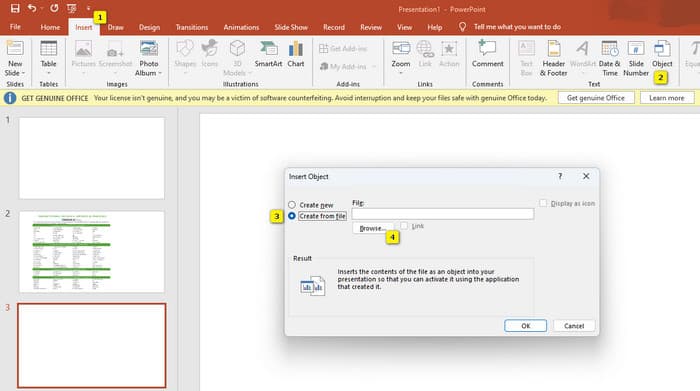
Trinn 2. Gå nå til menyfanen Insert og finn alternativet Object under Text‑delen. Klikk på dette alternativet, så dukker et nytt vindu opp. I dette vinduet huker du av for Create from File, som ligger på venstre side av grensesnittet. Klikk deretter på Browse‑knappen, som gjør at du kan importere PDF‑filen til lysbildet.
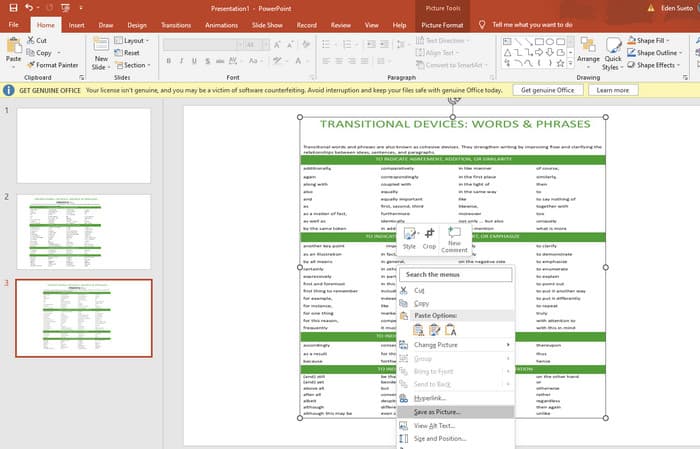
Trinn 3. Når PDF‑filen er lastet opp, kan du konvertere den til JPG. For å gjøre dette høyreklikker du på PDF‑en på lysbildet, velger Save As Picture og lagrer den som JPEG.
Del 5. Vanlige spørsmål om PDF og komprimering
Hvilken størrelse kan du sende et PDF-vedlegg på e-post?
Det avhenger av e-postleverandøren din, men de fleste begrenser vedlegg til rundt 20 MB.
Hva er den beste gratis PDF-kompressoren?
Det er gratis PDF-kompressorer tilgjengelig, men den beste avhenger alltid av brukernes preferanser. Så langt er FVC Free PDF Compressor det mest anbefalte gratis onlineverktøyet.
Hvordan zippe PDF-filer for e-post?
I virkeligheten fungerer zipping for PDF-er fordi de allerede er komprimerte filer.
Konklusjon
Denne artikkelen handler om hvordan du komprimerer PDF‑filer for e‑post på de beste måtene. Du kan nå sørge for en jevnere og bedre måte å sende PDF‑ene dine på e‑post, så lenge du reduserer dem riktig for å holde deg innenfor filbegrensningen.
-
 3 beste løsninger for hvordan du enkelt fjerner vannmerke fra videoer
 Vil du fjerne det irriterende vannmerket på videoen? Med denne bloggen kan du lære de forskjellige ideene for å fjerne vannmerket på en video.
-
 4 beste måter å legge til vannmerke på alle videoer raskt
 La oss lære hvordan du legger til vannmerke til alle videoer på Windows, Mac, Online, iOS og Android med detaljerte trinn hvis du leser denne artikkelen.
-
 3 enkleste måter å legge til vannmerke til en GIF online og offline
 Å legge til et vannmerke til en GIF kan være så enkelt som 1-2-3 hvis du bruker riktig verktøy. Verktøyene i markedet er for brede, men vi vil presentere de tre verktøyene du kan stole på.
