


 Video Converter Ultimate
 Skjermopptaker
 Videoreparasjon
 Sikker nedlasting
Hvordan trimme lyd i iMovie: Opplæring for iPhone og Mac
iMovie er en gratis programvare for video- og lydredigering for iPhone og Mac utviklet av Apple, som lar brukere redigere og produsere medieprosjekter sømløst. Når Apple‑brukere ser etter måter å redigere, trimme og klippe ut deler av spesifikke lydfiler de har, er det midt i blinken å bruke slik programvare. Mange vet ikke at iMovie også kan brukes til å klippe og trimme lyd; derfor kan denne veiledningen hjelpe brukere som deg med å navigere effektivt gjennom en sømløs prosess for klipping av lyd i iMovie.

Del 1. Hvordan trimme lyd i iMovie
iPhone
Det er enklere å trimme musikk i iMovie med en iPhone enn å bruke en Mac. Mobilversjonen av iMovie er lett og grei, og gir mulighet for en sømløs prosess som lar brukerne trimme lydfilene sine med noen få trykk i mobilappen. Så enkelt som det er sammenlignet med Mac-versjonen, har det begrensede funksjoner i video- og lydredigering.
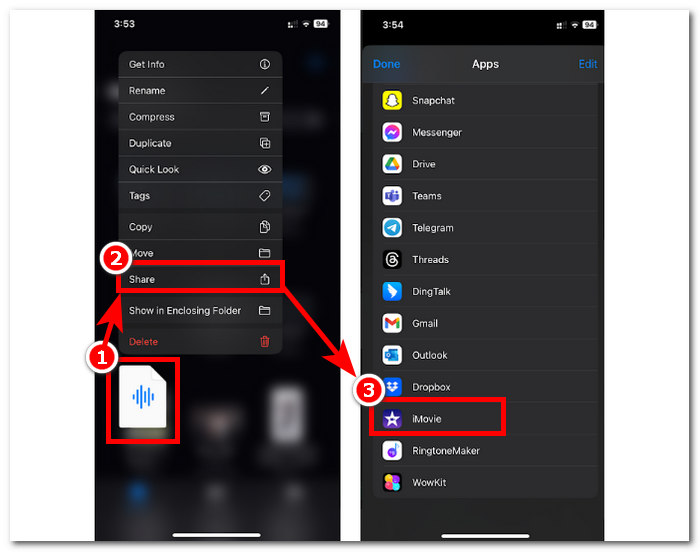
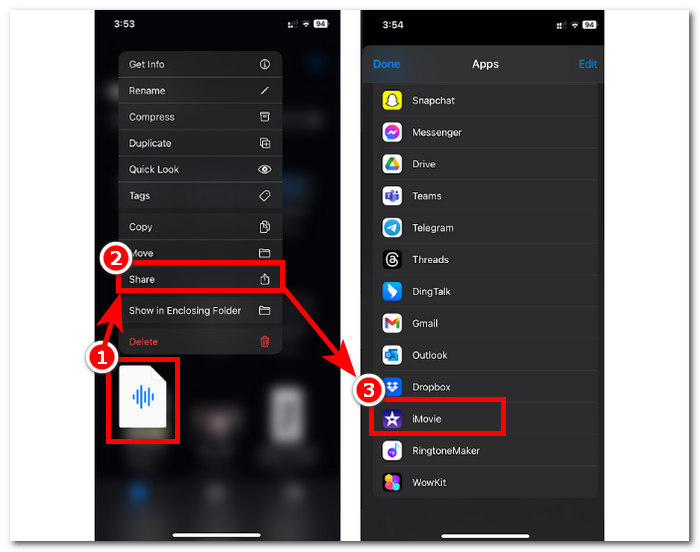
Trinn 1. Gå til appen Filer, hold inne den lydfilen du vil trimme, trykk på Del, og åpne den i iMovie‑appen. Hvis du vil klippe et opptak, må du først ta opp lydfilen i iMovie.
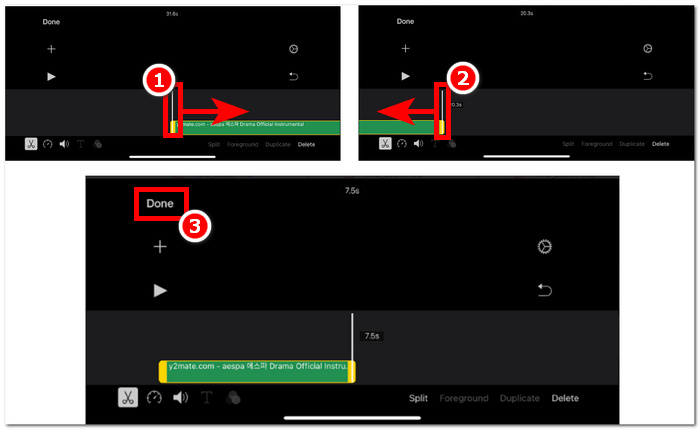
Trinn 2. For å trimme lydfilen går du til starten og slutten av lydfilen i tidslinjen, og du vil se trimmestolper på begge sider. Dra ganske enkelt trimmestolpene mot venstre og høyre til du er fornøyd med resultatet. Når du er ferdig, trykker du på knappen Ferdig øverst for å fortsette.
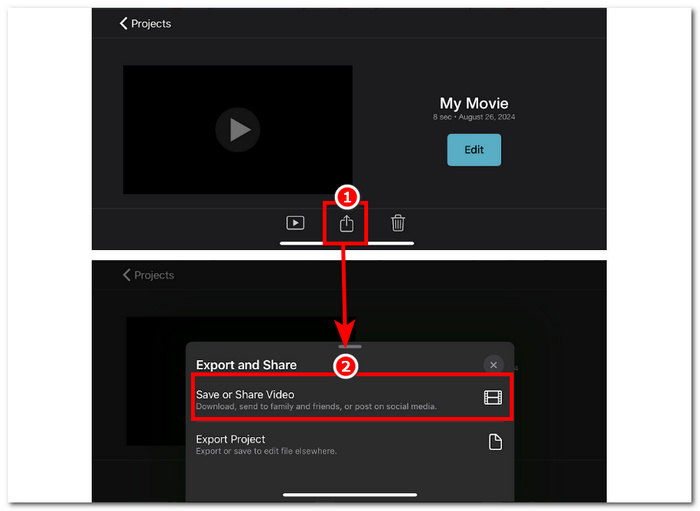
Trinn 3. Til slutt trykker du på ikonet Del midt nede i appen og går videre til lagring.
Mac
Hvordan trimme musikk iMovie? Brukere har muligheten til å trimme lydklipp ved hjelp av iMovie på Mac-enheten. Ved å bruke Mac-versjonen av iMovie til å trimme en lydfil får brukere tilgang til en rekke lydredigeringsfunksjoner, for dette tilfellet bruk av en klipptrimmer, som ikke er tilgjengelig på mobilversjonen. Denne klipstrimmeren lar trimmerstengene sømløst dras fra venstre og høyre for å lage en umiddelbar trimning. For å gjøre det effektivt, må du følge trinnene nedenfor.
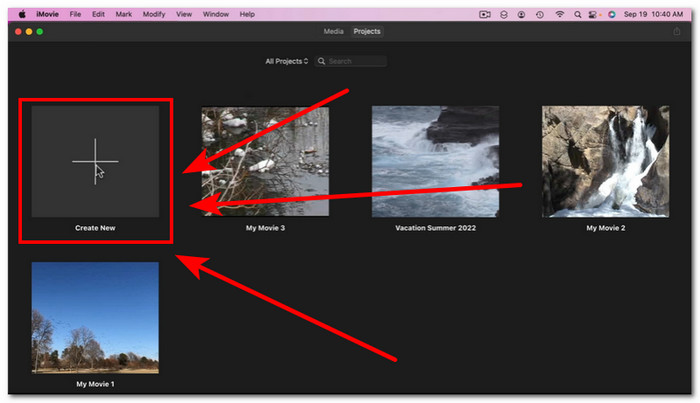
Trinn 1. Åpne iMovie-programmet på Mac-en din og legg til lydfilen, eller dra den ned på tidslinjen i programmet.
Trinn 2. Når filen er lastet inn i programmet, høyreklikker du på lydfilen og klikker på menyvalget Vis klippetrimmer.
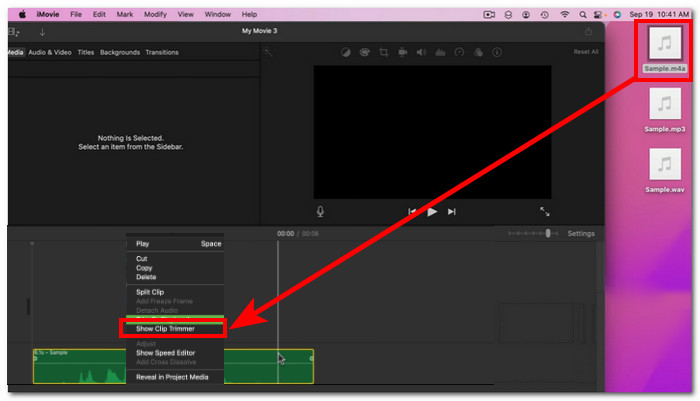
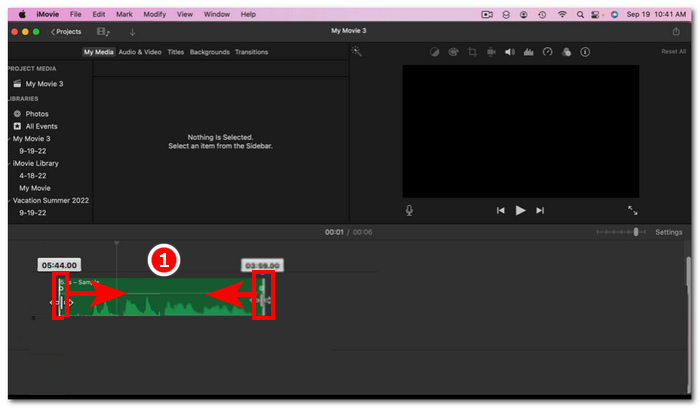
Trinn 3. Når du har klikket på den, drar du trimmestolpene som er plassert i begge ender av lydfilen for å trimme lyden.
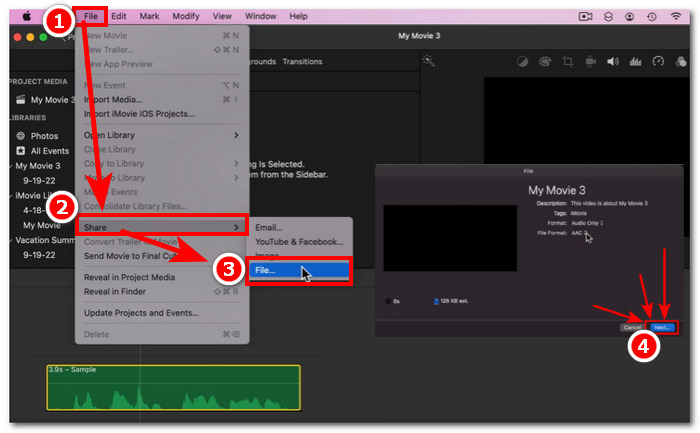
Trinn 4. Når du er ferdig med å trimme, kan du lagre filen ved å klikke på menyen Fil øverst til venstre i programmet og følge denne banen: Fil > Del > Fil > Neste for å lagre den på Mac‑en din. iMovie er bare tilgjengelig for Mac‑datamaskiner.
Hvis du trenger å bruke iMovie for Windows med en slik trimmefunksjon, kan du se nærmere på det her.
Del 2. Hvordan kutte ut deler av lyd i iMovie
iPhone
Hvordan kutter du musikk på en iMovie? Å kutte visse deler i musikk eller lyd ved å bruke iMovie på iPhone er å gå til bestemte deler i tidslinjen som du vil fjerne eller kutte ut. Deretter sletter du den ved å bruke den dedikerte sletteknappen for enkel fjerning av deler på tidslinjen.
Trinn 1. For å trimme en lydfil holder du inne filen i appen Filer. Trykk deretter på Del‑knappen og velg iMovie‑appen for å åpne filen der.
Trinn 2. Gå til delen av lydfilen du vil klippe, og trykk deretter på saksikonet nederst til venstre på skjermen for å dele den i to deler. Du vil nå ha to deler på tidslinjen. Velg delen du ikke trenger, og trykk på knappen Slett for å klippe den bort.
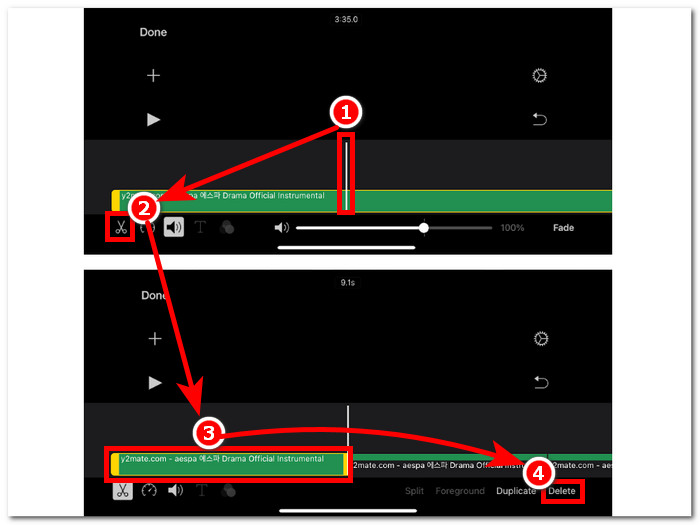
Trinn 3. Når du har fjernet alle unødvendige deler fra lydfilen, trykker du på knappen Ferdig øverst til venstre på skjermen.
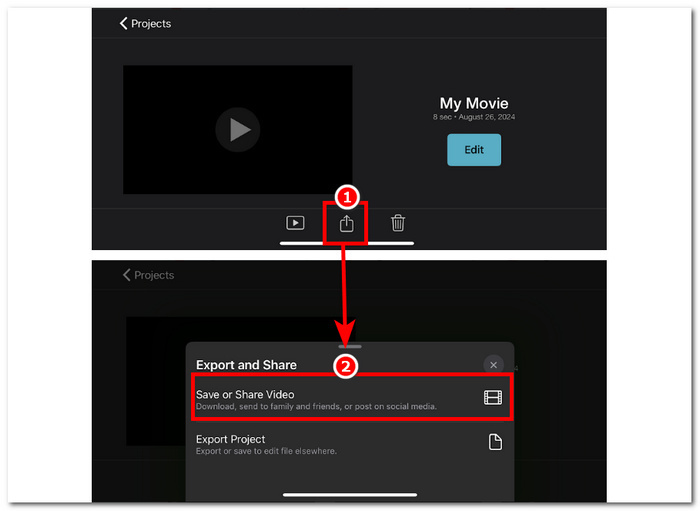
Trinn 4. Lagre filen ved å trykke på Del‑ikonet og deretter trykke på Lagre eller del video.
Mac
Det er enkelt å kutte ut visse deler av lydfilen din ved hjelp av iMovie, siden den er avhengig av verktøyets grunnleggende funksjoner: å kombinere funksjonen Split Clip og sletting. Nedenfor er de enkleste måtene å gjøre det på.
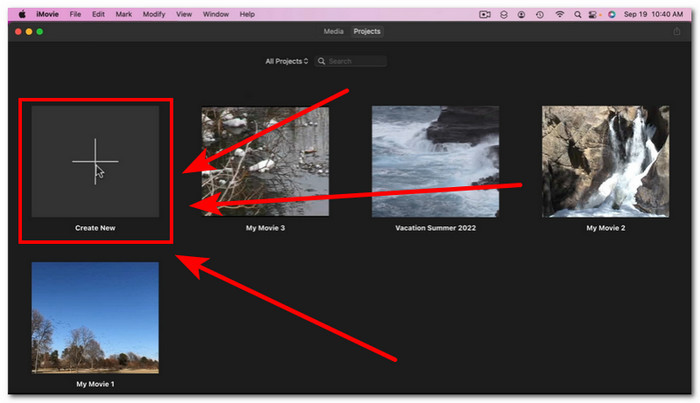
Trinn 1. Åpne iMovie på Mac-en din og klikk på +-knappen for å åpne lydfilen du vil klippe deler ut av.
Trinn 2. Når lydfilen din er i programmet, går du til delen av lyden du vil klippe, høyreklikker og velger Del klipp.
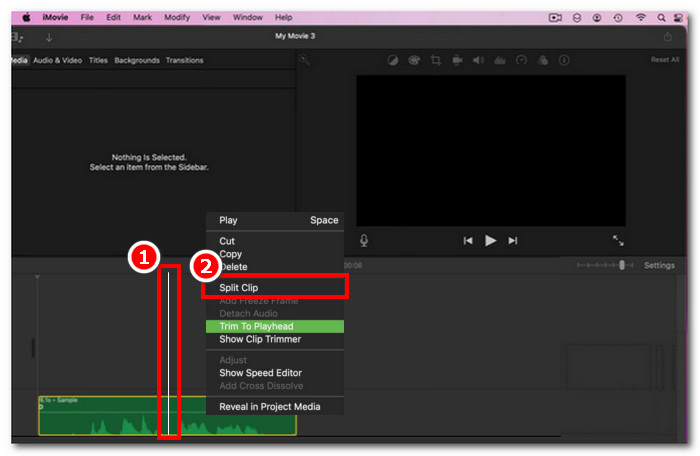
Trinn 3. Når lydfilen er delt, kan du slette eller klippe bort delene du ikke lenger trenger ved å høyreklikke på dem og deretter velge Slett.
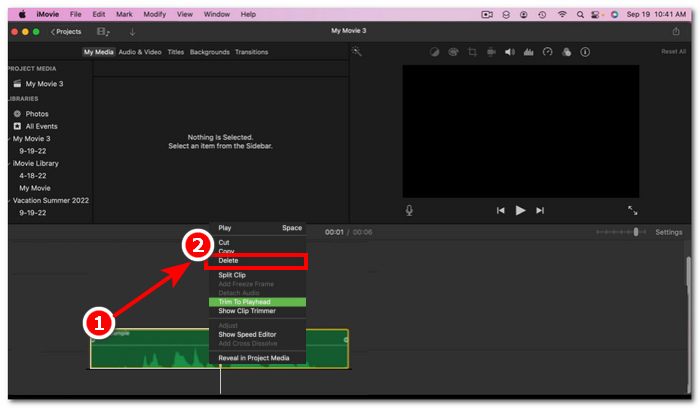
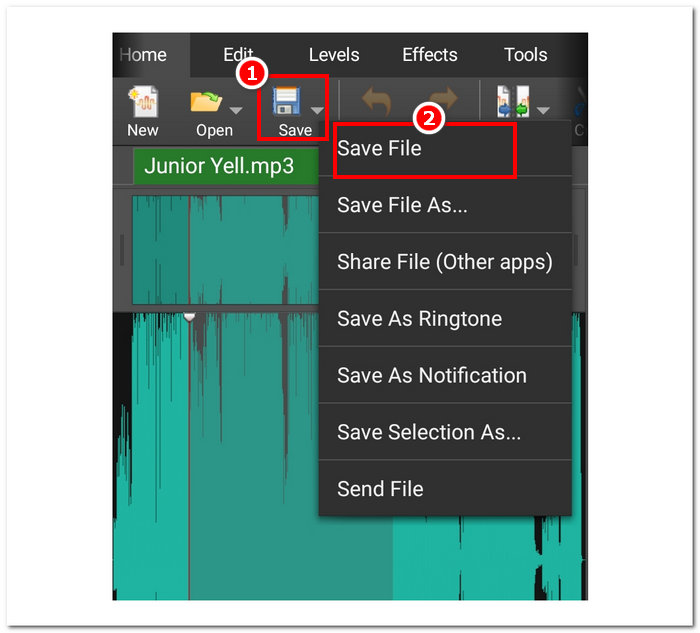
Trinn 4. Når du har klippet bort delen du ikke vil ha i lyden, lagrer du filen ved å klikke på Fil > Del > Fil, og deretter klikker du på Neste for å lagre den på Mac‑en din.
Del 3. Beste iMovie-alternativ til å kutte lyd
Selv om iMovie fungerer helt fint til å klippe eller trimme lydfiler, har vi funnet det beste alternative programverktøyet i tilfelle du opplever feil eller at iMovie slutter å fungere av en eller annen grunn. Det nøye utvalgte Video Converter Ultimate er det perfekte verktøyet som ikke bare kan brukes som en lydklipper eller -trimmer, men også til video, på samme måte som iMovie. I tillegg har det et redigeringsverktøy, kan klippe lyd og lar deg justere utdataformatet. Dermed går det lenger enn grunnleggende trimming eller klipping av lyd, slik andre programmer gjør, ettersom det har en suveren behandlingshastighet samtidig som det sikrer tapsfri lydkvalitet.
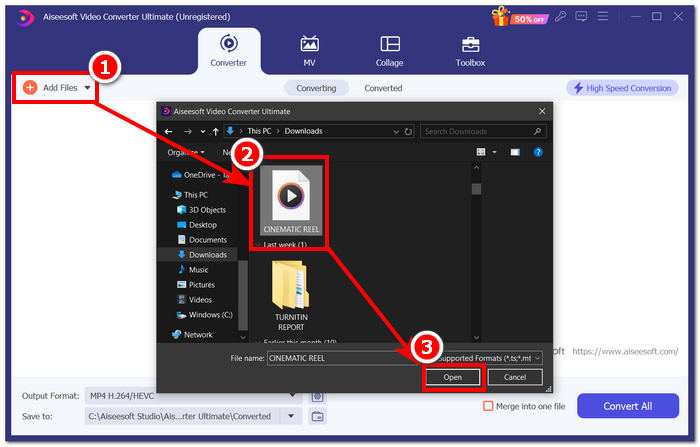
Trinn 1. Last ned og åpne det nøye utvalgte Video Converter Ultimate-programmet på datamaskinen din. I programgrensesnittet klikker du på Legg til filer for å laste inn lydfilen du vil trimme eller klippe deler ut av.
Gratis nedlastingFor Windows 7 eller nyereSikker nedlasting
Gratis nedlastingFor MacOS 10.7 eller nyereSikker nedlasting
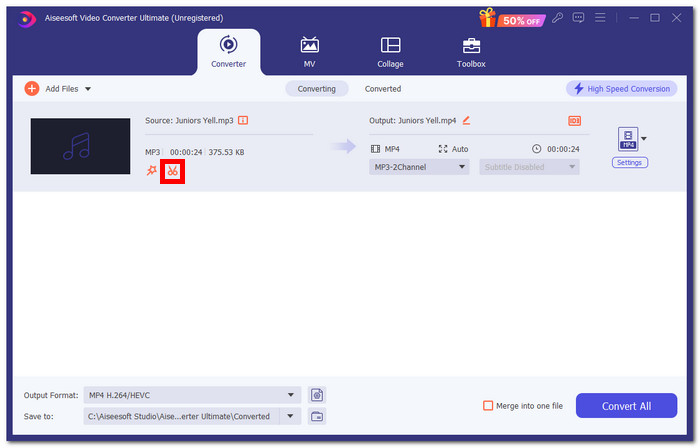
Trinn 2. Klikk på saks-ikonet for å få tilgang til programmets klippe- og trimmefunksjoner.
Trinn 3. For å klippe eller trimme lydfilen ved hjelp av programmets funksjoner, flytter du ganske enkelt trimmestolpene til delene du vil beholde.
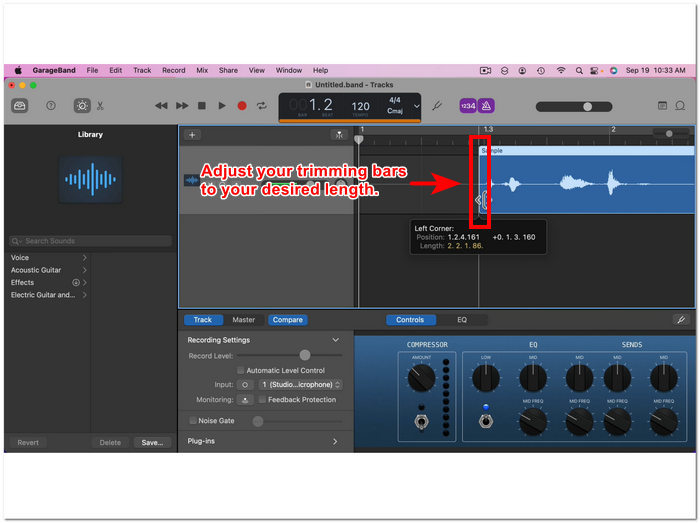
Delene utenfor trimmestengene er delene du må fjerne for å kutte lydfilen kortere.
Trinn 4. For å lagre den nye og kortere lydfilen, klikker du til slutt på knappen Konverter alle for å lagre endringene og få den lagret i den angitte mappen på datamaskinen din.

Del 4. Vanlige spørsmål om hvordan kutte lyd i iMovie
Hvordan velger du en del av lyden i iMovie?
Når du har delt opp lydfilen din i mange deler, kan du velge en del ved å trykke eller klikke på de spesifikke delene av lyden som ligger på tidslinjen. Når delen du har valgt har en gul kant rundt seg, betyr det at du har valgt den delen.
Hvorfor kutter iMovie lyden min?
Hvis iMovie brått klipper av en del av videoen, kan det tyde på at lengden på lyden overskrider iMovies maksimale lydlengde. Når denne veiledningen skrives, er den maksimale lydlengden en bruker kan importere i iMovie-programvaren én time og ti minutter.
Kan du trimme lyden i Quicktime?
Ja, brukere kan trimme lydfiler ved å bruke QuickTime ved å laste inn lydfilen i spilleren, klikke på Rediger-menyen i den øvre delen av spillergrensesnittet og fortsette med Trim-delen.
Konklusjon
Det er enkelt og enkelt å lage trim og kutte ut visse deler i en lydfil, takket være Apples egen iMovie-programvare. Selv om det er kjent for videoredigeringsprogramvare, kan det på en eller annen måte klare å gjøre lydredigeringsoppgaver som trimming og kutting uten problem. Sikkert, iOS- og macOS-brukere kan vite for å maksimere funksjonene som tilbys av iMovie i lydredigeringsoppgaver; Det er imidlertid verdt å merke seg at når programvaren ser ut til å ha et problem i fremtiden, sørg for å bruke den alt-i-på FVC-plukkede Video Converter Ultimate.
-
 Hvordan komprimere MPEG-4 filer online - ingen nedlasting, ingen vannmerke
 Har du ikke nok fillagring til å beholde alle MPEG-4-filene dine? Her er noen løsninger som kan hjelpe deg med å gjøre videofilene mindre.
-
 Hvordan komprimere VOB-filer online og gratis [Ingen nedlasting]
 Leter du etter metoder for å komprimere VOB-filer? Lær den beste måten å gjøre størrelsen på VOB-filer mindre i denne artikkelen.
-
 Hvordan komprimere en OGV-fil uten å miste kvalitet
 Kan ikke sende store OGV-filer til andre? Vel, denne artikkelen vil introdusere deg 2 enkle måter å hjelpe deg med å komprimere OGV-filer enkelt.
