


 Video Converter Ultimate
 Skjermopptaker
 Videoreparasjon
 Sikker nedlasting
Batchkomprimering av bilder: Nybegynnerveiledning for enkel komprimering
Noen ganger må vi komprimere mange bildefiler, og det er irriterende å komprimere hver enkelt gjentatte ganger. Hvis du lurer på om det finnes et verktøy som samtidig kan komprimere bildene dine, er svaret ja!
I denne artikkelen kan du lære 3 måter å batch-komprimere bilder på. Vi forstår behovet for dette, fordi det å gjøre alt på én gang virkelig kan spare tid, og det er svært nyttig for alle som skal komprimere flere bildefiler. Hva venter du på? La oss komme i gang!

Del 1. Batchkomprimere bilder online gratis (raskest)
Når det gjelder batchkomprimering av bilder, er det beste nettverktøyet til dette FVC Free Image Compressor. Det er helt gratis og kan enkelt åpnes på ulike enheter så lenge du har internettilgang. Men selv om dette verktøyet er gratis, må du ikke undervurdere hva det kan gjøre med bildene dine. Med dette verktøyet kan du komprimere opptil 40 bildefiler med ett klikk, og når det gjelder bildekvalitet, har verktøyet den beste optimaliseringen og avanserte komprimeringsalgoritmer. I tillegg kan det håndtere en rekke bildeformater som JPEG, PNG, SVG og animerte GIF-filer.
Slik batch-komprimerer du bilder på nettet med FVC Free Image Compressor:
Trinn 1. Gå til deres offisielle nettsted i nettleseren din.
Trinn 2. Deretter klikker du på Upload Images for å importere bildene du vil komprimere. Velg opptil 40 bilder.
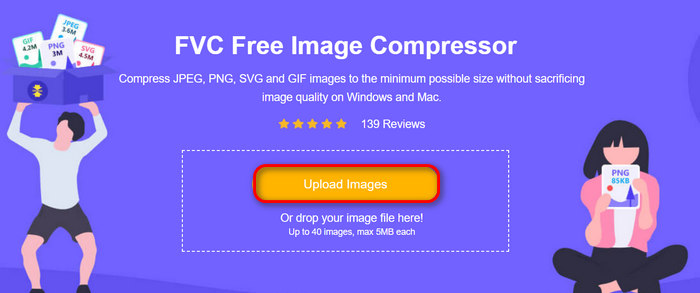
Trinn 3. Etter at du har komprimert bildene, kan du forhåndsvise dem ved å se på de nye filstørrelsene etter komprimeringen. Til slutt klikker du på Download All for å lagre bildene.
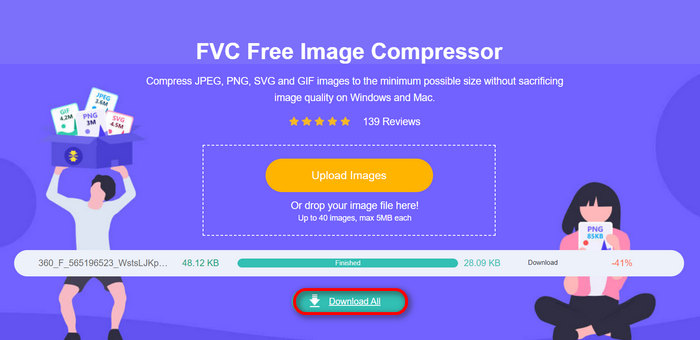
Når det kommer til bekvemmelighet, enkelhet og kvalitet i batchkomprimerende bilder, er FVC Free Image Compressor en enestående. Dessuten er det hundre prosent gratis, så hvis du har et budsjett og ønsker å spare tid på å batchkomprimere bildene dine, prøv dette verktøyet nå!
Del 2. Batchkomprimere bilder med Photoshop
Når det kommer til en profesjonell måte å batchkomprimere bilder på, er Photoshop-programvare et av verktøyene til disse brukerne. Dette verktøyet er høyt ansett for sine imponerende funksjoner som gjør det til et utmerket valg for samtidig komprimering av en mengde bilder. Her er en trinn-for-trinn-guide for hvordan du batchkomprimerer bilder ved hjelp av Photoshop:
Trinn 1. Du må først lagre alle bildene du vil batchkomprimere i én og samme mappe.
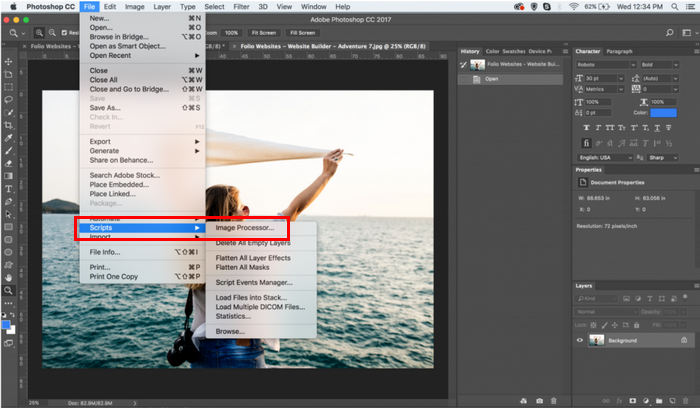
Trinn 2. Åpne Photoshop, gå deretter til File-fanen, klikk Script og velg Image Processor.
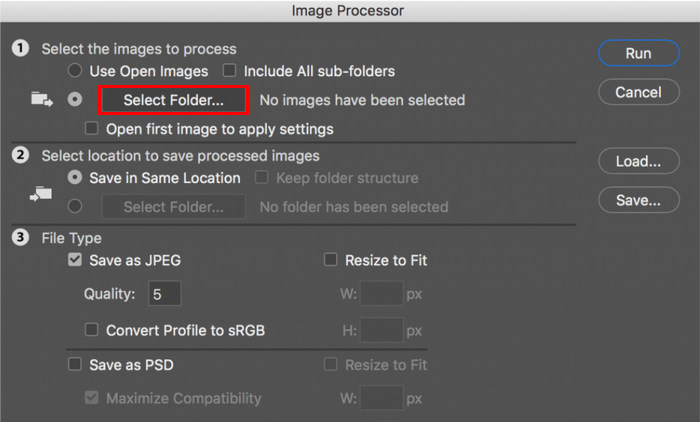
Trinn 3. Importer så bildene du vil komprimere ved å klikke på Select Folder under Select the images to process.
Trinn 4. Etter dette opprettes det automatisk en ny mappe i den opprinnelige mappen, og det er her de komprimerte bildene blir lagret.
Trinn 5. Under seksjonen File Type justerer du innstillingene for å endre størrelse på bildefilen. Huk av for Resize to Fit og angi maksimal høyde og bredde på det komprimerte bildet.
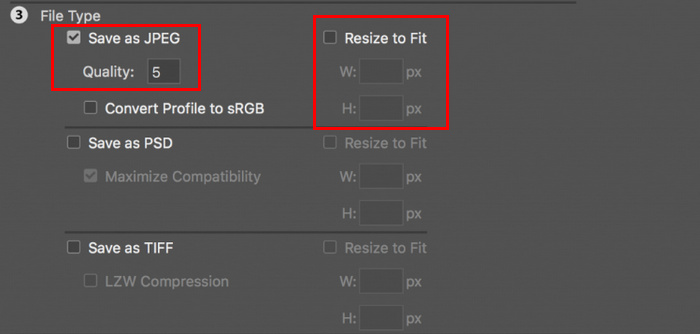
Trinn 6. I feltet Quality skriver du inn et tall mellom 1 og 12. Merk at jo høyere tall, desto større filstørrelse. Hvis du komprimerer JPG-filformater, husk å huke av for Save as JPEG-boksen.
Trinn 7. Klikk nå på knappen Run Action for å se hvilke handlinger som er tilgjengelige.
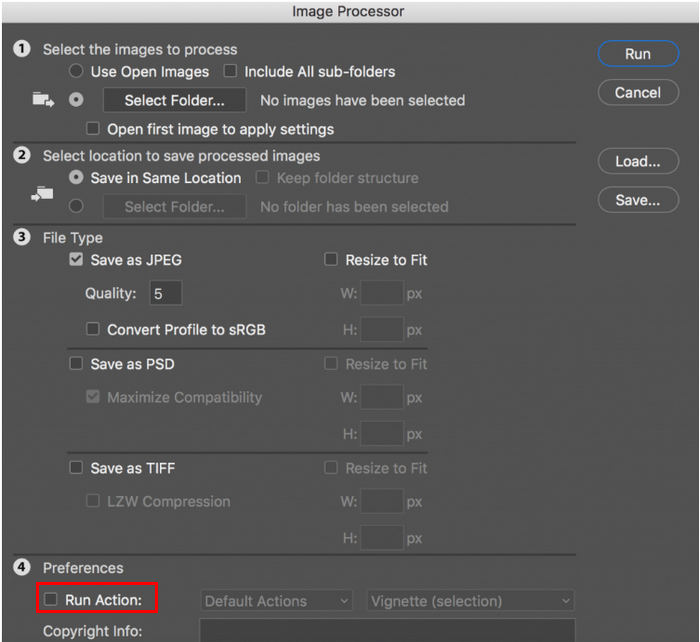
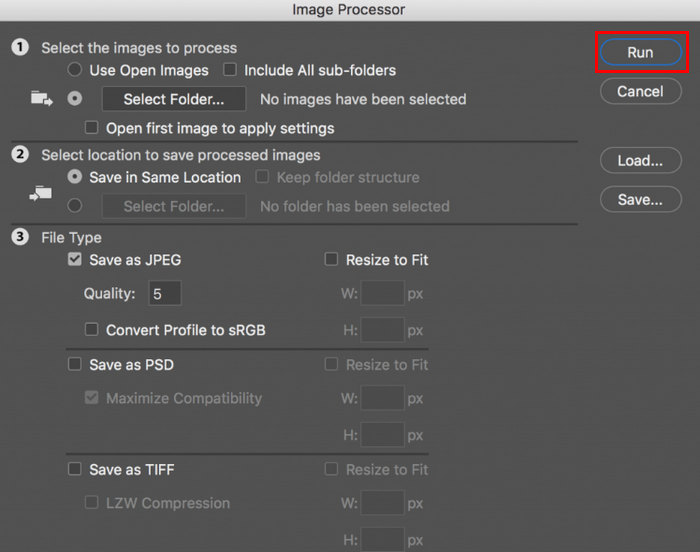
Trinn 8. Når du er ferdig, klikker du på Run-knappen. Bildene i mappen din blir behandlet og lagret i den angitte målmappen.
Photoshop er virkelig et flott verktøy for bulkkomprimering av bilder. Den er ideell for de som trenger profesjonelle resultater. Dette verktøyet krever imidlertid et abonnement, og det er en enorm læringskurve som kan føre til at brukere ikke effektivt bruker verktøyet til å komprimere bildene sine i grupper.
Del 3. Batchkomprimere bilder på Windows 10
Hvis du bruker et Windows 10-operativsystem på datamaskinen din, kan du batchkomprimere bilder gjennom Windows Paint-appen. Denne tegneappen er kjent for sine evner til å tegne og lage skisser, men bortsett fra det inneholder den også suverene bilderedigeringsfunksjoner som beskjæring, endring av størrelse osv.
Slik kan du batch-komprimere bilder i Windows 10:
Trinn 1. Høyreklikk på bildefilen du vil komprimere, klikk Open With, og velg Paint.
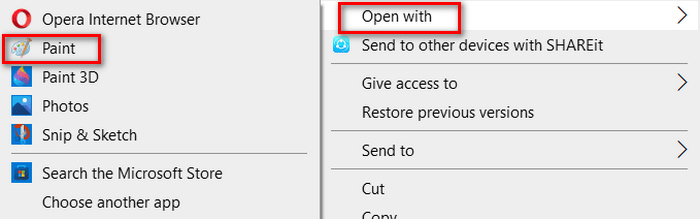
Trinn 2. Gå til Home-fanen og velg Resize and Skew.
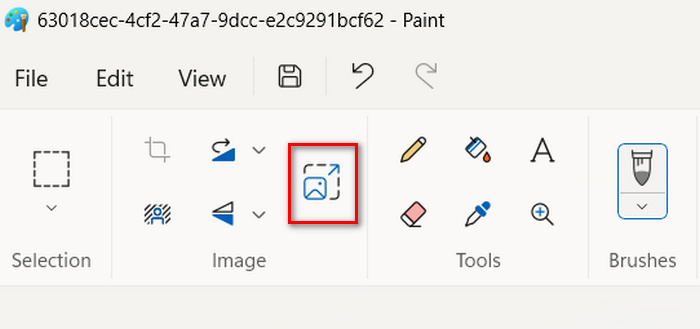
Trinn 3. Deretter klikker du på knappen Resize and Skew. Her kan du endre størrelse på bildet ved å justere prosent- eller piksel-størrelsen. Når du har oppnådd ønsket størrelse, klikker du på OK-knappen.
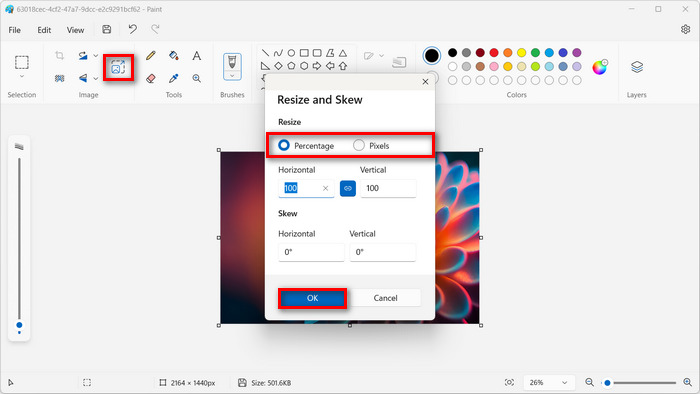
Trinn 4. Når størrelsen er endret, klikker du på File og velger Save for å lagre det komprimerte bildet.
Trinn 5. Deretter går du tilbake til File-fanen, klikker på Import to Canvas, og velger From a File.
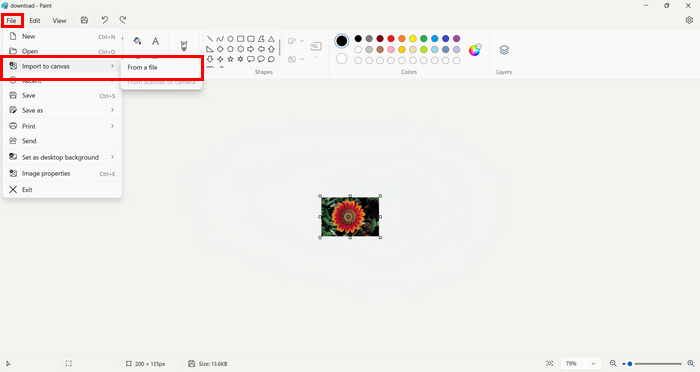
Trinn 6. Velg bildet du vil komprimere, og dra det slik at det passer til forhåndsinnstilt størrelse. Denne metoden er ikke en typisk batchkomprimering, men den kan effektivisere prosessen sammenlignet med andre bildekomprimeringsverktøy. Når du er ferdig, klikker du på Save-knappen.
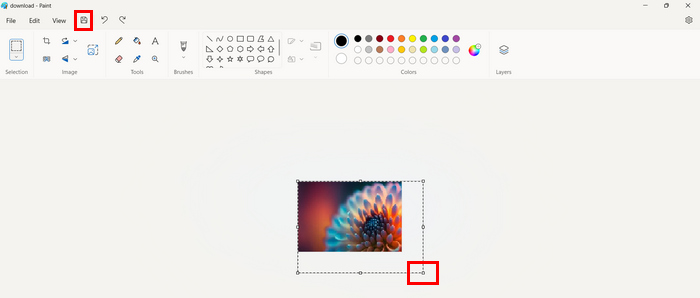
Windows Paint er faktisk et godt verktøy for bildekomprimering, men det kommer til kort sammenlignet med en dedikert batch-kompressor.
Del 4. Batchkomprimere bilder på Mac
Forhåndsvisning er et innebygd bildevisningsverktøy som lar Mac-brukere se forskjellige bildefiler. Men bortsett fra det kan dette verktøyet være utrolig nyttig for å administrere og redigere bilder, spesielt ved batchkomprimering av bildefiler.
For å gjøre dette, følg trinnene nedenfor:
Trinn 1. I et Finder-vindu velger du alle bildene du vil endre størrelse på.
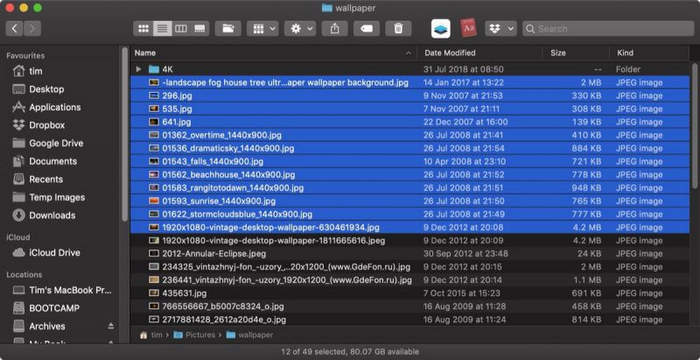
Trinn 2. Deretter høyreklikker du på dem, velger Open With, og deretter Preview.
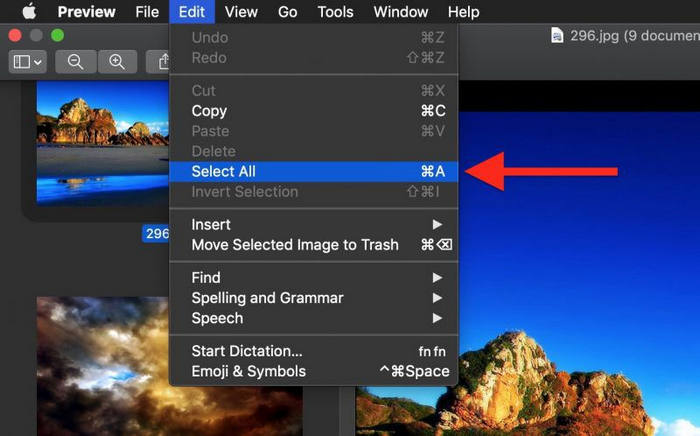
Trinn 3. Nå velger du Edit, og deretter Select All fra Preview-menylinjen, eller du bruker tastatursnarveien Command A for å markere alle åpne bilder.
Trinn 4. Når alle bildene er valgt, går du til Tools og velger Adjust Size.
Trinn 5. Nå endrer du bildedimensjonene ved å skrive inn en ny bredde og høyde, samt oppløsning. Når du har gjort dette, vises en ny størrelse nederst. Når du er ferdig, klikker du bare på OK.
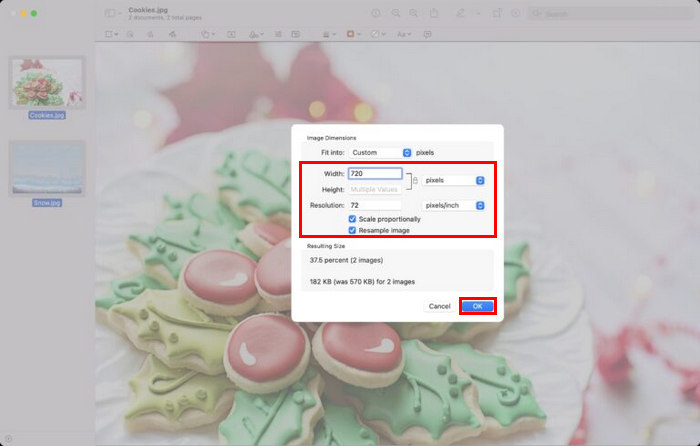
Bildene endres størrelse og lagres på den opprinnelige plasseringen ved å erstatte de originale filene.
Del 5. Vanlige spørsmål om Batch Image Compression
Hva er programvaren for å komprimere bilder i bulk?
Det beste programmet for å komprimere bilder i større mengder er Photoshop. Dette verktøyet lar deg komprimere flere bilder samtidig og likevel oppnå god bildekvalitet. Den eneste ulempen er at du ikke får tilgang til alle funksjonene uten å abonnere på premiumversjonen.
Hvordan komprimerer jeg alle bilder i en mappe?
For å komprimere alle bilder i en mappe kan du bruke verktøyet FVC Free Image Compressor. Bare klikk på Add File-knappen, så blir du sendt til biblioteket ditt, hvor du kan velge mappen der alle bildene du vil komprimere ligger. Deretter velger du alle bildene i mappen, men begrens deg til opptil 40 filer. Når du er ferdig, komprimeres bildene automatisk og lagres i en komprimert mappe.
Kan du komprimere flere bilder uten å miste kvalitet?
Ja. Det er mulig for deg å komprimere flere bilder uten å miste kvalitet. Du trenger bare å bruke riktig kompressorverktøy, som FVC Free Image Compressor og Photoshop. Disse verktøyene har flotte funksjoner som kan bidra til å opprettholde kvaliteten på de komprimerte bildene.
Konklusjon
Med disse metodene kan du nå batchkomprimere bilder effektivt og effektivt. Så, uavhengig av verktøykonturen i denne artikkelen, er du nå utstyrt med forskjellige metoder som kan fungere perfekt for deg. Prøv disse teknikkene i dag for å effektivisere bildebehandlingen og optimalisere arbeidsflyten.
-
 Hvordan komprimere JPEG på Windows og Mac [Ultimate Guide]
 Leter du etter et effektivt verktøy for å komprimere JPEG-filer på Windows- og Mac-enhetene dine? Les denne artikkelen nå og lær fem metoder for sømløs komprimering.
-
 3 metoder for å endre størrelse på bilde til 20KB: Sømløs komprimering
 Bekymret for hvordan du oppnår en 20KB-størrelse for bildefilen din? Denne artikkelen vil lære deg 3 metoder for hvordan du raskt og sømløst endre størrelsen på bildet til 20KB.
-
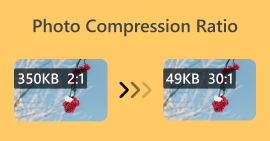 Ratio Compression Photo: Hva trenger jeg å vite? [Anmeldelse]
 Finn ut hva bildekomprimeringsforhold er og hvordan det påvirker bildekvaliteten. Bli også veiledet om hvordan du endrer dette komprimeringsforholdet når det er gjort feil.
