


 Video Converter Ultimate
 Skjermopptaker
 Videoreparasjon
 Sikker nedlasting
2 enkle måter å spille MKV-filer på iPad
Kan jeg spille av MKV‑filer på iPad?
Du kan ikke spille av MKV direkte på iPad, enten du bruker en iPad Pro, iPad Air, iPad mini eller iPad 2/4/6/8. MKV er et populært multimediebeholderformat, men det støttes ikke av alle Apple‑produkter, inkludert iPad, iPhone, iPod og Mac. Hvordan kan du da spille av MKV på iPad?

Du kan bruke en tredjepartsapp for å spille av MKV‑filer på iPad. Du kan også velge å konvertere MKV til et format som støttes av iPad, som MP4 eller MOV. I dette innlegget deler vi 2 effektive måter som hjelper deg å spille av MKV‑filer på iPad Pro, Air, mini og andre modeller.
Del 1. Slik spiller du direkte MKV-filer på iPad med VLC
Som nevnt ovenfor kan du ikke spille av MKV‑filer direkte på iPad Pro, Air, mini eller iPad 8/6/4/2. Men det finnes noen tredjeparts MKV‑avspillingsapper i App Store som kan hjelpe deg med å spille av MKV på iPad, iPhone eller iPod touch. Du kan bruke den populære mediespilleren VLC til å spille av alle typer videoer, inkludert MKV‑filer, på iOS‑enheten din.
VLC Media Player er et svært populært verktøy for avspilling av mediefiler som støtter alle vanlige videoformater, inkludert MKV, MOV, MP4, AVI, FLV og mer. Det lar deg spille av mediefiler på Windows‑, Mac‑ og Linux‑datamaskiner. I tillegg tilbyr VLC en iOS‑app som gjør det mulig å spille av MKV‑filer på iPad og iPhone.
Trinn 1. Gå til App Store på iPad og søk etter VLC. Det første søkeresultatet vil være VLC for Mobile. Trykk på det og trykk deretter på Hent for å installere det gratis på iPad. Denne VLC‑appen er kompatibel med iPad, iPhone, iPod touch og Apple TV.
Trinn 2. Trykk på VLC‑ikonet for å åpne appen. Nå kan du synkronisere MKV‑filene dine via iTunes, Wi‑Fi‑deling eller skylagringstjenester. Deretter kan du se dem under Video. Her kan du også finne MKV‑filene dine i appen Filer. Velg MKV‑filen du vil spille av på iPad, og trykk deretter på Del-knappen.
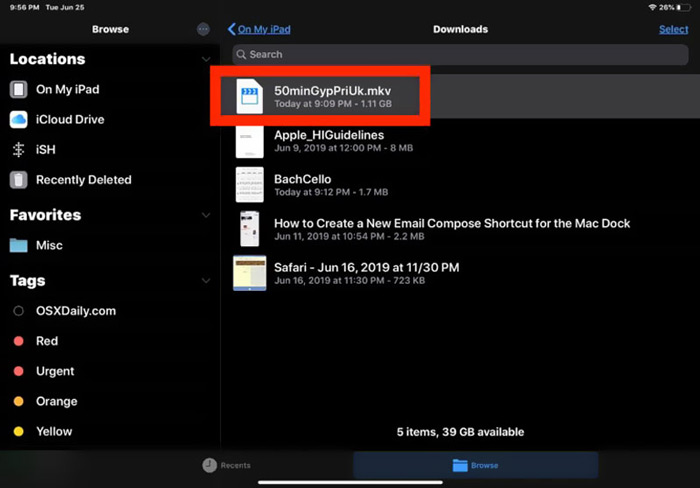
Trinn 3. Velg Åpne i VLC eller Kopier til VLC fra rullegardinlisten. Deretter kan du spille av MKV på iPad med denne VLC‑appen.
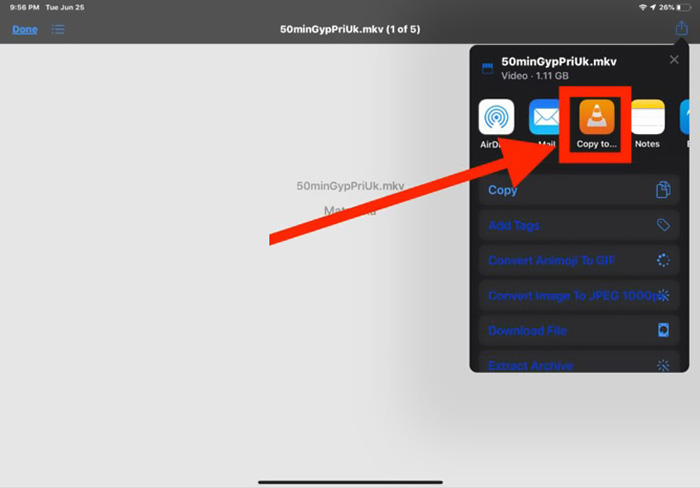
I tillegg til MKV‑filer kan du også bruke VLC til enkelt å spille av andre mediefiler. Det finnes selvsagt også andre MKV‑spillere som KMPlayer og flere, som kan hjelpe deg å se MKV‑filer på iPad.
Del 2. Hvordan konvertere MKV til MP4 for avspilling på iPad
Når du vil spille av MKV‑filer på iPad, kan du også velge å konvertere MKV til et videoformat som støttes av iPad, som MP4 eller MOV. For å gjøre dette kan du bruke det profesjonelle MKV‑konverteringsprogrammet Free Online Video Converter.
Denne MKV til iPad-omformeren støtter sterkt alle brukte video- og lydformater. Det lar deg konvertere MKV til iPad-støttet format inkludert MOV og MP4 uten tap av kvalitet. Den følgende guiden viser deg hvordan du bruker den til å konvertere MKV til iPad.
Trinn 1. Åpne nettleseren din, for eksempel Chrome, IE, Firefox eller Safari, og gå til denne nettsiden for Free Online Video Converter. Når du kommer dit, klikker du på Add Files to Convert og deretter på download-knappen for raskt å installere en liten FVC Launcher for MKV‑konverteringen.

Trinn 2. Et popup‑vindu Open File vises på skjermen slik at du kan bla gjennom og importere MKV‑filen din. Deretter kommer du til hovedvinduet for konvertering. Du kan se mange populære videoformater som MP4, MKV, MOV, AVI, FLV, WMV, VOB, WEBM og flere listet der. Her bør du velge MP4 eller MOV som utdataformat.
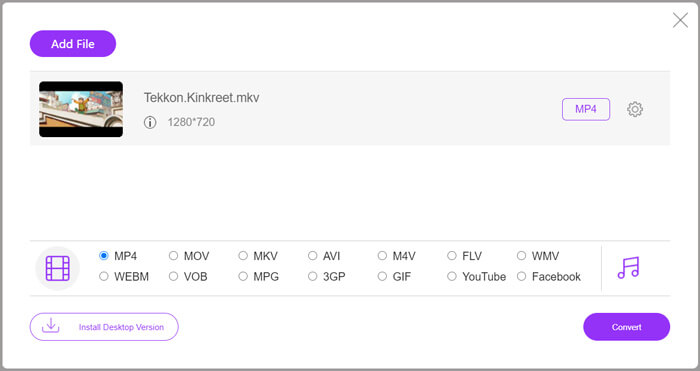
Trinn 3. Før konvertering kan du klikke på ikonet Settings ved siden av utdataformatet for å tilpasse ulike video‑ og lydinnstillinger. Her kan du justere videooppløsning, koder, bildefrekvens, bithastighet, lydkanal, samplingsfrekvens og mer. Klikk på OK-knappen for å lagre endringene dine.
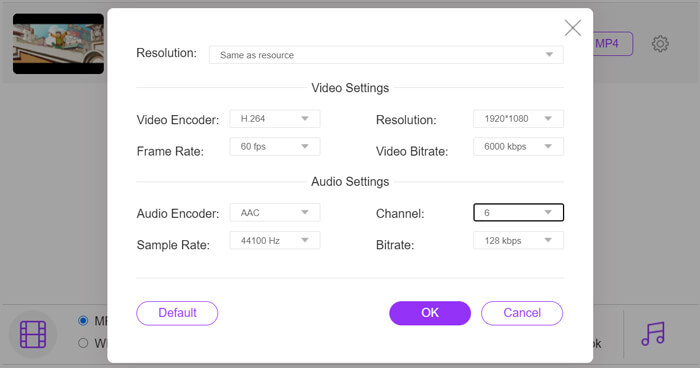
Trinn 4. Etter alle disse operasjonene kan du klikke på Convert-knappen for å begynne å konvertere MKV til MP4. Utdatafilen vil beholde nøyaktig samme bildekvalitet og lydkvalitet som originalen. Deretter kan du overføre den til iPad for avspilling.
Del 3. Vanlige spørsmål om å spille MKV-filer på iPad
Spørsmål 1. Kan iMovie redigere MKV-filer?
Nei. Som nevnt ovenfor, kan ikke alle Apple-enheter og tilhørende programvare støtte MKV-format. Som standardredigeringsprogram for iPad, iPhone og Mac er ikke iMovie i stand til å åpne og redigere MKV-filer.
Spørsmål 2. Kan VLC konvertere MKV til MP4?
Ja. VLC Media Player har muligheten til å konvertere MKV-filer. Du kan åpne VLC, klikke på Media-menyen og bruke Konverter / Lagre-funksjonen. I vinduet Åpne medier kan du klikke Legg til-knappen for å laste inn MKV-filen. Klikk på Konverter-knappen, og velg deretter MP4 som målformat. Etter det kan du velge en passende destinasjonsmappe og gi nytt navn til utdatafilen. Deretter kan du klikke på Start-knappen for å gjøre videokonvertering fra MKV til MP4 med VLC.
Spørsmål 3. Kan Windows 10 spille MKV-filer?
Du kan ikke stole på at standardspilleren, Windows Media Player, spiller MKV-filer på en Windows 10-PC. Når du vil åpne MKV-filer, må du stole på en tredjeparts mediespiller som VLC, PotPlayer og mer.
Konklusjon
Etter å ha lest dette innlegget får du 2 nyttige tips om hvordan du kan spille av MKV‑filer på iPad. Enten du vil se MKV direkte på iPad, eller konvertere MKV til et format som støttes av iPad, kan du finne et passende verktøy. Hvis du har flere spørsmål om avspilling av MKV på iPad, kan du legge igjen en melding til oss.
-
 M2TS til iPad - gratis måter å spille M2TS videofiler på din iPad
 Les og få den beste måten å konvertere M2TS til iPad. Her er online og offline M2TS filkonverterere for iPad M2TS-avspilling. Bare les og velg løsningen du liker.
-
 MKV til MOV - Hvordan konvertere MKV til MOV
 Hvordan konverterer jeg MKV til MOV på Mac? Kan iMovie lese MKV? Hva betyr MOV-format? Dette innlegget forteller to enkle måter å hjelpe deg med å konvertere MKV til MOV med gratis online og profesjonelle videokonverterere.
-
 Opplæring - 4 gratis måter å slå sammen videoer på iPhone til en ny
 Les og få 4 enkle måter å slå sammen videoer på iPhone. Alle iPhone-modeller og iOS-versjoner støttes. Du kan raskt kombinere 2 og flere videoer på iPhone til en ny video.
