


 Video Converter Ultimate
 Skjermopptaker
 Videoreparasjon
Beste MPG til GIF-konverterer for å konvertere MPG til GIF [Gratis og premiumversjon]
Den beste måten å uttrykke følelsene dine til dine kjære er å lage en meningsfull melding. Men vil du vite hva som er mye bedre å uttrykke på en annen måte? Du kan bruke en GIF. Også kjent som Graphics Interchange Format dette er bildene du sender, men de er oppgradert. Disse bevegelige bildene er laget for å uttrykke følelsene dine overfor noen direkte eller indirekte. Visste du at de fleste meldingsappene støtter GIF så vel som vår innebygde messenger? Men i noen gamle versjoner av telefonen gir den ikke dette formatet. Selv om GIF er morsomt, vil ikke hele tiden gi deg følelsene du ønsker å uttrykke.
So, you're here to know what is the best way to change your MPG to GIF format. Isn't exciting to create your own GIF. Instead of searching for what you should use, why don't you try creating your own GIF by adding your personal touch to it. The best way to know how to do it is to read this article. Because it provides sufficient information, steps, and tools for the job. So, without any more beating around the bush let's proceed to the important details of this article. Continue reading to know more about these lists of converters.

Del 1. 4 Beste verktøy for å konvertere MPG til GIF-format PC eller Mac
1. FVC Video Converter Ultimate
If you want to share your humorous message without typing too many details then this tool will help you. This tool offers you to convert mpg to animated gif also it was developed by the FVC. FVC Video Converter Ultimate allows the user to convert any type of format into a playable format you may like to use. Maybe you're wondering why you chose this tool. Is there anything special about this tool? Yes, this tool is multi-purpose. It can be your most trusted ripper, mv maker, collage, and many more. It only means that this tool can do more than any other tool can offer. Another amazing feature of it is the Ultrafast conversion of it, converting your video in no time with the help of this tool. To know how to use this tool is to follow this step carefully so you can have a successful conversion to your format quality.
Step 1. Install the tool on your PC or Mac. Follow the instructions after installation and click finish to start the tool.
Gratis nedlastingFor Windows 7 eller nyereSikker nedlasting
Gratis nedlastingFor MacOS 10.7 eller nyereSikker nedlasting
Step 2. After all the process of installation. A mini-interface like this will show into your screen.
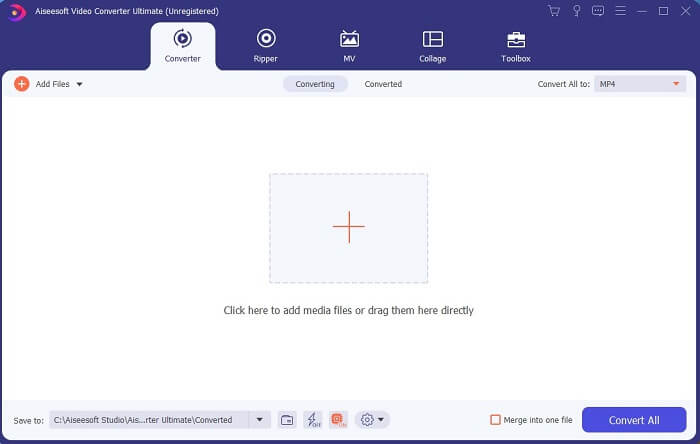
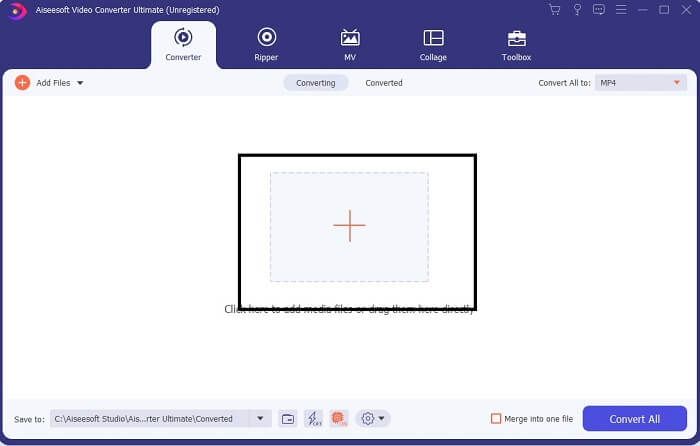
Step 3. Click the plus sign to add the file and click the open to start conversion or you can just basically drag-and-drop the video file into the tool. The amount of the video will never matter at all.
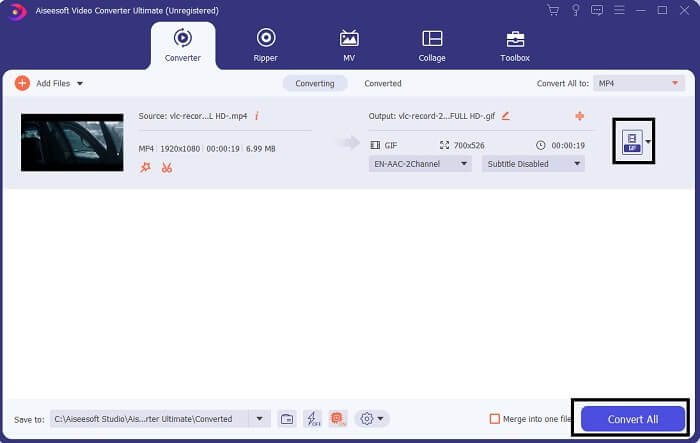
Step 4. Click the drop-down button on the upper right side of the interface and scroll it down and click the GIF format. Choose the resolution you want; it can be Large, Medium, and Small. If everything is ready to go, click the Convert All to start the conversion.
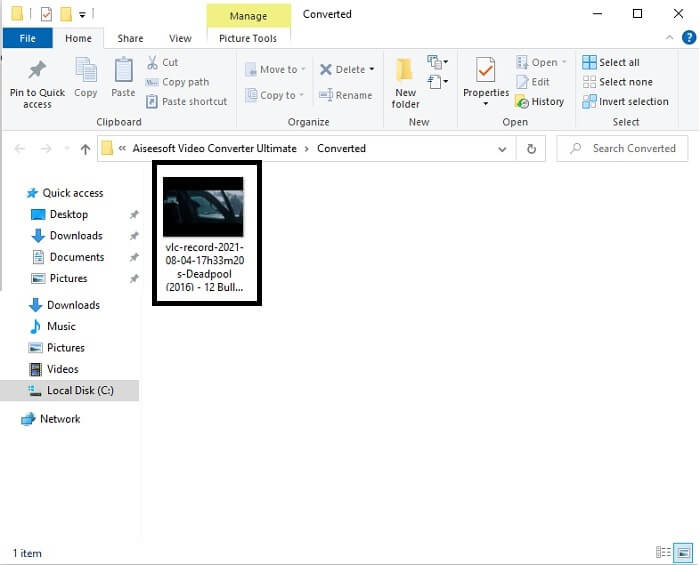
Step 5. After the conversion. A file manager will pop up to you and it will show your final output and now you can enjoy your GIF format. But you can also convert a .gif file to .mpg format in the same step but change the format.
2. FVC Free Online Video Converter
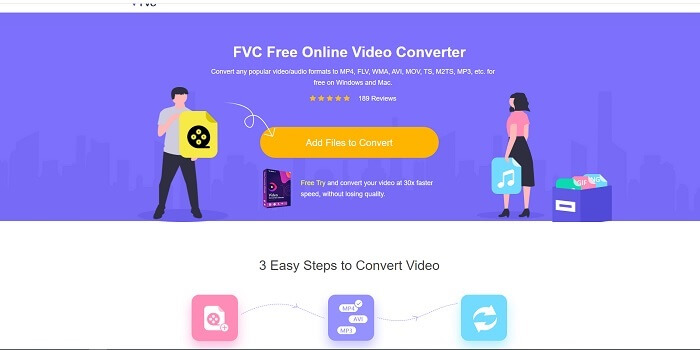
Kanskje du tenker, hva hvis du ikke har penger, kan jeg fortsatt oppleve den samme konverteringen som den første? Svaret er et stort fett JA. FVC gir alltid den beste opplevelsen for sine kunder som ikke har penger og også til de som ønsker å prøve verktøyet deres. Selv om dette verktøyet bare utfører enkel konvertering, så ikke forvent for mye som premiumversjonen kan gi. Og den kan ikke konvertere flere video- og lydformater på en raskere måte.
But the conversion process it provides is much better than the other premium converter and free converter. FVC Free Online Video Converter here to save your day. As it says in its name it is a free online tool that allows you to convert into the max level. Unlike any other converter, this tool has no ads or malware, registration, log-in needed, and your personal information before you use it. If you're looking for a simple converter then this is the right tool for you. Follow these steps to know how this tool functions as a converter.
Step 1. Go to the official website by clicking this link.
Step 2. The web page should look like this. Then click the Add Files to Convert to launch this online tool.
Last ned skrivebordsversjonen for å konvertere filer i batch.
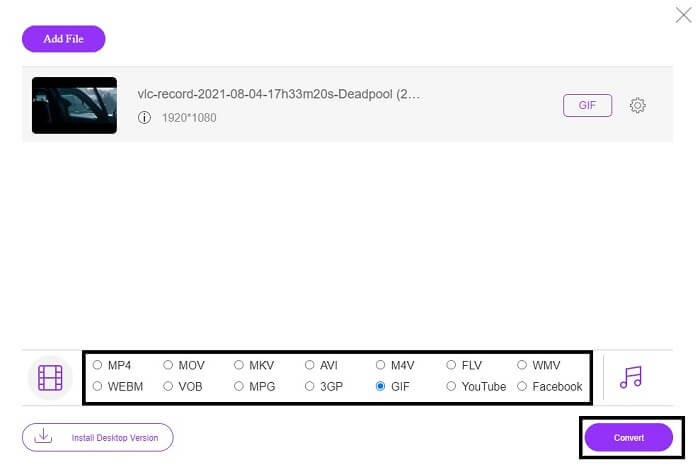
Step 3. Choose the video you want to be converted. After selecting the video, select the GIF file format. For additional information you can choose another video and audio format as well, you may check them out later if you want.
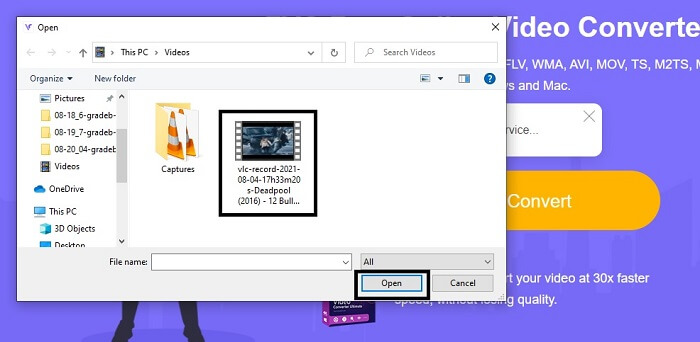
Step 4. Choose where you want to put the final output. Then if everything is already, click Convert to start conversion. This will take a few seconds to finish the conversion.
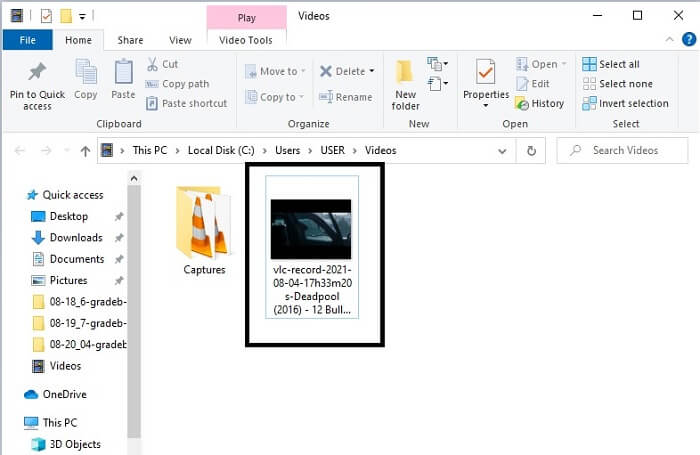
Step 5. To check your successful conversion. You can locate your converted GIF file into your file manager or explorer. Click it and enjoy.
3. VLC Media Player
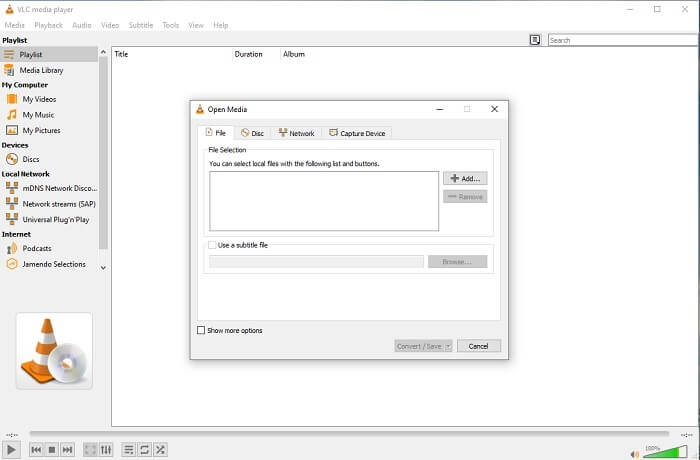
This tool is known for being one of the most powerful media players. But did you know that VLC players can also convert MPG to GIF? But the format it provides is very limited to only known formats. Despite being known as the best media player the converting feature of it is not the best choice for you. So, if you want a better converter, you must choose the online tool above rather than this tool. But if you want to watch the video then VLC Media player must be your choice because the other tool can't provide video player because their main purpose is conversion.
4. Zamzar
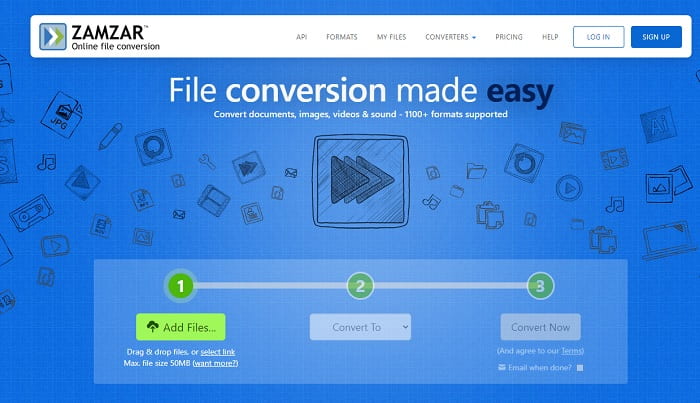
Et annet nettverktøy som gir en flott konvertering er Zamzar. Som alle andre online-konverterere deler de det samme grensesnittet, og det gir også instruksjoner på stedet om hvordan du konverterer det. Men prosessen med å konvertere og laste ned er annerledes. Selv om gratisversjonen, kan du bare konvertere maksimalt 50 MB filstørrelse. For etter at du har konvertert videoen, må du gå til fasen med å laste den ned. Det er mye bryderi for de som forlater konverteringen og bare venter på at produktet skal spilles.
Del 2. Sammenligningskart
| Verktøyfunksjoner | FVC Video Converter Ultimate | FVC Free Online Converter | VLC mediespiller | Zamzar |
| Konverter |  | | | |
| Redigeringsverktøy | |  | | |
| Kraftig omformer | | | | |
| Registrering nødvendig | | | | |
| Plattformer | Desktop-basert app | Nettbasert app | Desktop-basert app | Nettbasert app |
| Prisklasse | $25.00 1 Måned/1 PC $55.20 Engangskjøp for 1 PC $119.00 Levetid 5 PC | Det er et gratis online verktøy | Det er et gratis online verktøy | Gratis verktøy på nettet Men det gir også en månedlig premie. For det grunnleggende: $9 For proffene: $16 For bedrifter: $25 |
MPG vs. GIF
Laget av Moving Picture Experts Group (MPEG), MPG er et vanlig digitalt videoformat for å lagre video, lyd og metadatainformasjon. Det er ganske nyttig når du lager filmer for deling på Internett. Disse filene i MPG inneholder vanligvis MPEG-1 eller MPEG-2 video/lydkomprimering.
GIF er et vanlig bildeformat for webgrafikk. I tillegg til å lagre små bilder og bilder som inneholder tekst, kan GIF også inneholde og vise grunnleggende animasjoner på nettsteder. Det er et tapsfritt format, og GIF-komprimeringen forringer ikke bildets klarhet.
Del 3. Vanlige spørsmål om MPG til GIF
Er det en måte å bruke Photoshop og konvertere video til en GIF?
Yes, you can convert MPG to GIF with Photoshop. But not only just the MPG file format you can also choose another format and it can be converted into a GIF. Another special feature of it is that you can also enhance the GIF to be better. Click here to know how to convert MP4 to GIF.
Hva er det beste skjermopptaksverktøyet for å ta opp GIF-er?
The best screen recorder tool that you may use for that job is the FVC Screen Recorder. This tool is not only best for recording videos. It also has its own built-in audio recorder and gameplay recorder for a much better quality gaming experience. However, this tool needs payment first before using it. Don't be sad because it has an online tool that can do the recording.
Hvorfor ble GIF-en opprettet?
It was created to display an image while saving some storage. The creator of GIF is Steve Wilhite, an American computer scientist with the help of tech giant CompuServein in late 1987. Click here to learn more information about GIFs.
Konklusjon
Endelig, nå som du vet hvordan du lager en GIF på deg selv, bør du prøve det og nyte det. Bare ved å bruke dette enkle verktøyet kan du gjøre en forskjell. I stedet for å søke på nettet, er du nå en sertifisert GIF-produsent. I tillegg kan du nå uttrykke følelsene dine på din egen måte med ditt personlige preg og ekspertise utviklet bare ved å lese denne artikkelen. Håper du kan nyte livet til en bedre GIF du lager og dele din beste GIF til verden.
-
 [Veiledning] Hvordan konvertere M4V-videoer til animerte GIF-er på Windows/Mac
 Hvis du vil lage animerte GIF -filer fra dine favoritt M4V -videoer, kan du lære om to enkle og effektive måter å konvertere M4V -videoer til GIF -er med tilpassede innstillinger.
-
 WebM til GIF - 3 gratis WebM til GIF -omformere for å lage dine egne GIF -er
 Er WebM en GIF? Hvordan gjøre en video til en GIF? Er det noen gratis WebM til GIF -omformer? Dette innlegget deler 3 gratis måter å hjelpe deg med å konvertere WebM til GIF.
-
 Hvordan konvertere MKV -videoer til animerte GIF -er uten Photoshop/FFmpeg
 Etter at du har lastet ned og sett MKV -filmer på datamaskinen din, vil du kanskje dele noen fantastiske øyeblikk med venner eller på Internett som GIF -er. I denne artikkelen kan du lære om de 2 enkleste måtene å konvertere MKV til GIF.

