


 Video Converter Ultimate
 Skjermopptaker
 Videoreparasjon
Topp 4 FLV-opptakere egnet for Chrome-, Windows- og Mac-datamaskiner
Har du noen gang lurt på hva som gjør at videoene du ser går over nettet? De fleste HTML 5-nettsteder bruker WebM-format for å spille av videoer. Bortsett fra WebM, brukes også FLV. Spesielt de gratis nettstedene for film og TV-serier. Hvordan vil du vite om det er en FLV-fil? Vanligvis, hvis videoen ikke spilles av, vil du se en feilmelding som sier installer Adobe Flash Player. I disse dager er mange videoer innebygd i FLV-filer. Men når du tar opp videoen enten ved hjelp av den innebygde opptakeren eller en annen opptaker, er muligheten for at videokvaliteten endres stor.
Så det vil være bedre å bruke en opptaker som også kan produsere FLV-filer, eller som kan gi bedre kvalitet uavhengig av filformat. Hvis du er bekymret for at videokvaliteten kan bli endret, kan du prøve FLV-opptakere som ikke krever registrering for å brukes.

Del 1. Brukerens beste valg - FVC-skjermopptaker
Blant FLV-opptakerne du finner på nettet, er FVC Screen Recorder en av de aller beste – eller for å si det enkelt, den er helt i toppsjiktet. Brukernes krav er noen ganger høyere enn det produktet kan levere, og ikke alle kan være det beste valget. Andre kunder er på jakt etter det beste produktet de kan bruke. FVC Screen Recorder overgår mer enn tusen premium-opptakere, spesielt sammenlignet med den opptakeren du bruker nå. Med sin sømløse opptaksytelse får du maksimalt ut av videoen du vil spille inn. I tillegg kan du endre bithastighet og bildefrekvens på videoen, noe som gir bedre videokvalitet. Derfor er det viktig at du følger nøye med på denne omtalen av den beste FLV-opptakeren. I mellomtiden følger her en enkel veiledning for hvordan du bruker verktøyet.
Trinn 1. Bruk nedlastingsknappene nedenfor for å laste ned appen. Installer den og følg veiledningen til appen er startet.
Gratis nedlastingFor Windows 7 eller nyereSikker nedlasting
Gratis nedlastingFor MacOS 10.7 eller nyereSikker nedlasting
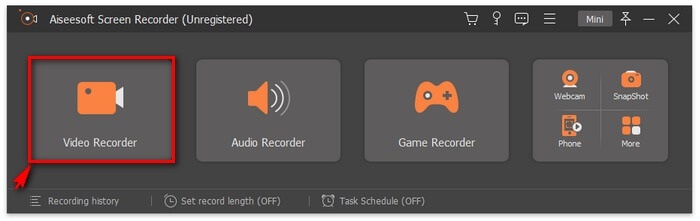
Trinn 2. Velg mellom fanene. Siden vi skal spille inn en video, klikker du på Video Recorder. Deretter vises en stiplet ramme sammen med en flytende verktøylinje.
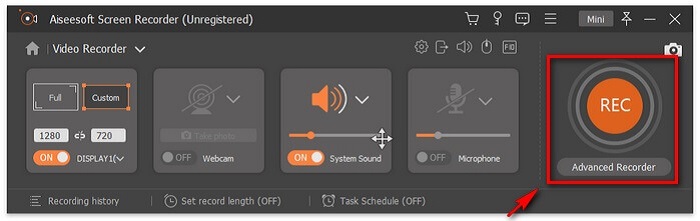
Trinn 3. Juster den stiplede rammen for å angi skjermens bildeformat, og klikk deretter på REC-knappen for å starte opptaket.
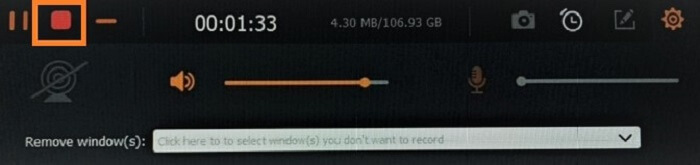
Trinn 4. For å stoppe opptaket klikker du på den røde Square-knappen på den flytende verktøylinjen. Deretter dukker et nytt vindu opp. Her kan du velge om du vil lagre eller ta opp på nytt hvis du ikke er fornøyd med resultatet.
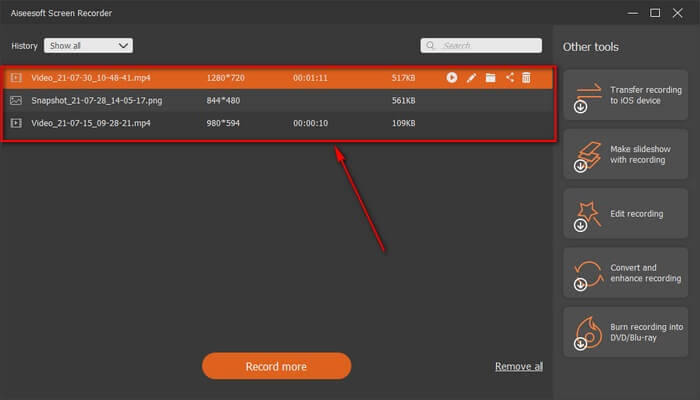
Trinn 5. La oss si at du lagret filen. I neste vindu kan du velge hvor filen skal lagres. Velg mappe og klikk på Next.
Del 2. Andre gratis FLV-videoopptaker
FLV-opptaker for alle nettlesere - FVC gratis skjermopptaker
Det er velkjent at FVC Free Screen Recorder er lett og samtidig har kraftige funksjoner. Så hvis du er nybegynner som vil gjøre opptak for moro skyld, kan du bruke dette, eller hvis du er profesjonell og vil ta opp et forretningsmøte. Uansett fungerer det. Den beste funksjonen denne opptakeren tilbyr, er at du kan spille inn hvilken som helst del av skjermen uten å bli forstyrret av den flytende verktøylinjen. Den tar automatisk bare opp skjermen. Ta så mange skjermbilder du vil uten avbrudd ved hjelp av Lock-in screen-funksjonen. Uten videre om og men går vi nå videre til hvordan du bruker denne FLV-opptakeren. Du må følge trinnene nedenfor.
Trinn 1. Gå til den offisielle nettsiden til FVC Free Screen Recorder og start appen.
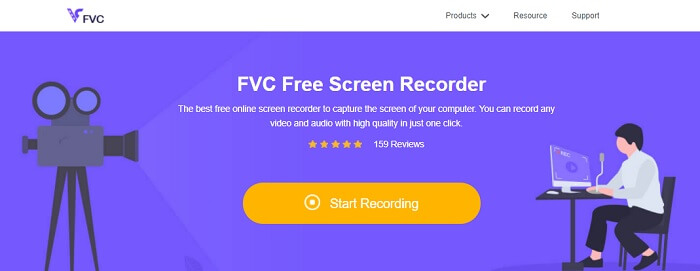
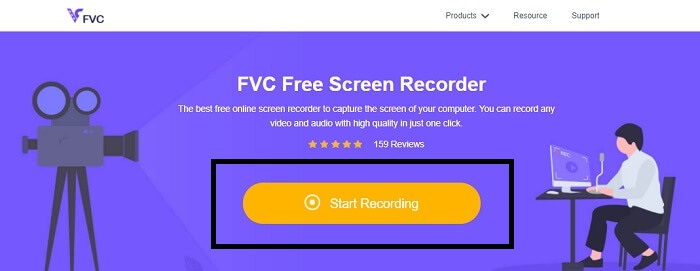
Trinn 2. Start verktøyet ved å klikke på Start Recording og gå videre til neste trinn.
Trinn 3. Klikk på gear-knappen på verktøylinjen for å endre innstillingene etter dine behov. Når du er i preferansemenyen, finner du Output og endrer videoformatet slik du ønsker. Klikk OK når alt er klart.
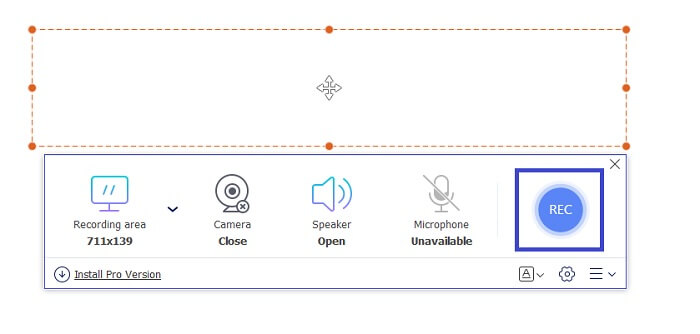
Trinn 4. På den flytende verktøylinjen kan du nå justere frame ratio of the screen. Legg også til reaksjonen fra ansiktet ditt ved å slå på Webcam. System Sound brukes til å legge til den naturlige lyden fra programmet. Og til slutt, legg til stemmen din ved å slå på mikrofonen. For å starte FLV-opptaket klikker du på REC-knappen.
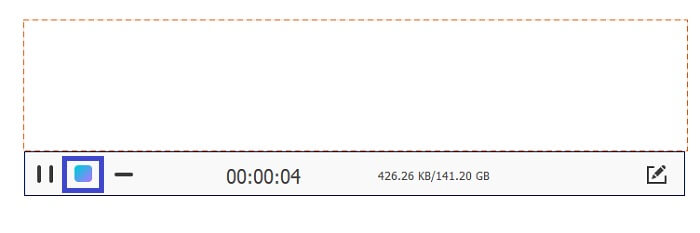
Trinn 5. For å avslutte FLV-opptaket klikker du på cube-knappen for å stoppe. Deretter klikker du på Save og Next. Alle opptakene du har gjort finnes i History list.
FLV-opptaker for Chrome - SCREEN.IO
Hvis du ikke vil laste ned flere filer på stasjonen din, kan du bruke denne innebygde Chrome-opptakeren. Denne FLV-opptakeren for Chrome hjelper massevis av mennesker på hele nettet. Så hvis du er en fan av å spare plass på lagringen din, må du prøve denne SCREEN.IO. Selv om verktøyet ikke har spesielle funksjoner som ligner på en annen opptaker. Men opptaksevnen til den er veldig standard. Hvis vi sammenligner en Chrome-opptaker og en skrivebordsopptaker, er skrivebordet den effektive måten å gjøre opptaket på, fordi du ikke har noe imot om internettforbindelsen har blitt avbrutt.
FLV-opptaker for Windows - VLC Media Player
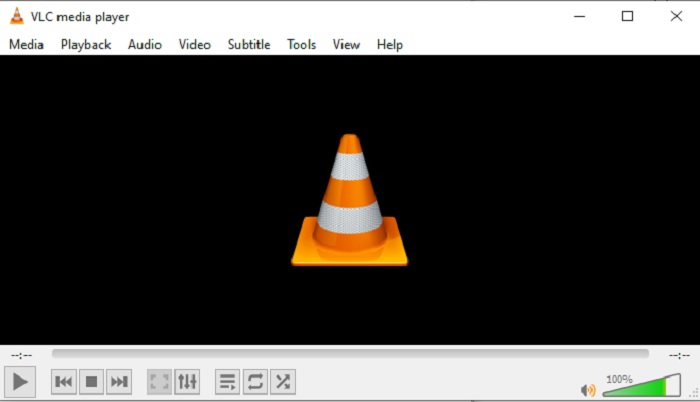
VLC Media Player er ikke bare kjent som den beste mediespilleren på markedet. Den har også flere funksjoner som opptak, konvertering og mer. Selv om den er den beste mediespilleren, er ikke alle disse funksjonene de aller beste. Og i noen tilfeller kan video- eller lydformater ikke spilles av her fordi kodekene deres er proprietære. I stedet kan du bruke VLC Media Player Alternative som støtter filer selv om de er proprietære.
FLV-opptaker for Mac - OBS Studio
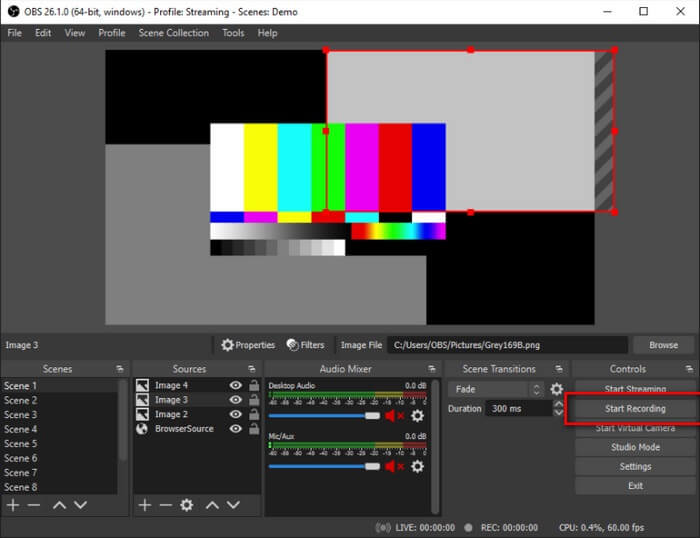
Kanskje du tenker at vi har glemt Mac-brukerne. Denne FLV-opptakeren for Mac er en av de kraftigste opptakerne på listen, fordi du også kan strømme her. Til tross for den imponerende funksjonaliteten er verktøyet i seg selv litt skremmende, spesielt hvis du er ny innen skjermopptak. Det skjer mye i grensesnittet når du åpner verktøyet.
Del 3. Vanlige spørsmål om FLV-videoopptaker
FLV-fil, er det trygt å laste den ned på PC-en min?
I virkeligheten er det ikke filen vi snakker om når det kommer til sikkerhet. FLV-filer er innebygd i videodelingssider, så spørsmålet ditt bør være, hvordan kan jeg identifisere om videoen jeg laster ned fra et nettsted ikke har skadelig programvare? Bruk en Safeguard for din PC. Det er tonnevis av programvareforsvarere og skannere du kan finne på nettet. Men selve filen er trygg. Med mindre de legger skadevare i den, er det trygt.
Hvilket program kan åpne FLV filer?
Det finnes mange mediespillere der ute, men det jeg anbefaler, er VLC Player. Denne spilleren er allsidig og kan spille av nesten alle filformater, enten de er ukomprimerte eller komprimerte. Klikk her for å få flere populære FLV-spillere.
Hva er fordelene med FLV-filer?
Den første store fordelen med FLV er dens evne til å produsere høykvalitetsvideo i liten størrelse. Av natur er filen fleksibel. Hvorfor? Du kan enkelt konvertere denne filen til et annet format selv ved å bruke online-konverterere.
Del 4. Sammenligningskart
| Egenskaper | FVC -skjermopptaker | FVC Free Screen Recorder | VLC Media Player | OBS Studio |
| Skjermopptaker |  | | | |
| Lydopptaker | | | | |
| Støtter FLV | | | | |
| Multimediaspiller |  | | | |
| Justerbar bithastighet og bildefrekvens | | | | |
Konklusjon
Alle verktøyene som er oppført er nyttige for å ta opp FLV-videoer og produsere best mulig videokvalitet. Hvis du ikke er sikker på hvilket verktøy du skal bruke, kan du også referere til sammenligningsdiagrammet som er skrevet. Men blant FLV-opptakerne som er oppført. FVC Screen Recorder har en større fordel på grunn av sin Window Lock-in-funksjon.
-
 Mest nyttige OGG-opptaker i 2021 [gratis og online]
 Denne oppskriften snakker om de beste OGG-opptaksverktøyene som hjelper deg å gjøre OGG-lydopptak. For å legge til mer detaljert informasjon for brukeren, fortsett å lese den.
-
 Topp 5 beste M4B-opptakerprogramvare for PC og Mac [gratis og betalt]
 M4B-opptak komprimeres tapt for MPEG-4 lydbokfil. I noen aspekter er M4A og M4B nesten vanlige, men de har forskjeller. For å vite hva det er, les artikkelen.
-
 Topp 5 beste AMR -opptakerverktøy tilgjengelig for alle operativsystemer
 Vil du vite hva et AMR -format er og hva som er den beste AMR -opptakeren du bør velge som gir en fantastisk innspilling.
